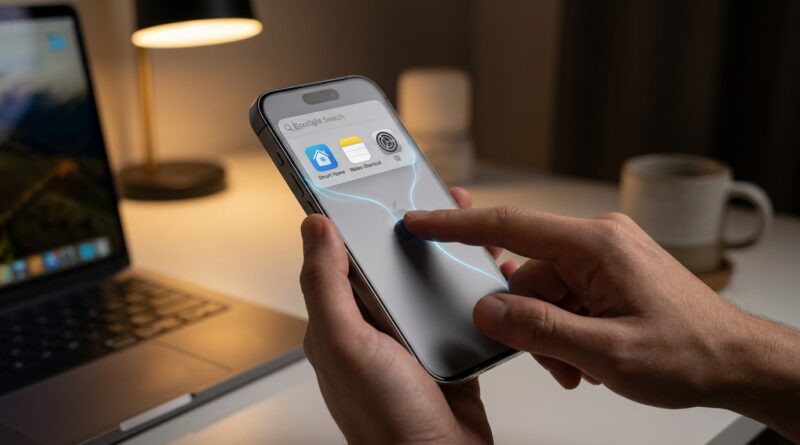
How to Use Back Tap Like a Pro: Turn Your iPhone’s Back Into a Secret Control Panel
You know the feeling. You pick up your iPhone to do one tiny thing, then end up swiping through home screens, pulling down Control Center, and tapping around like you are solving a puzzle. For a phone this expensive, some everyday jobs still take way too many steps. That is why so many people are suddenly talking about iPhone Back Tap shortcuts again. Once you set it up, the back of your phone becomes a secret button. Two taps or three taps can launch an app, run a Shortcut, turn on Low Power Mode, open a note, switch Focus modes, or kick off a privacy routine before you hand your phone to someone else. The best part is that it only takes a few minutes to set up, and the payoff is immediate. If you have only used Back Tap for screenshots or the flashlight, you have barely scratched the surface.
⚡ In a Hurry? Key Takeaways
- Back Tap lets you assign a double tap and triple tap on the back of your iPhone to actions or Shortcuts, turning it into a fast control panel.
- The real power move is linking Back Tap to the Shortcuts app for jobs like app launchers, Focus toggles, quick notes, camera workflows, and battery-saving routines.
- Keep your setup simple at first. If taps trigger by accident, switch heavier actions to Triple Tap and leave Double Tap for something harmless.
What Back Tap Actually Does
Back Tap is an iPhone accessibility feature that treats taps on the back of the phone like a button press. You can set one action for Double Tap and another for Triple Tap.
To find it, go to Settings, then Accessibility, then Touch, then Back Tap.
From there, you can choose built-in actions like Screenshot, Control Center, Camera, Flashlight, Lock Screen, Mute, Spotlight, and more. But the option that matters most is Shortcuts. That is where Back Tap stops being a novelty and starts saving you time every day.
Which iPhones Support It?
Back Tap works on many modern iPhones running a recent version of iOS. In general, if you have an iPhone 8 or newer and your software is up to date, you should have it.
If you do not see the option, update iOS first. If it still is not there, your model may not support it.
How to Turn On iPhone Back Tap Shortcuts
Basic setup
Open Settings.
Tap Accessibility.
Tap Touch.
Scroll to Back Tap.
Choose Double Tap or Triple Tap.
Pick an action or choose a Shortcut.
A smart way to set it up
Use Double Tap for something quick and low-risk, like Spotlight or opening Notes.
Use Triple Tap for bigger actions, like a privacy Shortcut or Focus toggle.
That helps avoid those moments when your phone fires off a command because you set it down too firmly or adjusted it in a case.
Why Shortcuts Is the Secret Sauce
Most guides stop at “turn on flashlight” and call it a day. That is fine, but it misses the best part. The Shortcuts app lets you chain several actions together, then assign the whole thing to Back Tap.
So instead of “Back Tap opens camera,” you can build “Back Tap opens camera in selfie mode, turns brightness up a little, and disables orientation lock.”
That is the difference between a trick and a tool.
Five Back Tap Setups That Are Actually Worth Using
1. Instant app search
This is the easiest win for most people. Set Double Tap to Spotlight. Now, instead of hunting for an app on page three of your home screen, you tap the back and type the first few letters.
If your app library is messy, this is faster than almost anything else on the phone.
Best for: People with too many apps, messy folders, or zero patience.
2. One-tap Focus mode switch
If your phone is constantly buzzing while you are trying to work, this one is great. Build a Shortcut that turns on a Focus mode like Work, Personal, Sleep, or Do Not Disturb. Then assign it to Triple Tap.
You can also make it smarter by creating two Shortcuts, one that turns a Focus mode on and another that turns it off. Name them clearly so they are easy to spot in the Back Tap list.
Best for: Anyone who wants fewer interruptions without digging through Control Center.
3. Low Power Mode plus cleanup routine
This is one of my favorite practical iPhone Back Tap shortcuts. In Shortcuts, create a new shortcut that:
Turns on Low Power Mode.
Turns off Bluetooth if you do not need it.
Turns off Wi-Fi if you are out and about and trying to save battery.
Sets screen brightness lower.
Then tie that Shortcut to Triple Tap. Suddenly, battery panic becomes one quick gesture instead of five menu trips.
Best for: Commutes, travel days, and that awful moment when you notice 14 percent left.
4. Privacy mode before handing your phone to someone
You know when someone asks to borrow your phone to look at one photo, and you instantly remember every tab, message, and app you would rather keep private? Back Tap can help.
Create a Shortcut that:
Turns on Do Not Disturb.
Opens the Photos app or a specific album.
Optionally lowers volume and enables Guided Access separately if you use it.
This is not military-grade security. But it is a handy “be less exposed” button.
Best for: Parents, busy professionals, and anyone with chat notifications they do not want popping up in public.
5. Fast notes and camera capture
If an idea hits you, speed matters. Set Double Tap to a Shortcut that opens a new note or jumps straight into your preferred note app. You can do the same with the camera, especially if you want a specific mode.
Examples:
Open Notes to a new note.
Open Camera in video mode.
Open Voice Memos and start recording.
Best for: People who forget ideas unless they catch them immediately.
How to Make Your First Shortcut for Back Tap
Example: Build a battery saver Shortcut
Open the Shortcuts app.
Tap the + button to create a new shortcut.
Tap Add Action.
Search for Set Low Power Mode and add it.
Set it to Turn On.
Tap Add Action again.
Search for Set Brightness.
Choose a lower percentage, like 30%.
Add more actions if you want, such as Bluetooth or Wi-Fi controls.
Name it something obvious, like Battery Saver.
Tap Done.
Now go back to Settings > Accessibility > Touch > Back Tap, choose Double Tap or Triple Tap, and select your new Shortcut.
Example: Build a quick note Shortcut
Open Shortcuts.
Create a new Shortcut.
Add the action Create Note or Open App if you just want to jump into Notes.
Name it Quick Note.
Assign it to Back Tap.
Now an idea can go from your brain to a note in seconds.
Best Practices So Back Tap Does Not Drive You Crazy
Use Triple Tap for serious actions
Triple Tap is less likely to go off by accident. Use it for anything that changes settings, sends you into another app, or runs multiple Shortcut steps.
Keep Double Tap simple
Good Double Tap choices include Spotlight, Screenshot, or Notes. Things you can trigger by accident without causing trouble.
Test with your case on
Some thick or rugged cases make Back Tap feel less responsive. Others still work perfectly. Test it the way you actually use your phone, not bare on a desk.
Do not overbuild your Shortcut
If you cram ten steps into one Shortcut, it may feel slow or confusing. Start with one useful routine. Then add complexity only if it earns its place.
Common Problems and Easy Fixes
Back Tap is not responding
Make sure your iPhone model supports it and that iOS is updated.
Take off an extra-thick case and test again.
Tap firmly near the upper back area of the phone, not the very bottom.
It triggers when you did not mean to
Move your important action from Double Tap to Triple Tap.
Switch Double Tap to something harmless.
My Shortcut runs, but not correctly
Open Shortcuts and run it manually first. If it fails there, the problem is with the Shortcut, not Back Tap.
Also remember that some actions need the phone unlocked, and some may ask for permission the first time.
My Favorite Real-World Setup
If you want a setup that helps right away, try this:
Double Tap: Spotlight
Triple Tap: Battery Saver Shortcut or Work Focus Shortcut
Why this combo? Because it covers the two big things most people do all day. Find stuff fast, and change the phone’s behavior fast.
You stop digging through apps. You stop fiddling with toggles. The phone starts feeling more like it is working for you.
At a Glance: Comparison
| Feature/Aspect | Details | Verdict |
|---|---|---|
| Double Tap vs Triple Tap | Double Tap is faster but easier to trigger by accident. Triple Tap is slower but better for important routines. | Use Double Tap for simple actions, Triple Tap for Shortcuts with multiple steps. |
| Built-in actions vs Shortcuts | Built-in actions include things like Screenshot or Camera. Shortcuts can combine several actions into one tap pattern. | Shortcuts are where the real time savings happen. |
| Fun trick vs daily tool | Flashlight and screenshots are handy, but app search, Focus switching, notes, and battery routines help all day long. | Set up one practical workflow first, then expand. |
Conclusion
Back Tap has exploded again in the last day across iPhone communities for a reason. People are finally using it for real work, not just party tricks. The usual advice barely gets past flashlight and screenshot, but the better move is to pair iPhone Back Tap shortcuts with the Shortcuts app so your phone can jump straight into the things you do over and over. Instant app search. Focus mode switches. One-tap low-power and privacy routines. Fast notes. Fast camera access. None of this takes long to set up, and you can feel the difference the same day. That is exactly the kind of hidden feature worth caring about. It unlocks a chunk of the iPhone most people never touch, and once you get used to it, going back to endless swiping and menu hunting feels silly.