How to Use Your iPhone’s Hidden Location History Like a Pro (Without Freaking Yourself Out)
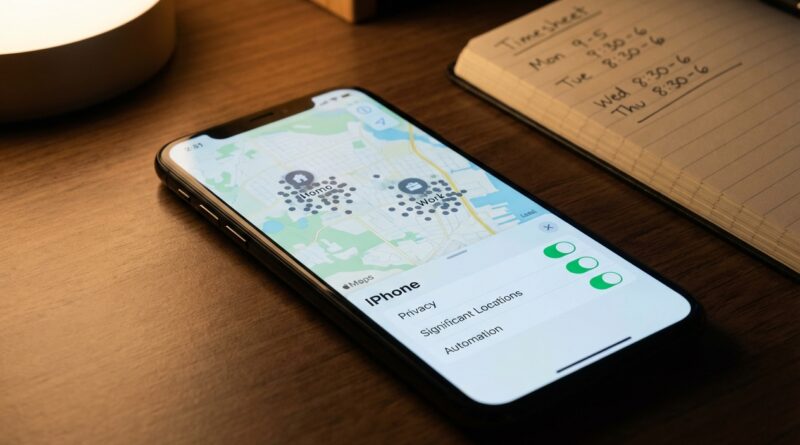
You are not crazy if finding your iPhone’s hidden location history makes your stomach drop a little. A lot of people stumble across Significant Locations deep in Settings, see a list of places they’ve been, and instantly wonder if Apple has been building a creepy little diary of their life. Fair reaction. The good news is that this feature is a lot less dramatic than it looks, and you have more control over it than most people realize. If you want to know how to manage Significant Locations on iPhone, the short version is this. You can view it, clear it, turn it off, or keep it on and use it for useful things like better travel timing and location-based suggestions. The trick is understanding what is actually being stored, where it lives, and which settings matter. Once you know that, it stops feeling like a privacy jump scare and starts feeling like a setting you can actually control.
⚡ In a Hurry? Key Takeaways
- Significant Locations is an iPhone feature that stores places you visit often, usually to improve Maps, routing, and location-based suggestions.
- To manage Significant Locations on iPhone, go to Settings, Privacy & Security, Location Services, System Services, Significant Locations. From there you can review, clear, or disable it.
- The data is designed to stay encrypted on your device, but if it makes you uneasy, you can delete the history and turn the feature off in under a minute.
What Significant Locations actually is
This feature is Apple’s way of helping your iPhone learn your routine. It notices the places you visit most often, like home, work, your gym, or the coffee shop where you keep pretending to be productive.
Apple uses that info for a few practical things. Think better traffic predictions before your commute, smarter calendar suggestions, and more useful location-based prompts. In other words, your phone is trying to be helpful, even if the setting looks a little intense when you first see it.
The key detail is that Apple says this data is end-to-end encrypted and not readable by Apple. That matters. This is not the same thing as a giant public timeline of everywhere you’ve ever been.
How to find Significant Locations on iPhone
If you want to check it for yourself, here’s the path:
Step-by-step
Open Settings.
Tap Privacy & Security.
Tap Location Services.
Scroll down and tap System Services.
Tap Significant Locations.
You may need Face ID, Touch ID, or your passcode to get in. That extra lock is there for a reason.
Once inside, you might see a short summary of places, cities, or specific entries with dates. Some people see very little. Others see enough to get mildly spooked. Both are normal.
What is actually stored, and what is not
This is where the panic usually starts, so let’s keep it plain.
What it may include
Frequent places you visit. Rough patterns around when you were there. Sometimes grouped visits or a history tied to specific locations.
What it is not
It is not necessarily a complete second-by-second GPS trail of your entire existence. It is also not a feature most random apps can browse through. Significant Locations sits inside Apple’s system settings and is mainly used for system-level features.
That said, if your phone contains a map of your routine and that makes you uncomfortable, your feelings are valid. Privacy is personal. You do not need to keep a feature on just because it was built with good intentions.
How to manage Significant Locations on iPhone
If your main goal is figuring out how to manage Significant Locations on iPhone without getting lost in menus, here are your options.
Option 1: Review it and leave it on
If you like smart travel estimates, relevant suggestions, and location-aware features, you can simply check what is there and move on. For many people, this is enough. You understand the feature now, and the mystery is gone.
Option 2: Clear the history
Inside Settings > Privacy & Security > Location Services > System Services > Significant Locations, scroll down and tap Clear History.
This wipes the stored location history tied to this feature. Good if you want a clean slate without changing how the phone works going forward.
Option 3: Turn it off completely
At the top of the same screen, switch Significant Locations off.
That stops your iPhone from continuing to keep that frequent-place history for this feature. It is the best choice if you know you will never be comfortable with it.
Option 4: Reduce location sharing more broadly
If Significant Locations is only part of your concern, check the rest of your location permissions too. Go back to Location Services and review which apps have access. A weather app probably makes sense. A random coupon app maybe does not.
When keeping it on is actually useful
There is a reason Apple built this. Used thoughtfully, it can make your phone a little less annoying.
Better commute timing
Your iPhone can get better at telling you when to leave based on traffic and places you often go. If you have a fixed morning routine, this can be genuinely useful.
Smarter suggestions in Maps and Calendar
Maps may be quicker to suggest the place you are probably heading. Calendar events can also benefit from better travel estimates.
Automation and focus routines
If you use Shortcuts, Focus modes, or reminders tied to places, your location settings can support a smoother setup. Not directly because Significant Locations is magic, but because your iPhone is generally more aware of where you tend to be.
For example, you can set personal reminders like “pick up dry cleaning” when you arrive near a shopping area, or trigger a Work Focus mode when you get to the office.
How to use it like a pro without creeping yourself out
This is the sweet spot. Keep the useful parts. Cut the parts that bug you.
Use a privacy checkup once a month
Take two minutes and review:
Which apps have location access.
Whether any app is set to Always when it only needs While Using.
Whether Significant Locations still matches your comfort level.
Choose precision carefully
Some apps do not need your exact location. In many app permission screens, you can turn off Precise Location. That lets you keep the app working without handing over your exact front porch every time.
Clear history after travel or a life change
Moved house. Changed jobs. Took a long trip and do not want that lingering in your routine data. Clear the history and start fresh.
Use location only where it earns its keep
If an app gives you real value from location, keep it. Navigation, rideshare, weather, reminders. Fine. If it is just collecting data for vague reasons, trim it back.
Common questions people ask after they find it
Is Apple tracking me?
Your iPhone is storing frequent-location data for system features. That is different from saying Apple employees are sitting around watching where you bought bagels on Tuesday. The feature is designed so the data stays encrypted on device.
Can someone else see my Significant Locations?
Someone with access to your unlocked phone, passcode, Face ID, or Apple account in the right circumstances could potentially see sensitive information. That is why device security matters. Use a strong passcode. Keep two-factor authentication on.
Will turning it off break my iPhone?
No. Your phone will still work fine. Some location-based suggestions may be less useful, but nothing critical should fall apart.
Why does the list seem incomplete or weird?
Because this is not meant to be a perfect travel diary. It is a system feature that records significant places and patterns. It may skip things, group visits oddly, or show less than you expect.
The best privacy setup for most people
If you want the simple recommendation from your friendly IT person next door, here it is:
Keep Location Services on.
Review app permissions and cut out anything unnecessary.
Decide whether Significant Locations makes you more helped or more bothered.
If it bothers you, turn it off and clear the history. No guilt. No drama.
That setup gives you the useful parts of location on iPhone without turning your settings into a horror movie.
At a Glance: Comparison
| Feature/Aspect | Details | Verdict |
|---|---|---|
| Keep Significant Locations On | Supports smarter travel estimates, suggestions, and routine-aware features on your iPhone. | Good for convenience if you are comfortable with the stored history. |
| Clear History | Deletes existing Significant Locations data without necessarily disabling future collection. | Best for a reset after travel, moving, or a privacy cleanup. |
| Turn Significant Locations Off | Stops the feature from continuing to store your frequent-place history for system use. | Best for privacy-first users who do not want this data saved at all. |
Conclusion
If your iPhone’s hidden map gave you a brief privacy scare, that is understandable. The good news is that you now know what it is, what it is not, and exactly how to manage Significant Locations on iPhone. That means you can make a calm decision instead of reacting to a viral clip or a creepy screenshot. Keep it if the smart suggestions help. Clear it if you want a reset. Turn it off if it crosses your comfort line. That is the real value here. Location and privacy settings are trending because people keep discovering this tucked-away feature and assuming the worst. A little technical context turns that panic into control, and helps you use your phone on your terms.