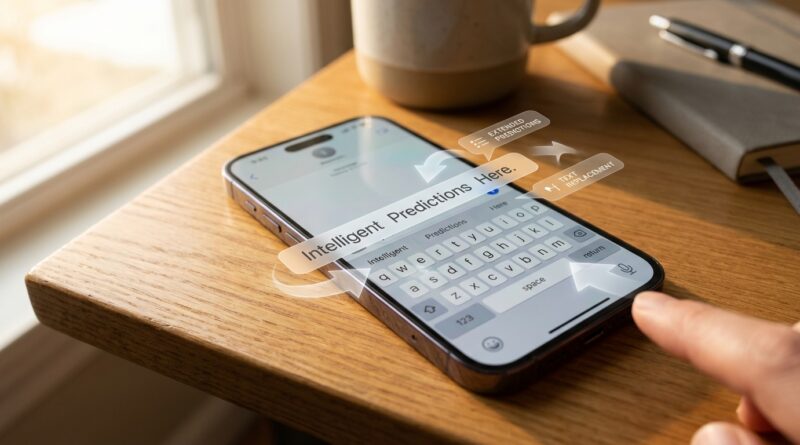
Stop Fighting Your iPhone Keyboard: The Hidden iOS 18 Setting That Makes Typing Feel Instantly Faster
If your iPhone keyboard has started feeling like it is working against you, you are not imagining it. A missed tap here, a weird autocorrect there, and suddenly a simple reply takes twice as long as it should. That gets old fast, especially if you write a lot, switch between languages, or use your phone for real work instead of quick one-word texts. The good news is you probably do not need a new keyboard app. You just need to turn on the parts of Apple’s keyboard that are oddly easy to miss. In iOS 18, a few hidden keyboard features can make typing feel noticeably faster within minutes. The biggest win is extended predictions, but the real magic comes from combining that with multilingual dictionaries and smart text replacements. Set those up once, and your iPhone starts feeling less stubborn and more helpful. It is one of the easiest quality-of-life fixes on the phone.
⚡ In a Hurry? Key Takeaways
- Turn on predictive text and inline predictions in iOS 18 to get faster word suggestions as you type.
- Add all the languages you actually use to your keyboard so autocorrect and suggestions stop fighting you.
- Use text replacement for emails, addresses, and repeated phrases. It saves time and stays built into iPhone, no extra app needed.
The hidden fix most people miss
When people search for iOS 18 hidden keyboard features extended predictions, they are usually chasing one thing. They want the keyboard to stop slowing them down.
The setting to check first is simple:
How to turn on extended predictions
Open Settings > General > Keyboard.
Then make sure these are turned on:
- Predictive
- Show Predictions Inline, if your version of iOS 18 shows it
- Auto-Correction
- Check Spelling
Predictive gives you the three suggestion boxes above the keyboard. Inline predictions go a step further. They try to complete the word or phrase you are already typing in a lighter gray style, so you can accept it with a tap or by continuing when it is right.
If you type lots of emails, notes, or long messages, this can save a surprising amount of effort. Not dramatic. Just constant little wins, which is exactly what makes it matter.
Why your keyboard may feel worse than it used to
A lot of the frustration comes from mismatch. Your iPhone keyboard learns from how you type, but it also depends on the languages and shortcuts you have set up. If those settings are messy, predictions get messy too.
This is especially true for people moving between newer iOS releases, betas, or multiple devices. One phone may feel smart. Another feels clueless. Usually, the difference is not your imagination. It is the keyboard setup.
Three common causes of bad iPhone typing
- The wrong language dictionary is active
- Predictive text is on, but inline suggestions are off
- You never set up text replacements for phrases you type every day
Make multilingual typing much less annoying
If you use more than one language, the default setup is often where things go off the rails. The keyboard can handle multilingual typing better than most people realize, but only if you tell it what languages matter.
How to add keyboard languages in iOS 18
Go to Settings > General > Keyboard > Keyboards > Add New Keyboard.
Add each language you actually type in. Not just the one you speak. The one you send messages, search, and write notes in.
For many users, that means English plus one more. For others, it might be two or three. Once added, your iPhone can do a better job recognizing mixed-language typing and offering less ridiculous autocorrect.
A small tip that makes a big difference
Do not add every language you might someday use. Add only the ones you actively type in. Too many can make suggestions less focused.
Also, if you use swipe typing, test whether it behaves better with fewer active keyboards. Sometimes less is more.
Text replacement is still the real power move
This is the part power users swear by. Apple hides it in plain sight, and once you start using it, it is hard to go back.
How to set up text replacement
Go to Settings > General > Keyboard > Text Replacement.
Tap the plus sign, then create shortcuts for things you type all the time.
Good examples:
- @@ for your email address
- adr for your full mailing address
- omw for “On my way”
- sig1 for a full work signature
- tyf for “Thank you for your patience”
This is where the iPhone keyboard stops being just a keyboard and starts acting like a shortcut tool.
How to make text replacement work better
Use shortcuts you would never type by accident. If your shortcut is a normal word, the keyboard may expand it when you do not want it to. Short combinations like ;em or @@1 tend to work better.
Other iOS 18 keyboard settings worth checking
Not every feature helps every person, but a quick cleanup can make typing smoother.
Turn these on or off based on how you type
- Slide to Type. Great for one-handed typing, annoying for some people during fast tapping.
- Delete Slide-to-Type by Word. Useful if you swipe often.
- Auto-Capitalization. Usually worth keeping on.
- Smart Punctuation. Handy for many users, but can be frustrating if you type code, commands, or exact quotes.
- Character Preview. If you like seeing a larger pop-up for each key press, keep it on. If it distracts you, turn it off.
The best approach is not to copy somebody else’s setup exactly. It is to spend five minutes making the keyboard match how you type.
What to do if predictions still seem bad
Sometimes the keyboard has simply learned too many bad habits. If suggestions seem consistently off, there is a reset option.
Reset the keyboard dictionary
Go to Settings > General > Transfer or Reset iPhone > Reset > Reset Keyboard Dictionary.
This clears learned words and typing history from the keyboard dictionary. It can help if autocorrect has gotten weird over time.
Important note. This does not erase your phone. It just resets what the keyboard has learned.
When a reset is worth it
- Your keyboard keeps correcting names or common words incorrectly
- Predictions have become oddly repetitive or unhelpful
- You recently changed languages or typing habits
The setup I recommend for most heavy iPhone typers
If you want the quick version, start here:
- Turn on Predictive
- Turn on inline predictions, if available
- Add only the keyboard languages you truly use
- Create 5 to 10 text replacements for repeated phrases
- Leave auto-capitalization on
- Turn smart punctuation off if it keeps changing what you mean
That setup works well for most people who type all day and want the Apple keyboard to feel faster without installing anything else.
At a Glance: Comparison
| Feature/Aspect | Details | Verdict |
|---|---|---|
| Extended predictions | Shows smarter next-word or inline suggestions while typing longer phrases. | Best quick win for faster typing. |
| Multilingual keyboards | Lets iPhone recognize the languages you actually use and improve corrections. | Very helpful if you switch languages often. |
| Text replacement | Creates shortcuts for repeated words, phrases, emails, and addresses. | Most powerful long-term productivity feature. |
Conclusion
Keyboard pain is real, and right now it is one of the more common complaints among iPhone users trying to get work done on newer versions of iOS. The upside is that the fix is not complicated. If you take a few minutes to turn on extended predictions, clean up your language settings, and build a handful of smart text replacements, the default iPhone keyboard can feel much better almost immediately. No extra app. No waiting for Apple to patch something. Just a better setup. For anyone bouncing between iOS 18 and 26, juggling multiple languages, or writing more than a few casual texts a day, this is one of those rare tweaks you can feel right away. Most people are only using a small slice of what their keyboard can do. You can fix that in one coffee break.