Stop Killing Your Battery: The Hidden iPhone Adaptive Power Setting Power Users Actually Tame
Your iPhone is not imagining things, and neither are you. After a big iOS update, it is common for battery life to feel worse for a few days, but some people are also getting hit by a newer annoyance. Adaptive Power and Low Power behavior can feel too aggressive, too random, and way too laggy. One minute your phone is fine. The next, it is warm, animations stutter, and the battery drops like you have been filming 4K video in the sun. That is maddening when the whole point of these features is supposed to be saving power, not making your phone feel broken.
⚡ In a Hurry? Key Takeaways
- Adaptive Power can help in some cases, but if your iPhone feels slow or keeps entering power saving at odd times, turning it off is often the quickest iPhone Adaptive Power battery drain fix.
- Check Battery settings, background app activity, charging behavior, and heat. Then use a simple Shortcuts automation so Low Power Mode only turns on when you want it to.
- This is safe to test. You are not harming your battery by changing these settings, and you can always switch them back if your results are worse.
What Adaptive Power is actually doing
Apple’s power tools are meant to stretch battery life when your phone thinks it needs help. The problem is that “help” can feel like your iPhone putting itself on a diet without asking.
Adaptive Power is designed to reduce energy use by tweaking performance and some background activity based on your usage. In plain English, your iPhone may decide to calm things down before you would have chosen to. That can mean a cooler phone and a little more battery, but it can also mean a phone that feels sluggish at the wrong moment.
For power users, that tradeoff is not always worth it. If you would rather decide when your phone slows itself down, this is one setting to keep a close eye on.
Why battery life often gets weird right after an iOS update
Before you blame one setting for everything, know this. Fresh iOS installs and major updates often trigger a lot of background work. Your iPhone may be reindexing photos, messages, files, and search data. Apps also tend to update themselves, refresh content, and rebuild caches.
That can cause three things at once. Heat. Faster battery drain. A phone that feels busy and jumpy.
Usually, that settles down after a day or two. If it has been longer than that, or the phone keeps flipping into power saving behavior when it is charging or sitting idle, it is time to start tweaking.
The quickest iPhone Adaptive Power battery drain fix
Step 1: Turn off Adaptive Power and test for 24 hours
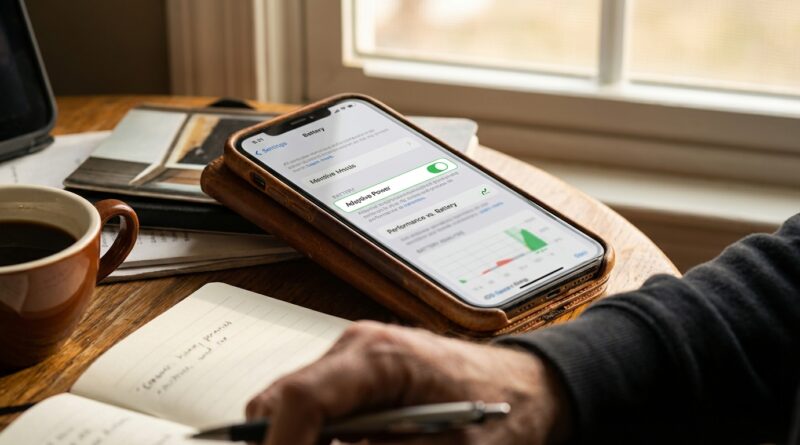
Open Settings, then Battery. If you see Adaptive Power, switch it off.
Now use the phone normally for a full day. Do not change five other things at the same time or you will never know what helped. Pay attention to:
- Does the phone stay cooler?
- Do animations and typing feel normal again?
- Does the battery drop more steadily instead of in sudden chunks?
This sounds backward, but sometimes turning off an automated battery-saving feature makes the phone feel better and use power more predictably. A laggy phone often causes you to wake it more, retry actions, and spend more time staring at it. That can wipe out the battery savings anyway.
Step 2: Stop using Low Power Mode as an all-day setting
Low Power Mode is useful. It is not meant to be your phone’s permanent personality.
When it is always on, you may get reduced background activity, slower refresh behavior, delayed mail fetch, dimmer screen behavior, and a generally less snappy feel. If your iPhone now seems “safe but miserable,” this is often why.
My advice is simple. Use Low Power Mode as a tool, not a lifestyle. Save it for the last stretch of the day or travel days when you truly need it.
How to take back control with a simple automation
This is the part most people miss. You do not have to let iOS decide every time. You can make your own rule so Low Power Mode turns on only when your battery reaches a level you choose, and turns off when charging starts or battery rises above a second level.
A good setup for most people
- Turn Low Power Mode on at 25%
- Turn Low Power Mode off when charging starts
- Optionally turn Low Power Mode off again at 50%
How to build it in Shortcuts
Open Shortcuts, tap Automation, then create a new personal automation.
Automation 1: Battery level falls below 25%
- Choose Battery Level
- Select Falls Below 25%
- Add action: Set Low Power Mode
- Set it to On
- Turn off any option that asks to run after confirmation, if your iPhone allows it
Automation 2: Charger is connected
- Choose Charger
- Select Is Connected
- Add action: Set Low Power Mode
- Set it to Off
Automation 3: Battery level rises above 50%
- Choose Battery Level
- Select Rises Above 50%
- Add action: Set Low Power Mode
- Set it to Off
This setup is boring in the best possible way. Your phone behaves normally most of the day, saves power when it truly matters, and stops randomly feeling like it is trudging through mud.
Other settings worth checking before you blame the battery
Background App Refresh
Go to Settings > General > Background App Refresh. You do not have to turn it off for everything. Just disable it for the apps that do not need to be busy when you are not using them. Shopping apps, some social apps, and random utility apps are usual suspects.
Battery usage by app
Open Settings > Battery and look at what has been using power in the last 24 hours and the last 10 days. If one app suddenly shot up after the update, that is your clue. It may need an update of its own, or a reinstall.
Location access
Check Settings > Privacy & Security > Location Services. Set apps to While Using instead of Always unless there is a real reason not to. Weather, maps, and fitness apps make sense. A furniture store app does not.
Charging heat
If your phone is entering odd power-saving behavior while charging, heat may be part of the story. Fast charging, wireless charging, and a thick case can all add warmth. If your iPhone gets noticeably hot on the charger, try a wired charger, remove the case during charging, and avoid using the phone heavily while it powers up.
When to leave Adaptive Power on
To be fair, not everyone should switch it off. If your priority is squeezing every extra hour from an older iPhone, and you do not mind a bit of slowdown, Adaptive Power may be fine.
It can also make sense if:
- You travel a lot and are often away from chargers
- Your battery health is already lower and you are trying to stretch the day
- You mostly use light apps like Messages, Mail, and Safari
But if you notice lag, weird charging behavior, or your phone seems to be making battery decisions that do not match how you actually use it, I would turn it off and use the automation route instead.
When the real issue is battery health, not software
There is one uncomfortable truth here. Sometimes a new update does not create the problem. It reveals one that was already creeping in.
Check Settings > Battery > Battery Health & Charging. If your maximum capacity is well below where it used to be and performance management is kicking in, no amount of clever toggles will make an aging battery feel new. You can still improve daily life with smarter settings, but a battery replacement may be the actual long-term fix.
The setup I recommend for most readers
If you want the short version, here is the practical middle ground:
- Turn Adaptive Power off if your phone feels laggy or unpredictable
- Leave Low Power Mode off during normal use
- Create a Shortcuts automation to turn Low Power Mode on at 25%
- Turn it off when charging starts or once the battery climbs back up
- Check Battery usage and kill off the one or two apps doing most of the damage
That gives you control without forcing you to babysit the battery all day.
At a Glance: Comparison
| Feature/Aspect | Details | Verdict |
|---|---|---|
| Adaptive Power | Lets iOS adjust power use automatically, but can make the phone feel slower or less predictable for heavier users. | Good for hands-off saving. Less ideal if you care about responsiveness. |
| Low Power Mode all day | Saves battery, but often causes the lag and reduced background behavior people complain about most. | Use only when needed, not as a permanent setting. |
| Shortcuts automation | Turns Low Power Mode on and off at battery levels or when charging starts, based on your rules. | Best balance of control, battery life, and normal performance. |
Conclusion
If your iPhone suddenly feels hot, twitchy, and hungry after an update, do not just accept it as the new normal. Battery anxiety spikes every time Apple ships a big iOS update because the defaults change under people’s feet. Right now, much of that frustration is tied to Adaptive Power, Low Power Mode that feels too laggy to live with, and phones slipping into power-saving behavior at odd times. The fix is usually not dramatic. Turn off the setting that is getting too clever, watch what your apps are doing, and use a lightweight automation so your phone only throttles itself when you actually want it to. That gives you back the one thing these systems often take away. Control.