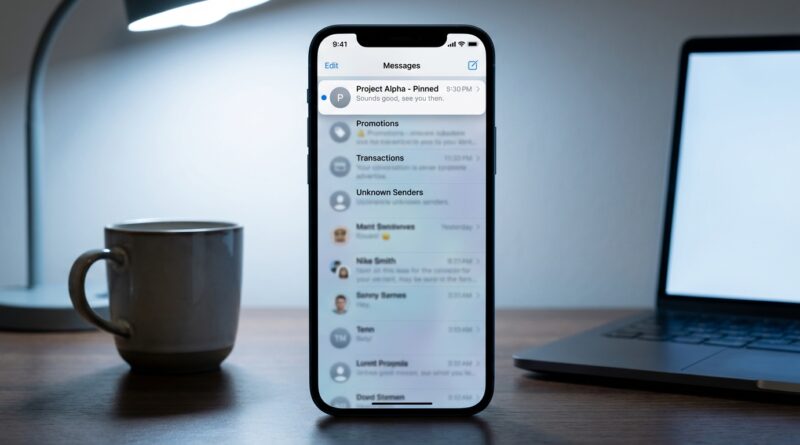
Stop Losing Important Texts: The Hidden iMessage Filter That Power Users Tweak On Day One
You are not imagining it. Important texts really do get buried. One minute you are waiting for a doctor’s office reply, a delivery update, or a two-factor code. The next minute your Messages app is packed with promo blasts, political spam, and random verification texts from apps you barely remember installing. Most iPhone owners never change the default setup, so every message lands in one messy stream. That is why one of the most useful hidden iMessage features iPhone users can turn on is Message Filtering. It has been sitting quietly in iOS for years, and once you switch it on, the app starts feeling less like a junk drawer and more like an inbox with some basic common sense. This is one of those tiny settings changes that takes about a minute, but can save you missed appointments, missed codes, and a lot of unnecessary stress.
⚡ In a Hurry? Key Takeaways
- Turn on Filter Unknown Senders in Settings to separate texts from people you know and texts from random numbers.
- Use the Filters button in Messages to quickly switch between All Messages, Known Senders, Unknown Senders, Unread Messages, and recently deleted texts.
- This simple setup cuts clutter and helps you spot phishing or scam texts before you tap something risky.
The hidden Messages setting most people never touch
Apple calls it Filter Unknown Senders. The name sounds a little dry, but the effect is useful right away.
When you turn it on, Messages separates texts from people in your contacts from texts sent by unknown numbers. That means your friend, spouse, boss, and regular contacts stay in one lane, while promo texts, one-time codes, and mystery numbers go to another view.
It does not block those messages. It just organizes them. That is an important difference. You still get the text. It is just less likely to drown out the conversations you actually care about.
How to turn it on
Here is the one-time setup:
On your iPhone
Go to Settings > Apps > Messages.
Scroll down until you see Filter Unknown Senders.
Turn it on.
That is it. No app download. No subscription. No weird menu hunt after that.
What changes after you enable it
Open the Messages app. In most versions of iOS, you will now see a Filters button near the top-left of the main Messages screen.
Tap it, and you can move between views like:
- All Messages
- Known Senders
- Unknown Senders
- Unread Messages
- Recently Deleted
This is where the hidden iMessage features iPhone users tend to miss really start to pay off. Most people assume the app is just one endless list. It is not.
Why this helps more than you think
The obvious benefit is less clutter. But there are a few bigger wins hiding behind that.
You can find real conversations faster
If you use texts for work, family updates, school notices, appointment reminders, and package tracking, speed matters. Splitting known senders from unknown ones means fewer distractions when you just need to find your daughter’s text or your contractor’s reply.
Unread becomes much more useful
The Unread Messages filter is underrated. Once your inbox is not flooded with junk, unread messages become a quick to-do list instead of a pile of digital confetti.
Scam texts stand out more clearly
Phishing texts work because they blend into the flow. They arrive next to real shipping updates and real bank alerts, hoping you react before you think. When unknown senders have their own section, suspicious messages become easier to spot and easier to ignore.
What goes into Unknown Senders
This is where people get nervous, so let’s make it simple.
A message usually lands in Unknown Senders if the sender is not in your Contacts. That can include:
- Promo texts
- Political campaign messages
- One-time passcodes
- Delivery notifications
- A new client or customer
- A doctor’s office using an automated texting number
So yes, some important stuff can still show up there. That is why this feature is best used as a sorting tool, not as a reason to ignore that folder forever.
The smart way to use it without missing anything
Check Unknown Senders once or twice a day
You do not need to babysit it. Just treat it like a side tray for mail. A quick scan in the morning and late afternoon is enough for most people.
Add real people to Contacts
If a number matters, save it. Once it is in Contacts, future messages from that person should move into your regular conversation flow.
Use pinned conversations for your must-not-miss people
Press and hold a conversation, then pin it. Your most important chats stay at the top. This works beautifully alongside filtering.
Be careful with verification codes
Many two-factor authentication texts come from numbers you do not recognize. If you are waiting for a code, check Unknown Senders if it does not appear where you expected.
A few hidden Messages views worth using
While you are cleaning things up, a couple of other built-in views are worth your attention.
Unread Messages
This is the easiest way to catch what still needs your attention. If you tend to read a text, mean to reply later, then forget, this view is surprisingly helpful.
Recently Deleted
Deleted a message thread by accident? You may be able to recover it from Recently Deleted within the retention window. A lot of people do not even realize Messages has a safety net now.
Junk reporting
For some SMS messages from unknown numbers, Apple may show a Report Junk option. If you know a text is spam, use it. It helps train the system and gets that thread out of your face.
What this will not do
It is helpful, but it is not magic.
- It will not automatically block all spam texts.
- It will not guarantee every important text lands in the right place.
- It will not stop every phishing attempt.
Think of it as better shelves, not a security guard. You still need a little common sense. Do not tap suspicious links. Do not give out codes. Do not trust a text just because it mentions a bank, delivery service, or government agency.
Best setup for busy people
If you want the calmest Messages app with the least effort, here is a simple formula:
- Turn on Filter Unknown Senders
- Pin your top conversations
- Save important numbers to Contacts
- Check Unknown Senders once or twice daily
- Use Unread Messages as your follow-up list
That is enough for most people. You do not need a complicated productivity system. You just need your phone to stop shouting at you all day.
At a Glance: Comparison
| Feature/Aspect | Details | Verdict |
|---|---|---|
| Filter Unknown Senders | Separates texts from saved contacts and texts from unfamiliar numbers. | Best first step for reducing clutter fast. |
| Unread Messages view | Shows only messages you have not dealt with yet. | Great for follow-ups and missed replies. |
| Unknown Senders folder | Holds promo texts, verification codes, and texts from unsaved numbers. | Useful, but check it regularly so you do not miss something real. |
Conclusion
The best iPhone settings are often the ones that quietly remove stress. Message filtering is one of them. If your Messages app feels noisy, scattered, or slightly out of control, this is a fast fix that makes a real difference. It helps the community right now because Messages is where everything happens, from delivery updates and two-factor codes to family chats and client conversations. As more apps and services blast us with texts, learning to tame these hidden iMessage features iPhone users already have is a simple, one-time setup that cuts noise, helps you spot scams, and makes your phone feel calm again instead of like a slot machine full of unread bubbles.