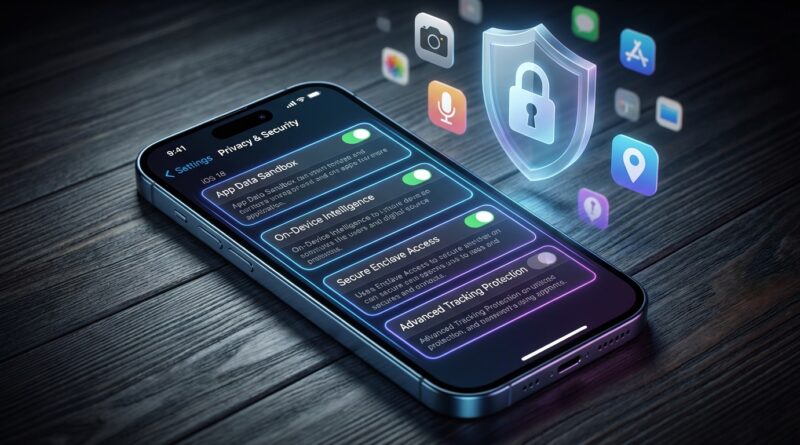
Stop Oversharing by Accident: The Hidden iOS 18 Privacy Toggles Every iPhone Power User Should Change Today
You update your iPhone, tap “Continue” a few times, and get on with your day. Fair enough. Most of us do exactly that. The problem with iOS 18 is that some of the most useful new tricks also come with quiet privacy trade-offs, and Apple does not always put those choices front and centre. If you are a power user who takes loads of photos, uses Siri a lot, relies on widgets, or keeps half your life on your phone, the default setup can share more context than you meant to. Not in a scary movie way. In a slow, easy-to-miss way.
The good news is you do not need to turn off everything smart to get your privacy back. A few hidden iOS 18 privacy settings can cut down on background access to your photos, microphone, app activity and cloud requests, while keeping the genuinely helpful parts of Apple Intelligence and visual search working. Here is the privacy tune-up I would do today on any iPhone running iOS 18.
⚡ In a Hurry? Key Takeaways
- The most important iOS 18 hidden privacy settings live in Privacy & Security, Photos, Siri, Apple Intelligence, and individual app permissions.
- Start by limiting photo access, checking microphone permissions, trimming lock screen data exposure, and reviewing which smart features can send requests off-device.
- You do not have to kill every smart feature. A careful tune-up lets you keep the useful stuff without letting quiet data creep become your new normal.
Start with the fastest privacy check
If you only have five minutes, open Settings and go through these areas first:
Settings > Privacy & Security
Settings > Photos
Settings > Siri or Apple Intelligence & Siri
Settings > Notifications
Settings > Face ID & Passcode
Those are the places where iOS 18 hidden privacy settings tend to pile up. Some are system-wide. Some are buried per app. And some got easier to approve than to understand.
Photo access is still one of the biggest privacy traps
Photos are where accidental oversharing usually starts. Not because Apple is snooping through your holiday snaps for fun, but because more features now use photo analysis, object recognition, search, memory generation, and app integrations to feel smarter.
Check which apps can see your full library
Go to Settings > Privacy & Security > Photos.
You will see a list of apps that can access your photo library. For each app, check whether it has:
- None
- Limited Access
- Full Access
For most apps, Limited Access is the sweet spot. A shopping app does not need your entire camera roll. Neither does that random image editor you installed once at midnight.
If you are a heavy user, this one change alone can stop a lot of casual data exposure.
Review visual lookup and photo intelligence features
Apple’s photo features are genuinely handy. Being able to identify plants, landmarks, pets, recipes, or objects from a picture is useful. But you should know what is happening when you use them.
Look through the options inside Settings > Apps > Photos and anything tied to search, memories, suggestions, or Apple Intelligence on your device. Exact labels can vary a bit by model and region, but the core question is simple: do you want your photos used to power suggestions and enhanced recognition, or would you rather keep that more limited?
If you love visual search, keep it on. If you barely use it, switch off the extras you do not need.
And if your real worry is someone physically grabbing your phone and seeing private content, pair this guide with The iPhone’s ‘Hidden Apps’ Folder: How Power Users Lock Down Sensitive Stuff in iOS 18. It is a smart second layer once you have cleaned up permissions.
Microphone access deserves a proper audit
This is the one people skip because they assume they would notice if the mic were being used. Sometimes you do. Sometimes you do not.
See which apps have mic permission
Go to Settings > Privacy & Security > Microphone.
Now ask a blunt question for every app on that list. Does this app truly need to hear me?
Keep mic access on for obvious things like:
- Phone and video call apps
- Voice memo apps
- Music ID or audio recording tools
- Accessibility apps that rely on spoken input
Be much more suspicious of games, shopping apps, social apps you rarely use, and any app you forgot you even installed.
Check Siri and dictation settings too
Go to Settings > Apple Intelligence & Siri or Settings > Siri, depending on what your iPhone shows.
Look for options related to:
- Listen for “Siri” or “Hey Siri”
- Press Side Button for Siri
- Allow Siri When Locked
- Dictation
- Improve Siri & Dictation
If you are privacy-first, turning off Improve Siri & Dictation is an easy win. It cuts down on Apple using your interactions to improve those systems.
Also think carefully about Allow Siri When Locked. It is convenient. It also means someone near your phone may be able to trigger actions or surface information from the lock screen.
Apple Intelligence settings matter more now
This is where the nuance comes in. Apple has made a big deal of on-device processing, and that is good news. But some requests can still go beyond the phone, especially for more complex tasks or cloud-assisted features.
Check what is enabled, not just what is advertised
Open Settings > Apple Intelligence & Siri.
Read the descriptions. Yes, actually read them. This is where Apple explains whether a feature works on-device, may use secure cloud processing, or shares limited data to complete a request.
Look out for anything tied to:
- Writing tools
- Content summaries
- Image generation
- Context-aware suggestions
- Personal context features that can pull from messages, mail, calendars, notes, or photos
You may decide to keep all of it. You may decide some of it is too nosy for your taste. Either choice is fine. The important part is making it a choice.
Turn off what you do not actively use
Power users are often the worst for this. We keep every feature on because we might need it one day. That is how the phone slowly collects more access than it should.
If you have not used AI summaries, image tools, or deeper assistant features in the last two weeks, switch them off and see if you miss them. You probably will not.
Lock screen privacy is still easy to overlook
Your iPhone can be perfectly secure when unlocked and still leak too much when locked.
Trim what shows on the lock screen
Go to Settings > Notifications and review how previews work.
A good privacy setting for most people is:
- Show Previews > When Unlocked
That stops message content and other sensitive alerts from appearing in full view when your phone is face-up on a desk.
Review lock screen access controls
Go to Settings > Face ID & Passcode.
Scroll down to Allow Access When Locked. This menu is full of small but important iOS 18 hidden privacy settings.
Consider turning off anything you do not need, especially:
- Reply with Message
- Control Center
- Wallet
- Accessories
- Live Activities
None of these are bad features. They are just common places where convenience beats privacy by default.
App tracking is not the only setting that matters
Yes, you should still check tracking permissions. But a lot of users stop there, and that is nowhere near enough.
Review tracking requests
Go to Settings > Privacy & Security > Tracking.
If you want the simplest setup, turn off Allow Apps to Request to Track. That blocks future tracking requests from apps altogether.
Useful. But not the whole story.
Then go app by app
Open Settings and scroll through your installed apps. Check permissions for the ones you use most. Focus on:
- Photos
- Microphone
- Camera
- Location
- Contacts
- Calendars
- Bluetooth
- Local Network
This is tedious. It is also where you will find the weird stuff. A puzzle game does not need your contacts. A coupon app does not need Bluetooth all day. A food delivery app probably does not need permanent location access once your order is done.
Location settings need a quick cleanup too
Location is one of those permissions that expands quietly over time. You install an app for one trip, one event, one restaurant order, and six months later it is still checking where you are.
Use “While Using” more often
Go to Settings > Privacy & Security > Location Services.
For many apps, switch location access to:
- While Using the App
Also turn off Precise Location where exact positioning is not needed. Weather apps often work just fine without your exact doorstep coordinates.
Check Significant Locations
Still inside location settings, dig into system services and look for Significant Locations.
This feature helps with maps, routing, and smart suggestions based on places you go often. Some people like that. Others hate the idea on principle. Decide which camp you are in and set it accordingly.
Analytics and improvement sharing are easy wins
If you want a low-drama privacy boost, this is one of the best places to start.
Turn off optional analytics sharing
Go to Settings > Privacy & Security > Analytics & Improvements.
You can usually switch off options like:
- Share iPhone Analytics
- Share iCloud Analytics
- Improve Siri & Dictation
- Share With App Developers
These settings exist for a reason, and they can help improve products. But they are optional. If your goal is to cut background data sharing, this is a very sensible place to be strict.
Safari has a few privacy switches worth changing today
Even if your main concern is iOS 18 and Apple Intelligence, your browser still reveals a lot about you.
Use the built-in protections properly
Go to Settings > Safari.
Check that these are enabled where available:
- Prevent Cross-Site Tracking
- Hide IP Address from Trackers
- Fraudulent Website Warning
Also review extensions. Browser extensions can be brilliant, but they can also be nosy little goblins if you install too many and forget about them.
Do not forget Bluetooth and local network access
These settings sound boring, which is exactly why they get ignored.
Check Local Network permission
Some apps ask to find and connect to devices on your home network. Sometimes that makes sense. Sometimes it really does not.
Go to individual app settings and look for Local Network. If an app does not need to see smart TVs, speakers, printers, or other devices in your home, switch it off.
Review Bluetooth access
In Privacy & Security, review Bluetooth permissions. Retail apps, social apps, and random utilities sometimes request this for proximity features, accessories, or analytics. If you are not using that function, remove the permission.
A simple privacy routine for power users
You do not need to become the person who spends Sunday night reading permission menus for sport. Just build a light routine:
- After every major iOS update, review Privacy & Security once
- After installing a new app, check what it can access
- Once a month, scan Photos, Microphone, and Location permissions
- Before handing your phone to someone, think about what is visible on the lock screen and in Photos
That last point matters more than people think. Privacy is not only about Apple or app developers. Sometimes it is about the very normal human chaos of letting someone borrow your phone for ten seconds.
At a Glance: Comparison
| Feature/Aspect | Details | Verdict |
|---|---|---|
| Photo permissions | Many apps still ask for full library access when Limited Access would do the job just fine. | Change today. This is one of the biggest privacy wins. |
| Apple Intelligence and Siri | Useful features can rely on personal context, dictation data, and in some cases cloud-assisted processing. | Keep what you use. Turn off the rest. |
| Lock screen exposure | Notification previews, Siri access, Control Center, and Live Activities can reveal more than you expect. | Worth tightening for almost everyone. |
Conclusion
Privacy is the story of the week again for a reason. Apple is pushing harder into cloud-assisted intelligence, smart search, and context-aware features in iOS 18, which means your defaults matter more than they used to. The trick is not to go full bunker mode and switch off everything helpful. It is to make a few smart changes so your iPhone works for you, not just around you. Spend ten minutes on these iOS 18 hidden privacy settings today and you can avoid a lot of quiet data creep without giving up the good stuff like visual search, smart suggestions, and on-device AI where it genuinely helps.