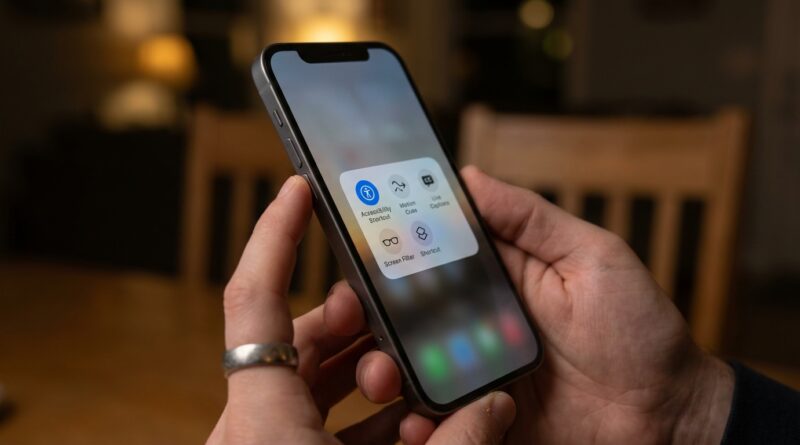
Stop Tapping Through Menus: The Hidden iOS Accessibility Shortcut That Turns Your Side Button Into a Power User Launcher
You know the drill. You remember there’s a useful iPhone feature buried somewhere in Settings, maybe Live Captions, a color filter, Reduce White Point, or those new Vehicle Motion Cues. Then you try to turn it on quickly and end up tapping through three menus, forgetting where Apple hid it, and giving up. That is why so many genuinely helpful iPhone tools never become part of your day. They feel less like shortcuts and more like homework. The fix is much simpler than most people realize. Apple lets you turn the Side Button, or the Home button on older iPhones, into an Accessibility Shortcut launcher. With a quick triple-click, you can open one feature instantly or pull up a menu of your favorites. Once you set it up, those “I should really use that” options stop living in Settings and start becoming second nature. It is one of the easiest quality-of-life upgrades in iOS.
⚡ In a Hurry? Key Takeaways
- You can use the Accessibility Shortcut on iPhone by going to Settings, Accessibility, Accessibility Shortcut, then choosing one or more features for a triple-click of the Side Button.
- If you pick one feature, the shortcut toggles it on and off fast. If you pick several, your iPhone shows a small menu so you can choose what you need.
- This is safe to try, easy to change back, and one of the best ways to make hidden iPhone tools actually useful in everyday life.
How to use Accessibility Shortcut on iPhone
If you just want the steps, here they are.
- Open Settings.
- Tap Accessibility.
- Scroll to the bottom and tap Accessibility Shortcut.
- Select the feature or features you want.
- Now triple-click the Side Button on newer iPhones, or the Home button on older ones.
That is it. No app download. No subscription. No deep customization rabbit hole.
If you choose only one feature, a triple-click turns it on or off right away. If you choose more than one, your iPhone opens a small list so you can pick the one you want at that moment.
Why this shortcut matters more than it sounds
Accessibility settings are not just for edge cases. They are some of the most practical tools on the iPhone. Apple puts a lot of smart stuff in this section, but most people never build the habit of using it because it is too annoying to reach.
The Accessibility Shortcut removes that friction. That is the whole game.
Instead of thinking, “I should turn on that screen filter when my head starts hurting,” you just triple-click. Instead of digging for Live Captions in a noisy place, triple-click. Instead of opening menus in the car as a passenger to find Vehicle Motion Cues, triple-click.
It turns hidden features into muscle memory.
Best features to add to your Accessibility Shortcut
Color Filters and Reduce White Point
If bright screens bother your eyes, this is one of the best uses for the shortcut. Color Filters can soften the look of the display, and Reduce White Point can cut harsh intensity beyond the normal brightness slider.
If eye strain has been sneaking up on you, it is also worth reading This Hidden iPhone 17 Display Setting Is Quietly Wrecking Your Eyes (And How Power Users Fix It). It fits perfectly with this shortcut setup, because the best display tweak in the world does not help much if it is too buried to use regularly.
Vehicle Motion Cues
This is a big one for people who get queasy looking at their phone in the car. Vehicle Motion Cues adds animated dots to the edges of the screen to help your eyes and inner ear stay more in sync.
Even if you only need it once in a while, the shortcut makes sense. It is exactly the kind of feature that is brilliant when you need it and invisible when you do not.
Live Captions
Live Captions can transcribe speech and audio in real time. It is handy for accessibility, of course, but also useful in loud places, quiet waiting rooms, or when someone is speaking softly on a video.
Put it on the shortcut if you use it often enough to appreciate speed.
AssistiveTouch
If your buttons are worn out, your touchscreen is acting up, or you just want easier one-handed control, AssistiveTouch can act like a software replacement for hardware controls. For some people, it is not just convenient. It is the difference between a frustrating phone and a usable one.
Background Sounds or other comfort settings
Some people use accessibility options to stay focused, sleep better, or reduce overstimulation. The shortcut can make those tools feel less hidden and more normal. That matters more than it sounds.
Should you choose one feature or several?
This part is important.
Choose one feature if you want speed
If there is one thing you use all the time, like Reduce White Point or Vehicle Motion Cues, set only that one. Then the triple-click becomes a true on-off switch. Fast, clean, no extra taps.
Choose several features if your needs change during the day
If you bounce between different tools, choose multiple options. The menu takes one extra step, but it is still much faster than digging through Settings every time.
A good middle ground is to pick two or three, not ten. Too many choices can turn a shortcut into another mini-menu.
What happens after you set it up
On most iPhones, triple-clicking the Side Button brings up your chosen feature or menu. On older models with a Home button, you triple-click that instead.
Some features may ask for a little setup the first time. That is normal. Once done, the shortcut will keep working.
If you ever press the button and nothing happens, check two things:
- Make sure the feature is still selected under Settings > Accessibility > Accessibility Shortcut.
- Try a fairly quick triple-click, not three slow presses.
Small gotchas to know about
You can accidentally trigger it
If you are a heavy Side Button user, you might occasionally open the shortcut by mistake. If that happens, either trim your list down to one useful feature or remove the shortcut and set it up again later.
Some features work better with practice
AssistiveTouch, Voice Control, and Switch Control are powerful, but they can feel a bit strange at first. Give them a day or two before deciding they are not for you.
Not every feature makes sense for every person
That is fine. The point is not to turn on accessibility settings just because they exist. The point is to make the right ones easy enough that you will actually use them.
A smart way to build your own “power user” setup
If you want to get more value out of this, think in terms of moments, not features.
- When I am in the car: Vehicle Motion Cues.
- When my eyes feel tired: Color Filters or Reduce White Point.
- When I cannot hear clearly: Live Captions.
- When buttons or gestures are annoying: AssistiveTouch.
That mindset keeps things practical. You are not setting up an advanced phone lab. You are removing friction from everyday life.
At a Glance: Comparison
| Feature/Aspect | Details | Verdict |
|---|---|---|
| Single-feature shortcut | Triple-click instantly toggles one setting on or off, with no extra menu. | Best for speed and daily use. |
| Multi-feature shortcut | Triple-click opens a menu with several accessibility tools to choose from. | Best if your needs change throughout the day. |
| Everyday value | Makes buried iPhone features like Live Captions, screen filters, and motion support quick enough to actually use. | One of the easiest no-cost iPhone upgrades. |
Conclusion
Most people think of accessibility as a separate part of iOS they probably do not need. That is a mistake. Accessibility features are where Apple hides half of the iPhone’s real everyday usefulness. The problem is not the features. It is the friction. Once you set up the Accessibility Shortcut, that friction drops away. A simple triple-click can become your fast lane to migraine-saving display tweaks, Vehicle Motion Cues, Live Captions, hardware workarounds, and other tools that make your phone easier to live with. It saves time, cuts down on menu-diving, and makes your iPhone feel more personal without buying anything or waiting for the next big update. If you only change one setting today, this is a very good one to start with.