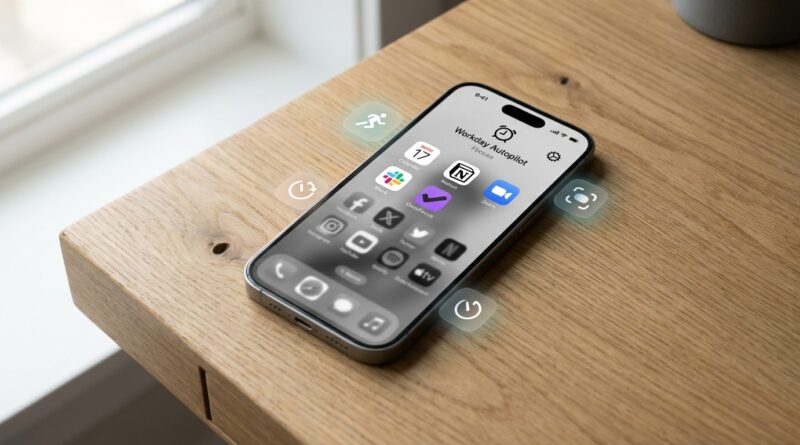
Stop Wasting Time in Apps: The Hidden iOS Focus Automation That Puts Your iPhone on Autopilot
You unlock your iPhone to answer one text. Then something weird happens. Instagram is open, Mail pulls you into three threads, a game grabs five minutes, and suddenly 40 minutes are gone. It is frustrating because you were not trying to waste time. You were trying to do one simple thing. If your screen time keeps climbing, your battery seems to drain faster, and your phone feels more like a trap than a tool, the fix is not more willpower. The fix is setting your iPhone up so it helps you stay on task. Apple already gives you the pieces. They are just scattered across Focus, Screen Time and Shortcuts. Once you connect them, your iPhone can switch into a work mode automatically, hide your most tempting apps, limit time-sink categories, change your Home Screen, and lock in a Deep Work session at the right time each day. It feels surprisingly close to autopilot.
⚡ In a Hurry? Key Takeaways
- Your best iPhone Focus automation to block distracting apps is a mix of Focus modes, custom Home Screens, Screen Time limits, and Shortcuts automations.
- Set up two modes, Workday and Deep Work, so your phone changes behavior by time, location, or when specific apps open.
- This does not truly uninstall or permanently block apps, so you can still reach what you need in an emergency.
Why this works better than “just use your phone less”
Most bad phone habits are not really habits. They are defaults. Your iPhone shows everything, all the time, in the same place, with the same bright badges and little dopamine traps waiting for you.
That means every unlock is a tiny test of self-control. And self-control gets tired fast.
A better approach is to reduce the number of decisions you have to make. If your work apps are front and center, your fun apps are hidden, and the distracting stuff hits a limit after a few minutes, you stop fighting your phone and start using it with a bit of structure.
The simple blueprint
Here is the system we are building:
- Workday Focus for normal working hours
- Deep Work Focus for intense, no-nonsense time blocks
- A custom Home Screen that only shows useful apps during those modes
- Screen Time App Limits for social, games, and other rabbit holes
- Shortcuts automations that turn these modes on and off automatically
This is the part most “hidden trick” videos skip. One setting helps a little. A full setup changes behavior.
Step 1: Build a Workday Focus
Create the Focus mode
Go to Settings > Focus, tap the +, then choose Custom. Name it Workday.
Pick a simple icon and color. It sounds minor, but it helps you instantly recognize what mode your phone is in.
Choose who can reach you
For People, allow only the contacts you actually want interrupting you during work. Think partner, kids’ school, close family, maybe your manager.
For Apps, allow the essentials. Messages, Phone, Calendar, Slack, Teams, or whatever you use to get actual work done.
This step matters because a Focus mode is not just about blocking. It is also about making sure the right things still get through.
Turn on a custom Home Screen
Inside your Workday Focus, look for Customize Screens. This is where the magic starts.
Create a Home Screen page that only includes:
- Phone
- Messages
- Calendar
- Notes
- Reminders
- Mail, if you truly need it
- Your work apps
Leave off Instagram, TikTok, YouTube, games, shopping apps, news apps, and anything else that tends to turn one tap into twenty.
When Workday Focus is active, only that cleaner Home Screen page appears. The distracting apps are still installed, but they are no longer staring at you.
Use a different Lock Screen if you want
You can also tie a Lock Screen to this Focus mode. A plain wallpaper with a calendar or reminders widget works well. The less visual noise, the better.
Step 2: Build a Deep Work Focus
Make it stricter than Workday
Now create another custom Focus called Deep Work.
This one should be more aggressive. Allow fewer people. Allow fewer apps. If Workday means “I am working,” Deep Work means “do not poke me unless the house is on fire.”
Use an even cleaner Home Screen
For Deep Work, make a Home Screen with almost nothing on it. Good picks:
- Notes
- Reminders
- Calendar
- Your writing or task app
- Maybe a timer app
If you can, make this page almost boring. Boring is good here.
Silence badges if they tempt you
Inside Focus settings, you can reduce notification clutter even more. If red badges drag your eyes around, this is worth doing.
Step 3: Set App Limits for the categories that eat your day
Focus hides distractions. Screen Time adds friction when you go looking for them anyway.
Go to Settings > Screen Time > App Limits.
Best categories to limit
- Social. Instagram, TikTok, X, Facebook, Threads
- Games
- Entertainment. YouTube, streaming apps
- Shopping, if that is your sneaky time sink
A good starting point is:
- Social: 20 to 30 minutes on workdays
- Games: 10 to 15 minutes
- Entertainment: 20 to 30 minutes before evening
You can always adjust later. The point is not punishment. It is creating a speed bump before a quick check becomes a full detour.
Use Downtime for your hardest hours
If your worst scrolling happens during work hours, also look at Downtime in Screen Time. You can schedule a block where only approved apps are available.
This is especially useful if you work from home and your phone becomes the “I need a tiny break” machine every half hour.
Step 4: Automate it with Shortcuts so you do not have to remember
This is the part that turns a decent setup into an actual system.
Open the Shortcuts app, tap Automation, then create personal automations.
Automation 1: Turn on Workday Focus automatically
Trigger ideas:
- Time of Day, like 8:30 AM on weekdays
- Location, when you arrive at the office
- App, when you open Slack, Teams, or your work email app
Action: Set Focus > Workday > On
Turn off Ask Before Running if your phone allows it for that automation. That is what makes it feel automatic.
Automation 2: Turn on Deep Work for your most important block
Example: Every weekday at 10:00 AM, set Deep Work on for 60 or 90 minutes.
If you know your best thinking happens at a certain time, protect that time. Do not leave it to mood.
Automation 3: Turn Focus off when work is done
Create another automation for 5:30 PM or whenever your workday ends.
Action: Set Focus > Off
This matters more than people think. A phone that stays in work mode all evening is just a different kind of annoying.
Automation 4: Use app-based triggers for problem apps
If one app always derails you, create an automation triggered when that app opens.
Example: when Instagram opens during work hours, turn on Deep Work or show a reminder notification like “Are you here on purpose?”
It sounds silly. It works because it interrupts autopilot.
A realistic setup you can copy
Workday Focus
- Schedule: Weekdays, 8:30 AM to 5:30 PM
- Allowed people: family, key coworkers
- Allowed apps: Phone, Messages, Calendar, Notes, Slack, Teams
- Home Screen: one page with work tools only
- App Limits: Social 20 min, Games 10 min
Deep Work Focus
- Schedule: Weekdays, 10:00 AM to 11:30 AM
- Allowed people: emergency contacts only
- Allowed apps: Notes, Reminders, task app, maybe music
- Home Screen: one nearly blank page
- Optional: put your phone face down or in another room
What this does for battery life and screen time
Will this double your battery life? No. But it often helps in a practical way.
Fewer random app opens means less background activity, fewer screen wake-ups, and fewer notification storms pulling your phone to life all day. The bigger win, though, is time. If your iPhone stops baiting you into ten little side trips a day, your screen time can drop without that awful feeling that you are constantly denying yourself something.
Important limits to understand
Hidden is not the same as fully blocked
Focus with a custom Home Screen hides apps from your main view. It does not erase them. You can still search for them or find them in the App Library unless Screen Time restrictions also step in.
You can override your own limits
Screen Time lets you ignore a limit if you tap through. If you really want stronger guardrails, use a Screen Time passcode set by someone you trust. That is not for everyone, but for some people it is the difference between “nice idea” and “actually works.”
Do not overdo the restrictions at first
If your setup is too harsh, you will just disable it. Start with enough friction to help, not enough to make you mad.
Troubleshooting if it feels clunky
“My apps are still easy to reach”
Make sure your Focus is tied to a specific Home Screen page, not just turned on generally. Also remove distracting apps from your Dock. The Dock is prime real estate.
“I keep missing important texts”
Adjust your allowed people and apps. You can also let repeated calls through for emergencies.
“I ignore the app limits”
Cut the limits slightly more, or use a Screen Time passcode. Also ask yourself which category actually causes the problem. Sometimes social media is not the issue. Sometimes it is Mail.
“The automation does not feel automatic”
Check whether Ask Before Running is disabled. Also make sure your trigger is reliable. Time-based automations are usually the easiest place to start.
Why this is better than downloading another productivity app
A lot of productivity apps promise to save you from distraction, then ask you to manage one more app. Apple’s built-in tools are already on your phone, they work at the system level, and they do not need a subscription just to hide Instagram for an hour.
That is the big advantage here. You are not adding another layer. You are changing the rules of the device you already use all day.
At a Glance: Comparison
| Feature/Aspect | Details | Verdict |
|---|---|---|
| Workday Focus | Auto-turns on during work hours, filters notifications, and shows a cleaner Home Screen. | Best everyday starting point for most people. |
| Deep Work Focus | Stricter mode with fewer allowed apps and contacts, ideal for 60 to 90 minute focus blocks. | Best for protecting your most important work. |
| Screen Time + Shortcuts | Adds time limits and automatic triggers so the system runs without you remembering to enable it. | Essential if you want real results, not just good intentions. |
Conclusion
If your phone keeps pulling you away from what you meant to do, you do not need a magical hidden trick. You need a practical setup that works every day. That is what makes this so useful. With a Workday Focus, a stricter Deep Work Focus, a cleaner Home Screen, a few smart app limits, and simple Shortcuts automations, your iPhone can stop acting like a slot machine and start acting like a tool again. The best part is that this system does not depend on perfect discipline. It changes the environment so staying on track becomes the easy option. Right now a lot of people are talking about random hidden tricks, but almost nobody is walking through a complete setup like this. Once you copy it, tweak it, and let it run for a week, you will probably notice the same thing most people do. Less mindless tapping. Less wasted time. More getting the actual thing done.