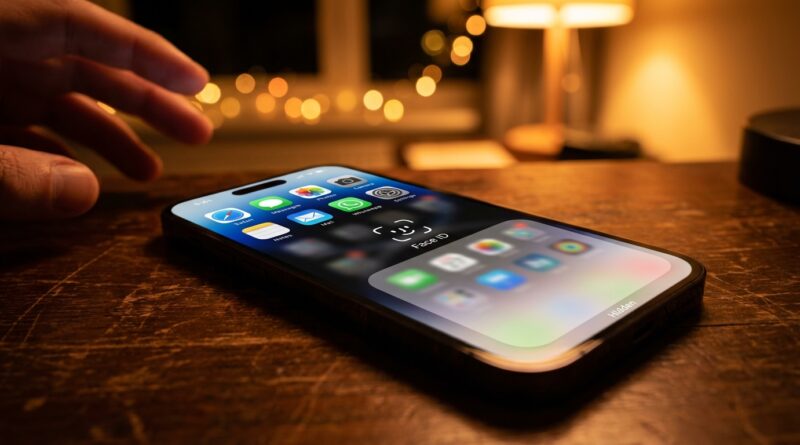
The iPhone’s ‘Hidden Apps’ Folder: How Power Users Lock Down Sensitive Stuff in iOS 18
You know that little flash of panic. You unlock your iPhone, hand it to someone to show a photo, and suddenly your whole digital life feels one swipe away from being exposed. Messages. Banking. Notes. Health. Maybe a dating app you would rather not explain over coffee. iOS 18 finally gives iPhone owners a better answer than “please don’t tap anything.” App Lock helps, sure. But a locked app still sits there on the Home Screen like a neon sign. The better move for many people is learning how to use hidden apps folder iOS 18 style, then pairing it with Focus modes for a cleaner setup. Done right, you can build two versions of your phone. One is safe to hand to kids, friends, or coworkers. The other is your private vault. The best part is that this is already built into your iPhone, and most people can set it up in less than 20 minutes.
⚡ In a Hurry? Key Takeaways
- You can hide sensitive apps in iOS 18 by long-pressing the app and choosing the hide option, which moves it to a locked Hidden folder in the App Library.
- For the best result, hide truly private apps, lock important but visible apps, and use a Focus mode to create a cleaner “public safe” Home Screen.
- Hidden apps are more private than simple app locking, but they are not a replacement for good passcode habits, Face ID, and basic common sense when sharing your phone.
What the Hidden Apps folder actually does
Apple’s Hidden Apps folder in iOS 18 is meant for apps you do not want sitting out in the open. When you hide a supported app, it disappears from your Home Screen and gets placed into a special Hidden folder inside the App Library.
That folder is locked. Opening it requires Face ID, Touch ID, or your passcode. So instead of leaving a private app visible but locked, you can remove it from plain sight entirely.
That is the big difference.
App Lock says, “You can see this app, but you can’t open it without authentication.”
Hidden Apps says, “You should not even know this app is here unless I authenticate first.”
How to use hidden apps folder iOS 18 users should know
If your iPhone is updated to iOS 18, setup is pretty simple.
Step 1: Find the app you want to hide
Go to your Home Screen or App Library and locate the app.
Step 2: Long-press the app icon
Press and hold the icon until the quick menu appears.
Step 3: Choose the privacy option
Depending on the app and your iOS version, you should see an option to require Face ID, or to hide and require Face ID. Choose the hide option if you want it removed from normal view.
Step 4: Confirm
Your iPhone will ask you to confirm the action. After that, the app is moved to the Hidden folder in the App Library.
Step 5: Open the Hidden folder when needed
Swipe to the App Library, scroll until you find the Hidden folder, then authenticate to view what is inside.
If you only want to stop casual snooping but still want the app visible, use the lock option instead of hide.
Which apps are worth hiding?
This is where power users can make iOS 18 genuinely useful.
A good rule is to hide apps that could create stress, awkward questions, or real financial risk if someone taps them.
Best candidates for hiding
Think about apps like:
- Banking and payment apps
- Password managers
- Dating apps
- Private messaging apps
- Health or medication trackers
- Work apps tied to client data
- Side hustle tools like Shopify, eBay, Stripe, Etsy, or seller dashboards
- Personal journal or note apps
Better candidates for locking, not hiding
Some apps still need to stay visible for convenience. For those, locking may be enough. That can include:
- Photos
- Messages
- Files
- Calendar
That way you keep your normal routine intact while adding one more privacy check.
The smartest setup is not just hiding apps
This is the part most quick tips miss.
If you really want a phone you can hand to someone without that nervous feeling, do not stop at hiding apps. Build two modes of your phone.
The “public safe” layout
This is the version of your iPhone that is safe for everyday sharing. Keep only harmless apps on your main Home Screen pages. Think Camera, Weather, Maps, Music, a game or two, maybe Photos if you are comfortable with that.
Then remove sensitive apps from the Home Screen entirely. Hide the ones that should be private. Lock the ones that need an extra check.
Now if someone is holding your phone, they are not staring at a bunch of tempting icons.
The “private vault” layout
This is your real setup. It includes hidden apps, locked apps, and a more personal Home Screen that appears only when you want it to.
The easiest way to manage this is with Focus modes.
Use Focus modes to make this work much better
Focus modes are the secret sauce here. They let you control which Home Screen pages appear at certain times or in certain situations.
For example, you can create:
- A Work Focus with work apps visible
- A Personal Focus with your full layout
- A Shareable Focus with only “safe” apps showing
How to set up a shareable Focus
Go to Settings > Focus, then create a new Focus. Name it something simple like “Public” or “Guest Safe.”
After that, choose the Home Screen pages you want visible while that Focus is active. Make one page with only low-risk apps. Hide the rest.
Now, before handing your phone to someone, switch to that Focus. Suddenly your phone looks clean, simple, and boring in the best possible way.
That is what you want.
Why this is better than just trusting people
Even nice people tap things by accident. Kids definitely do. Coworkers may not snoop, but they might swipe without thinking. A safer layout removes temptation and cuts down on awkward moments.
A practical blueprint you can copy today
If you want a fast starting point, use this.
Public safe iPhone layout
- Visible on Home Screen: Camera, Photos, Weather, Maps, Music, Calculator, Notes for basic stuff, a browser
- Locked: Photos, Messages, Mail, Files
- Hidden: Banking, password manager, dating apps, private chat apps, health apps, work admin tools
- Focus mode: One simple Home Screen page only
Private vault layout
- Visible when Personal Focus is on: your normal apps and widgets
- Locked: anything with sensitive content you still open often
- Hidden: anything that would create real trouble if spotted or opened
- Extras: hide notification previews for the most private apps
A few limits you should know
Apple’s system is good, but it is not magic.
Not every app behaves exactly the same
Some apps may support locking and hiding differently than others. Apple also places limits on certain system behaviors, so do not expect every app to vanish from every corner of iOS.
Notifications can still give things away
If a hidden app throws a banner notification on your lock screen, the app itself may be hidden but the alert can still be revealing. For private apps, go to Settings > Notifications and turn off previews or disable notifications completely.
Siri and Search matter too
Check whether the app can appear in search suggestions or Siri suggestions. For your most sensitive apps, it is worth turning those off in the app’s Siri settings.
Your passcode is still the foundation
If your passcode is weak or shared with someone else, no privacy feature will save you for long. Use a strong passcode and keep Face ID set up properly.
When hiding apps makes the biggest difference
For a lot of people, this is less about secrecy and more about boundaries.
Maybe you keep work and personal life on one phone and do not want a client-facing app visible at dinner. Maybe you run a side hustle and do not want those tools mixed in with family time. Maybe you just want to hand your phone to your kid to play music without risking a tap into your banking app.
That is where the Hidden Apps folder shines. It gives you a middle ground between total openness and locking your whole phone down like a bank vault.
At a Glance: Comparison
| Feature/Aspect | Details | Verdict |
|---|---|---|
| App Lock | Keeps the app visible, but requires Face ID, Touch ID, or passcode to open it. | Good for everyday apps you still want easy access to. |
| Hidden Apps folder | Removes the app from normal view and places it in a locked Hidden folder in the App Library. | Best for truly private apps you do not want visible at all. |
| Focus mode setup | Lets you show only selected Home Screen pages for work, personal use, or phone-sharing moments. | Best overall strategy for a low-stress, shareable iPhone. |
Conclusion
iOS 18’s privacy tools are worth more than the basic headline of “you can lock an app now.” If you learn how to use the Hidden Apps folder, then combine it with app locking and a simple Focus mode, your iPhone starts feeling a lot more under your control. You can set up a public safe layout for the moments when someone else needs your phone, and a private vault layout for everything you would rather keep separate. That is especially useful if you juggle work, side hustles, family life, and personal stuff on one device. Best of all, you do not need extra apps or a complicated trick. These tools already shipped on your phone. Spend 20 minutes setting them up once, and the next time someone says, “Hey, can I see that picture?” you can hand over your iPhone without your heart rate going up.