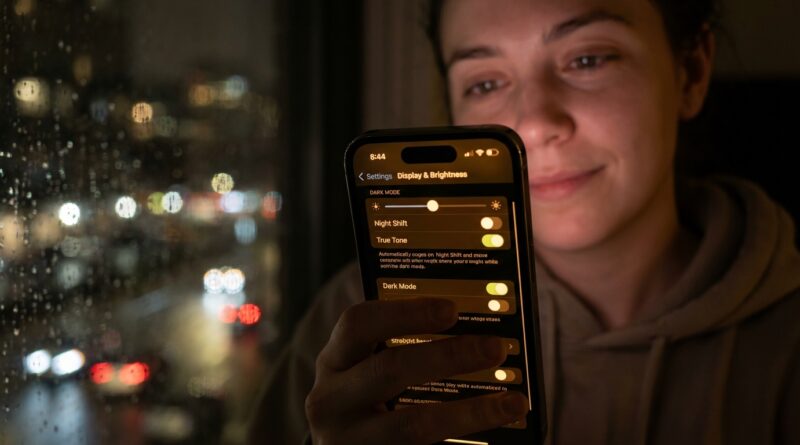
This Hidden iPhone 17 Display Setting Is Quietly Wrecking Your Eyes (And How Power Users Fix It)
If your iPhone 17 is leaving you with dry eyes, a dull headache, or that strange “too tired to sleep” feeling at night, you are not imagining it. A lot of people blame screen time in general, but the real problem is often the way the display is set up. For some eyes, especially if you are sensitive to OLED flicker or motion, the wrong mix of brightness, refresh rate, white point and animation can feel brutal fast. The frustrating part is that Apple does not put the fix in one obvious menu. You have to piece it together. The good news is you probably do not need to return your phone just yet. A few display tweaks can make the iPhone 17 much easier to live with, especially at night. Here is the no-nonsense setup many power users stick with when they want less eye strain without making the phone look terrible.
⚡ In a Hurry? Key Takeaways
- The biggest iPhone 17 eye strain trigger is often not screen time itself, but OLED flicker sensitivity mixed with low brightness, motion effects, and aggressive contrast at night.
- For quick relief, keep brightness out of the very low range, turn on Reduce White Point, use Dark Mode and Night Shift on a schedule, and consider limiting motion and refresh behavior when your eyes feel fried.
- If you get migraines, nausea, or burning eyes even after these changes, that is a sign to stop forcing it. You may be sensitive to PWM, and another display type may simply suit you better.
Why the iPhone 17 can feel harsher than expected
OLED screens can look gorgeous. Deep blacks, punchy contrast, bright highlights. But they can also bother sensitive eyes in ways that are hard to describe until you feel it yourself.
The issue many people run into is called PWM, short for pulse-width modulation. That is a fancy way of saying the screen may control brightness by flickering very quickly. Most people never notice. Some people absolutely do. If you are one of them, the symptoms can show up as eye strain, forehead pressure, headaches, nausea, trouble focusing, or a wired feeling late at night.
Then Apple adds in a few things that look nice on paper but are not always kind to tired eyes. Smooth motion. Bright whites. Auto-brightness jumps. Extra contrast. Super low nighttime brightness. Put all of that together, and your eyes can end up working much harder than they should.
The hidden setting combo that causes the most trouble
It is usually not one setting. It is the combo.
1. Very low brightness
This is the big one for many people. On OLED iPhones, the lowest brightness levels are often where flicker-sensitive users feel the most discomfort. It seems backwards because dimmer should feel gentler. But if your eyes are reacting to PWM, dragging brightness all the way down can actually make things worse.
A practical rule is to avoid the bottom end of the brightness slider unless you have no choice. Many sensitive users do better keeping brightness roughly above 30 percent, then using Reduce White Point to soften the screen instead of dimming it into the basement.
2. Constant motion and animations
The iPhone likes to glide, zoom and float. It is pretty. It can also be exhausting. If your brain is already working harder to process a flickery or high-contrast screen, those motion effects pile on.
3. Bright, cool whites at night
Night Shift is not magic, but cool white light late at night can absolutely make a bad situation feel worse. If your display is bright, blue-heavy and full of stark white backgrounds, your eyes never really get a break.
4. Auto-Brightness making the wrong call
Auto-Brightness is useful, but it can also keep dipping the screen lower than your eyes actually like, especially in dim rooms. That is great for battery life. Not always great for comfort.
The field-tested iPhone 17 eye comfort setup
If you are searching for practical iPhone 17 eye strain PWM display settings, start here. This is the setup that tends to help the most people fastest.
Step 1: Stop using ultra-low brightness at night
Go to a dim room and raise brightness until the screen feels stable and easier to focus on. For many people, that lands somewhere around 30 to 50 percent. Yes, that may sound brighter than you expected.
Then do this:
Settings > Accessibility > Display & Text Size > Reduce White Point
Turn on Reduce White Point and start around 50 to 70 percent. This lowers the intensity of bright colors without forcing the panel into the lowest brightness range. For a lot of sensitive users, this feels much better than simply dragging the brightness slider down.
If your eyes still burn, go stronger. There is no prize for suffering through a “more accurate” image.
Step 2: Put Dark Mode on a real schedule
Dark Mode is not a cure, but bright white backgrounds are often part of the problem. Use it when it actually helps.
Go to Settings > Display & Brightness, then set Appearance to Automatic. I like sunset to sunrise for most people. If you work late, set a custom time like 7:00 PM to 8:00 AM.
This gives your eyes less glare during downtime while still letting you use light mode during the day if you prefer it for reading or color work.
Step 3: Make Night Shift warmer than you think
Most people turn on Night Shift and leave it on the default setting. That is the band-aid version.
Go to Settings > Display & Brightness > Night Shift.
- Schedule it for your evening hours
- Set color temperature warmer than default
- Test it for a few nights, not five minutes
During the day, you may want accurate color. At night, comfort wins. You can always switch back when you are editing photos or shopping for something where color matters.
Step 4: Reduce motion
Go to Settings > Accessibility > Motion.
- Turn on Reduce Motion
- Turn off Auto-Play Message Effects if you want fewer visual surprises
- If available, reduce auto-playing video previews in apps too
This will make the phone feel a little less flashy. It also makes it feel calmer, which is the point.
Step 5: Try lowering extra visual intensity
In Settings > Accessibility > Display & Text Size, test these one by one:
- Reduce Transparency. Often helpful for clarity.
- Increase Contrast. Sometimes helpful, sometimes harsher. Test it.
- Auto-Brightness. Try both on and off for a day each.
Do not change five things and guess. Change one setting. Use it for a few hours. Your eyes will tell you quickly what they hate.
The brightness ranges to avoid if you suspect PWM sensitivity
This is the part most big sites skip. If your iPhone 17 hurts your eyes, the worst zone is often the very low brightness range, especially in a dark room.
A simple pattern many users report:
- 0 to 20 percent brightness: often the most annoying for flicker-sensitive users
- 30 to 50 percent brightness: often more comfortable, especially with Reduce White Point enabled
- Above 70 percent indoors: can feel too intense unless the room is bright
This is not universal. It is a starting point. The trick is to use enough actual brightness to avoid the roughest low-end behavior, then tame the harshness with White Point and warmer color tone.
How to tie Dark Mode and Night Shift to Focus
This is where power users make life easier. Instead of manually fiddling with the screen every night, tie your comfort settings to Focus modes.
Create a “Night” or “Eye Comfort” Focus
Go to Settings > Focus and create a custom Focus called something like Night, Wind Down, or Eye Comfort.
Set it to start automatically at a time that matches when your eyes usually start feeling cooked. For example, 8:30 PM.
Then pair that Focus with these habits:
- Dark Mode on
- Night Shift on
- Lower notification chaos
- Reduced app hopping before bed
Apple does not let Focus directly control every display setting by itself, but the Shortcuts app fills the gap nicely.
Build a one-tap “Eye Rest” Shortcut
This is one of the best fixes because it turns three or four annoying steps into one button.
What your Shortcut should do
Open the Shortcuts app and create a new shortcut called Eye Rest. Add actions like these:
- Set Appearance to Dark
- Set Night Shift to On
- Set Reduce White Point if supported through Accessibility Shortcut or quick toggle workflow
- Set Brightness to around 35 or 40 percent
- Turn on your Eye Comfort Focus
Depending on your iOS version, some accessibility settings may not be directly exposed in Shortcuts. If that happens, use a workaround:
- Add Reduce White Point to your Accessibility Shortcut
- Set the Side Button triple-click to toggle it
- Use Shortcuts for the rest
Now you have a near-instant “my eyes are done” button.
Create a second Shortcut for “Color Accurate” mode
This is the other half of the trick. You do not want your phone permanently stuck in warm, muted comfort mode if you also use it for work.
Build a second shortcut called Color Accurate or Work Display with actions like:
- Turn Dark Mode off if you prefer light mode in daytime
- Turn Night Shift off
- Set brightness to your daylight level
- Turn off Eye Comfort Focus
This gives you two clean display profiles. One for comfort. One for accuracy.
A few things that help more than people expect
Use larger text
If your eyes are straining to focus on tiny type, the display gets blamed for everything. Go to Settings > Display & Brightness > Text Size and bump it up a notch or two.
Cut down white-heavy apps at night
Safari with a bright webpage can feel much harsher than a darker app, even at the same brightness. Reader mode, dark themes and app-specific appearance settings can make a real difference.
Take the “20-20-20” rule seriously
Every 20 minutes, look at something about 20 feet away for 20 seconds. Boring advice, yes. Also surprisingly effective.
Do not test a painful setup for hours
If a setting instantly makes your eyes feel worse, change it. You are not collecting scientific data for the lab. You are trying to make your phone usable.
When Night Shift is not enough
This is important. If you have already tried Night Shift and still feel awful, that does not mean you are being picky. It probably means Night Shift was never the core fix for your problem.
Night Shift changes color temperature. PWM sensitivity and motion strain are different issues. That is why some people can use a warm screen and still feel terrible five minutes later.
Signs your issue may really be PWM sensitivity
- You feel worse at low brightness than medium brightness
- Your symptoms show up fast, sometimes within minutes
- The discomfort is stronger in dark rooms
- Older LCD phones felt easier on your eyes
- Warm color settings help a little, but not enough
If that sounds like you, you are probably not dealing with “too much screen time” alone.
What to do if you still cannot tolerate the display
At some point, it is okay to stop troubleshooting and admit the panel may not agree with your eyes.
If the iPhone 17 still gives you headaches after a few days of testing these settings, your options are simple:
- Use the comfort setup for short sessions only
- Do color-sensitive work on another device
- Consider whether a different phone or a non-OLED device fits you better
That is not defeat. That is knowing your body.
At a Glance: Comparison
| Feature/Aspect | Details | Verdict |
|---|---|---|
| Low brightness vs Reduce White Point | Very low brightness can trigger more discomfort for PWM-sensitive users. Reduce White Point softens the screen without pushing brightness to the floor. | Use medium brightness plus Reduce White Point for better comfort. |
| Night Shift alone | Helps with harsh blue-white light at night, but does little for flicker or motion sensitivity. | Helpful, but not enough by itself. |
| Shortcut-based Eye Comfort mode | Bundles Dark Mode, Night Shift, brightness and Focus into one quick action for evening use. | Best long-term setup if you switch between work and downtime often. |
Conclusion
If your iPhone 17 has been making your eyes feel wrecked, do not let anyone tell you it is just in your head. Eye strain and PWM sensitivity are real, and they are a bigger deal now that so many phones rely on OLED panels. The good news is that you do not need to settle for the lazy advice of “just turn on Night Shift.” Start with the stuff that actually moves the needle. Avoid the very lowest brightness range. Use Reduce White Point. Schedule Dark Mode and Night Shift around your evenings. Build a one-tap Eye Rest shortcut. Give yourself a fast way to switch back to a more color-accurate setup when you need it. That is the practical, livable fix. And if you still feel lousy after trying it, that matters too. Sometimes the smartest move is not to force yourself to adapt to a screen your eyes clearly hate.