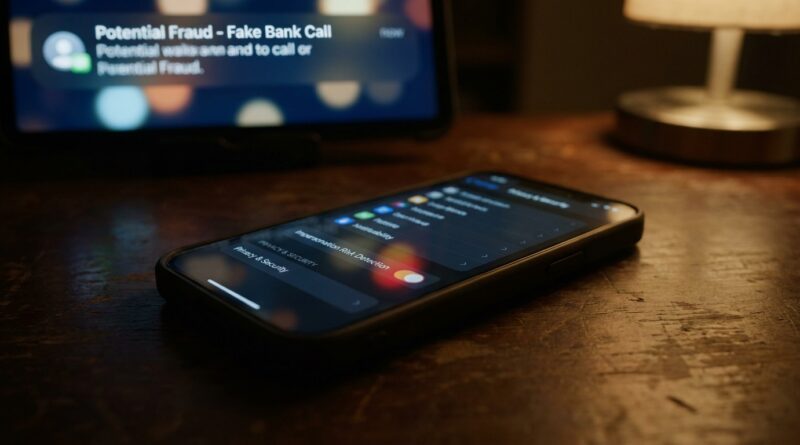
Stop Letting Scammers Outsmart You: The Hidden ‘Impersonation Radar’ Setting iPhone Power Users Turn On Before Their Next Bank Transfer
You are not being careless if scam calls and fake support messages still make you pause for a second. That is the point. Modern scams are built to catch you when you are busy, stressed, or halfway through doing something real, like moving money or checking a bank alert. The tricky part is that your iPhone may already block junk calls and filter messages, but that does not mean your banking app knows you are in the middle of a suspicious situation.
That is where the hidden iOS 27 impersonation risk detection setting comes in. Buried in Privacy & Security, this feature can quietly watch for risky context on your device, such as an unknown caller, an active screen share, or a sudden attempt to send money during a high-pressure interaction. It does not read your bank balance or send your personal data off your phone. It simply gives supported apps one more warning signal so they can slow things down and ask, “Are you sure?” Before your next bank transfer, this is one setting worth turning on.
⚡ In a Hurry? Key Takeaways
- iOS 27 impersonation risk detection is a hidden iPhone scam protection setting that can warn supported banking and payment apps when your current situation looks suspicious.
- Turn it on by going to Settings, Privacy & Security, then enabling Impersonation Risk Detection, if your iPhone is running the right version of iOS.
- It will not stop every scam, but it can add one more hard stop during high-pressure calls, screen shares, and fake support sessions when people are most likely to make a costly mistake.
Why this setting matters now
Scams used to be easier to spot. Bad grammar. Strange email addresses. Wild promises. That is not the world we are in anymore.
Now the scammer sounds calm. The phone number looks local. The text arrives right after a real package update. Or someone pretends to be from your bank, walks you through “securing” your account, and keeps you talking while you move money yourself.
That is what makes the iOS 27 impersonation risk detection hidden iPhone scam protection setting so useful. It is not just looking for one fake message. It is looking for a mix of signals on your device that suggest social engineering might be happening right now.
What impersonation risk detection actually does
Think of it like a quiet smoke alarm for scammy situations.
When this setting is on, your iPhone can use on-device context clues to flag a potentially risky moment to supported apps. For example:
- You are on a live call from an unknown number.
- You have started a screen share.
- You are suddenly asked to send money, change account details, or approve a transfer.
- The request is happening during a pressure-filled support chat or guided “help” session.
If your banking or payment app supports the feature, it can react by showing an extra warning, delaying part of the flow, or asking you to confirm what is happening in plain English before the transfer goes through.
That is important. The app is not just checking whether your password is right. It is checking whether the circumstances feel wrong.
What it does not do
This is where people get nervous, so let’s keep it simple.
It is not reading all your banking activity for Apple
The feature is designed around on-device signals. In plain English, your iPhone is doing the thinking locally instead of shipping every detail off to some server for analysis.
It is not a magic scam blocker
If a scammer tricks you outside a supported app, or convinces you to use a different device, this feature cannot save the day by itself.
It is not replacing your common sense
You still need to slow down when money is involved. No setting can fully protect someone who is being rushed into acting.
How to turn on the hidden setting
If you want the quick version, here it is.
- Open Settings.
- Tap Privacy & Security.
- Look for Impersonation Risk Detection.
- Turn it On.
If you do not see it, there are usually three possible reasons:
- Your iPhone is not updated to the required iOS version.
- The feature is rolling out gradually.
- Your region or your installed apps do not support it yet.
Check your iOS version first
Go to Settings > General > Software Update. If an update is waiting, install it when you have time and battery life.
Then test your financial apps
After enabling the setting, open your bank or payment apps and make sure they are updated too. A protection feature like this only helps if the app developer has added support for it.
When this feature is most likely to save you
The biggest value comes during stressful, believable scams. Here are the common ones.
The fake bank fraud call
You get a call saying your account is under attack. The person sounds professional. They ask you to move money to a “safe” account. With impersonation risk detection on, your banking app may recognize that you are being guided through a transfer while on a suspicious call and throw up an extra warning.
The screen-sharing support scam
Someone claims to be from tech support, your card provider, or a payment app. They ask to see your screen so they can “help.” That combination of screen sharing plus sudden money movement is exactly the sort of thing this feature is meant to treat as risky.
The urgent payment request while distracted
You are in the middle of work, school pickup, or travel. A message pushes you into taking fast action. This setting can create one extra pause right when your brain is least likely to question what is happening.
Why Apple buried it so deep
Honestly, this is classic phone-setting behavior. The most useful protections are often tucked away where normal people never think to look.
Privacy & Security is a place many folks visit only when something goes wrong. That means powerful options can sit there for months, switched off, while people assume their phone is already doing all it can.
It is the same reason people miss other useful iPhone protections. Security tools are getting smarter, but they still need you to flip the switch.
Three smart habits to use with this setting
This feature is good. A layered approach is better.
1. Never move money because of a live call
If someone says they are from your bank, hang up. Then call the number on the back of your card or from the bank’s official app or website.
2. Do not screen-share during account problems
No real bank needs to watch your screen while you log in and send money.
3. Treat urgency as a warning sign
“Do this now or your money is gone” is exactly how scammers keep smart people from thinking clearly.
Who should turn this on first
Really, almost everyone. But it is especially useful for:
- People who do most of their banking on an iPhone
- Older adults who are often targeted by impersonation scams
- Parents juggling messages, calls, and payments at the same time
- Small business owners handling quick transfers on the go
- Anyone who has ever thought, “I almost fell for that”
At a Glance: Comparison
| Feature/Aspect | Details | Verdict |
|---|---|---|
| What it watches for | On-device context such as unknown calls, screen sharing, and sudden money movement inside supported apps | Useful extra layer against impersonation scams |
| Privacy impact | Designed to use local device signals rather than broadly sharing sensitive data | Good balance of safety and privacy |
| Everyday value | May add warnings or friction right before a risky transfer when you are distracted or being manipulated | Absolutely worth turning on |
Conclusion
Scam attempts are going up, and they do not always arrive as cartoonishly fake emails anymore. They show up as real-sounding calls, screen shares, and “helpful” chats at exactly the wrong moment. That is why the iOS 27 impersonation risk detection hidden iPhone scam protection setting matters. It gives your phone one more way to notice when the situation around a bank transfer feels off and warn a supported app before you tap send. Because it is tucked away in Privacy & Security and ships off by default, most people will never know it exists unless someone points it out. Turn it on, keep your apps updated, and treat it as an extra seatbelt. You hope you never need it, but if a scammer catches you on a stressful day, you will be glad it is there.