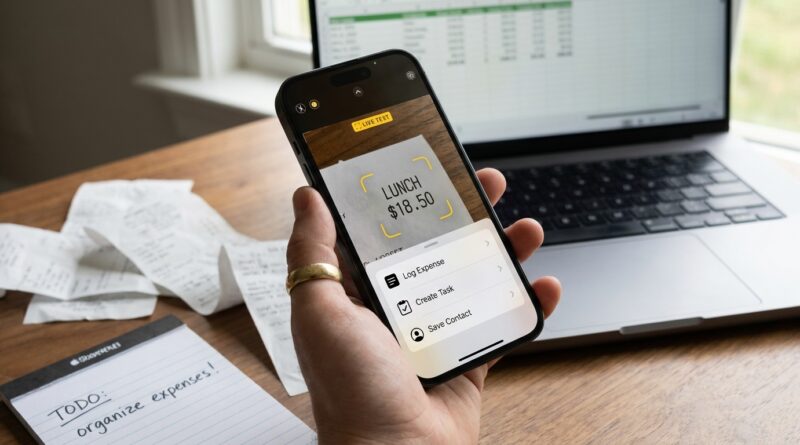
Stop Letting Text Eat Your Day: The Hidden ‘Live Text Command Chains’ Trick iPhone Power Users Use To Automate Anything You Point Your Camera At
You take a photo of a receipt so you can file it later. You scan a Wi‑Fi password off a router sticker. You grab a shot of meeting slides before they disappear. Then the annoying part starts. Zooming in, pressing and holding, copying one line, switching apps, pasting, going back, fixing mistakes. It is slow, fiddly, and weirdly exhausting for something your iPhone should already handle.
Here is the trick most people miss. Live Text is not just for reading words in photos. When you connect it to Shortcuts, it becomes a little automation engine. Point your camera at text, pull the text out instantly, then send it straight into Notes, Reminders, Calendar, Contacts, Mail, or your expense log with almost no typing. Once you set up a few simple command chains, your iPhone starts acting less like a camera roll storage bin and more like a helpful assistant that actually finishes the job.
⚡ In a Hurry? Key Takeaways
- Live Text plus Shortcuts lets you grab text from the camera or photos and send it straight into the app or action you need.
- Start with simple chains like receipt to note, Wi‑Fi password to clipboard, or slide photo to summary note.
- Your text is often processed on-device, which is faster and more private than bouncing everything through third-party apps.
What “Live Text command chains” actually means
Apple does not call it that. I do, because it is the easiest way to explain what is happening.
Step one, Live Text reads words from something your camera sees, or from a photo already in your library.
Step two, a Shortcut takes that text and does something useful with it.
That “something useful” can be one action or several in a row. That is the chain.
For example:
- Scan a receipt
- Extract the store name, total, and date
- Save it into a note called Expenses
- Optionally share it to Mail or Files
Or:
- Point camera at a Wi‑Fi label
- Grab the password text
- Copy it to the clipboard
- Open Settings or Messages so you can use it right away
This is the sweet spot for iPhone Live Text shortcuts automation. You are removing the boring middle steps.
Why this matters more than another hidden iPhone trick
A lot of “power user” tips are cute for ten seconds and then you forget them. This one sticks because it saves time in moments you already have every week.
Receipts. Labels. Business cards. Whiteboards. Handwritten to-do lists. Return authorization numbers. Meeting notes on a projector. Serial numbers on the back of a device.
These are all tiny chores that break your focus. Live Text can already see the text. Shortcuts can already move data around. Put the two together and suddenly your phone stops making you be the human glue between apps.
If you liked the idea of extracting useful bits from what is already on your screen, you should also read Stop Letting Copy‑Paste Slow You Down: The Hidden ‘On‑Screen Smart Actions’ Trick Power Users Use To Turn Anything You See Into Instant Output. That trick pairs nicely with this one. One helps with text your camera sees. The other helps with text already on your display.
What you need before you start
Make sure Live Text is turned on
Go to Settings, then General, then Language & Region. Make sure Live Text is enabled.
On newer iPhones, it is usually on by default. If you have never touched it, you probably already have it.
Check that the Shortcuts app is installed
Apple includes it, but some people delete it. If it is missing, download Shortcuts from the App Store.
Know where Live Text appears
You can use it in the Camera app, Photos, screenshots, Quick Look, Safari images, and other places where iOS detects text in an image.
The easiest way to build your first Live Text automation
Let’s keep this simple. Start with a shortcut that takes text from an image and drops it into a note.
Shortcut idea: Receipt to Expense Note
In Shortcuts, create a new shortcut and add actions like these:
- Select Photos, or Take Photo if you want to use the camera live.
- Extract Text from Image.
- Ask for Input, optional, if you want to add a category like Travel or Meals.
- Append to Note.
Name the note something obvious, like Expense Inbox.
Now every time you run the shortcut, your receipt text lands in one place. No retyping. No opening Notes and pasting line by line.
Why this works even if the text is messy
Receipt scans are not always pretty. Some store logos confuse OCR. Totals may appear twice. That is okay. The point is not perfect accounting software. The point is getting the text captured while the receipt still exists and before you forget what it was for.
You can clean it up later, or not at all.
Three command chains that save the most time
1. Wi‑Fi password to clipboard
This one is almost laughably useful.
Create a shortcut that:
- Takes a photo or selects an image
- Extracts text
- Copies result to clipboard
If you want to get fancier, add “Show Result” first so you can confirm you copied the right string.
This is great for router labels, hotel cards, and those impossible passwords printed in tiny gray text.
2. Meeting slide to clean note
You snap a photo because the slide changes too fast. Then the photo disappears into your library forever.
Instead, build a shortcut that:
- Takes or selects a photo
- Extracts text
- Adds date and meeting title
- Creates a new note
Now your slide becomes searchable text in Notes. Much easier to find later than IMG_4832.
3. Handwritten note to reminders
Live Text can often read handwriting surprisingly well if it is reasonably clear.
Try a shortcut that:
- Selects a photo of your handwritten list
- Extracts text
- Splits text by lines
- Creates a Reminder for each line
This is one of those setups that feels very futuristic the first time it works.
Real-world setups for normal people, not automation hobbyists
For parents
Scan school handouts, lunch codes, event dates, or supply lists. Send the text right into Notes or Reminders.
For frequent travelers
Capture hotel addresses, gate changes on printed signs, baggage claim info, rental car return instructions, or expense receipts.
For small business owners
Turn paper invoices, packaging labels, and handwritten job notes into digital records fast.
For anyone helping less techy relatives
Use it for serial numbers, account reference numbers, modem passwords, or support instructions printed on a device.
How to make the shortcuts feel almost instant
Add them to your Home Screen
If a shortcut is buried in the Shortcuts app, you will forget it exists. Put your best ones on the Home Screen with a simple name like “Scan Receipt” or “Grab Password.”
Use the Action button or Back Tap
If your iPhone supports the Action button, assign a favorite shortcut to it. You can also use Back Tap in Accessibility settings to trigger a shortcut with a double tap on the back of the phone.
Keep each shortcut focused
Do not build one giant “do everything” workflow at first. Make one for receipts, one for notes, one for passwords. Clear beats clever.
What works best with Live Text and what does not
Works well
- Printed text
- High contrast labels
- Forms and receipts with good lighting
- Handwriting that is neat and dark
Less reliable
- Curved labels on bottles or cables
- Very stylized fonts
- Blurry screenshots
- Tiny text shot from far away
If a scan comes out rough, get closer, improve lighting, and crop the image before extracting text. That alone solves a lot of problems.
Privacy and safety notes worth knowing
This is one reason many people prefer Apple’s built-in tools. A lot of Live Text processing happens on the device itself, which can be faster and more private than uploading every image to a random scanner app.
That said, be smart with what you automate. If you are scanning passport details, banking info, or private documents, make sure the shortcut sends the text only where you intend. Check actions like Mail, Messages, cloud storage, and third-party note apps before saving anything sensitive.
In other words, automate the boring stuff, not your good judgment.
Common mistakes people make the first time
They try to overbuild
Start tiny. One image in, one useful result out.
They forget to test with real photos
A shortcut that works with a clean sample image can fail on a dim, crumpled receipt from real life. Test with the messy stuff you actually deal with.
They expect perfect formatting
Live Text is about speed and capture first. Pretty formatting comes second.
If you want to go one step further
Once you are comfortable, you can add logic.
- If text contains “Total,” send it to your expense note.
- If text looks like an email address or phone number, create a contact draft.
- If text includes a date, offer to make a calendar event.
- If text includes a tracking number, open the shipping site.
That is where iPhone Live Text shortcuts automation gets really fun. Your iPhone starts reacting to what it reads instead of just showing you the words.
At a Glance: Comparison
| Feature/Aspect | Details | Verdict |
|---|---|---|
| Live Text alone | Lets you select and copy text from photos or the camera view. | Useful, but still leaves you doing the app switching. |
| Live Text plus Shortcuts | Extracts text and sends it straight into Notes, Reminders, Contacts, Mail, or other actions. | Best option for repeat tasks and real time savings. |
| Third-party scanner apps | Can offer extra formatting, exports, or business features, but may add cost or privacy tradeoffs. | Good for advanced needs, but built-in tools are enough for most people. |
Conclusion
If iOS has started to feel a little too clever for its own good, this is the kind of feature that brings it back down to earth. It solves a real problem. You point your camera at text, and your phone helps you do something with it right now. Not later, not after six copy-paste hops. Right now. That means faster inbox replies, easier expense tracking, cleaner notes, better contact capture, and less friction all over your day. For new and returning iPhone users especially, this is the kind of practical win that makes the phone feel useful again instead of overwhelming. Start with one shortcut. Keep it simple. Once you see how much time it saves, you will never look at Live Text as just a text picker again.