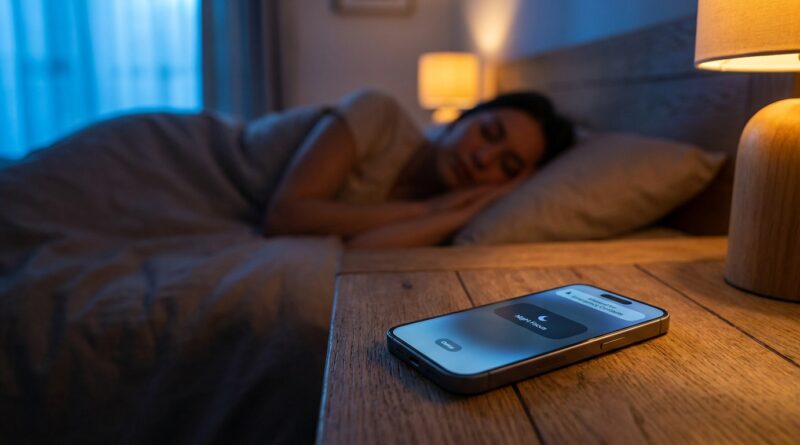
Stop Letting Your iPhone Interrupt Sleep: The Hidden ‘Context Night Focus’ Trick Power Users Use To Silence Everything Except Emergencies
You are not imagining it. Nothing is more annoying than finally getting comfortable, drifting off, and then hearing your iPhone light up because somebody replied “lol” to a group text at 2:07 a.m. Plenty of people turn on Do Not Disturb or Sleep Focus and still do not trust it, because one app sneaks through, one person gets around it, or one old setting keeps making noise. The good news is that Apple already gives you a much better fix. You just have to build it with a little more intention. The trick power users rely on is a custom Night Focus that allows almost nothing, then makes very specific exceptions for real emergencies. Once you set it up properly, your phone stops acting like it owns the night. Better yet, you can still let calls from your kids, parents, partner, or on-call work come through without opening the floodgates for everything else.
⚡ In a Hurry? Key Takeaways
- For true iPhone Focus mode for sleep emergencies only, create a custom Night Focus and allow only a tiny list of people and apps.
- Use “Allow Notifications From” for trusted contacts, turn on repeated calls only if you want it, and hide lock screen distractions completely.
- Test it before bed, because one old app exception or schedule mistake can undo the whole setup.
The hidden trick is not really hidden. It is just buried.
Most people stop at turning on Sleep Focus or Do Not Disturb. That is fine, but it is often too broad or too messy. If you have changed settings over time, added app exceptions, or shared Focus settings across devices, the result can feel unpredictable.
The better move is to make a fresh, purpose-built Focus just for nighttime. Think of it like making a guest list for your bedroom. If somebody is not truly important at 2 a.m., they do not get in.
How to build a Night Focus for emergencies only
Step 1: Create a custom Focus
Open Settings, then Focus, then tap the + in the top right. Choose Custom. Name it something obvious like Night Emergency or Sleep Emergency Only. Pick an icon if you want. The name matters more than the icon, because you want to know exactly what it does when you glance at it later.
Step 2: Choose who can reach you
When iPhone asks about allowed people, be ruthless. This is where most setups go wrong. People add too many contacts because they worry about missing something. Then the Focus becomes useless.
For most people, a smart list is:
- Partner or spouse
- Kids
- Parents or one elderly family member
- Babysitter or caregiver
- Boss or dispatch line, only if you are truly on call
Tap Allow Notifications From and add only those people. If you use Favorites in the Phone app carefully, you can also build around that, but a direct hand-picked list is usually better.
Step 3: Decide how to handle repeated calls
This setting matters. Under your Focus options, look for Allow Repeated Calls. If the same person calls twice within three minutes, the second call can ring through.
For some households, this is perfect. If a teen is stranded or a parent has an urgent issue, they will call again. For others, especially if spam calls are common, it can be risky. My plain-English advice is this:
- Turn it on if you have children, elderly relatives, or on-call duties.
- Turn it off if robocalls or late-night wrong numbers are a real problem.
Step 4: Choose which apps, if any, can break through
Now go to Apps inside that Focus. In a true emergency-only setup, the best answer is usually almost none.
Good candidates might be:
- Phone
- Messages, but only if your allowed people use text in emergencies
- A medical alert app
- Your security system app
- A critical work app, but only during on-call nights
Bad candidates are email, shopping apps, social media, delivery apps, news alerts, and chat apps with noisy group threads. If your goal is sleep, these should not be anywhere near your allowed list.
Step 5: Silence the visuals too
Noise is not the only problem. Lock screen previews and banner notifications can wake your brain even if they do not make a sound.
Inside your Focus, check these options:
- Hide Notification Badges
- Dim Lock Screen
- Silence Notifications from people and apps not allowed
This helps stop the half-awake habit of checking your phone “just for a second,” which almost never stays a second.
The “context” part is what makes this better than regular Sleep Focus
The real power-user trick is not just building the Focus. It is making it react to your life.
You can set schedules and filters so your phone behaves differently on different nights. That is the part many people miss.
For parents
You might run this Focus every night from 10:30 p.m. to 6:30 a.m., with calls and texts only from family members and one school or caregiver contact. Group chats stay silent. Emergency family communication still gets through.
For shift workers
Your nighttime might be 9:00 a.m. to 3:00 p.m. after an overnight shift. That is why a custom Focus beats generic bedtime settings. Your phone does not care what the clock says. It should care when you are sleeping.
For business owners
You may need different rules on different days. Maybe on weekends, only family can get through. On inventory or launch nights, one employee and one monitoring app can reach you. Everybody else waits until morning.
How to schedule it so you do not have to think about it
Inside your custom Focus, tap Add Schedule. You can trigger it by:
- Time, which is easiest for most people
- Location, useful if you sleep in different places
- App, less common for sleep, but still possible
Time-based scheduling is usually best. Set it to start a little before you actually go to sleep so your wind-down is quiet too.
If you already use sleep and wake routines, this is a good companion to Stop Letting Your Alarms Rule Your Mornings: The Hidden ‘Context-Aware Alarm Scenes’ Trick iPhone Power Users Use To Wake Up Exactly Right Every Day. Quiet nights and calmer mornings tend to work best together.
Three settings people forget, and then blame Focus
1. Shared Focus across devices
If you have a Mac, iPad, or Apple Watch, your Focus settings may sync. That can be helpful, but it can also create confusion. Check whether Share Across Devices is on. If your other Apple gear behaves strangely at night, this may be why.
2. Emergency Bypass for individual contacts
Open a contact, tap Edit, then look at ringtone and text tone settings. Some contacts may have Emergency Bypass turned on. That means they can break through Focus and silent mode. Useful for one or two people. Terrible if it was enabled years ago and forgotten.
3. App notifications set as Time Sensitive
Some apps can mark alerts as Time Sensitive. In your Focus settings, review whether Time Sensitive notifications are allowed. If your weather app or airline app really needs that power, fine. If half your apps are using it, your nighttime setup is too loose.
Test it before trusting it
This part is boring, but important. Do not wait until midnight and hope for the best.
Turn on your Night Focus manually in the evening. Then do a few quick tests:
- Have an allowed contact call you
- Have a blocked contact text you
- Check whether a non-essential app still sends banners
- Look at your lock screen to see what still appears
If something gets through that should not, it is almost always one of these: an app exception, a contact with Emergency Bypass, repeated calls, or a schedule that overlaps weirdly with another Focus.
Simple setups for real people
Example 1: Parent with school-age kids
Allowed people: partner, kids, babysitter, parents.
Allowed apps: Phone, Messages, home security.
Repeated calls: On.
Schedule: 10:00 p.m. to 6:15 a.m.
Example 2: Night-shift nurse sleeping in daytime
Allowed people: partner, child’s school, one emergency family contact.
Allowed apps: Phone only, maybe security app.
Repeated calls: On.
Schedule: 9:30 a.m. to 3:30 p.m.
Example 3: Small business owner on rotating on-call duty
Allowed people: spouse, one employee, one parent.
Allowed apps: Phone, monitoring app, one work app only on assigned nights.
Repeated calls: On.
Schedule: Different schedule for weekdays and weekends.
When standard Sleep Focus is still enough
To be fair, not everybody needs a custom system. If your life is predictable and you only want fewer distractions, the built-in Sleep Focus can be enough. But if you are reading this because “something always slips through,” that is the sign to stop using the generic setup and start using a custom one.
At a Glance: Comparison
| Feature/Aspect | Details | Verdict |
|---|---|---|
| Standard Do Not Disturb | Quick to turn on, but often too generic for family, work, and emergency exceptions. | Fine for casual use, not ideal for sleep emergencies only. |
| Custom Night Focus | Lets you allow only specific people and apps, set schedules, and block visual clutter too. | Best overall choice for dependable nighttime silence. |
| Repeated Calls and Emergency Overrides | Useful safety net, but can also let in spam or forgotten contact bypass settings. | Use carefully, then test before relying on it. |
Conclusion
Everyone is talking about hidden iPhone settings right now, but most advice stops at “turn on Do Not Disturb” and calls it a day. That is not enough for people with real lives, real responsibilities, and real reasons they still need to be reachable. A properly built Night Focus gives you something better. Quiet when you need sleep, access when it actually matters, and much less low-level anxiety about what your phone might do next. If you set up an iPhone Focus mode for sleep emergencies only, test it once, and trim the exceptions hard, you can finally stop negotiating with your phone every night. For parents, shift workers, caregivers, and business owners especially, this is one of those small settings changes that pays you back immediately in better sleep and a calmer brain.