Stop Letting Your Alarms Rule Your Mornings: The Hidden ‘Context-Aware Alarm Scenes’ Trick iPhone Power Users Use To Wake Up Exactly Right Every Day
If your iPhone alarm feels like a tiny daily home invasion, you are not imagining it. Most people still use alarms the same way they did years ago. One sound. One volume. One routine. Then they wonder why a gentle Sunday gets blown up like a fire drill, or why a heavy workout morning starts with the same sleepy chime they ignored three times last Tuesday. That mismatch is the real problem. Your morning is not one fixed event, so your alarm should not act like one. The good news is that iPhone hidden alarm automation iOS power user setups are not really about fancy tricks. They are about making your phone understand what kind of morning you are having, then adjusting the wake-up experience to fit. Once you connect Sleep schedules, Focus modes, and a few Shortcuts automations, your iPhone can stop barking orders and start acting more like a smart morning assistant.
⚡ In a Hurry? Key Takeaways
- Use Sleep schedules, Focus modes, and Shortcuts together to create different alarm scenes for workout days, commute days, and slow mornings.
- Start simple. Build one morning automation first, such as turning on a specific Focus mode and showing a custom reminder list when your wake alarm is stopped.
- You do not need new hardware, but test every automation on a low-stakes day so you do not accidentally mute something important.
The trick is not one alarm. It is a morning scene.
Think of this like lighting in a room. You would not use the same bright overhead light for movie night, dinner, and cleaning the kitchen. Alarms are the same. A good wake-up setup is not just a sound. It is the alarm, the phone state, the notifications you allow, the app screen you see first, and the little prompts that stop your brain from forgetting the first important thing of the day.
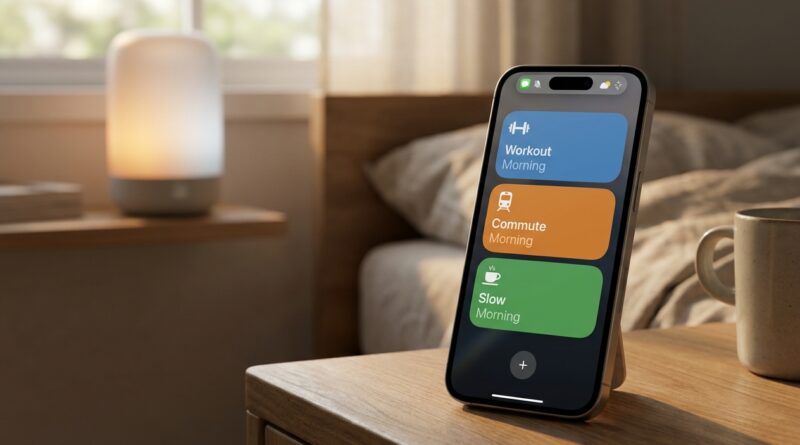
That is what I mean by a context-aware alarm scene. Your iPhone checks the kind of morning it is, then responds the right way. Maybe on workout days it wakes you with a more energetic sound, turns on Fitness Focus, and shows your gym checklist. On commute days it can surface weather, traffic time, and your first calendar event. On slow mornings, it can keep things quieter and hold back the usual flood of pings.
What tools on the iPhone make this possible?
You probably already have everything you need. Apple just does not present it as one obvious system.
1. Sleep schedule in Health
This is the anchor. Sleep lets you set wake times by day, and its alarms tend to be more reliable than a random pile of manual alarms. It also gives you a better base if your schedule changes across the week.
2. Focus modes
Focus is the real secret sauce. You can create modes like Workout Morning, Commute Morning, Deep Work Start, or Slow Saturday. Each one can have its own Home Screen, allowed notifications, and lock screen behavior.
3. Shortcuts automations
This is where the magic happens. In the Shortcuts app, you can create automations triggered by alarm events, time of day, or when a Focus mode turns on. That is how you chain one morning action into the next.
4. Custom Home Screens and widgets
You can make a Home Screen that only shows what matters in the morning. Weather. Calendar. Reminders. Maps. Water tracker. Coffee timer. Whatever actually helps before 9am.
Why most people get alarms wrong
They treat the alarm as the whole system. It is not. It is just the starter pistol.
The usual setup goes like this. Alarm rings. You hit snooze. Notifications pile in. You open your phone and get distracted by messages, headlines, and three apps you never meant to touch. Ten minutes disappear. Then you miss the thing you actually cared about.
If that sounds familiar, your problem is not discipline. It is design.
This is also why bedtime matters. If you want a better morning, pair this setup with Stop Letting Screens Steal Your Sleep: The Hidden ‘Bedtime Scene Automations’ Trick iPhone Power Users Use To Wind Down Without Willpower. The two tricks work together really well. One prepares your night. The other protects your morning.
How to build your first context-aware alarm scene
Do not try to automate your entire life in one sitting. Start with one type of morning that annoys you the most.
Scene idea 1: Workout day wake-up
This is great if you keep talking yourself out of exercise before your feet hit the floor.
Set it up like this:
1. Create a Focus mode called Workout Morning.
2. Give it a simple Home Screen with Fitness, Reminders, Weather, and Music.
3. In Reminders, make a list called Gym Start or Morning Workout.
4. In Shortcuts, create a personal automation triggered when your wake-up alarm is stopped.
5. Have it turn on Workout Morning Focus.
6. Add actions like Show Reminder List, Open Fitness, or Speak Text such as “Workout day. Leave by 6:40.”
You can also add “Set Volume” before opening Music if you want your playlist to start at a comfortable level instead of blasting you awake.
Scene idea 2: Early commute day
This one is useful if your mornings are fine until real-world timing gets involved.
Build a Commute Morning Focus. Then connect your alarm stop event to actions like:
• Turn on Commute Morning Focus
• Show Calendar
• Get travel time to Work
• Display weather
• Open Maps or your train app
That way your first look at the phone answers the only questions that matter. How long do I have? What is the weather doing? What time do I need to move?
Scene idea 3: Slow morning or recovery day
Not every day should feel like a launch sequence.
Create a Slow Morning Focus that allows only family calls or emergencies, dims the digital noise, and uses a simpler Home Screen. You can pair this with a softer alarm and a shortcut that opens a reading app, meditation app, or a short checklist instead of email.
Step-by-step: The easiest setup that works for most people
If you want one practical version to copy, here it is.
Create the Focus modes
Go to Settings, then Focus. Make two or three modes based on your actual week. Keep the names obvious. Workout Morning. Commute Morning. Slow Morning.
For each one, set:
• Allowed people who can break through
• Allowed apps
• A custom Home Screen page
• Optional lock screen style
Build the right Home Screen page
Long-press the Home Screen, then make a page just for mornings. Add useful widgets. Most people do best with:
• Calendar
• Weather
• Reminders
• Maps
• Battery
• Fitness
Keep junk off this page. No social apps. No news rabbit holes. No games.
Set your alarm trigger in Shortcuts
Open Shortcuts, tap Automation, then create a Personal Automation. Look for the Alarm trigger. Depending on your iOS version, you can trigger when an alarm is stopped or snoozed.
Then add actions like:
• Turn Focus On
• Open App
• Show Notification
• Get Travel Time
• Speak Text
• Set Volume
• Wait
• Open specific note or reminder list
If your iPhone asks whether the automation should run automatically, allow that if you are comfortable. The fewer taps required, the more useful this becomes.
A few smart combinations people overlook
Different alarms for different days
Obvious, yes. But many people still use one repeating alarm for everything. Split them up. Name them clearly. Use labels you will understand at a glance, like Train Day, Gym Early, School Run, or Late Start.
Use labels as your mental cue
An alarm label is a tiny thing, but it can lower morning confusion. “6:00 AM” is just a time. “Airport Morning” tells your half-awake brain what kind of day this is.
Pair Focus with wallpapers
Each Focus mode can have its own lock screen. That means your phone can visually tell you what kind of morning you are in before you even fully wake up.
Use reminders that appear after the alarm, not before
If you schedule reminders too early, you sleep through them. If they appear when you stop the alarm, they hit at the exact moment your brain starts taking input again.
Common mistakes to avoid
Do not replace reliability with cleverness
Your actual wake-up alarm should stay simple and dependable. The automations happen around it. Do not build a setup that risks your phone not waking you at all.
Do not silence too much with Focus
Double-check who and what can break through. If you have kids, a caregiving role, or on-call work, make sure the important people can still reach you.
Do not overbuild on day one
The best morning setup is the one you will maintain. If your first version has 19 conditions and 12 app launches, you will stop trusting it. Start with one trigger and two or three actions.
Do not forget sleep mode itself
A better morning usually starts with a cleaner night. If your evenings are chaotic, your alarm scene will help, but it will be doing cleanup work. That is why the bedtime side matters too.
Who should use this setup most?
This kind of iPhone hidden alarm automation iOS power user setup is especially good for:
• People with different weekday schedules
• Anyone trying to stop doomscrolling first thing in the morning
• Commuters who need time and travel info fast
• Parents juggling school, work, and routines
• People building a workout habit
• Anyone who hates being yanked into the day the same way every single morning
What if you want to get more advanced later?
Once the basic setup works, you can dig a little deeper.
You can create a shortcut that checks the day of the week and turns on a certain Focus mode automatically. You can tie in smart home actions if you use HomeKit, like turning on a lamp or starting a gentle music scene. You can create separate reminder lists for Monday admin tasks, office days, or travel mornings.
But that is phase two. First, make your phone stop giving every day the same wake-up treatment.
At a Glance: Comparison
| Feature/Aspect | Details | Verdict |
|---|---|---|
| Basic repeating alarm | Same sound and behavior every day, no awareness of schedule, notifications, or priorities | Reliable, but blunt and easy to outgrow |
| Alarm plus Focus mode | Changes what notifications, apps, and screens you see based on the kind of morning | Best first upgrade for most people |
| Full morning scene with Shortcuts | Can trigger reminders, travel info, app launches, spoken prompts, and custom actions when the alarm is stopped | Most useful if you keep it simple and test it well |
Conclusion
The feeds are packed with shiny iOS feature lists, but very few people show how to connect those pieces into something that solves a real everyday annoyance. This does. A smart, context-aware alarm setup is one of those rare iPhone tweaks that feels small when you build it, then keeps paying you back every morning after. You are using tools your phone already has, like Sleep, Focus, and automations. You are just stitching them into one practical morning brain. Start with one rough morning type, make it better, and build from there. You do not need a new gadget, a subscription, or the next big iPhone update. You just need your alarm to stop acting like a blunt instrument and start acting like it actually knows what kind of day you are waking up to.