Stop Letting Your Lock Screen Waste Space: The Hidden ‘Context Lockscreen Loadouts’ Trick iPhone Power Users Use To Swap Entire Setups In One Tap
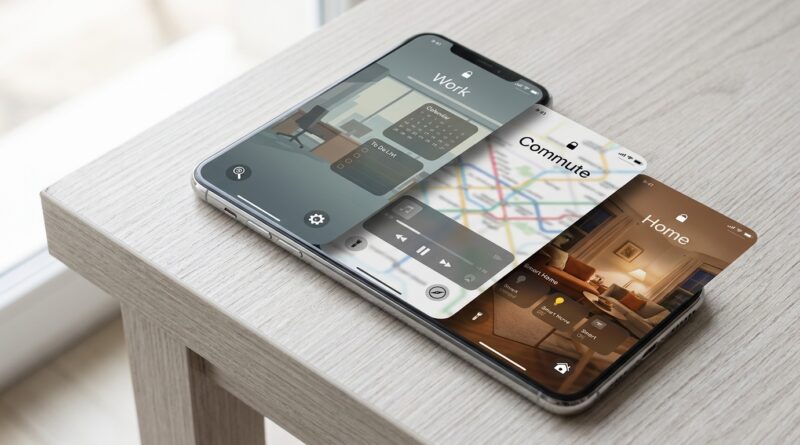
Your iPhone Lock Screen probably looks nice. It probably also wastes space. That is the annoying part. Most people leave the same wallpaper, the same widgets, and the same flashlight and camera buttons there for months, even though their day keeps changing. So your phone is showing gym info when you are at work, work stuff when you are trying to sleep, and almost nothing useful when you are out running errands. iOS 18 quietly fixes that. The Lock Screen is no longer just a pretty cover page. You can now swap the bottom shortcuts for other controls, add more useful widgets, use interactive ones, and link each Lock Screen to a Focus mode so your whole setup changes with a swipe and a tap. The real trick is not just customizing one screen. It is building a few context-based Lock Screen loadouts that match what you are doing right now.
⚡ In a Hurry? Key Takeaways
- iOS 18 lets you turn the Lock Screen into different setups for work, commuting, home, and sleep, instead of one static screen.
- The best trick is to create multiple Lock Screens and tie each one to a Focus mode so it switches automatically.
- You do not need to overdo it. Start with two or three useful widgets and two better shortcut buttons, then test what actually saves you time.
Why this matters more than it sounds
Apple did not make a huge fuss about this, but these are some of the most practical iOS 18 lock screen customization tips for everyday use.
Think about how often you wake your phone without meaning to fully open it. You check the time. You glance at your next meeting. You pause music. You turn on a light. You start a timer. You look for directions. That little moment happens dozens of times a day.
If the Lock Screen shows the wrong stuff, you end up doing more taps than you need. If it shows the right stuff, your phone feels faster without actually being faster.
The hidden trick: build “context loadouts”
The smart way to use Lock Screen customization is to stop thinking in terms of one perfect setup.
Instead, build a few simple loadouts based on context:
- Deep Work for office hours or focused study
- Outside or Commuting for travel, walking, and errands
- Home for lights, shopping, and family tasks
- Sleep for winding down and not getting distracted
Once you do that, the Lock Screen starts acting more like a control panel than a wallpaper frame.
What iOS 18 changed
1. You can swap the flashlight and camera buttons
This is bigger than it sounds. If you never use the flashlight from the Lock Screen, that space is wasted. Same with the camera button if you already open Camera another way.
In iOS 18, you can replace those controls with other Control Center actions. That means quicker access to things you actually use, like:
- Timer
- Calculator
- Shazam or music recognition
- Dark Mode
- Voice Memo
- Home controls
- Low Power Mode
2. Widgets are more useful, and some are interactive
Widgets are no longer just tiny status boxes. Many let you do something directly, like checking off a reminder or controlling playback. That makes them worth using, as long as you do not cram in too many.
3. Each Lock Screen can be tied to a Focus mode
This is the real power-user move. You can create a Work Focus, Personal Focus, Sleep Focus, or custom Focus, then connect a specific Lock Screen to each one.
When that Focus turns on, your matching Lock Screen appears too.
4. Third-party apps can join in
Depending on the apps you use, you may be able to add shortcuts and controls beyond Apple’s own tools. That makes the system more personal. If you rely on a task manager, transit app, audio app, or smart home app, check whether it offers Lock Screen or Control Center options.
How to set up your first loadout in about 10 minutes
Step 1: Create a new Lock Screen
Press and hold your current Lock Screen. Tap the plus sign to create a new one. Pick a wallpaper that helps you instantly recognize its purpose. Keep it simple. A busy photo makes widgets harder to read.
Step 2: Add only the widgets you will use in that moment
Do not treat this like decorating a bulletin board. Pick two to four useful pieces of info or controls. If you are unsure, fewer is better.
Step 3: Change the bottom shortcut buttons
Tap into customization and replace flashlight or camera with actions that fit that loadout better.
Step 4: Link it to a Focus mode
After saving the Lock Screen, connect it to a Focus. That is what turns a nice custom screen into a system that works on its own.
The four Lock Screen setups worth copying
1. Deep Work Lock Screen
This one is for when you need to stop bouncing between apps.
Good widgets for this setup:
- Calendar, for your next appointment
- Reminders, for your top task list
- Weather, if your schedule depends on heading out later
- Batteries, if you use AirPods for calls
Good bottom shortcuts:
- Timer, for focus sprints
- Voice Memo, for quick ideas
Best Focus link: Work Focus or a custom Focus called Deep Work
This setup keeps your glanceable info practical. No social app temptation. No random clutter.
2. Outside or Commuting Lock Screen
This is for walking, public transit, driving, or just being out of the house.
Good widgets for this setup:
- Weather conditions
- Transit times, if supported by your app
- Maps destination shortcut
- Now Playing or audio controls
Good bottom shortcuts:
- Shazam
- Home shortcut for getting directions
Best Focus link: Driving Focus, Travel Focus, or Personal Focus
If you commute every day, this one may save the most time. Your phone becomes a quick launch pad instead of another screen to sort through.
3. Home Lock Screen
At home, your needs are different. You are less likely to need a work calendar and more likely to want fast access to household stuff.
Good widgets for this setup:
- Home app controls
- Reminders or grocery list
- Family contact shortcut
- Local weather
Good bottom shortcuts:
- Smart lights or Home control
- Notes, for quick lists
Best Focus link: Personal Focus or a custom Home Focus
This is also a good setup for shared routines. Think garage door, porch light, shopping list, or calling one frequent family member.
4. Sleep Lock Screen
This might be the most underrated one. The goal here is not adding more information. It is removing temptation.
Good widgets for this setup:
- Alarm
- Sleep schedule
- Simple weather for tomorrow morning
Good bottom shortcuts:
- White noise or audio control
- Home shortcut for bedroom lights
Best Focus link: Sleep Focus
Keep this screen calm. Dark wallpaper. Minimal widgets. No work data. No distractions.
How to avoid making it messy
This feature can become a small mess very quickly if you try to do too much. A few rules help.
Use one purpose per Lock Screen
If your work screen also tries to be your gym screen and your shopping screen, it stops being helpful.
Do not add widgets just because you can
Ask one question. Will I use this without unlocking the phone? If the answer is no, skip it.
Make wallpapers visually different
This helps you recognize the right mode right away. A dark wallpaper for Sleep, a clean neutral one for Work, a brighter one for Home. You should know where you are at a glance.
Test your bottom shortcuts for a week
The first idea is not always the best one. Many people think they need Camera there until they realize Timer or Home controls save more time every day.
Where to find the best controls
Some of the best options live inside Control Center customization. If you have not looked at that area since setting up your iPhone, it is worth another look. iOS 18 made that part much more flexible, and your Lock Screen benefits from it too.
Also check apps you already use. Transit apps, smart home apps, task managers, and media apps may offer controls or widgets that fit your routine better than Apple’s defaults.
Who should use this first
You do not need to be a hardcore tinkerer to benefit from this. In fact, the people who will notice the biggest difference are often the ones who hate fiddling with their phone.
- If you work from your phone, make a Work screen.
- If you commute, make a Travel screen.
- If you use HomeKit or smart devices, make a Home screen.
- If your phone keeps you awake, make a Sleep screen.
Even setting up just two of these can make your iPhone feel more organized.
At a Glance: Comparison
| Feature/Aspect | Details | Verdict |
|---|---|---|
| Multiple Lock Screens | Create separate screens for work, commuting, home, and sleep, each with different widgets and shortcuts. | Best new habit. This is where the real time savings come from. |
| Custom bottom controls | Replace flashlight and camera with more useful Control Center actions like Timer, Home, or Voice Memo. | Very worth changing if you rarely use the defaults. |
| Focus mode linking | Tie each Lock Screen to a Focus so it changes automatically during different parts of the day. | The hidden power feature. Set it once and forget it. |
Conclusion
If your iPhone Lock Screen has felt like decoration more than a tool, this is the fix. iOS 18 quietly turned it into a serious control surface. You can swap the flashlight and camera for any Control Center action, move toward more useful interactive widgets, tie each Lock Screen to a different Focus mode, and even bring in third-party app controls. The smart move is not just changing one screen and calling it done. Build a simple set of loadouts. One for deep work, one for outside or commuting, one for home, and one for sleep. Copy that framework, spend ten minutes setting it up, and your phone starts meeting you where you are instead of showing the same stale screen all day.