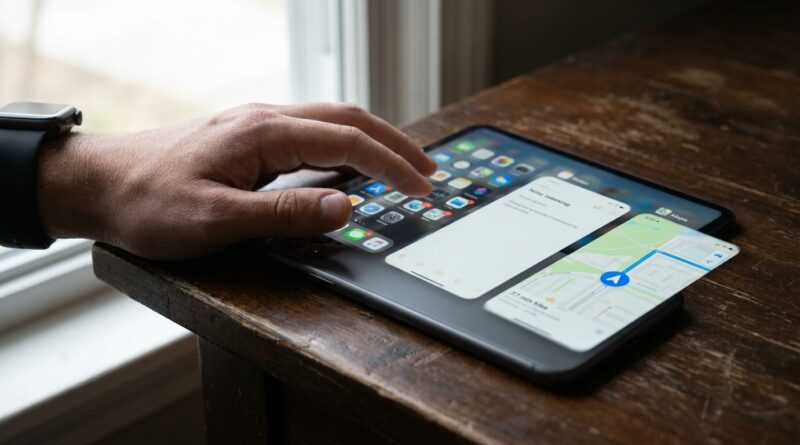
Stop Letting Your iPhone Waste Taps: The Hidden ‘Context Launch Gestures’ Trick Power Users Use To Open Exactly The Right App In One Move
You are not imagining it. Opening the right app on an iPhone can still feel weirdly clumsy. You unlock your phone, swipe to the wrong Home Screen, tap the wrong icon, then remember the app is buried in a folder you made three years ago and never cleaned up. Yes, Spotlight helps. App Library helps too. But both still ask you to stop, think, and do extra steps. The better fix is to make your iPhone react to context. That means one gesture for one moment. Two taps on the back for Notes. A Lock Screen button for Camera. A Work Focus mode that puts Slack or Outlook one tap away. This hidden system is not one feature. It is a smart mix of Back Tap, Lock Screen widgets, and Shortcuts. Set it up once, and your phone starts feeling less like a pile of icons and more like it actually knows what you need.
⚡ In a Hurry? Key Takeaways
- The best iPhone back tap shortcuts hidden feature setup is to combine Back Tap, Lock Screen widgets, and Focus modes so your most-used apps open in one move.
- Start with one simple rule: assign Double Tap to a single app or shortcut you use daily, then add a Lock Screen widget for your second most-used app.
- This costs nothing, works on most modern iPhones, and does not require risky tweaks or extra apps beyond Apple’s built-in Shortcuts app.
What “context launch gestures” actually means
This sounds fancier than it is. All it really means is giving your iPhone different fast ways to open the right app depending on what you are doing.
For example:
- Back Tap opens Notes when an idea hits you
- A Lock Screen widget opens Messages or Camera without hunting
- Work Focus shows work apps
- Personal Focus shows music, photos, and family apps
Instead of one giant Home Screen trying to do everything, you build a few shortcuts around your real habits.
Start with the easiest win, Back Tap
What Back Tap is
Back Tap lets you double-tap or triple-tap the back of your iPhone to trigger an action. It is one of those settings many people never notice, which is why the search for the iPhone back tap shortcuts hidden feature keeps popping up.
It works on many newer iPhones, and it is built right into iOS.
How to turn it on
Go to:
Settings > Accessibility > Touch > Back Tap
You will see two options:
- Double Tap
- Triple Tap
You can assign each one to an action. Apple gives you basic choices like Control Center, flashlight, screenshot, and more. But the more useful move is to connect it to a Shortcut.
The best first setup
If you want a fast payoff, do this:
- Set Double Tap to open Notes, Camera, or your to-do app
- Set Triple Tap to something you use slightly less often, like Shazam, Calculator, or Voice Memos
If your day is full of quick captures, this can save a silly amount of time.
How to make Back Tap open a specific app
This is where Shortcuts comes in. Do not worry. You do not need to be a Shortcuts person.
Step-by-step
- Open the Shortcuts app
- Tap the + button to create a new shortcut
- Tap Add Action
- Search for Open App
- Tap App in the action and choose the app you want
- Name the shortcut something obvious, like Open Notes or Launch WhatsApp
- Now go back to Settings > Accessibility > Touch > Back Tap
- Choose Double Tap or Triple Tap
- Select your new shortcut
That is it. Now a tap on the back of the phone can jump you into the app you actually want.
A small reality check
Back Tap is handy, but it is not magic. Thick cases can make it less reliable. It can also trigger by accident if you are fidgeting with your phone. If that happens, move your less important action to Triple Tap and keep Double Tap for something simple.
Lock Screen widgets are your second fast lane
Back Tap is great when your phone is already in your hand. Lock Screen widgets are better when the phone is sitting there and you just want one obvious button.
Why Lock Screen widgets matter
They remove friction. You see the app before you even unlock and swipe around. For many people, that alone is enough.
How to add them
- Press and hold your Lock Screen
- Tap Customize
- Choose Lock Screen
- Tap the widget area below the clock
- Add widgets for apps you need quickly, like Calendar, Weather, Reminders, or a shortcuts widget if available
If the app you want does not offer a widget, you can often use a Shortcut widget instead.
Good Lock Screen picks
- Camera for quick photos
- Reminders for grocery lists and tasks
- Calendar for daily schedule checks
- Shortcuts for opening a specific app or workflow
This works especially well if you pair it with Back Tap. One for instant capture. One for instant launch.
Use Focus modes to change your app setup by situation
This is the part most people skip, and it is where the whole system starts feeling personal.
What Focus does
Focus modes can change which Home Screens appear, which notifications come through, and which widgets show up. That means your iPhone can look different at work, at home, or while traveling.
Instead of seeing every app all the time, you only see what fits that moment.
How to set up a simple Focus launch system
- Go to Settings > Focus
- Create a Focus like Work, Personal, or Fitness
- Choose which people and apps can notify you
- Set a custom Home Screen for that Focus
- Put only the apps you need for that mode on that screen
Now when Work Focus turns on, your phone stops looking like a junk drawer and starts looking like a work tool.
Example setups that actually help
Work Focus
- Outlook
- Slack
- Calendar
- Files
- Notes
Personal Focus
- Messages
- Photos
- Spotify or Apple Music
- Camera
- Maps
Errands Focus
- Reminders
- Wallet
- Maps
- Grocery app
- Phone
Build your own one-move system in 10 minutes
If you want the shortest path to a better iPhone, copy this setup.
The 10-minute template
- Pick one app you open constantly, like Notes, Camera, or WhatsApp
- Make a Shortcut that opens it
- Assign it to Double Tap
- Pick your second most-used app and add it as a Lock Screen widget
- Create one Focus mode for your most common context, usually Work or Personal
- Give that Focus its own clean Home Screen with only the apps you need
That is enough to make your phone feel faster right away.
Good app ideas for Back Tap shortcuts
Not sure what should go there? Start with apps that are usually needed fast, not apps you browse casually.
- Notes for sudden ideas
- Camera for fast shots
- Voice Memos for recording thoughts
- Reminders for to-do capture
- Maps before driving
- Wallet for boarding passes or payment prep
- Messages for one person you contact often, using a shortcut
If you often save useful images and then forget why, pair this setup with Stop Letting Screenshots Be Dumb Pictures: The Hidden ‘Instant Smart Actions’ Trick Power Users Use To Turn Any Screenshot Into A To‑Do List In 5 Seconds. It is the same idea. Less tapping around, more making the phone do the next obvious thing.
Common mistakes that make this feel worse
Trying to automate everything at once
Do not start with ten shortcuts. Start with one. If it helps, keep it. If it does not, change it.
Using Back Tap for something you do not need often
If you only open that app once a week, it is wasting prime shortcut space.
Keeping cluttered Home Screens during Focus mode
If your Work Focus still shows games, shopping apps, and random folders, you are missing the point.
Choosing actions that can misfire
For some people, flashlight on Double Tap becomes annoying fast. If accidental triggers bother you, use app launches instead of device controls.
Does this replace Spotlight and the App Library?
No, and it does not need to.
Spotlight is still great when you need something occasional. App Library is still useful when you forgot where an app lives. But those tools are still search-and-find tools. Context launch gestures are faster for the handful of things you do over and over every day.
Think of it this way. Spotlight is your backup plan. Back Tap, Lock Screen widgets, and Focus are your express lane.
Who this works best for
- People who keep opening the same 3 to 5 apps
- Anyone with crowded Home Screens
- People who hate digging through folders
- Users who want their iPhone to feel faster without buying a new one
It is also great for less technical family members. Once set up, they do not have to remember where an app is. They just tap, press, or switch to the right Focus.
At a Glance: Comparison
| Feature/Aspect | Details | Verdict |
|---|---|---|
| Back Tap | Lets you trigger an action or shortcut with a double or triple tap on the back of the iPhone. | Best for instant app launches when the phone is already in your hand. |
| Lock Screen widgets | Puts useful apps or shortcuts right on the Lock Screen for one-tap access. | Best for obvious, visible shortcuts with no app hunting. |
| Focus-based Home Screens | Changes which apps and widgets appear depending on whether you are working, at home, or out running errands. | Best for reducing clutter and making the right apps appear at the right time. |
Conclusion
Right now the iOS conversation is full of flashy AI tricks and endless battery talk, but a lot of people are still wasting time just trying to get into the app they want. This is why a simple launch-gesture system matters so much. In about ten minutes, you can wire together Back Tap, Lock Screen widgets, and a basic Focus mode and make your iPhone feel quicker, cleaner, and far less annoying. You do not need a new device. You do not need to wait for the next big update. You just need to give your phone a few clear instructions. Once you do, it starts acting like a tool built around your habits, not a wall of icons you have to fight every day.