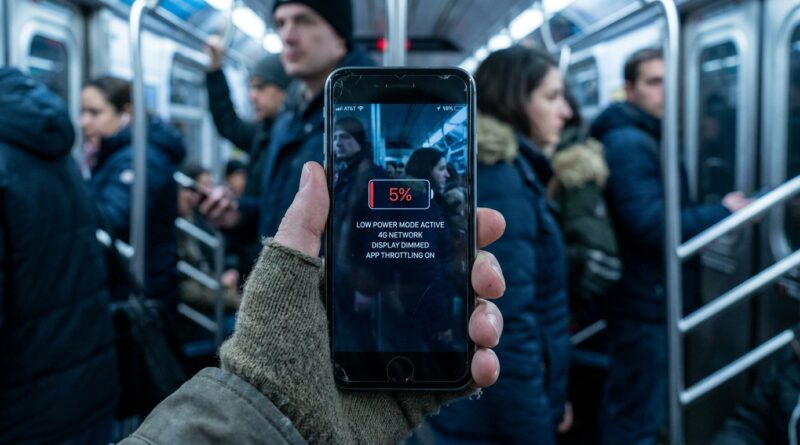
Stop Letting Your Battery Dictate Your Day: The Hidden ‘Adaptive Low Power Profiles’ Trick iPhone Power Users Use To Squeeze Hours Out Of 5%
You know that sinking feeling. Your iPhone hits 15 percent, the battery icon turns red, and suddenly every tap feels like a bad decision. Do I answer this text? Can I use maps? Should I open Instagram for “just a second” and risk being dead before dinner? Most people flip on Low Power Mode and hope for the best. Then the phone still drains too fast, or it becomes so sluggish that saving battery barely feels worth it. The better fix is not one more giant checklist of 23 settings you will never remember. It is a simple, automatic setup. With a few Shortcuts automations in iOS 27, you can make your iPhone switch into different battery-saving profiles at smart battery levels, cut power waste from the worst offender apps, dial back radios like 5G when it matters, and then restore everything the second you charge again.
⚡ In a Hurry? Key Takeaways
- Yes, the best iPhone Low Power Mode automation in iOS 27 is to use Shortcuts with battery-level triggers, not a pile of manual toggles.
- Set one profile for 50 percent, another for 20 percent, and a true emergency mode at 10 or 5 percent, then restore normal settings when charging starts.
- This is safe, reversible, and easier to live with than constant micromanaging. You set it once and let the phone handle the routine.
Why regular Low Power Mode is only half the job
Low Power Mode still helps. It reduces background activity, mail fetch, visual effects, and some system behavior. On newer iPhones, iOS 26 and iOS 27 also brought smarter power controls, including Adaptive Power behavior and more aggressive display and performance changes when needed.
But here is the catch. Your battery drain usually does not come from one single thing. It is a mix. Bright screens, high refresh rate behavior, weak cellular signal, video-heavy apps, location pings, and apps waking up in the background all stack together.
That is why one switch is rarely enough.
What power users do differently is build layers. They do not run their phone in survival mode all day. They create adaptive low power profiles that get stricter only when the battery level really calls for it.
The blueprint: three battery profiles that actually make sense
Profile 1: Early saver mode at 50 percent
This is your gentle nudge. At 50 percent, your iPhone still feels normal, but you start trimming waste you probably will not notice.
What this profile should do:
- Turn on Low Power Mode.
- Set brightness to something reasonable, like 50 percent if it is higher.
- Turn off 5G if you are in an area where LTE is fine.
- Optionally switch on a Focus mode called “Battery Saver” so you know the profile is active.
This is the profile that saves battery without making your phone feel broken.
Profile 2: Serious conservation at 20 percent
Now we tighten things up. At 20 percent, the goal is to get you through the rest of the day, not preserve every luxury feature.
What this profile should do:
- Confirm Low Power Mode is on.
- Lower brightness further if needed.
- Turn on Reduce White Point if bright screens bother you and you want extra savings.
- Switch to LTE or the lowest practical cellular mode for your area.
- Open a reminder notification telling you to avoid video apps, gaming, and hotspot use.
Shortcuts cannot flip every hidden battery setting Apple keeps inside different menus, but it can handle the big visible stuff and prompt you for the rest at the right moment.
Profile 3: Emergency mode at 10 percent or 5 percent
This is your “I just need this phone alive” profile.
What this profile should do:
- Set Low Power Mode on, again, just to be safe.
- Drop brightness hard.
- Turn on Airplane Mode if you are not actively expecting calls or using data.
- Or, if you still need connectivity, keep cellular on but shut off Wi-Fi and Bluetooth if they are not helping.
- Show an alert: “Emergency battery mode active. Use only calls, texts, maps.”
That alert sounds basic, but it works. In the moment, we all lie to ourselves about “just checking one thing.”
How to build this with Shortcuts in iOS 27
This is the heart of the trick. You are going to use the Shortcuts app and its Automation tab.
Step 1: Create a battery automation
Open Shortcuts, tap Automation, tap the plus button, then choose Battery Level.
Pick your first threshold, like Falls Below 50%.
Then add actions such as:
- Set Low Power Mode to On
- Set Brightness to 50%
- Set Focus to your Battery Saver Focus
Save it, and make sure it runs automatically if iOS gives you the option to do so without asking first.
Step 2: Repeat for 20 percent and 10 percent
Create separate automations for Falls Below 20% and Falls Below 10% or 5%.
Each one should be a little stricter than the last. Think of it like weather layers. Light jacket at 50. Coat at 20. Full survival gear at 5.
Step 3: Add a charging restore automation
This part matters. Without it, people end up stuck in battery-saving mode and wonder why their phone still feels weird the next morning.
Create another automation for Charger, then set it to run when Is Connected.
Add actions such as:
- Turn Low Power Mode Off
- Turn your Battery Saver Focus Off
- Turn Bluetooth and Wi-Fi back on if you normally use them
- Show a notification saying “Full power settings restored”
Now your iPhone can move in and out of battery-saving behavior without you babysitting it.
What about the “power-hungry apps only” part?
This is where a lot of battery advice goes off the rails. People tell you to disable everything for every app. That is overkill.
Instead, check which apps are actually draining your battery. Go to Settings > Battery and look at the last 24 hours and last 10 days. Usually the culprits are obvious. Social video apps, navigation apps, camera-heavy apps, and games are common offenders.
Then do targeted cleanup:
- Turn off Background App Refresh only for the worst offenders.
- Change Location access from “Always” to “While Using” where it makes sense.
- Turn off unnecessary notifications for apps that constantly wake the screen.
- Use cellular access controls if one app burns data and battery in the background.
This is the difference between smart battery management and random suffering.
Settings worth pairing with your automation
Adaptive Power and display behavior
On supported iPhones, Apple now adjusts performance and display behavior more dynamically than it used to. That can help, but it is still reactive. Your automations are proactive. They tell the phone what kind of day you are having before the battery panic starts.
ProMotion and screen smoothness
If you have a Pro model, the display can use more power when the screen is bright and active for long periods. Low Power Mode often reduces the refresh behavior already, which is one reason your battery can stretch further than expected once the automation kicks in.
5G Auto vs LTE
If you live in a spotty 5G area, forcing LTE during lower battery levels can help more than people expect. Phones burn extra power hunting, switching, and maintaining weak cellular connections. If your signal is rough, radio management matters a lot.
The mistake people make with viral battery-saving lists
They are too long. Too fussy. Too easy to ignore.
A 20-step list might look smart in a TikTok or YouTube thumbnail, but nobody wants to manually change motion settings, app permissions, radio options, mail behavior, and brightness every afternoon.
The right system is one you will actually live with.
That is also why I like practical automation tricks in general. The same mindset works outside battery life too. If you enjoy setting up little systems that save you from repetitive phone tasks, you might also like Stop Letting Important Stuff Slip: The Hidden ‘Notify Me On Any Website’ Trick Power Users Use To Auto-Track Price Drops And Restocks. Different problem, same idea. Let the phone do the remembering.
Who should use this setup?
This is especially good for:
- Commuters who cannot always charge on the way home
- Parents who need their phone alive for calls and school messages
- Travelers using maps, tickets, and rideshare apps all day
- Anyone on an older iPhone where battery health is not what it used to be
If your battery health is already poor, this setup will still help, but it is not magic. A worn battery is a worn battery. Think of automation as damage control, not a replacement for a battery that truly needs service.
At a Glance: Comparison
| Feature/Aspect | Details | Verdict |
|---|---|---|
| Standard Low Power Mode | One manual switch that cuts some background tasks and performance demands | Helpful, but too basic on its own |
| Adaptive Low Power Profiles | Shortcuts automations trigger different actions at 50, 20, and 10 or 5 percent | Best balance of battery life and convenience |
| Manual “20 toggles” method | Requires constant menu diving and remembering which settings to undo later | Too annoying for daily life |
Conclusion
If you want a cleaner answer to battery anxiety, this is it. Not another giant checklist. Not wishful thinking. Just a sensible iPhone Low Power Mode automation for iOS 27 that reacts at the right times, clamps down on waste when battery levels drop, and then puts everything back when you plug in. Battery anxiety is exploding right now because iOS 26 and 27 added new power behaviours like Adaptive Power, ProMotion throttling and deeper Low Power tweaks that most users never touch. At the same time, social feeds and YouTube are pushing scattered lists of 20-plus random toggles that nobody will ever maintain. This setup gives you one battle-tested blueprint: automatic Low Power Mode at smart thresholds, tighter control over the power-hungry stuff, radio changes like 5G when you actually need them, and a clean return to normal when charging starts. Set it up once, take 10 minutes, and by tonight your iPhone can feel a lot less like a needy pet and a lot more like it finally understands your day.