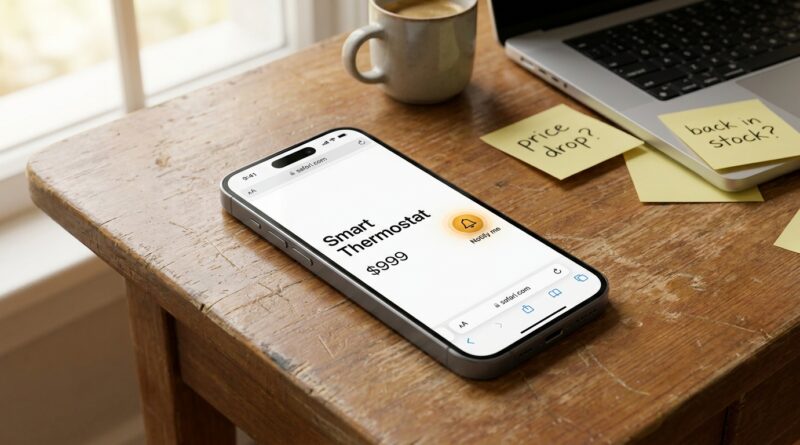
Stop Letting Important Stuff Slip: The Hidden ‘Notify Me On Any Website’ Trick Power Users Use To Auto‑Track Price Drops And Restocks
You know the routine. A flight page in one tab. Sneakers in another. A sold-out concert page you keep refreshing “just in case.” Then the one thing you actually cared about drops in price or comes back in stock while you are making lunch, stuck in traffic, or simply trying to do your job. It is maddening. The worst part is that checking more often does not really fix it. It just turns your phone into a stress machine.
If you have been searching for an iOS 27 notify me website price drop tracking trick, the good news is this is much simpler than it sounds. On iPhone, you can use a website’s own notifications, Safari web push, stock alert pages, and a few built-in iOS tools to create a clean “notify me when this changes” setup. No need to babysit 20 tabs. You pick the pages that matter, allow alerts from trusted sites, and let your phone tap you on the shoulder only when something important actually happens.
⚡ In a Hurry? Key Takeaways
- Yes, your iPhone can notify you about price drops, restocks, and page changes if the site offers notifications or alerts.
- Use Safari website notifications plus site-specific “Notify Me” buttons for flights, tickets, and products instead of manually refreshing.
- Only allow alerts from trusted sites, then tame the noise with Focus modes and notification summaries.
What this “Notify Me on Any Website” trick really means
Let’s clear up one thing first. Your iPhone does not magically watch every website on earth by itself. What it can do is handle website notifications really well when a site supports them, and it can combine those alerts with app notifications, email rules, and iOS settings so the whole thing feels automatic.
That is the power-user move. Not more checking. Better filtering.
Think of it like this. Instead of opening the same pages ten times a day, you “subscribe” to the handful of pages that matter. A retailer page for a graphics card. A concert date. A route on a travel site. A hard-to-find gadget. Then your iPhone does the watching for you.
Where to find the alert options
1. Look for the obvious “Notify Me” or “Restock Alert” button
Many shopping and ticket sites already have this. It might say:
- Notify me
- Back in stock alert
- Price alert
- Watch this item
- Track fare
This is usually the best option because the site knows exactly what changed. If a size comes back, if a ticket tier opens up, or if a route drops by $60, you get the alert without guessing.
2. Allow Safari website notifications when prompted
On supported sites, Safari on iPhone can ask if you want to allow notifications. If you trust the site and genuinely want updates, tap Allow.
To review what you have allowed later, go to:
Settings > Notifications > Safari
And for website-specific controls, open Safari settings and website settings when available on the page. If a site starts getting noisy, you can shut it off fast.
3. Use accounts when needed
Some stores and travel sites only send useful alerts if you are signed in. Annoying, yes. But often worth it. Your watchlist, saved size, favorite airport, or seating preference usually only works when the site knows who you are.
Best real-world uses for this on iPhone
Price drops on flights
This is the easiest win. Many travel sites already offer fare tracking. Turn it on for the route and dates you care about. Then stop checking every morning like it is a ritual.
Restocks on sold-out gadgets
Game consoles, phones, laptops, and graphics cards still disappear fast during hot launches and sales. If the page has a restock alert, use it. If the site supports Safari notifications, even better.
Concert tickets and live events
Ticket pages change constantly. Extra seats appear. Holds expire. New dates get added. A good alert saves you from the awful “I looked an hour too early and then forgot” problem.
Flash sales and limited inventory
If you buy seasonal gear, shoes, collectibles, or niche hobby items, page alerts are far better than keeping tabs open and hoping memory does the job.
How to set it up in two minutes
Here is the simple version.
- Open the product, ticket, or travel page in Safari on your iPhone.
- Look for “Notify Me,” “Track Price,” “Watch,” or “Restock Alert.”
- Sign in if the site asks.
- Allow notifications only if you trust the site.
- Repeat for the two or three pages you actually care about this week, not 40 random maybes.
That last part matters. The goal is not to create more notifications. The goal is to replace constant checking with a small number of useful alerts.
How to avoid turning this into notification chaos
This is where a smart setup beats a messy one.
Use Focus modes
If you want deal alerts but do not want them buzzing during work, send them into a Personal or Shopping Focus. Then let them through only at certain times.
Use Scheduled Summary for low-priority sites
Not every alert needs to hit you instantly. A possible sale from a clothing site can wait. A restock for concert tickets cannot. Split them up.
Turn off badges for noisy sites
Badges are sneaky little stress creators. If a site keeps slapping a red number on Safari for nonsense, disable it.
Be ruthless after one week
If a site sends junk, remove it. The best systems stay small.
What about websites that do not offer alerts?
This is where people get stuck. If a site has no built-in watch feature and no notification support, you still have a few options.
Email alerts from the site
Some sites hide this in account settings instead of on the product page. Worth a quick look.
Third-party price trackers
For some stores, browser-based or service-based trackers can watch listings and send a notification. Just stick to known, reputable services and avoid anything asking for odd permissions or payment details it does not need.
App versions of the same service
Sometimes the website is bare-bones, but the app has excellent watchlists and alerts. Airlines and ticketing companies often work this way.
Safety check before you tap Allow
Website notifications are useful. They are also a favorite way for sketchy sites to pester people.
Before allowing alerts, ask three quick questions:
- Do I recognize and trust this company?
- Am I on the real website, not a fake lookalike?
- Am I expecting useful updates, or am I about to subscribe to spam?
If the answer is shaky, skip it. A good rule is simple. Major retailers, airlines, event sites, and established brands are usually fine. Random coupon pages and mystery deal blogs, not so much.
Why this feels so much better than constant refreshing
Because it cuts two kinds of mental drain at once.
First, notification fatigue. You stop getting interrupted by things that do not matter because you are choosing specific pages, not generic noise.
Second, decision fatigue. You no longer have to keep remembering, “Should I check that ticket page again?” The system remembers for you.
That is the real benefit here. Not a fancy trick. Just fewer tiny decisions chewing up your day.
A good power-user upgrade for iPhone owners
I like this workflow because it meets people where they are. If you are new to iPhone, it is easy. Open page, tap notify, allow alerts, done. If you have been using iPhone for years, you can get fancier with Focus modes, custom notification settings, and mail filters that catch price-alert emails and keep them separate from everything else.
That is the sweet spot. Simple at first. Better over time.
At a Glance: Comparison
| Feature/Aspect | Details | Verdict |
|---|---|---|
| Built-in site alerts | Best for restocks, ticket openings, and fare drops because the site tracks the exact item or route. | Use this first whenever available. |
| Safari website notifications | Lets trusted websites send updates straight to your iPhone, but quality depends on the site. | Very handy, but only for reputable sites. |
| Manual tab refreshing | Time-consuming, easy to forget, and almost guaranteed to fail at the worst moment. | Retire this habit. |
Conclusion
Right now, a lot of people are chasing tiny AI tricks that save five seconds here and there. Fair enough. But what most iPhone owners really need this week is a way to stop manually checking prices, restocks, and important pages all day. This simple “Notify Me on Any Website” workflow does exactly that. You subscribe to what actually matters, cut down the urge to keep refreshing, and get some attention back for real work. It is also one of those rare power-user habits that works for almost everyone. New iPhone owners can set it up in two minutes. Longtime users can stack it with Focus modes, filters, and automations for a real advantage. Start with one flight, one product, and one ticket page. Your future self will be a lot less annoyed.