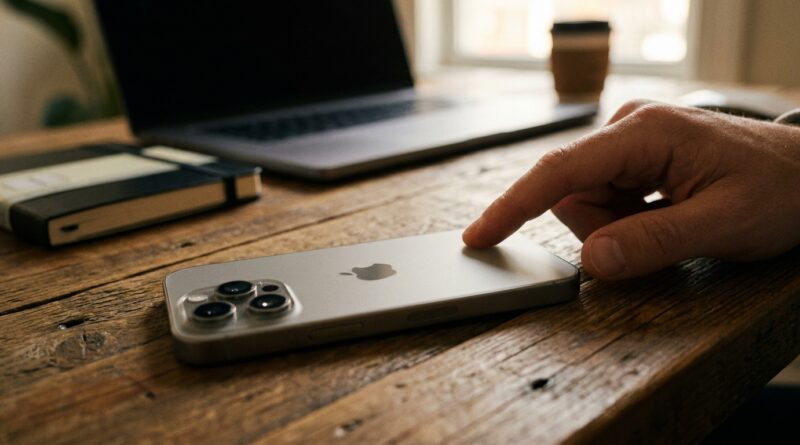
Stop Letting Your iPhone Stay Boring: The Hidden ‘Custom Back Tap Shortcuts’ Button Power Users Turn Into A One‑Tap Control Center
You probably do this more than you realize. You need the flashlight, Wallet, Shazam, Low Power Mode, or a quick note, and suddenly you are swiping through Control Center, hunting through apps, or opening Settings for the same thing again. It is a tiny annoyance, but it adds up fast. What makes it worse is that many iPhone owners already have a hidden extra button built into the phone and never turn it on. It is called Back Tap, and once you set it up, two taps or three taps on the back of your iPhone can trigger useful actions or even full shortcut routines. That is why iPhone Back Tap shortcuts are such a sleeper hit. They take something buried in Accessibility and turn it into a real everyday tool. The trick is not just enabling Back Tap. The real magic is giving it jobs you actually use, so your phone starts feeling a lot less boring and a lot more helpful.
⚡ In a Hurry? Key Takeaways
- iPhone Back Tap shortcuts let you trigger actions by double-tapping or triple-tapping the back of your phone.
- Go to Settings > Accessibility > Touch > Back Tap, then assign a simple action or a Shortcut you use often.
- Start with low-risk jobs like flashlight, notes, or a custom routine, because overly complex setups can be slower than just opening an app.
What Back Tap actually is
Back Tap is an iPhone feature that turns the back of the phone into a trigger. Tap twice or three times, and the phone can perform an action.
Apple originally placed it in Accessibility, which is probably why so many people never see it. But this is not only an accessibility feature. It is one of the easiest ways to make your iPhone respond faster to your habits.
You can use it for built-in actions like Screenshot, Control Center, Camera, Flashlight, Lock Screen, Mute, Reachability, Spotlight, and more. The more interesting option is assigning a Shortcut. That is where iPhone Back Tap shortcuts stop being a novelty and start becoming genuinely useful.
How to turn on iPhone Back Tap shortcuts
Setting it up takes less than a minute.
Step-by-step
Open Settings, then go to Accessibility. Tap Touch. Scroll down to Back Tap.
You will see two choices:
Double Tap and Triple Tap.
Pick one, then assign an action. If you already use the Shortcuts app, scroll to the Shortcuts section and choose one of your saved shortcuts.
My advice is simple. Put your most common action on Double Tap, and your more deliberate or less frequent one on Triple Tap. Double Tap is faster, but it is also easier to trigger by accident.
Why most people set it up wrong
The usual mistake is assigning something flashy instead of something useful.
A screenshot sounds fun. So does opening Control Center. But if you already know other fast ways to do those things, Back Tap is being wasted.
The best setups save friction. They remove a repeated hassle. If you often fumble around before bed, in the car, at the airport, or during meetings, that is where Back Tap earns its place.
Think of it less like a party trick and more like a programmable button.
The best real-world iPhone Back Tap shortcuts to try
1. Night Lockdown
This is the kind of shortcut that makes people suddenly “get” Back Tap.
A Night Lockdown routine could:
- Turn on a Sleep Focus
- Lower screen brightness
- Turn on Low Power Mode
- Pause notifications from non-essential apps
- Open your white noise or podcast app
One double tap, and your phone stops acting like it is still lunchtime.
If you are someone who checks one last message and then gets sucked into your phone for 40 more minutes, this kind of setup is surprisingly helpful.
2. Travel Mode
This is a great triple-tap option. You are rushing through a station or airport, and you need a few things at once.
A Travel Mode shortcut might:
- Open Apple Maps or Google Maps
- Bring up Wallet
- Show your hotel note or itinerary
- Launch Translate or a translation helper
If language is part of the problem, this pairs nicely with Stop Letting Language Be A Barrier: The Hidden ‘Live Translation Bubbles’ Trick Power Users Use To Text Anyone In Any Language. Together, they make an iPhone much more useful when you are away from home.
3. Instant flashlight
This is still one of the best simple options. You hear a noise outside. You dropped something in the car. The hallway is dark. Tap, and done.
It is boring in the best way. It saves time every single day.
4. Quick capture note
If good ideas always hit while your hands are full, make Back Tap open a new note, a voice memo, or a reminder entry.
This works especially well for people who remember things at exactly the wrong moment.
5. Meeting mode
Create a shortcut that turns on a Work Focus, silences personal distractions, and opens your calendar or notes app.
One tap sequence can help you stop bouncing between apps and settle into what you are supposed to be doing.
6. Music finder
Assign Back Tap to Shazam or a shortcut that opens your music recognition tool. When you hear a song in a cafe, store, or TV show, speed matters.
This one feels small until you use it a few times.
7. Home arrival shortcut
You walk in the door with groceries, bags, kids, or all three. A Back Tap shortcut could:
- Turn off a Focus mode
- Open your smart home controls
- Send a quick “I’m home” text
- Start a playlist or podcast
That is the sweet spot for Back Tap. Small chain of actions. Big convenience.
How to build a custom shortcut that works well with Back Tap
You do not need to be a Shortcuts power user. Start simple.
Good Back Tap shortcut design
- Use 1 to 3 actions if possible
- Pick actions you do often
- Avoid menus that require too much follow-up tapping
- Test it while the phone is locked and unlocked
If a shortcut takes too long, needs too many permissions, or still asks you what to do next, it loses the whole point of being a quick-access button.
Examples of shortcuts that tend to work best
- Toggle a Focus mode
- Open a specific app
- Start navigation home
- Text one person a preset message
- Open Wallet
- Turn on Low Power Mode
Tips to avoid accidental triggers
This is the part some people complain about. Yes, Back Tap can fire when you did not mean it to, especially if you choose a very sensitive action.
How to make it less annoying
- Put a high-value but harmless action on Double Tap, like flashlight or notes
- Use Triple Tap for bigger routines like Travel Mode
- Avoid assigning destructive or disruptive commands
- Test with your case on, because cases can change how it feels
If accidental triggers happen a lot, switch the important shortcut to Triple Tap. That usually solves it.
Who gets the most value from this feature
Back Tap is especially good for people who repeat the same phone actions all day but hate fiddling with menus.
It is great for:
- Commuters
- Frequent travelers
- Parents with one hand free
- People who use Focus modes
- Anyone who likes quick automation without changing the whole phone setup
It is less useful if you rarely customize your phone or if the assigned action is something you only need once a month.
When Back Tap is better than Control Center
Control Center is still handy. But it is general-purpose. Back Tap is personal.
Control Center gives you a list of buttons. Back Tap gives you your button, set to your habit.
That is the big difference. You are not just opening a panel and choosing something. You are skipping straight to the thing you care about.
At a Glance: Comparison
| Feature/Aspect | Details | Verdict |
|---|---|---|
| Speed | Back Tap can launch one action or shortcut faster than opening Control Center or digging through Settings. | Best for repeated daily tasks |
| Customization | You can assign built-in iPhone actions or custom Shortcuts, including Focus and travel routines. | Far more flexible than most people expect |
| Reliability | Works well for simple actions, but complex shortcuts or sensitive double taps can trigger by mistake. | Use Triple Tap for important routines |
Conclusion
Back Tap quietly became one of the most underrated power features in iOS, but most people either ignore it or assume it is just a gimmick. It is not. When you give it a real job, like a Night Lockdown routine, a Travel Mode launcher, or a fast note and flashlight trigger, it starts saving little chunks of time all day long. That is the kind of feature that makes your phone feel smarter without making your life more complicated. And because newer iOS versions keep adding more useful background actions through Shortcuts and Focus, a physical trigger on the back of the phone matters more now than when many people first heard about it. If you want to unlock a part of the iPhone most owners never touch, this is an easy place to start. Set one good shortcut today, and your iPhone will feel less boring by tonight.