Stop Letting Language Be A Barrier: The Hidden ‘Live Translation Bubbles’ Trick Power Users Use To Text Anyone In Any Language
You know the routine. You meet someone on a trip, click with a new coworker overseas, or finally find an online friend you actually want to keep talking to. Then the texting starts, and it turns into a mess. Copy. Paste. Switch apps. Wait. Fix a weird translation. By the time you send a simple reply, the moment is gone. That friction is exactly why so many promising conversations fade out fast.
The good news is your iPhone can now cut out a lot of that hassle. If you have a compatible iPhone and the right software, Messages can show translated text right inside the conversation, so you can read replies in your language and send messages without the usual app-juggling circus. The trick is not just turning it on once. It is setting it up like a daily tool, so texting across languages feels natural enough that you actually keep using it.
⚡ In a Hurry? Key Takeaways
- To use live translation in iPhone Messages, update your iPhone, open a conversation, and turn on the translation option if your device and language pair support it.
- For best results, keep messages short, simple, and natural. That gives the translation system less room to guess wrong.
- It is great for everyday chatting, but do not trust it blindly for legal, medical, financial, or highly personal details without double-checking.
Why this matters more than most guides admit
Most coverage treats translation like a party trick. Send one message. Watch it appear in another language. Nice demo. Real life is different.
Real life is staying in touch with the person you met in Lisbon. It is keeping a remote team thread moving without making people wait while you bounce between apps. It is replying to a community member in Seoul, Madrid, or São Paulo before the conversation goes cold.
That is the real value of learning how to use live translation in iPhone Messages. It is not about showing off a smart feature. It is about reducing enough friction that people actually keep talking.
What “live translation” in Messages really does
Think of it as a translation layer that sits inside your text conversation instead of forcing you out to a separate app.
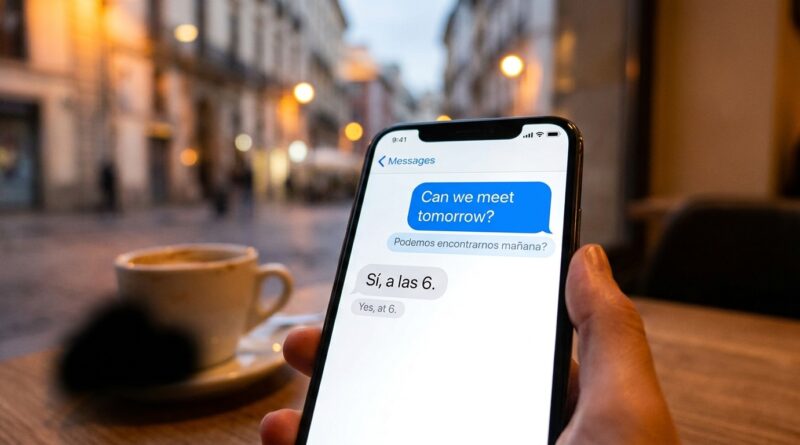
When it is working properly, you type in your language, and your iPhone helps convert it for the other person. Their replies can then show up translated into your language. The result feels less like using a tool and more like just texting.
That is why some power users call it the “translation bubble” trick. The translated text appears right where the conversation already lives, inside the chat bubbles you are used to reading.
What it does well
It shines with everyday conversation. Travel plans. Casual catch-ups. Quick questions. Work coordination. Group hobby chats.
Where it can still stumble
Slang, sarcasm, jokes, regional phrases, and emotional nuance can still get flattened. If you are discussing something sensitive, it is smart to slow down and confirm meaning.
How to use live translation in iPhone Messages
The exact wording can vary a bit depending on your iPhone model and iOS version, but the basic setup is simple.
1. Make sure your iPhone is updated
Go to Settings, then General, then Software Update. Install the latest iOS version your phone supports.
If Apple’s newer intelligence and translation features are part of your device support, you will usually need the latest update before they appear reliably.
2. Check that your iPhone supports the feature
Some newer translation tools are limited to newer iPhone models and certain regions or languages. If you do not see translation options in Messages, that may not be your fault. It may simply not be available on your device yet.
3. Open the Messages thread with the person you want to text
Start in the conversation itself. Apple tends to tuck helpful features inside the app where you need them, not in some giant obvious button on the home screen.
4. Look for translation options in the conversation tools
Depending on your setup, you may see a translate prompt, a language suggestion, or a conversation-level option to enable translation. Tap it and choose your language plus the other person’s language.
If you are the kind of person who likes hidden quick controls, you would probably also appreciate Stop Digging Through Menus: The Hidden iOS 18 ‘App Actions’ Menu Power Users Turn Into a Super Shortcut Hub. It is another one of those features that saves time once you know where Apple hid it.
5. Send a test message first
Do not start with a huge paragraph. Send something simple like, “Hi. Can you read this clearly?” That gives both of you a quick way to check whether the language pair is working smoothly.
6. Watch how replies appear
If live translation is active, incoming messages may show in your language or give you a clear way to view the translation instantly. Outgoing text may also be translated before it reaches the other person.
That is the moment where most people realize this is much better than constant copy and paste.
The daily workflow that makes this genuinely useful
Turning on the feature is the easy part. The real trick is changing how you write so translations come out cleaner and faster.
Keep each message to one main idea
Instead of sending a giant block that says, “Hey, if you are free tomorrow maybe we can meet around lunch unless your train is late and if not maybe Friday after work works better because I also need to pick up my bag,” break it up.
Short messages translate better. One thought per bubble. That gives the system less room to guess wrong.
Use plain language
Skip the idioms when it matters. “I am running late” usually works. “I am all over the place today” may not.
Pause on jokes and sarcasm
Humor is often the first thing to get bent out of shape in translation. If you are kidding, say so if the context matters.
Confirm names, times, and addresses
For travel or meetups, send the exact address, date, and time in a separate message. Numbers and place names deserve extra care.
Use voice notes carefully
If your setup supports voice-related translation features, they can be handy. But text is still easier to verify at a glance. For anything important, send the written version too.
Best use cases where this feature really shines
Travel friendships
You met someone great abroad. The chemistry is there, but your shared vocabulary is not. Live translation lowers the effort enough that the connection does not disappear when the plane lands.
Remote work chats
You do not need every teammate to write perfect English, or Spanish, or Japanese. What you need is momentum. Fast understanding beats perfect grammar in most everyday work threads.
Online communities
Gaming groups, hobby clubs, creator circles, and fan communities are full of people from everywhere. Translation inside Messages can move someone from “internet acquaintance” to “actual friend” because the chat becomes easy enough to maintain.
What to do if translation is missing or not working
Check your software first
This solves more problems than people expect. If you are on an older iOS release, the feature may not appear at all.
Confirm the language pair is supported
Not every language combination works equally well, and some may not be supported yet.
Restart the conversation and the app
Close Messages, reopen it, and try again. It sounds basic because it is basic. It also works.
Check region and device limits
Apple sometimes rolls out newer features in stages. Your friend may see something you do not, even with a similar phone.
Try a simpler message
If a translation looks bizarre, resend the idea using fewer clauses and more direct wording.
Privacy and common-sense limits
This is where the grown-up advice comes in. Translation is helpful. It is not magic.
If you are discussing medical issues, legal terms, contracts, bank details, immigration paperwork, or emotionally loaded relationship topics, slow down. Use simple wording. Ask for confirmation. If it really matters, get a human translator or bilingual friend involved.
For normal conversation, though, this can be more than good enough. That is the sweet spot.
How power users make it feel faster
Once you get used to this, the next bottleneck is usually not translation. It is navigation. Opening apps. Finding the right thread. Starting the message.
That is why hidden iPhone shortcuts matter. If you want to shave off even more taps before sending that translated text, Stop Digging Through Menus: The Hidden iOS 18 ‘App Actions’ Menu Power Users Turn Into a Super Shortcut Hub is worth a look. Pairing smarter app access with in-thread translation makes the whole process feel less like work.
A simple test you can do tonight
If you want to see whether this fits your life, do not overthink it.
Try this mini routine
1. Pick one friend or contact who speaks another language.
2. Turn on translation in your Messages thread, if your iPhone supports it.
3. Send three short messages instead of one long one.
4. Ask them if the translations sound natural.
5. Adjust your writing style based on what comes back clearly.
That five-minute test tells you more than a dozen flashy feature demos ever will.
At a Glance: Comparison
| Feature/Aspect | Details | Verdict |
|---|---|---|
| Speed | Works inside Messages, so you skip the usual copy-paste shuffle between apps. | A real time-saver for ongoing chats. |
| Accuracy | Usually solid for casual conversation, but slang, sarcasm, and nuanced topics can still come out awkward. | Good for everyday use, not perfect for high-stakes messages. |
| Best Use Case | Travel friends, remote work chats, online communities, and staying in touch across borders. | Most valuable when the goal is keeping the conversation alive. |
Conclusion
The smart move here is not treating live translation like a flashy Apple demo. Treat it like a habit. Right now, a lot of the buzz around Apple Intelligence and real-time translation stops at the basic setup. But once you know how to use live translation in iPhone Messages as a daily tool, it becomes much more useful. It helps travelers keep talking after the trip ends. It helps remote workers cut delay and confusion. It helps online communities feel a little less divided by geography and language. Most of all, it gives you a workflow you can test tonight with someone abroad and start using for real. That is when shiny tech starts becoming something better. Something human.