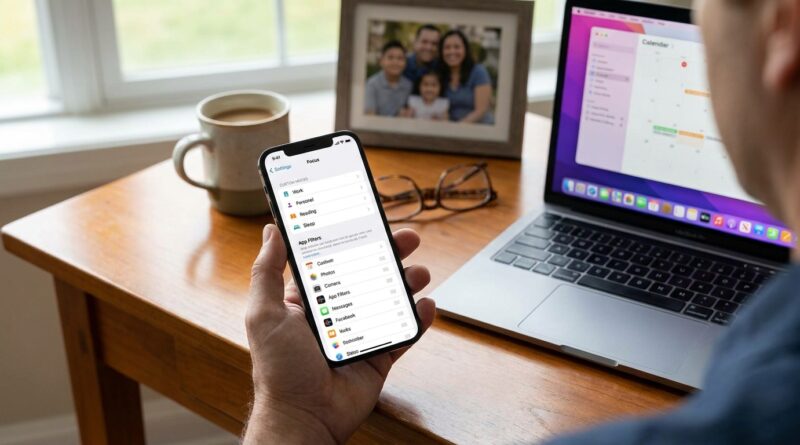
Stop Letting Random Alerts Break Your Focus: The Hidden ‘Context-Aware Priority Filters’ Trick iPhone Power Users Use To Make Notifications Behave Themselves
Your iPhone is probably not “bad at notifications.” It is just doing too many jobs at once, with too many switches turned on. That is why you can spend ages tweaking Focus modes, muting group chats, and turning off app alerts, then still get buzzed during a meeting by something useless while missing the one text you actually needed. It is maddening. The trick many iPhone power users rely on is not one magic setting. It is a layered setup. They use Focus modes for the moment, notification summaries for the junk, and VIP-style contact tiers for the people who should break through. Once you set those three pieces up together, your phone starts feeling less like a needy toddler and more like a sensible assistant. The good news is you do not need to mute everything or start from scratch. You just need a system that tells iOS 18 what matters, when it matters, and who matters most.
⚡ In a Hurry? Key Takeaways
- The best fix is a three-part setup: Focus modes for context, Scheduled Summary for low-value apps, and VIP-style exceptions for the few people who should always get through.
- Start by allowing people, not apps. Then send noisy apps like shopping, games, and promos into a summary instead of turning them all off.
- This setup is safer than muting everything because urgent calls and key contacts can still break through when you actually need them.
The hidden trick is not hidden at all. It is just spread across too many menus.
When people search for iOS 18 hidden Focus mode filters notification priority tips, they are usually hoping for one buried switch that magically fixes everything. Apple does not really give you that. What it gives you is a stack of tools that only make sense when you use them together.
Think of it like this:
- Focus modes decide what kind of time you are having. Work, sleep, driving, personal time.
- Notification Summary catches the stuff that can wait.
- Priority people decide who gets to interrupt you anyway.
Most notification misery happens because people only use one of those tools. They turn on a Focus mode and expect it to understand nuance. It does not. You have to teach it.
Step 1: Build your people tiers first
Before touching apps, sort the humans in your life into simple groups. This is the part most people skip, and it is why their setup never feels trustworthy.
Tier 1: Always allowed
These are the people who can interrupt you almost anytime. Think partner, kids, parents, boss, caregiver, or one close friend if that makes sense for your life.
Tier 2: Allowed in some Focus modes
These are important, but not emergency-level important. Maybe coworkers during Work Focus, or your child’s school during the day.
Tier 3: Everyone else
They can wait until you are free.
To set this up, go to Settings > Focus, pick a Focus mode, then tap People. Add the contacts you want allowed. This is better than allowing whole apps like Messages or WhatsApp, because allowing an app can let every sender break through.
If you want extra protection, use Allow Repeated Calls. That way, if someone calls twice within a short time, the second call can still get through. It is a good middle ground between peace and panic.
Step 2: Stop treating all apps like they deserve equal attention
They do not.
Your bank app, your calendar, your pharmacy, your airline, your security camera, and your shopping app should not all have the same access to your attention. Yet on many iPhones, they do, because every new app asks for notifications and most of us just tap “Allow” to get on with our day.
Use this rough sorting method
- Instant alerts: calls, messages from key people, calendar, security, health, delivery apps when tracking a package, banking fraud alerts
- Summary later: news, retail, social media, games, food promos, “engagement” apps that mainly want you back inside them
- Turn off completely: apps that never send anything useful
Go to Settings > Notifications > Scheduled Summary. Turn it on and add the apps that are noisy but not urgent. This is one of the most underused sanity-saving settings on the iPhone. Instead of constant drip-drip-drip alerts, you get a bundle at times you choose.
A good setup is one summary around lunch and one in the early evening. That keeps low-value alerts from barging into your day while still making sure you see them eventually.
Step 3: Use Focus modes for context, not as a giant on-off switch
This is where the “context-aware” part comes in.
A lot of people use one Focus mode called Work and call it done. Better than nothing, but still clumsy. The smarter move is to create Focus modes based on situations where your tolerance for interruption changes.
Good examples
- Deep Work: only top-tier people, calendar, task apps, maybe your boss
- Meetings: almost nobody, except family and repeated calls
- Personal Time: family and friends, but no Slack or work email
- Sleep: only emergency contacts and critical alerts
In Settings > Focus, you can also tie modes to time, location, or apps. That means your iPhone can switch behavior when you arrive at the office, open a work app, or hit a certain time of day.
That is the real trick. The phone is not just muting things. It is changing its rules based on what you are doing.
Step 4: The setting many people miss, app and people silencing behavior
Inside each Focus mode, be careful how you choose what is allowed or silenced. Apple gives you two approaches.
Allow only these
This is usually the better option. You make a short trusted list. Everything else stays quiet.
Silence only these
This sounds easier, but it often backfires because every app and person you forgot to block can still interrupt you.
If your goal is sanity, start with an allow-list. It takes a few more minutes up front, but it is much cleaner.
Step 5: Use Focus Filters for app content, not just alerts
This is where iPhone power users get a bit more disciplined, and it is worth copying.
Focus Filters do more than hush notifications. In supported apps, they can change what content you see while a Focus mode is active. For example, your Mail or Calendar can show only work-related accounts during Work Focus. That means less visual clutter and less temptation.
Go to Settings > Focus, choose a mode, then scroll to Focus Filters. If you see options for apps you use, turn them on. This helps with priority because it stops irrelevant stuff from being in your face even when you are already inside the app.
It is subtle, but it matters. Focus is not just about preventing a ping. It is about protecting your attention after you unlock the phone too.
A battle-tested setup that works for most people
If you want a practical starting point, use this exact structure for a week.
Work Focus
- Allow: partner, kids, parents, boss, core team
- Apps allowed: Calendar, Phone, Messages, Teams or Slack if required
- Focus Filter: work inbox and work calendar only, if supported
- Summary later: news, shopping, social, entertainment
Personal Focus
- Allow: family, close friends
- Apps allowed: Messages, Phone, Photos, Maps
- Silence work apps completely
- Summary later: promo apps, retail, random newsletters
Sleep Focus
- Allow: emergency contacts only
- Apps allowed: none or almost none
- Repeated calls: on
- Everything else: silent
What to turn off right now if your iPhone still feels noisy
Even a good Focus setup can be undermined by extra notification features quietly left on.
Check these spots
- Settings > Notifications. Review every app that still has badges, sounds, and lock screen alerts.
- Settings > Notifications > Siri Suggestions. If suggested notifications feel random, dial them back.
- Settings > Notifications > Announce Notifications. Great for some people, annoying for others.
- Per-app settings. Many apps have their own alert controls inside the app itself.
This matters because iOS updates often keep old settings, add new ones, and leave you with a messy mix. If your phone feels unpredictable, it usually is.
The mistake that makes people give up
They try to perfect everything in one sitting.
Do not do that. Start with your top five people, your top ten noisy apps, and one Focus mode you use every day. Live with it for three days. Then adjust.
The best notification system is not the most complicated one. It is the one you trust. If you trust that urgent people can reach you, you will be much more willing to quiet everything else.
At a Glance: Comparison
| Feature/Aspect | Details | Verdict |
|---|---|---|
| Focus modes | Best for changing notification rules based on context like work, meetings, or sleep. | Essential. This is the backbone of a clean setup. |
| Scheduled Summary | Bundles non-urgent app alerts into digest-style delivery at chosen times. | Great for cutting noise without missing everything. |
| VIP contact tiers | Lets key people break through while everyone else waits. | The trust-building piece most people forget. |
Conclusion
Notification overload is still the number one pain point we see, and it keeps getting worse because each new iOS version tends to add a few more toggles that quietly default to “on.” The answer is not to give up and mute the whole phone. It is to give your iPhone a clear set of rules. Use Focus modes to match the moment. Use notification summaries to sweep up the low-value junk. Use VIP-style contact tiers so the right people can still reach you. Once those three parts work together, your iPhone stops feeling chaotic and starts feeling dependable again. That saves time, lowers stress, and lets you trust your phone without checking it every two minutes.