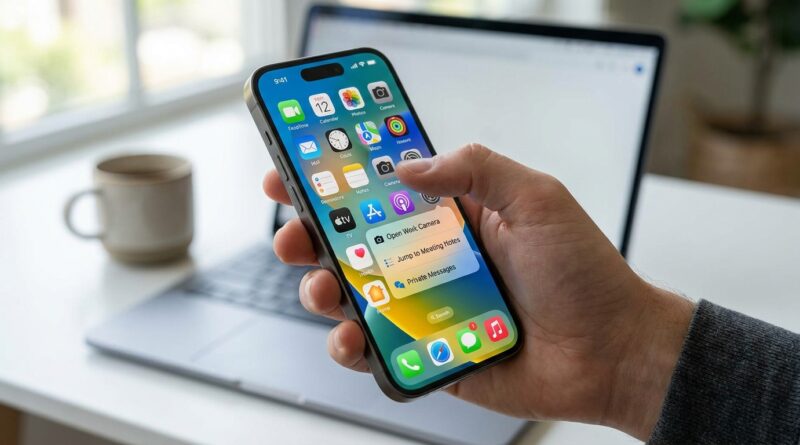
Stop Digging Through Menus: The Hidden iOS 18 ‘App Actions’ Menu Power Users Turn Into a Super Shortcut Hub
You know the feeling. You open an app to do one quick thing, like send a message, check a boarding pass, or start a note, and somehow you are three taps deep in menus you never wanted. It is annoying because your iPhone is fast, but the path to what you need is not. That mismatch is what makes a phone feel clunky. In iOS 18, Apple quietly made one of the best time-savers even better. The hidden trick is the long-press menu on app icons and widgets. Most people use it only to rearrange apps or delete them. That is a waste. In many apps, that menu now acts like a mini control panel with direct jumps into specific tasks, views, and shortcuts. Once you set it up well, your home screen stops being a grid of icons and starts acting more like a dashboard built around what you actually do every day.
⚡ In a Hurry? Key Takeaways
- In iOS 18, long-pressing many app icons and widgets can jump straight to specific tasks, not just app management options.
- You can save time by pairing these app actions with Shortcuts, Focus modes, and carefully chosen widgets on your Home Screen.
- It is safe to use, and in some cases even more private, because you can lock or hide apps while still building faster ways into the tasks you use most.
What “App Actions” actually are
If you have ever long-pressed an app icon and seen options like “New Message,” “Scan Document,” or “Start Timer,” you have already used app actions. Apple does not always make a big fuss about them, but these menus are one of the quickest ways to skip the usual app opening process.
In iOS 18, more apps and widgets can expose useful actions right from the Home Screen. Some are built by Apple. Some come from third-party apps that support them well. The result is simple. You press and hold, then jump straight into the exact thing you wanted to do.
That is why the search term iOS 18 app actions long press shortcuts matters. This is not about learning a complicated automation system from scratch. It is about cutting out extra taps you repeat every single day.
Why this matters more than it sounds
One extra tap is nothing. Ten extra taps before lunch is irritating. Fifty extra taps a day is where your phone starts to feel like work.
The real benefit is not that each shortcut saves a huge chunk of time. It is that these small savings stack up fast. If you often jump into directions, recent chats, timers, reminders, camera modes, note creation, or payment apps, app actions can shave seconds off each task. Over a week, that is a lot of friction gone.
How to find the hidden menu
On an app icon
From your Home Screen or App Library, touch and hold an app icon for a second. Do not tap too quickly. You want the context menu, not the jiggle mode for rearranging apps.
If the app supports useful quick actions, you will see them listed above the usual options like Remove App or Edit Home Screen.
On a widget
Some widgets in iOS 18 also support long-press actions. Touch and hold the widget and look for direct options tied to that app or widget content. This can be handy for reminders, notes, calendars, and media apps.
The best kinds of tasks to move into app actions
Not every app does this well, but the best ones save you from repetitive navigation. Good examples include:
- Starting a new message or opening recent conversations
- Creating a new note, checklist, or voice memo
- Scanning a document with Notes or Files
- Jumping into a camera mode like selfie, video, or portrait
- Starting a timer or alarm
- Getting directions home or to work
- Viewing a boarding pass, booking, or shopping list
- Opening a specific Shortcut you made yourself
The trick is to notice which tasks make you mutter, “Why am I tapping through all this again?” Those are the best candidates.
How power users turn this into a real shortcut hub
1. Put your highest-friction apps on the first screen
This sounds obvious, but most people organize apps by category or habit, not by speed. If an app has great long-press actions, it earns a prime spot.
Think Messages, Notes, Calendar, Maps, Phone, Reminders, Camera, and any travel or work app you use often.
2. Use Shortcuts as a bridge
This is where things get more interesting. The Shortcuts app can create actions that open a specific app section, trigger a task, or chain together several steps. Once that Shortcut exists, you can often pin it to the Home Screen and long-press it like any other app icon.
That means one icon could do something very specific, like:
- Open a shared work note and turn on Do Not Disturb
- Text your family your ETA and then launch Maps
- Start a travel Focus mode and open your airline app
- Log water, start a workout playlist, and open Fitness
This is the point where your iPhone starts feeling tailored to you instead of just arranged by Apple.
3. Pair app actions with Focus modes
iOS 18 works best when your Home Screen changes with your day. During work hours, your visible apps and widgets can be different from what you see at night or when traveling. If you pair that with long-press actions, each mode becomes a purpose-built control panel.
For example, a Work Focus screen might include long-press-friendly apps for Slack, Calendar, Notes, and Files. A Travel Focus might favor Maps, airline apps, translation tools, and messaging.
4. Use widgets for the things you check, icons for the things you do
Here is a simple rule. Widgets are best when you want to glance at information. App icons with good long-press menus are best when you want to do something quickly.
So, keep weather, calendar, and battery info in widgets. Keep your action-heavy apps where your thumb can reach them.
Which Apple apps are especially good at this
Apple’s own apps usually set the standard here. A few standouts:
- Phone: call favorites or jump into recent contacts quickly
- Messages: start a new message fast
- Notes: create a note, checklist, photo note, or scan
- Camera: open directly into a shooting mode
- Maps: common destinations and location actions
- Clock: start timers faster than opening the full app
- Reminders: add tasks without browsing lists first
- Files: scan documents or jump to recent storage areas
Third-party apps vary a lot. Some are excellent. Others barely use the feature. It is worth testing the apps you open all the time because the best surprises are often hiding in plain sight.
A quick way to test your apps in five minutes
Try this once and you will immediately spot where the savings are.
- Pick your ten most-used apps.
- Long-press each one.
- Look for actions that skip a common first screen.
- Move the best three or four onto your main Home Screen.
- Remove or bury apps that make you dig through menus anyway.
By the end, your Home Screen will be less crowded and more useful.
What about privacy and hidden app locks?
This part matters if you share your phone with family, coworkers, or curious kids.
iOS 18 added stronger ways to lock and hide apps. That means you can keep sensitive apps protected while still building a faster system around them. In practice, this gives you a nice balance. You can streamline access to everyday tasks without leaving private apps sitting wide open.
Just remember, if an app is hidden or locked, some quick actions may still require authentication before they fully open. That is a good thing. Speed is nice. Privacy is still more important.
Common mistakes people make
Using too many icons on the Home Screen
More icons do not mean more speed. They usually mean more hunting. Keep only the apps with genuinely useful app actions close at hand.
Ignoring widgets completely
Some people swing too far the other way and rely only on app icons. A smart mix works better.
Never checking after an app update
App developers add and change quick actions over time. If an app did not have useful long-press options six months ago, it might now.
Confusing long-press actions with full automation
You do not need to become a Shortcuts expert overnight. Start with the app actions already there. Add automation only when it solves a real annoyance.
Who benefits the most from this
This setup is especially helpful for people who live on their phones for practical reasons, not just entertainment.
- Busy parents switching between school, family, and work apps
- Travelers checking routes, bookings, and messages across time zones
- Remote workers jumping into notes, calls, and files all day
- Anyone who wants their phone to feel less cluttered and more responsive
If your day is a constant mix of small jobs, these shortcut-style actions are one of the easiest wins in iOS 18.
At a Glance: Comparison
| Feature/Aspect | Details | Verdict |
|---|---|---|
| Long-press app actions | Direct shortcuts from app icons to specific tasks like new note, message, scan, or timer | Best for quick daily actions with almost no setup |
| Widgets | Show live info and sometimes offer direct actions when long-pressed | Best for glanceable information, with some shortcut value |
| Shortcuts plus Focus modes | Can combine several steps and change available apps based on work, travel, or personal time | Most powerful option, but worth building gradually |
Conclusion
If your iPhone feels slow even though it is not, the problem may be the route, not the hardware. That is why this hidden menu matters. iOS 18 quietly expanded what long-pressing app icons and widgets can do, but most people still treat it like a rearranging tool instead of a shortcut hub. The smart move is to turn your Home Screen into a set of fast paths for the things you actually do. Power users are already chaining these deep links to specific app views, Shortcuts, Focus modes, and hidden app locks to jump straight into the exact task they want in one press. For busy people juggling work, travel, and messaging across time zones, those tiny savings add up fast. Set up a few good app actions today, and your phone will start feeling smarter, calmer, and a lot less tap-hungry.