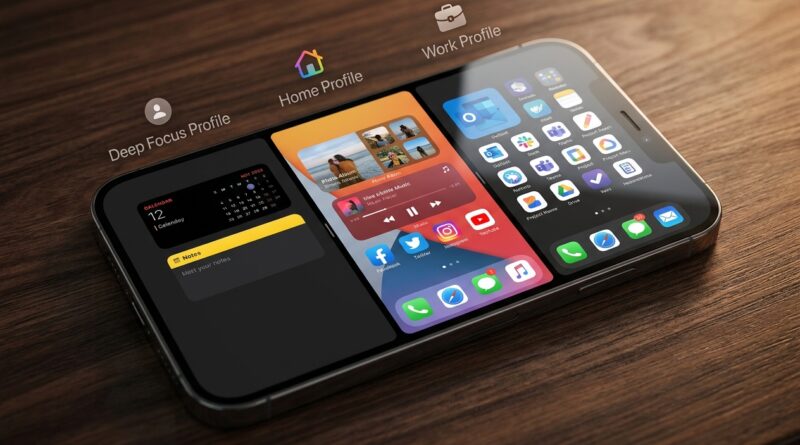
Stop Letting App Windows Rule Your Home Screen: The Hidden ‘Profiles + Focus Filters’ Stack Power Users Use To Flip Their Entire iPhone In One Tap
You set up your iPhone once, maybe even color-coded the apps, picked a nice wallpaper, and promised yourself this time it would stay organized. Then real life happened. Work apps started sitting next to your meditation app. Slack and email barged into dinner. Weekend photos got buried under banking, travel, and that one app your office insists you use. It is annoying because Do Not Disturb only quiets the noise. It does not change the feel of the phone. What most people want is simpler. One tap for “I’m working now.” One tap for “leave me alone, I’m home.” The good news is your iPhone can already do this. The trick is not just using Focus. It is stacking Focus filters, custom Home Screen pages, Lock Screens, and notification rules so each mode acts like its own mini phone. Once you set it up, your iPhone stops feeling like one crowded room and starts behaving more like separate spaces.
⚡ In a Hurry? Key Takeaways
- Your iPhone can change its Home Screen, notifications, Lock Screen, and some app views by Focus mode, which effectively gives you one-tap profiles.
- Start with just three modes, like Work, Personal, and Sleep, then assign each one its own app page and allowed notifications.
- You do not need extra apps or paid tools, and you can undo any part of the setup if you do not like it.
The hidden stack people miss
When people search for iPhone Focus filters profiles change home screen by mode, they are usually hunting for one setting. There is no single magic switch called Profiles. Apple sort of built profiles without calling them that.
The real system is a stack:
- Focus mode
- Custom Lock Screen
- Custom Home Screen pages
- Allowed and silenced people
- Allowed and silenced apps
- Focus filters inside supported apps
- Optional schedules or Smart Activation
Put those together and one tap can make your phone feel completely different.
What “profiles” actually look like on iPhone
Work profile
You tap Work. Your Lock Screen changes to something plain. Your Home Screen now shows only work tools like Calendar, Mail, Slack, Teams, Notes, and Files. Social apps disappear from view. Only your boss, team, partner, and kid’s school can break through. Safari can be filtered to a work tab group. Mail can show just your work inbox, if your app supports it.
Personal profile
You tap Personal. Work apps vanish from the Home Screen. Notifications from office apps stay quiet. Your wallpaper changes. Messages from friends and family come through. Widgets can shift to weather, photos, fitness, or your shopping list.
Sleep profile
You tap Sleep. The screen dims down to almost nothing useful except your alarm, a charging widget, and maybe a bedtime shortcut. Most notifications stop. Tempting apps are out of sight.
That is the idea. Not more settings for the sake of settings. Fewer decisions when your brain is already busy.
Step 1: Create the Focus modes you actually need
Do not start with seven. That is how this turns into a weekend project you never finish.
Start with three:
- Work
- Personal
- Sleep or Weekend
To create or edit them:
- Open Settings.
- Tap Focus.
- Choose an existing mode or tap the + in the top right.
- Pick a type like Work, Personal, Sleep, or Custom.
If you want the cleanest setup, use Apple’s built-in Work and Personal modes first. They already make the logic easier to follow.
Step 2: Decide who is allowed to interrupt you
This is the part that makes Focus useful instead of cosmetic.
Inside each Focus mode, you can choose:
- Allow Notifications From specific people and apps
- Or Silence Notifications From specific people and apps
For most people, allowing only the important stuff works better for Work and Sleep. For Personal, silencing work apps may be easier.
A simple setup that works
Work Focus
- Allow: coworkers, boss, family emergencies
- Allow apps: Calendar, Mail, Teams, Slack, Phone
- Silence or exclude: games, shopping, social apps
Personal Focus
- Allow: friends, family, key contacts
- Silence or exclude: Slack, Teams, work email
Sleep Focus
- Allow: partner, family, emergency contacts
- Silence almost everything else
If you are nervous about missing something, start gently. Test it for a day before locking it down harder.
Step 3: Build separate Home Screen pages for each mode
This is the feature that makes the whole thing click.
Most people think Focus only controls notifications. The bigger win is that it can control which Home Screen pages appear.
- On your Home Screen, touch and hold an empty area.
- Tap the row of page dots near the bottom.
- Create or arrange separate pages for different contexts.
- Make one page for Work apps.
- Make one page for Personal apps.
- Make one page for low-distraction essentials.
Then connect those pages to a Focus mode:
- Go to Settings > Focus.
- Select a Focus mode.
- Under Customize Screens, tap Choose under Home Screen.
- Select the page or pages you want visible in that mode.
Now when that Focus turns on, your iPhone shows only those selected pages.
Important note
This does not delete apps. It just hides certain pages while that Focus is active. You can still find apps in the App Library if you really need them.
Step 4: Match each Focus to a Lock Screen
This part is partly useful, partly psychological. And yes, that matters.
When your Work Focus has a clean, calm Lock Screen, your brain gets a little cue that says, “different mode now.” Same with a Personal or Weekend screen that feels more relaxed.
- Touch and hold your Lock Screen.
- Swipe to create a new one if needed.
- Customize the wallpaper, font, and widgets.
- Tap Focus on that Lock Screen.
- Link it to the mode you want.
Good examples:
- Work: Calendar, Reminders, battery
- Personal: Weather, fitness, photos
- Sleep: Alarm, battery, simple dark wallpaper
It sounds small. It is not. Visual cues help you stick to the boundary.
Step 5: Add Focus filters for supported apps
This is the “hidden” part most people never finish setting up.
Focus filters let certain apps change what they show based on the mode. Not every app supports this, but the ones that do can make the phone feel far more separate.
In a Focus mode:
- Go to Settings > Focus.
- Choose a mode.
- Scroll to Focus Filters.
- Tap Add Filter.
You may see options for things like:
- Safari tab groups
- Mail accounts
- Calendars
- Messages
- Third-party apps that support Focus filters
Useful examples
Work Focus
- Safari opens your Work tab group
- Calendar shows only work calendars
- Mail shows only your work inbox
Personal Focus
- Safari opens your personal tab group
- Calendar hides work calendars
This is the part that makes the setup feel less like “hiding icons” and more like switching environments.
Step 6: Turn each setup into a real one-tap switch
Once the pieces are in place, switching is easy.
You can turn on a Focus in a few ways:
- Open Control Center and tap Focus
- Tap the linked Lock Screen
- Set it to activate automatically by time, place, or app
The easiest manual method
Swipe down from the top right corner, tap Focus, and choose the mode. That is your one-tap profile switch.
The smarter automatic method
Inside each Focus, tap Add Schedule or Smart Activation. Then use:
- Time: Work mode from 9 to 5
- Location: Personal mode when you get home
- App: Turn on Reading or Work when a specific app opens
Be careful with too much automation at first. Manual switching helps you learn the system before your phone starts making guesses for you.
A setup example that works in real life
Profile 1: Work
Goal: Deep work without social clutter
- Allowed people: team, partner, family emergencies
- Allowed apps: Slack, Mail, Calendar, Phone, Notes
- Home Screen: one page with work apps and widgets
- Lock Screen: plain background, next meeting widget
- Focus filters: work tab group, work calendar, work inbox
Profile 2: Personal
Goal: Enjoy your phone without seeing work every five minutes
- Allowed people: friends, family
- Silenced apps: Slack, Teams, Outlook
- Home Screen: messages, camera, maps, music, photos
- Lock Screen: weather and activity rings
- Focus filters: personal tab group, hide work calendar
Profile 3: Sleep
Goal: Stop doomscrolling in bed
- Allowed people: emergency contacts only
- Allowed apps: none or bare minimum
- Home Screen: alarm, white noise, flashlight
- Lock Screen: dark wallpaper, alarm widget
Common mistakes that make Focus feel broken
1. Too many apps on every page
If every page still has a little bit of everything, switching modes will not feel different. Be ruthless. Give each page a purpose.
2. Leaving badges on distracting apps
Even if the app is hidden from your main page, red badges still pull your attention. Consider turning badges off for problem apps in Settings > Notifications.
3. Overcomplicating the first setup
You do not need ten widgets, six schedules, and a hundred rules on day one. Build one good Work mode first.
4. Forgetting the App Library exists
Hidden does not mean gone. If you need an app, swipe to the App Library or use Search. That safety net makes it easier to keep your main pages clean.
5. Expecting every app to support filters
Some apps do. Some do not. That is normal. The core win still comes from page control and notification rules.
Why this works better than just using Do Not Disturb
Do Not Disturb is a mute button. Useful, but blunt.
This setup does more:
- Changes what you see
- Changes who can reach you
- Changes which apps feel “present”
- Changes the tone of the device
That matters because distraction is not only sound. It is visual clutter, habit loops, and seeing the wrong stuff at the wrong time.
If you want the fastest possible reset
If your Home Screen is already a mess, do this tonight:
- Create one new Home Screen page called Work.
- Move only essential work apps there.
- Create one page called Personal.
- Move your everyday non-work apps there.
- Set up Work Focus to show only the Work page.
- Set up Personal Focus to silence work apps.
That alone solves a surprising amount of stress.
At a Glance: Comparison
| Feature/Aspect | Details | Verdict |
|---|---|---|
| Focus mode only | Silences or allows notifications, but your Home Screen may still look cluttered and mixed. | Good start, but incomplete. |
| Focus + custom Home Screen pages | Changes which app pages appear for each mode, making Work and Personal feel separate. | Best value for most people. |
| Full stack with filters and Lock Screens | Adds visual cues, app-specific filters, and cleaner boundaries across the whole phone. | Most powerful, once set up. |
Conclusion
The internet loves a flashy hidden trick, but what most iPhone users actually need is less chaos. That is why this setup matters. When you stack Focus filters, per-mode Home Screens, notification rules, and Lock Screens, you are not just tweaking settings. You are giving your phone a job description. Work stays in its lane. Personal time feels personal again. Sleep is not another scrolling session with a darker wallpaper. Best of all, you can do it right now with tools already on your iPhone. No paid app. No weird workaround. No waiting for the next iOS update to save you. Start small, test one mode, then build from there. Once it clicks, your phone stops acting like one noisy feed and starts feeling like a tool you control.