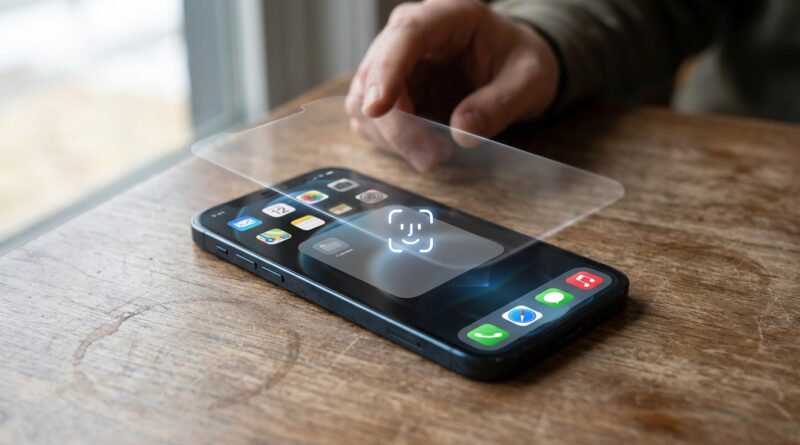
Stop Letting Apps Spy Over Your Shoulder: The Hidden ‘Locked & Hidden Apps’ Trick Power Users Use To Put Sensitive Stuff Behind A Secret Wall
You know that tiny panic spike when someone says, “Can I borrow your phone for a second?” Maybe they need to make a call, look at a photo, or scan a QR code. Harmless enough. But once your iPhone is unlocked, Messages, Photos, banking apps, health info, and work tools can be sitting right there in plain sight. That is the part a lot of people do not realize. Face ID protects your phone on the way in, but after that, one tap can open parts of your life you never meant to share. The good news is Apple finally added a much better answer. If you have a newer version of iOS, you can lock specific apps behind Face ID, and in some cases hide them so they are harder to find at all. If you have ever wondered how to lock and hide apps on iPhone, this is one of the most useful five-minute privacy setups you can do.
⚡ In a Hurry? Key Takeaways
- You can now lock certain iPhone apps with Face ID and hide supported apps so they do not sit openly on your Home Screen.
- Press and hold an app icon, then look for options like “Require Face ID” or “Hide and Require Face ID.”
- This is especially smart for banking, health, messaging, and work apps when you hand over an already-unlocked phone.
Why this matters more than people think
Most privacy slip-ups do not happen because a hacker breaks into your phone from a dark basement. They happen in normal life.
You show a friend a vacation picture. A kid starts tapping around. A coworker borrows your phone to call their number. Your partner wants to look up a restaurant. None of these moments feel dramatic. But they are exactly when private apps get opened by accident, or curiosity.
That is why this feature matters. It adds a second checkpoint for your most sensitive apps, even after the phone itself is unlocked.
How to lock and hide apps on iPhone
If your iPhone supports Apple’s newer app privacy controls, the setup is refreshingly simple.
To lock an app
Find the app on your Home Screen or in the App Library. Press and hold the app icon. If the feature is available for that app, you should see an option such as Require Face ID.
Tap it, then confirm. From that point on, opening that app will require Face ID again, or your passcode if Face ID fails.
To hide an app
Press and hold the app icon again. If the app supports it, you may see Hide and Require Face ID.
Choose that option and confirm. The app will be removed from the usual Home Screen view and placed into a hidden area that requires authentication to open.
Not every app supports every option, so do not be surprised if one app can be locked but not fully hidden. Apple is still a bit selective here.
Which apps should you protect first?
Start with anything that could expose your money, your identity, your medical details, or your private conversations.
Best candidates for app locking
Good examples include:
- Banking and payment apps
- Password managers
- Health and fitness apps with private data
- Secure messaging apps
- Work email and company tools
- Notes apps that hold personal or financial info
If you are the kind of person who stores scans of IDs, tax documents, or account screenshots, go lock those related apps first.
What this feature does, and what it does not do
This is where it helps to be clear. App locking is not the same thing as making your phone invisible to everyone forever.
What it does well
It stops casual snooping. It protects against accidents. It helps when someone already has your unlocked phone in hand.
What it does not replace
It does not replace a strong passcode. It does not mean you should stop using Face ID for the whole device. And it will not hide every trace of an app in every corner of iOS forever.
Think of it as an extra interior lock, not a replacement front door.
A few setup tips that make this even better
If you are going to do this, do it properly.
1. Lock the apps you would hate to explain
That is the easiest rule. If seeing it open would make you uncomfortable, lock it.
2. Clean up your Home Screen
Even with app hiding, a cluttered Home Screen makes it easier for people to poke around. If you want to make your iPhone feel tidier and faster to control at the same time, it is worth checking out Stop Letting Swipes Go To Waste: The Hidden ‘Long‑Press Command Grid’ Trick iPhone Power Users Use To Unlock 20+ Secret Shortcuts. It pairs nicely with this privacy setup because both features reward a cleaner, more intentional Home Screen.
3. Test it before you rely on it
After turning on Require Face ID or Hide and Require Face ID, close the app and try reopening it. Make sure it behaves the way you expect.
4. Keep iOS updated
Apple tends to roll out privacy features in newer versions of iOS first. If the option is missing, your phone may simply need an update, or your specific app may not support it yet.
If you do not see the option
There are a few possible reasons.
- Your iPhone may not be running a recent enough version of iOS.
- The app itself may not support lock or hide controls yet.
- Some built-in Apple apps and third-party apps behave differently.
Go to Settings > General > Software Update and make sure your phone is current. Then try again with a few different apps.
The real win here is peace of mind
This feature is not about being secretive. It is about having normal boundaries.
You should be able to hand someone your unlocked phone to make a call without silently wondering if they are one tap away from your bank balance, your medical details, or that private message thread you forgot was open.
Apple has finally made that much easier.
At a Glance: Comparison
| Feature/Aspect | Details | Verdict |
|---|---|---|
| App Locking | Requires Face ID or passcode again when opening selected apps. | Best for banking, messaging, health, and work apps. |
| App Hiding | Removes supported apps from normal view and places them behind authentication. | Great for reducing casual discovery. |
| Main Limitation | Not every app supports every privacy option, and you still need a strong device passcode. | Useful extra layer, not a full replacement for good phone security. |
Conclusion
For years, iPhone security was basically one big front door lock. Once someone was in, they were in. Apple’s newer privacy tools finally change that. You can now treat some apps as if they simply do not exist unless you authenticate again, which is exactly how sensitive apps should work. If you take a few minutes to lock down your financial apps, health data, secure messaging, and work tools, handing over an unlocked phone stops feeling like a gamble. And that is the real value here. Most privacy leaks happen in ordinary, everyday moments, not spy-movie scenarios. A quick setup now can save you from a very long “I really wish I had locked that” later.