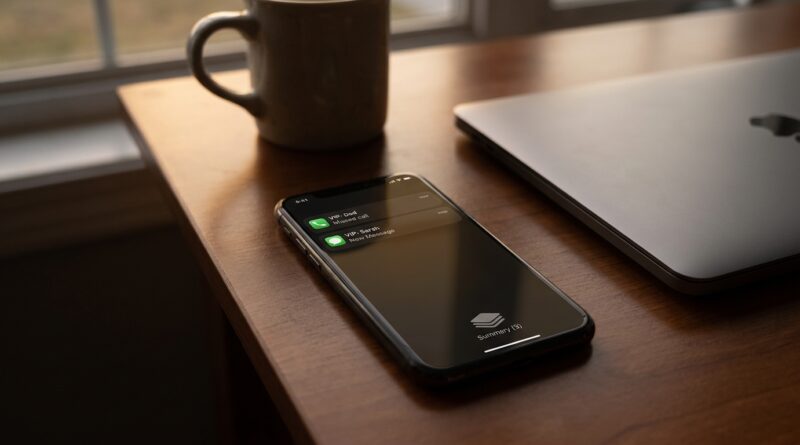
Stop Letting Notifications Rule Your Brain: The Hidden ‘Priority Alerts + Batch Bundles’ Stack Power Users Use To Cut Distractions In Half
Your iPhone probably is not “too noisy” by accident. It is noisy because every app thinks it is the most important thing in your life, and your phone has been trained to agree. That leaves you stuck in a miserable middle. You do not want to turn notifications off completely, because what if your partner, your kid’s school, your boss or your bank actually needs you? So instead, you put up with the constant drip. Buzz. Banner. Preview. Red badge. Repeat. It feels small in the moment, but over a day it shreds your focus, makes your brain jumpy and keeps pulling you back into your phone when you were trying to work, rest or just think. The fix is not “go off grid.” It is building a smarter notification setup, with priority alerts for real people and bundled summaries for everything else.
⚡ In a Hurry? Key Takeaways
- Use a two-layer system: let only truly important people and apps break through right away, and batch the rest into summaries.
- Change each app’s alert style separately. Not every app deserves sounds, banners and lock screen previews.
- This setup is easy to undo, does not need extra apps, and can improve focus, battery life and sleep the same day.
The goal is not fewer notifications. It is better ones.
Most people try to solve notification stress with one big switch. They turn everything off, miss something important, panic, then turn everything back on again. That never lasts.
A better approach is to sort notifications into groups. Think of it like your front door. A family member can knock anytime. A package delivery can wait on the porch. A random flyer does not need to ring the bell.
That is the hidden stack many iPhone power users use. Priority alerts on top. Batch bundles underneath. Quiet badges at the bottom.
If that sounds familiar, it is close to what we talked about in Stop Letting Notifications Hijack Your Brain: The Hidden ‘Priority Stacks’ Trick iPhone Power Users Use To Control Alerts Like A Command Center. This version goes one step further by showing how to actually build that system using iPhone hidden notification settings, priority alerts, summaries and app-by-app controls.
The 10-minute notification architecture that changes your whole day
Layer 1: Real-time alerts for real people
This top layer is tiny on purpose. It should include only the contacts and apps that truly deserve your immediate attention.
Good examples:
- Your partner or close family
- Your child’s school or caregiver
- Your boss or direct team, if your job needs it
- Bank fraud alerts
- Home security or medical apps
Everything else should have to wait.
On iPhone, start with Focus modes. Go to Settings > Focus. Open a Focus you already use, like Work or Sleep, or make a new one. Under People, allow only the contacts who can interrupt you. Under Apps, allow only the apps that really matter.
If you want one extra layer of safety, turn on Time Sensitive Notifications only for apps you trust. Delivery apps do not need this. Security and banking apps might.
Layer 2: Batch bundles for everything that feels urgent but is not
This is where most of your stress disappears.
Go to Settings > Notifications > Scheduled Summary. Turn it on. Then choose set times, like noon and 6 p.m., or 8 a.m., 1 p.m. and 7 p.m., depending on your day.
Add the apps that love to interrupt you but rarely deserve instant access to your attention. Think:
- Shopping apps
- News apps
- Games
- Social media
- Food delivery
- Travel deals
- Most promotional apps
Now those alerts still arrive, but they arrive in a batch. Your phone stops acting like a slot machine.
Layer 3: Quiet badges for low-stakes apps
Some apps do not need to buzz or light up your lock screen at all. They just need to quietly keep count until you open them.
For those, go to Settings > Notifications, tap the app, then turn off Sounds, Lock Screen and Banners. Leave Badges on if you still want a reminder.
This works well for things like:
- Retail apps
- Forums
- Streaming services
- Photo printing or coupon apps
You still see the update when you choose to check. It just no longer jumps in front of your face.
How to set up iPhone hidden notification settings priority alerts the smart way
Step 1: Audit your worst offenders
Open Settings > Notifications. Scroll through your apps slowly. This part matters. You will probably find apps you forgot were even allowed to make noise.
Ask three simple questions for each app:
- Do I need to know this right now?
- Would a badge be enough?
- Would I be happier seeing this later in a summary?
If the answer to the first question is “no,” it should not have full alert privileges.
Step 2: Turn off previews where they create stress
Message previews are sneaky. They pull your attention even when the notification itself is not important.
Go to Settings > Notifications > Show Previews. Many people do well with When Unlocked instead of Always. That way your lock screen stops reading like a live ticker for your nervous system.
Step 3: Remove sounds from anything that is not truly urgent
Sound is what creates the “drop everything” feeling. Banners are annoying. Sounds are bossy.
If you only change one thing today, strip sounds from nonessential apps. Leave visual alerts if you want. But stop letting sale alerts and group chats bark at you all day.
Step 4: Use Focus filters during the times you need your brain most
If you work in blocks, read, write, study or just want dinner without interruptions, Focus mode is your friend.
Create a simple schedule:
- Work Focus from 9 a.m. to noon
- Personal Focus in the evening
- Sleep Focus at night
Each Focus can allow different people and apps. That means your phone behaves differently depending on what you are doing, which is exactly how it should work.
A practical setup for most people
Keep instant alerts for:
- Phone calls from favorites or family
- Texts from a very small list of people
- Calendar alerts
- Banking and security notifications
- Ride pickup or time-sensitive travel updates
Put in Scheduled Summary:
- News
- Social apps
- Store apps
- Entertainment apps
- Promotional apps
Leave on badges only:
- Retail rewards apps
- Forums and communities
- Hobby apps
- Streaming apps
Turn off completely:
- Apps you never open
- Apps that send pure marketing spam
- Games that beg you to come back
What changes after you do this
The biggest difference is mental, not technical.
Your phone stops feeling like it is in charge. You stop checking it every three minutes “just in case.” You can finish a thought. You can leave it on the table during dinner without wondering what fresh emergency a pizza app has invented.
There are side benefits too. Fewer constant wake-ups can help battery life a bit. A calmer lock screen can help sleep, especially if you cut late-night banners and previews. And if you work on your phone, this setup can save a shocking amount of attention.
Common mistakes that ruin the system
Letting too many people into the priority lane
If everyone is priority, nobody is. Be strict. This is not rude. It is sorting.
Keeping sounds on for chatty apps
Group chats are the classic trap. You think you need them on. Usually you do not.
Using summaries but checking them every 10 minutes
The whole point is to bundle distraction. Let the bundle sit until the scheduled time if you can.
Ignoring app-by-app settings
This is the hidden part many people miss. iPhone lets you set alerts separately for each app. Use that power. Do not settle for all or nothing.
If you are nervous about missing something important
That fear is real. Start small.
Do not redesign your whole phone at once if that stresses you out. Pick five apps today. Move three into Scheduled Summary. Turn sounds off for two. Then test it for 48 hours.
You will quickly learn what you truly miss and what you never even notice. Most people discover that the “important” alerts were mostly habit, not necessity.
At a Glance: Comparison
| Feature/Aspect | Details | Verdict |
|---|---|---|
| Priority alerts | Use Focus settings and allowed people/apps for family, work essentials, banking and safety alerts. | Best for truly urgent notifications only. |
| Scheduled Summary | Batches non-urgent app alerts into set delivery times during the day. | Best for cutting interruptions without missing updates. |
| Quiet badges | Turns off sounds, banners and lock screen alerts while leaving a small badge reminder. | Best for low-stakes apps you want to check on your own time. |
Conclusion
You do not need another viral iPhone trick. You need a system that makes your phone feel calmer and your day feel more like your own. Right now there is a huge wave of iOS threads, TikToks and listicles hyping random hidden tricks, but almost nobody is walking people through a battle tested notification architecture that actually changes how their day feels. A clear, repeatable setup for priority contacts, app specific alert styles, time based summaries and quiet badges gives our community immediate, measurable wins in focus, battery and sanity without installing anything new. And that matters more than ever, because every new app and every new iOS feature tries to climb back onto center stage. Spend ten minutes setting this up once, and you will feel the difference all week.