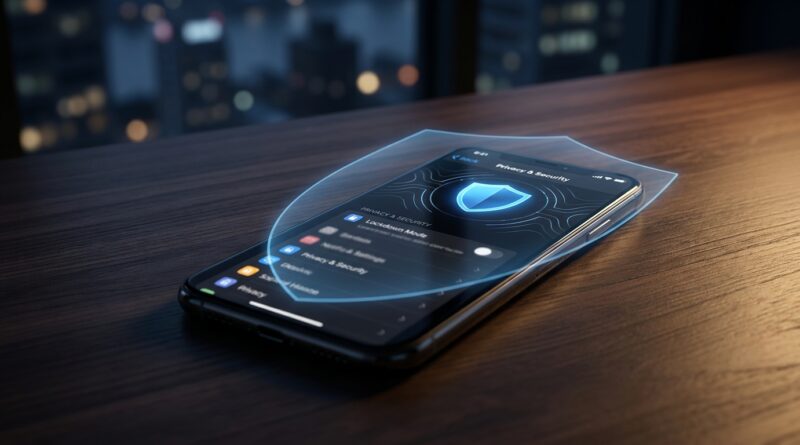
Stop Thinking Your iPhone Is ‘Unhackable’: The Hidden Lockdown Mode Tweaks Power Users Turn On Before It’s Too Late
You only need to hear “iPhones can’t be hacked” once or twice before it starts sounding like fact. Then reality shows up. A fake delivery text. A weird calendar invite. Hotel Wi‑Fi that feels off. Or worse, a stolen phone with your whole life sitting behind one passcode. If that sounds a little stressful, you are not overreacting. Apple does build strong security into the iPhone, but “secure by default” is not the same thing as “impossible to break into.” The default settings are made for convenience first. If you want real protection, especially against targeted scams, spyware tricks, and device theft, you need to turn on a few settings most people never touch. The good news is this is not a tinfoil-hat exercise. It is a practical 20-minute setup. Once done, your iPhone becomes a much harder target, and you will actually understand what each setting is doing.
⚡ In a Hurry? Key Takeaways
- Lockdown Mode is real protection, not hype, but it works best when paired with a stronger passcode, Stolen Device Protection, and tighter message and web settings.
- If you care about privacy, travel often, work in a sensitive job, or have ever been targeted by scam texts, set up Apple’s high-security options now, not after something goes wrong.
- You can make your iPhone much harder to attack in under 20 minutes, with only a few trade-offs like less convenient attachments, previews, and some website features.
The myth that gets people in trouble
Let’s clear this up first. iPhones are harder to hack than many devices, but they are not magic. Most real-world “hacks” do not look like a movie. They look boring. A phishing link in Messages. A fake Apple ID warning. A malicious attachment. A thief watching you enter your passcode, then stealing the phone and changing account settings before you can react.
That is why the search for how to use iPhone Lockdown Mode for real security keeps growing. People are realizing the threat is not just some genius coder in a dark room. It is scams, stolen devices, browser exploits, and social engineering.
What Lockdown Mode actually does
Lockdown Mode is Apple’s “make this phone a pain to attack” switch. It is designed for people who may face higher-risk threats, but regular users can benefit from it too if they are more privacy-aware than average.
When Lockdown Mode is on, Apple restricts some risky features
Exact details can change with iOS updates, but the core idea stays the same. Lockdown Mode reduces the attack surface by limiting:
- Most message attachment types.
- Some link previews and rich content handling.
- Certain complex web technologies that attackers sometimes abuse.
- Incoming FaceTime or other Apple service requests from unknown contacts in some cases.
- Wired accessory access when the phone is locked.
That means fewer convenience features. It also means fewer doors for an attacker to try.
Who should seriously consider turning it on
You do not need to be a journalist or politician. Lockdown Mode makes sense if you:
- Travel often and use public networks.
- Work in law, healthcare, finance, activism, or executive roles.
- Have been targeted by scam texts or account takeover attempts.
- Store sensitive client, family, or financial data on your phone.
- Simply prefer security over convenience.
How to turn on Lockdown Mode
Here is the basic path on current iPhones:
- Open Settings.
- Tap Privacy & Security.
- Scroll to Lockdown Mode.
- Tap Turn On Lockdown Mode.
- Read the warnings, then confirm.
- Restart the iPhone if prompted.
After the restart, your iPhone will apply the stricter protections. If an app, site, or message behaves differently after that, Lockdown Mode is usually the reason.
The 20-minute security blueprint power users actually use
Lockdown Mode matters, but it is only one piece of the puzzle. If you stop there, you are leaving obvious gaps open. This is the setup I would suggest to a smart friend who wants stronger iPhone security without turning daily life into a chore.
1. Switch to a longer passcode
If you are still using a six-digit code, this is your sign to upgrade. Go to Settings > Face ID & Passcode > Change Passcode > Passcode Options. Choose a custom alphanumeric code or at least a longer numeric one.
Why this matters: a stolen phone is often a bigger risk than remote hacking. A stronger passcode gives thieves and forensic tools a much harder job.
2. Turn on Stolen Device Protection
Go to Settings > Face ID & Passcode > Stolen Device Protection and turn it on. If your iPhone detects it is away from familiar places like home or work, it can require Face ID or Touch ID for sensitive actions and add a security delay for major account changes.
This is one of the best anti-theft features Apple has added in years. Use it.
3. Check that Find My iPhone is on
Go to Settings > [your name] > Find My > Find My iPhone. Make sure these are enabled:
- Find My iPhone
- Find My network
- Send Last Location
If your phone is lost or stolen, this can be the difference between recovery and panic.
4. Use Advanced Data Protection if available to you
If Apple offers Advanced Data Protection in your region and for your account setup, turn it on. This expands end-to-end encryption to more iCloud data categories.
You will usually find it under Settings > [your name] > iCloud > Advanced Data Protection.
This is a good example of “better privacy, same device.” It protects your backups and cloud data more strongly, which matters if someone goes after your account instead of your handset.
5. Tighten what is available from the lock screen
Go to Settings > Face ID & Passcode and review Allow Access When Locked. Consider turning off anything you do not truly need, especially:
- Control Center
- Accessories
- Reply with Message
- Wallet, if you prefer stricter control
- Live Activities, if you dislike visible details on the lock screen
This reduces what a thief or snoop can do before unlocking the phone.
6. Clean up Messages risk
Scam texts are still one of the easiest ways to get people. A few simple changes help:
- Go to Settings > Messages and turn on Filter Unknown Senders.
- Be suspicious of package alerts, unpaid toll warnings, account lock notices, and random “tap here” links.
- Do not log in from a text link. Open the real app or type the company address yourself.
Lockdown Mode reduces some message-related risk, but common sense still does a lot of heavy lifting.
7. Make Safari less trusting
Go to Settings > Safari and review these settings:
- Turn on Fraudulent Website Warning.
- Turn on Prevent Cross-Site Tracking.
- Hide IP address from trackers if available.
- Consider using Advanced Tracking and Fingerprinting Protection more broadly if your iPhone supports it.
Lockdown Mode already makes web browsing stricter. These extra Safari settings help even when Lockdown Mode is off.
8. Audit app permissions like a grown-up
Go to Settings > Privacy & Security. Then check:
- Location Services
- Contacts
- Photos
- Microphone
- Camera
- Bluetooth
- Local Network
If a flashlight app wants your contacts, that is nonsense. Turn it off. Fewer permissions mean fewer ways for apps to misuse your data.
9. Turn on automatic updates
Go to Settings > General > Software Update > Automatic Updates. Enable security responses and system updates. Many serious iPhone attacks rely on people staying behind on old software.
If Apple pushes a security patch, install it quickly. Delaying for weeks is how “safe enough” turns into “I thought iPhones couldn’t be hacked.”
10. Use a password manager and unique passwords
Your iPhone security is tied to your accounts. If your Apple ID email password is weak or reused, that is a problem. Use a password manager, create unique passwords, and turn on two-factor authentication everywhere that matters.
Your phone is only as secure as the account recovery paths attached to it.
What about hotel Wi-Fi and public networks?
Public Wi-Fi is not instant doom, but it is not your friend either. The biggest risk is often fake captive portals, lookalike networks, and login pages meant to steal credentials.
Safer habits on the road
- Prefer your cellular connection when doing banking, email resets, or account logins.
- If you must use public Wi‑Fi, confirm the exact network name with staff.
- Do not install random profiles or “security certificates” to get online.
- Forget the network after you leave.
- Consider a trusted VPN if you travel often, though it is not a cure-all.
Lockdown Mode helps with certain exploit paths, but it does not make a fake login page harmless. You still need to be careful.
The quiet feature many people miss: inactivity reboot
One underappreciated security improvement on modern iPhones is automatic reboot after a period of inactivity. Why does that matter? Because after a reboot, the device returns to a more protected state and usually requires your passcode before many sensitive things can happen.
You may never notice it, and that is the point. It is a background defense. Quiet features like this are part of why iPhones are strong, but they are not a license to be careless. Think of them as seat belts, not a force field.
What Lockdown Mode will annoy you about
Let’s be honest. There are trade-offs.
- Some websites may look odd or work less smoothly.
- Certain attachments and previews may be limited.
- Unexpected calls or connection requests from unknown people may not come through normally.
- Some accessories may behave differently while the phone is locked.
If that sounds frustrating, good. Security that changes nothing usually changes nothing. The trick is deciding whether those annoyances are worth the extra protection. For many people, the answer is yes, especially during travel, after a breakup, during legal disputes, or when handling sensitive work.
Should you leave Lockdown Mode on all the time?
For some people, yes. For others, it makes more sense in bursts.
Leave it on full-time if:
- You are consistently a higher-value target.
- You are comfortable trading convenience for safety.
- You do not rely heavily on unusual message attachments or finicky websites.
Turn it on for specific periods if:
- You are traveling internationally.
- You are dealing with harassment, stalking, or a legal conflict.
- You suspect someone is trying to target your accounts or device.
That flexibility is what makes it useful. You do not have to pick one forever mode for the rest of your life.
If your iPhone is stolen, do this immediately
- Use Find My from another device.
- Mark the iPhone as lost.
- Change your Apple ID password quickly.
- Contact your carrier to suspend the line if needed.
- Watch for account recovery and trusted device prompts.
- If you believe the thief saw your passcode, treat it as urgent and start securing linked accounts right away.
This is where stronger passcodes and Stolen Device Protection pay off. They buy you time.
The simple rule that beats most “hacks”
If a message creates urgency, slow down. If a page asks for your Apple ID after you tapped a text link, back out. If a caller says your account is compromised and wants a code, hang up and call the company directly.
Most people do not lose control of their iPhone because the hardware failed them. They lose it because they were rushed, fooled, or caught at a bad moment.
At a Glance: Comparison
| Feature/Aspect | Details | Verdict |
|---|---|---|
| Lockdown Mode | Restricts risky features in Messages, Safari, calls, and accessories to reduce attack paths. | Best for privacy-aware users, travelers, and higher-risk situations. |
| Stolen Device Protection | Adds biometric checks and delays for sensitive account changes away from familiar places. | Turn this on immediately. Almost no downside. |
| Long passcode plus updates | Strengthens physical device security and closes known software holes quickly. | The most practical baseline protection for everyone. |
Conclusion
The big takeaway is simple. Stop treating your iPhone like a tiny armored vault that needs no help. Apple gives you very good security tools, but the strongest ones are not always on by default, and some of the best protection only works if you take five minutes to set it up properly. If you were searching for how to use iPhone Lockdown Mode for real security, the answer is not just “flip the switch.” It is Lockdown Mode plus a stronger passcode, Stolen Device Protection, software updates, tighter lock screen access, and better habits around links and public Wi‑Fi. That sounds like a lot, but in practice it is a short checklist you can finish in under 20 minutes. Then the scary headlines feel less personal. You move from vague worry to clear, concrete defenses you actually control, and that is a much better place to be.