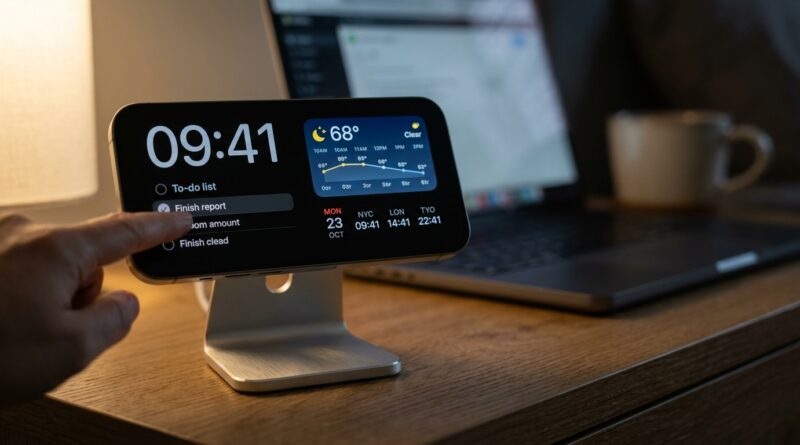
Stop Letting Your Lock Screen Waste Space: The Hidden ‘StandBy Command Center’ Trick Power Users Use To Turn Their Charging iPhone Into A Live Status Board
You plug in your iPhone every night, or prop it up on your desk, and then let that whole screen do… nothing. That is the part that bugs a lot of people once they notice it. You are sitting there checking the time, your next task, the weather, a timer, maybe another time zone for work, and your phone is fully capable of showing all of that without you even picking it up. Instead, most of us leave it as a black slab until a notification lights up for two seconds and disappears. iOS 17 quietly changed that. StandBy mode is not just a nicer bedside clock. With the right widget setup, it becomes a small command center for work, travel, and sleep. The trick is knowing where the settings are, which widgets are actually useful, and how to build layouts that help instead of turning your lock screen into visual clutter.
⚡ In a Hurry? Key Takeaways
- iOS 17 StandBy mode widgets setup can turn a charging iPhone into a live dashboard with clocks, calendars, reminders, weather, batteries, and Live Activities.
- Start with three practical profiles: a desk view for work, a travel view for time zones and flights, and a bedside view with a simple clock and low-distraction widgets.
- You do not need extra apps to begin, and a clean setup can reduce pointless notification checking instead of adding more noise.
What StandBy mode actually does
StandBy appears when your iPhone is charging and placed sideways, usually on a MagSafe stand or any charger that keeps it in landscape orientation. Instead of the normal lock screen, you get a full-screen view designed to be read from a distance.
That can be a clock. It can also be a pair of widgets, a photo display, or a Live Activity screen. Think timers, sports scores, food delivery progress, alarms, weather, and your next calendar event.
The part many people miss is that you can swipe between different StandBy screens and customize them much like Home Screen widgets. That is where the hidden command center idea starts to make sense.
First, make sure StandBy is turned on
If StandBy is not showing up, check the basics first.
How to enable it
Go to Settings > StandBy and make sure it is switched on.
While you are there, look at these options:
- Notifications, if you want alerts to appear in StandBy.
- Show Preview on Tap Only, which is a good privacy choice if the phone sits on your desk.
- Night Mode, which gives you a red-tinted low-light view at night on supported setups.
What you need physically
Your iPhone usually needs to be:
- running iOS 17 or later
- charging
- in landscape orientation
- propped up, not lying flat
A MagSafe stand makes this easier, but it is not required. Any stable stand that keeps the phone sideways while charging works.
Why most StandBy setups fail
People often do one of two things. They leave the default clock alone forever, or they cram in too much information and end up ignoring it.
A useful StandBy setup should answer questions at a glance:
- What time is it here and elsewhere?
- What is next on my schedule?
- What do I need to remember?
- Do I need to leave soon?
- Is something active right now, like a timer or delivery?
If a widget does not help with one of those quick questions, it probably does not belong on your main StandBy screen.
How to customize your iOS 17 StandBy mode widgets setup
This is the part that turns it from neat gimmick into daily tool.
Step 1: Enter StandBy
Place your iPhone on a charger in landscape orientation. Wait for StandBy to appear.
Step 2: Press and hold
Touch and hold the widget side of the StandBy screen. You may need to unlock the phone with Face ID first.
Step 3: Edit each widget stack
You will see the familiar widget editing interface. From there, you can:
- add or remove widgets
- reorder them
- turn Smart Rotate on or off
- turn Widget Suggestions on or off
My advice for most people is simple. Turn off unnecessary suggestions at first. Build a manual setup you can trust. Once you know what you like, you can experiment with Smart Rotate.
Step 4: Build around one job per screen
Do not make every screen do everything. One screen for work. One for travel. One for bedside use. That is the practical trick power users use.
The best three StandBy profiles for real life
1. Desk Work mode
This is the profile that saves the most phone pickups during the day.
Good widget mix:
- Clock with a second time zone if you work with another city
- Calendar for your next event
- Reminders for your current task list
- Weather for commute or lunch planning
- Batteries if you also use AirPods or an Apple Watch
A strong setup is one side for Calendar and one side for Reminders, with a swipe away to a world clock view. If your day is run by meetings, this one change can stop the constant unlock-check-lock cycle.
If you use Focus modes during work, this becomes even better because relevant widgets and fewer interruptions work together instead of fighting for your attention.
2. Travel mode
This one is wildly underused.
Good widget mix:
- World Clock for home and destination time zones
- Weather for your current city and destination
- Calendar for hotel check-in, meetings, or reservations
- Reminders for packing, passport, and boarding tasks
- Live Activities for rides, flights, or food pickup when supported
Travel days are when people check their phones the most and absorb the least. A sideways charging phone in a hotel room or airport lounge can quietly show the things you keep forgetting.
One tip here: keep this setup cleaner than your desk version. Travel is already chaotic. You want fewer widgets, not more.
3. Bedside mode
At night, less is more.
Good widget mix:
- Large clock
- Alarm or next wake time
- Weather for morning planning
- Sleep or medication reminders, if those matter to you
If your phone is near your bed, privacy matters too. Use the StandBy notification settings so message previews do not glow across the room. Night Mode is also worth turning on if your setup supports it, because the red-toned display is much less jarring in a dark room.
Which widgets are actually worth using
Not every widget earns screen space. Here are the ones that tend to work best from a distance.
Most useful
- Calendar, because “what is next?” is a constant question
- Reminders, especially for a short today list
- Clock and World Clock, especially for remote teams or travel
- Weather, because it changes decisions quickly
- Batteries, if you live in the Apple device ecosystem
- Timers and Live Activities, because they are active by nature
Use carefully
- Photos, lovely for bedside or kitchen use, less useful for work
- News, often too busy for quick-glance reading
- Stocks, useful for a small group of people, stress-inducing for everyone else
How to keep StandBy helpful instead of annoying
A lot of people hear “more information on screen” and imagine more distraction. That can happen. The fix is not complicated.
Use Focus modes
If you already have Work, Sleep, or Travel Focus modes, pair them with the way you use StandBy. Even if Apple does not treat StandBy like a fully separate desktop profile, your broader notification and app behavior still changes based on Focus, and that makes the whole experience calmer.
Turn off what you do not trust
If Smart Rotate keeps surfacing widgets you do not care about, switch it off. If notification previews feel intrusive, limit them. StandBy should reduce friction, not create little bursts of it.
Think “from across the room”
If a widget only makes sense when your nose is six inches from the screen, it is probably wrong for StandBy. Big, simple, glanceable beats dense every time.
A few small gotchas to know
There are a few reasons your perfect setup may not act exactly how you expect.
Screen behavior varies by iPhone model
Some newer iPhones with always-on display support can keep StandBy visible more naturally. Other models may dim or turn off more aggressively, and you may need to tap the screen to wake it.
App support is mixed
Apple’s own widgets are the easiest place to start. Third-party widgets can be great, but support and quality vary a lot. If one feels flaky, it probably is. Do not build your whole setup around an app that updates once a year.
Placement matters
If the viewing angle is awkward, you will not use StandBy much. A cheap stand at the right height can make more difference than any software setting.
The simple setup I recommend for most people
If you want the easiest practical starting point for an iOS 17 StandBy mode widgets setup, use this:
- Screen 1: Calendar and Reminders
- Screen 2: Large clock with a second time zone
- Screen 3: Weather and Batteries
That is enough to cover work, daily planning, and awareness without turning your phone into a blinking control panel.
After a week, ask yourself one question. Which screen did I actually glance at? Keep that one. Replace the rest.
At a Glance: Comparison
| Feature/Aspect | Details | Verdict |
|---|---|---|
| Desk Work setup | Best with Calendar, Reminders, Weather, and a second clock for remote work | Most useful for cutting phone checks during the day |
| Travel setup | World Clock, Weather, Calendar, and Live Activities help on busy travel days | Great for staying oriented without digging through apps |
| Bedside setup | Simple clock, alarm info, and limited alerts with Night Mode if available | Best when kept minimal and privacy-friendly |
Conclusion
Your charging iPhone does not have to be dead space. Interactive widgets and StandBy in iOS 17 quietly turned it into a mini smart display, but most people are still treating it like a fancy night clock. A thoughtful setup for desk work, travel, and bedside use can help you reclaim those little in-between moments, check your phone less, and get the information you actually need at a glance. Start small. Build one useful screen first. Once you see your lock screen acting like a tool instead of wallpaper, you will wonder why Apple did not make this easier to discover in the first place.