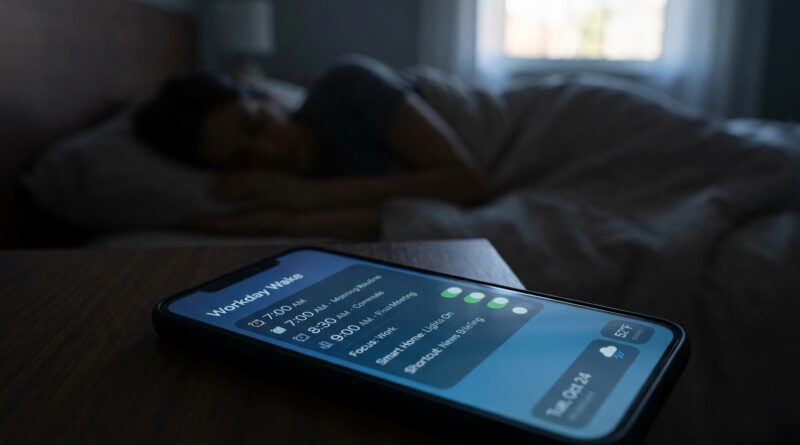
Stop Letting Your Alarms Fail You: The Hidden ‘Context‑Aware Alarm Profiles’ Trick Power Users Use To Wake Up Right Every Single Time
You are not bad at mornings. Your alarm setup is probably just a mess. That is the real problem for a lot of iPhone owners. One alarm for workdays, another for the gym, a random 4:30 a.m. one from a past flight, three backup alarms you forgot to turn off, and then a weekend ruined because your phone woke you like it was Monday. It is frustrating, and it feels silly because alarms should be simple. But your life is not simple. Your schedule changes. Travel happens. Meetings run late. Sleep needs shift. The good news is that iOS 26 context aware alarm shortcuts can finally fix this. Instead of treating every morning the same, your iPhone can switch between reusable alarm profiles based on Focus mode, Sleep schedule, calendar events, location, and even travel changes. Once you set it up, mornings stop feeling like nightly homework.
⚡ In a Hurry? Key Takeaways
- Use Shortcuts plus Focus, Sleep, and Calendar to create alarm profiles for workdays, weekends, travel, and special routines.
- Start by naming alarms clearly, then build one automation that turns the right group on and the wrong group off.
- Keep one manual backup alarm for truly critical events like flights, interviews, or medical appointments.
Why ordinary alarms keep failing
The Clock app still works like most of us live one repeated day forever. Wake up at one time. Repeat. Done.
That falls apart fast in real life. Maybe you work hybrid. Maybe Tuesdays start earlier. Maybe you need a gentler wake-up on weekends. Maybe you travel across time zones, or your kid had a rough night, or your calendar is stuffed and you need an earlier start.
If you are toggling alarms every night, you are running a manual system that depends on your tired brain not making mistakes. That is exactly when mistakes happen.
What “context-aware alarm profiles” actually means
It sounds fancy, but the idea is simple. Instead of building or editing alarms one by one, you create a few alarm groups for different situations, then let your iPhone switch between them automatically.
Think in profiles, not single alarms
A profile might be:
- Workday: 6:15 a.m. and 6:20 a.m. backup
- Weekend: 8:00 a.m. only, softer sound
- Gym Morning: 5:30 a.m. with stronger haptics
- Travel Day: custom wake time plus a “leave for airport” alarm
- Deep Focus Day: early wake-up, DND on, no social apps until 9
Then you use Shortcuts automations to turn one profile on and turn the others off based on context.
The iOS 26 tools that make this possible
This works because Apple has slowly connected parts of the system that used to live in separate boxes.
1. Focus modes
Focus is no longer just for muting notifications. In iOS 26, it is one of the easiest “signals” you can use. If Work Focus turns on, your work alarm profile can activate. If Personal or Weekend Focus is active, your phone can swap to later alarms.
2. Sleep schedule
The Health and Sleep tools already know when you plan to sleep and wake. You can use that as a trigger or safety net. If your bedtime shifts later, your wake-up plan can adjust too.
3. Calendar awareness
This is where things get really useful. If your first event starts early, your phone can select your early-start profile. If you have no meetings until 10, it can keep the later one.
4. Shortcuts automation
This is the engine room. Shortcuts can check conditions, look at your calendar, read focus modes, and then toggle alarms on or off.
Step one: clean up your alarm list first
Before you automate anything, fix the chaos.
What to do
- Delete old one-off alarms you no longer need
- Create only the alarms you want to reuse
- Name them clearly if your setup allows labels
- Group them by purpose in your own naming style
A simple naming system works best:
- WORK 6:15
- WORK 6:20 BACKUP
- WEEKEND 8:00
- GYM 5:30
- TRAVEL EARLY
If you skip this step, your shortcut will become hard to manage later.
Step two: build your reusable alarm profiles
Do not try to automate your whole life on day one. Start with three profiles.
Best starter profiles for most people
- Workday profile
- Weekend profile
- Special early day profile
Each profile is really just a set of alarms that belong together. Your shortcut’s job is to turn on the right set and disable the others.
Step three: create a simple shortcut that switches profiles
In Shortcuts, create something like “Set Workday Alarms.” The logic is basic:
- Turn on WORK 6:15
- Turn on WORK 6:20 BACKUP
- Turn off WEEKEND 8:00
- Turn off GYM 5:30 if not needed
- Turn off old early alarms that might surprise you
Then create separate shortcuts for Weekend, Gym, and Travel.
The easier way to think about it
Each shortcut should answer one question. “What should tomorrow morning look like?”
That is much easier than fiddling with six alarms every night.
Step four: add automations based on context
Now the fun part. Instead of tapping these shortcuts manually, let iPhone run them for you.
Automation idea: Work Focus turns on
Trigger: Work Focus enabled at night.
Action: Run “Set Workday Alarms.”
Automation idea: Weekend arrives
Trigger: Friday night or Saturday morning, depending on your habits.
Action: Run “Set Weekend Alarms.”
Automation idea: Early calendar event detected
Trigger: Personal automation at 9 p.m.
Action: Check tomorrow’s first calendar event. If it starts before a time you choose, run “Set Early Day Alarms.” Otherwise run “Set Workday Alarms.”
Automation idea: Travel mode
Trigger: When Travel Focus turns on, or when you arrive at an airport hotel, or when a flight event appears in your calendar.
Action: Enable your travel alarm profile and maybe a second “leave now” alarm too.
A few smart real-world setups
The hybrid worker setup
If you commute only on certain days, create two weekday profiles:
- Home Workday, wake at 7:00
- Office Workday, wake at 6:00
Your shortcut can check the calendar for “Office” or a location, then choose the right one.
The shift worker setup
If your start time changes weekly, use a nightly automation that checks tomorrow’s first shift event and picks the matching profile. This is one of the best uses of iOS 26 context aware alarm shortcuts because your wake-up time stops being fixed.
The parent setup
Create a “Rough Night” profile with a slightly later non-critical alarm, then trigger it manually with one tap when sleep has gone off the rails. Not everything has to be fully automatic to be useful.
The traveler setup
Build a profile that includes:
- Main wake-up alarm
- Backup alarm 10 minutes later
- Leave-for-airport reminder
- Focus mode that limits distractions
This can save you from that awful half-awake “Did I set the alarm for local time?” panic.
How to avoid common mistakes
Do not make too many profiles
Five good profiles beat twelve confusing ones. Keep it boring and clear.
Do not trust one alarm for mission-critical days
For flights, interviews, exams, or medical visits, use at least one backup alarm. You can also add a reminder or family backup if the event really matters.
Test every automation before you rely on it
Run each shortcut manually first. Then fake the trigger if possible. Make sure the right alarms turn on and the wrong ones turn off.
Watch out for permission hiccups
Shortcuts, Calendar, Focus, and Health may all need access. If something fails, it is often a permissions issue, not a broken idea.
My favorite setup for most people
If you want the biggest payoff with the least effort, use this:
- Profile 1: Workday
- Profile 2: Weekend
- Profile 3: Early Event Day
Then add two automations:
- At 9:30 p.m., check tomorrow’s calendar and choose Workday or Early Event Day
- On Friday night, switch to Weekend
That alone solves most alarm chaos.
Why this feels so much better than the old way
The big win is not just fewer missed alarms. It is less mental clutter.
You stop asking yourself every night:
- Did I turn off the 5:30 one?
- Which alarm is for the office?
- Why do I still have one set for 4:45?
- Am I going to wake the whole house on Saturday?
Your phone starts acting like it understands the difference between a Monday commute, a red-eye flight, and a lazy Sunday. Which, honestly, is how it should have worked years ago.
At a Glance: Comparison
| Feature/Aspect | Details | Verdict |
|---|---|---|
| Manual alarm toggling | Works for simple routines, but easy to forget and annoying when schedules change. | Fine short term, frustrating long term. |
| Context-aware alarm profiles | Uses Shortcuts, Focus, Sleep, and Calendar to switch alarm sets automatically. | Best balance of control and convenience. |
| Critical-day backup strategy | Adds a second alarm and extra reminders for flights, interviews, and other high-stakes mornings. | Always worth doing. |
Conclusion
A lot of people upgrading to iOS 26 are busy trying shiny AI tricks while their alarms still work like it is 2014. That is a missed chance. The smarter move is to use the new hooks between Focus, Sleep, Calendar, and Shortcuts to build alarm profiles that react to your actual life. Time zones change. Shifts move. Meetings pile up. Weekends should not sound like weekdays. Once you wire up a few reusable profiles and let them switch based on context, your iPhone becomes a quiet little scheduling engine instead of a source of morning stress. The result is simple but huge. Fewer missed flights. Fewer ruined sleep-ins. Less nightly fiddling. And a morning routine that finally runs itself.