Stop Letting Your iPhone Run Your Day: The Hidden ‘Assistive Access Profiles’ Trick Power Users Use To Flip Into Dumb‑Phone Mode On Demand
You unlock your iPhone to check a recipe, send one text, or look up a store’s hours. Then your thumb does what it always does. Safari. Instagram. Messages. News. Somehow 45 minutes vanish. If that sounds familiar, you are not lazy and you are not broken. iPhones are designed to keep useful things and distracting things sitting side by side. That is why normal Focus modes only go so far. They can mute alerts, but they do not really change the feel of the phone. The temptations are still there, glowing right back at you.
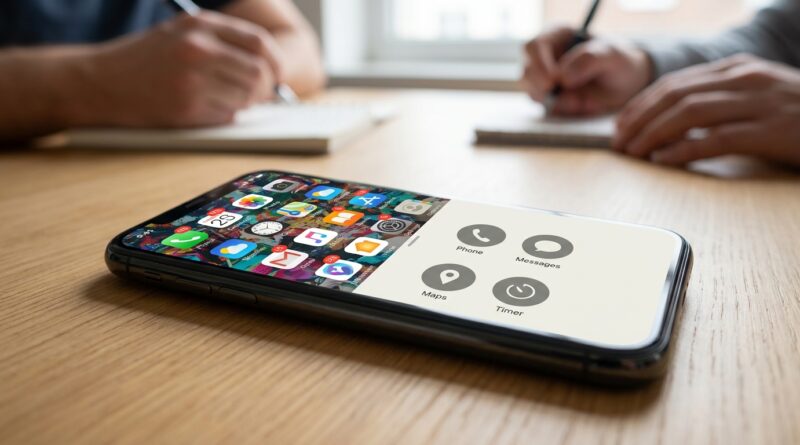
The good news is there is a built-in trick many people miss. If you want to know how to turn iPhone into a dumb phone with Assistive Access, this is the cleanest method I’ve found. It strips the phone down to only the apps you choose, makes everything bigger and simpler, and can be turned on when you need calm, then turned off when real life calls for your full smartphone setup.
⚡ In a Hurry? Key Takeaways
- Assistive Access is the fastest built-in way to turn an iPhone into a simple, dumb-phone-style device without deleting your regular apps.
- Set it up with only essentials like Phone, Messages, Maps, Music, and Camera, then add a shortcut so you can switch modes in seconds.
- It is also useful for travel, kids, and anyone who wants a safer, harder-to-mess-up iPhone for certain hours of the day.
What Assistive Access actually does
Assistive Access is an accessibility feature on iPhone that creates a much simpler version of the phone. Instead of your usual home screen packed with folders, widgets, badges, and attention traps, you get a locked-down layout with only the apps you allow.
Think of it like a second personality for your iPhone. Normal mode is your full-power phone. Assistive Access is your calm phone.
That is why this works better than just hiding apps in folders or promising yourself you will not tap Instagram. You are not relying on willpower. You are changing the environment.
Why power users like it
This sounds like a feature made only for seniors or kids, but it is surprisingly handy for adults who know their own habits.
Power users use it because it lets them keep one device instead of carrying a second “minimalist” phone. During work hours, family time, travel days, or weekends, they can switch to a stripped-down setup with only the tools they actually need.
It is also harder to accidentally wander off course. No endless app grid. No random red badges begging to be tapped. No “I’ll just check one thing” spiral.
How to turn iPhone into a dumb phone with Assistive Access
You will need a fairly recent iPhone running a modern version of iOS. On most current iPhones, the feature is already built in.
Step 1: Open the settings
Go to Settings, then Accessibility, then Assistive Access.
Step 2: Tap “Set Up Assistive Access”
Your iPhone will walk you through the process. Apple made this for simplicity, so the setup is more friendly than most hidden system features.
Step 3: Choose your essential apps
This is the important part. Only add what you truly need when you want “dumb phone mode.” Good picks include:
- Phone
- Messages
- Maps
- Camera
- Music or Podcasts
- Calendar
If your goal is focus, be ruthless. If you do not need Safari, do not include it. If Instagram is the problem, leave it out. The less room your brain has to bargain, the better.
Step 4: Pick the interface style
Assistive Access usually gives you a choice between a more visual grid and a text-heavy list. Most people trying to build a distraction-free phone will like whichever feels more plain and less playful. Simpler is better here.
Step 5: Set a passcode
You can create a passcode for exiting Assistive Access. This matters more than you might think. If leaving the mode is too easy, your brain will talk you into doing it the second boredom shows up.
If you really want this to work, use a passcode you will remember but not one you can mindlessly punch in half asleep.
Step 6: Start Assistive Access
Once setup is done, start the mode and test it for a few minutes. Open apps. Send a message. Make sure you included the essentials before you depend on it.
How to toggle it on demand
This is the hidden part most people miss. Assistive Access is most useful when it is easy to enter and easy enough to leave when needed.
The usual shortcut is to triple-click the side button. On many iPhones, that opens the Accessibility Shortcut menu, where you can start or stop Assistive Access quickly.
You can also go back to Settings > Accessibility > Accessibility Shortcut and make sure Assistive Access is one of the options tied to that side-button triple-click.
That gives you a fast toggle. Workday starts, triple-click. Long family dinner, triple-click. Traveling through an airport and want a simpler phone, triple-click.
The best “dumb phone mode” setup for most people
If you are not sure where to start, this is the setup I usually recommend:
For work focus
- Phone
- Messages
- Calendar
- Maps
- Music
For family time
- Phone
- Messages
- Camera
- Music
For travel
- Phone
- Messages
- Maps
- Wallet
- Camera
For lending your phone to a child
- Camera
- Music
- One approved app only, if needed
That last one is especially handy. It turns your iPhone into a much more kid-proof device without exposing your whole digital life.
What Assistive Access is better at than Focus mode
Focus mode is still useful. It can silence notifications, hide some home screen pages, and filter distractions. But it leaves the core smartphone experience mostly intact.
Assistive Access changes the whole feel of the device. It is not just quieter. It is simpler.
That difference matters. If the slot machine is still sitting on the table, just with the sound turned down, you are still going to want to pull the lever.
Its limitations, because nothing is perfect
There are a few catches.
It is a big visual change
The interface looks different from normal iPhone mode. Some people love that because it feels clean. Others may find it a bit too stripped down at first.
Not every app feels ideal inside it
Apple’s core apps usually behave best. Third-party apps can vary. Test the apps you depend on before using this for a full day.
Switching out still takes intent
That is part of the point, but it means this is not as seamless as flipping on Do Not Disturb. It is more of a deliberate mode shift.
Tips to make it actually stick
Here is where most people win or lose.
Keep Safari out if browsing is your trap
A lot of “accidental screen time” starts with a harmless web search. If you can live without Safari for a few hours, leave it out.
Do not include your problem apps “just in case”
If you add social apps because you might need them, you have already lost half the battle. Your regular iPhone mode is still there when you really need it.
Use it at predictable times
Start small. Maybe 9 to 12 for focused work. Or 6 to 9 in the evening. Habits are easier when they happen on a schedule.
Pair it with Focus mode if you want
You can still use both. Focus mode handles alerts. Assistive Access handles temptation.
Who should try this
This setup is great for:
- People who keep doom-scrolling without meaning to
- Remote workers who need fewer temptations
- Parents handing over a phone in a safer way
- Travelers who want only key apps available
- Anyone curious about digital minimalism without buying a second phone
If you have tried app blockers and bounced off them, this is worth a shot. It feels less like punishment and more like changing into the right clothes for the job.
At a Glance: Comparison
| Feature/Aspect | Details | Verdict |
|---|---|---|
| Setup effort | Takes a few minutes to choose apps, set a passcode, and test the simplified layout. | Easy enough for most people. |
| Distraction control | Removes easy access to tempting apps instead of just muting alerts. | Much stronger than Focus mode alone. |
| Flexibility | You keep your full iPhone in the background and can switch back when needed. | Best of both worlds for most users. |
Conclusion
If you are tired of your phone hijacking your attention, Assistive Access is one of the smartest built-in tools Apple gives you. It does not ask you to buy a second device. It does not ask you to depend on superhuman self-control. It simply changes your iPhone into a simpler tool when that is what you need. That is why this approach works so well for digital minimalism. It is practical, fast to toggle, useful for focus, safer for kids, handy for travel, and still lets you return to your full power-user setup the moment real life demands it.