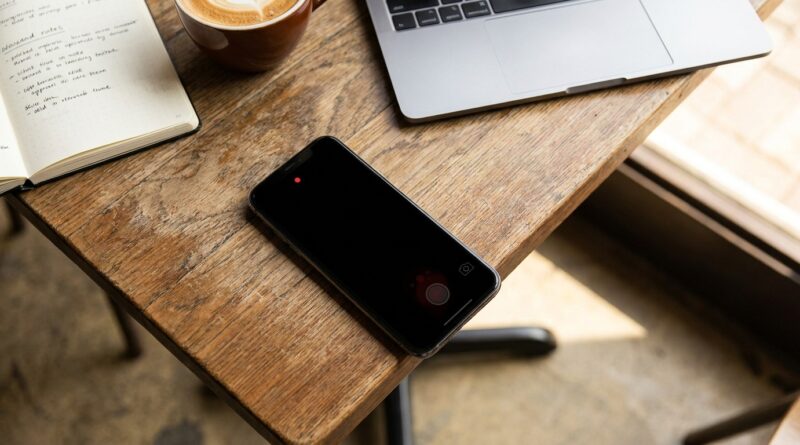
Stop Letting Your Camera Give You Away: The Hidden ‘Screen‑Off Video’ Trick Power Users Use To Record With iPhone Looking Completely Idle
You are not imagining it. The hardest part of recording something quietly on an iPhone is not hitting record. It is the giant glowing screen that tells everyone exactly what you are doing. A lot of the so-called secret recording tricks floating around social media are either outdated, depend on buggy behavior Apple already fixed, or ask you to install apps you probably should not trust. The good news is there is a cleaner way. If you want to know how to record video on iPhone with screen off, the most reliable modern method uses Apple’s own accessibility tool, VoiceOver, plus a specific screen gesture. It takes a couple of minutes to set up, but once you know it, it is surprisingly practical for interviews, concerts, quick field notes, UX testing, or any moment where you want the phone to look idle instead of screaming “camera.”
⚡ In a Hurry? Key Takeaways
- You can record video on iPhone with the screen appearing off by using VoiceOver and a screen curtain gesture, not a shady third-party app.
- Set up an Accessibility Shortcut for VoiceOver first so you can turn it on and off fast when you need it.
- Use this responsibly and legally. Recording laws vary, and low-profile capture should never cross into spying or harassment.
What this trick actually does
Let’s be clear about the wording. When people search for how to record video on iPhone with screen off, they usually mean “with the display looking black or inactive,” not that the phone has fully powered down the screen in the normal sense.
This method uses VoiceOver’s Screen Curtain feature. Screen Curtain blacks out the display while the phone keeps running. To anyone nearby, your iPhone looks asleep or at least not actively showing the Camera app. Meanwhile, video recording can continue in the background.
That is why this trick still works on modern iOS. You are not exploiting a bug. You are using an Apple accessibility feature in a smart way.
Before you start, a quick reality check
This is not magic. You still need the camera lens to have a clear view. If the phone is in your pocket, bag, or face-down on a table, the footage will be terrible or useless.
Also, audio may matter more than video in some situations. If your main goal is to capture a conversation, lecture, or note for later, the Voice Memos app may actually be the better tool.
And one more thing. Know your local laws before recording people without their knowledge. This tip is best used for legitimate situations like documenting an event, recording your own presentation, capturing a performance, or running a discreet usability test.
How to set up the screen-off video trick on iPhone
Step 1: Turn on VoiceOver
Open Settings, then go to Accessibility, then VoiceOver. Switch VoiceOver on.
The phone will start speaking items on screen, and touch controls will feel different. Do not panic. With VoiceOver on, a single tap selects an item, and a double tap activates it.
Step 2: Make VoiceOver easier to toggle
Go to Settings, then Accessibility, then Accessibility Shortcut. Choose VoiceOver.
Now you can usually triple-click the side button to turn VoiceOver on or off quickly. That saves a lot of fumbling later.
If you like making your iPhone faster to control in general, this pairs nicely with Stop Digging Through Settings: The Hidden iOS 18 Control Center Stacks Power Users Turn Into One‑Swipe Dashboards. Once you start building quicker access points, these little workflows get much less annoying.
Step 3: Open the Camera app and switch to Video
Launch the Camera app. Move to Video mode before you do anything else.
With VoiceOver on, swipe left or right to move through controls, or tap an item once to select it. Then double tap to activate.
Step 4: Start recording
Select the record button and double tap it. Give it a second to make sure recording has started.
If your phone gives haptic feedback or you hear the VoiceOver confirmation, that helps. If not, do a quick test clip first so you know exactly how it behaves on your iPhone model.
Step 5: Turn on Screen Curtain
This is the part most bad tutorials skip.
With VoiceOver active, tap the screen with three fingers three times. On many iPhones, that toggles Screen Curtain on. The display should go black while the phone stays active and recording.
If that gesture does not work right away, make sure VoiceOver is actually on and try again with deliberate taps. Accessibility gestures can be picky if done too fast.
Step 6: Keep the phone pointed where you need it
The iPhone may look idle now, but it is still recording. Hold it naturally. Rest it in your hand, prop it against something, or place it in a shirt pocket with the camera unobstructed if that makes sense for your use case.
The key is to act normal. A black screen helps, but awkward handling still gives you away.
Step 7: Stop recording and turn VoiceOver off
When you are done, wake the screen if needed, then use the same gestures to disable Screen Curtain. Stop the video in Camera. After that, triple-click the side button to turn VoiceOver off if you do not want it staying enabled.
Why this works better than sketchy “secret recording” apps
Most third-party hidden recording apps run into one of three problems.
First, Apple’s privacy rules limit what they can really do. Second, they often depend on weird workarounds that break after an iOS update. Third, some are just data-hungry junk with too many permissions.
Using VoiceOver avoids all of that. It is built into iOS. It is supported by Apple. And because it is an accessibility feature, it is less likely to disappear overnight.
Best use cases for low-profile iPhone recording
This trick is useful when you want less visual attention, not when you want Hollywood spy gear.
Interviews and quick documentation
If you are recording a conversation with permission, a blacked-out screen feels less intrusive than waving a bright camera display at someone’s face.
Concerts and live events
You can keep the phone lower and avoid becoming that person with a glowing screen blocking everyone behind you.
UX tests and product demos
If you are capturing how someone interacts with a kiosk, prototype, or app in the real world, a less obvious recording setup can help people act more naturally.
Personal note taking
Sometimes video is just the fastest way to remember a setup, whiteboard, room layout, or live process.
Common problems and how to fix them
“The screen went black, but I am not sure it is recording”
Do a test first. Record a 10-second clip at home, then play it back. Once you trust the sequence, you will be much more comfortable using it out in the world.
“VoiceOver makes my phone hard to control”
That is normal at first. Remember the basics. Tap once to select. Double tap to activate. Swipe with three fingers to scroll. Triple-click the side button when you are finished.
“The gesture is not working”
Be deliberate with the three-finger triple tap. If you rush it, iOS may read it as random touches. You can also check VoiceOver settings to confirm Screen Curtain is available and not remapped.
“The phone locked or changed behavior”
Run a few dry rehearsals before you need this for something important. Low-profile workflows are all about muscle memory.
A smarter setup for repeat use
If you plan to use this often, spend five minutes cleaning up your shortcuts. Add Camera and Accessibility tools where they are easy to reach. That way you are not hunting through menus while the moment passes.
This is where a custom Control Center can help. Again, if you have not done that already, Stop Digging Through Settings: The Hidden iOS 18 Control Center Stacks Power Users Turn Into One‑Swipe Dashboards is worth a look. It is the same power-user idea. Fewer taps. Less friction. Better timing.
Important privacy and legal note
Just because your iPhone can do this does not mean every use is okay.
Recording laws differ by country, state, and situation. Some places require all parties to consent to audio recording. Private spaces raise even bigger issues. Use this for legitimate, respectful purposes. If in doubt, ask first.
At a Glance: Comparison
| Feature/Aspect | Details | Verdict |
|---|---|---|
| Method used | Apple VoiceOver with Screen Curtain, plus the built-in Camera app | Best current option for a reliable low-profile setup |
| Difficulty | Easy after setup, but VoiceOver gestures take a little practice | Do a test run before using it for something important |
| Risk and reliability | No jailbreak, no sketchy app, less dependent on iOS bugs | Safer and more future-proof than viral hack videos |
Conclusion
If you have been frustrated by social posts promising a magical hidden camera mode that vanishes the moment Apple updates iOS, this is the grown-up version. It is not a bug. It is not an app-store gamble. It is a real, repeatable method built around VoiceOver and Screen Curtain, and it works because it uses tools your iPhone already has. Once you learn the steps, your phone becomes much better at low-profile capture for interviews, concerts, UX tests, live-event note taking, and other practical jobs where a bright screen gets in the way. That is the kind of tip worth keeping. It solves an actual problem, works on modern iPhones, and does not fall apart the next time Apple moves a button.