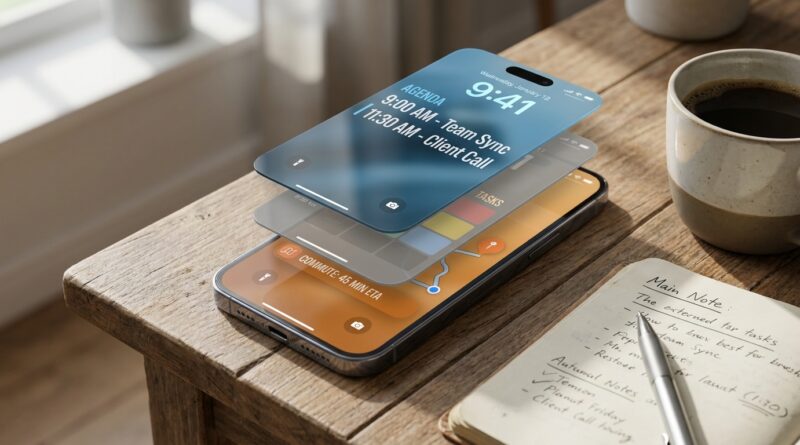
Stop Letting Your Lock Screen Be Useless: The Hidden ‘Auto‑Updating Wallpaper Dashboards’ Trick Power Users Use To See Their Day At A Glance
Your Lock Screen probably looks nice. It may even feel organized. But if you still have to open Calendar, Reminders, Notes, Weather, and Maps just to figure out what your day looks like, that pretty wallpaper is not helping much. It is adding friction. And yes, those tiny little check-ins add up fast. If you are someone who keeps unlocking your iPhone just to remember your next meeting, your pickup time, or whether you meant to stop at the pharmacy, there is a better way. The trick power users have quietly settled on is simple. Build a few Lock Screens that show different widgets and wallpapers, then have iOS switch between them automatically using Focus modes and Shortcuts. Once you set it up, your phone starts acting less like a slot machine and more like a calm dashboard for your day.
⚡ In a Hurry? Key Takeaways
- You can use iOS Focus modes and the Shortcuts app to change wallpaper automatically for different Focus modes and create lock screen dashboards for work, errands, mornings, or evenings.
- The best setup is usually 3 or 4 purpose-built Lock Screens with useful widgets like Calendar, Reminders, Weather, and battery, not one overloaded screen.
- This is safe and built into iPhone. You do not need a sketchy customization app, though some third-party widget apps can add extra options if you want them.
What this trick actually does
Let’s keep it plain. You create multiple Lock Screens on your iPhone. Each one has a different wallpaper, widget mix, and purpose.
Then you tie each Lock Screen to a Focus mode like Work, Personal, Fitness, Sleep, or a custom mode such as Errands. When that Focus turns on, your iPhone switches to the matching Lock Screen automatically.
That means your phone can show:
- Your next calendar event during work hours
- Your reminders list while running errands
- Weather and commute info in the morning
- Wind-down reminders and alarm info at night
That is the real answer to the search many people are typing now: iOS shortcut change wallpaper automatically for different focus modes. The “wallpaper” part is useful. The real magic is that the wallpaper change can also bring along the right widgets and vibe for the moment.
Why this matters more than another “minimal setup” post
A lot of lock screen advice online stops at style. Nice gradient. Clean font. Maybe one battery widget. Fine. But style alone does not help you remember that you have a dentist appointment at 3:30 and need to leave in 20 minutes.
A useful Lock Screen should reduce taps. It should answer the basic question you ask your phone fifty times a day.
What am I supposed to be doing right now?
That is why these auto-updating wallpaper dashboards work so well. They give you a fast glance, not another app rabbit hole.
How to set up auto-changing Lock Screens on iPhone
Step 1: Create a few Lock Screens first
Press and hold your Lock Screen. Tap the plus sign to add a new one.
Make a few versions with clear jobs. For example:
- Morning Plan: Calendar, Weather, Reminders
- Work Mode: Calendar, battery, time zone, task list
- Errand Mode: Reminders, Maps, Weather
- Wind-Down: Alarm, battery, meditation or reading app widget
Pick wallpapers that make each one feel distinct. Not because you need it to look fancy, but because visual cues help. A calm dark background at night feels different from a bright, practical morning dashboard.
Step 2: Add widgets that answer real questions
This is where most people either get the setup right or ruin it.
Do not stuff the Lock Screen with random widgets just because you can. Add the ones that solve a problem.
Good picks include:
- Calendar: Next event or today’s date
- Reminders: Short task list or flagged items
- Weather: Temperature, rain, or severe alerts
- Battery: Especially useful if you use AirPods or Apple Watch
- Fitness: If you actually care about workout prompts
- Third-party widgets: For habit trackers, travel times, or notes
If a widget does not save you from opening an app, it is probably not earning its place.
Step 3: Link each Lock Screen to a Focus mode
This part is built right into iOS.
Open the Focus settings on your iPhone. Choose a Focus mode. Under customization, attach a specific Lock Screen to it.
Now when that Focus turns on, the matching Lock Screen appears automatically.
This is the cleanest method because Apple already expects Focus modes to control your phone’s context. It is simple, stable, and much easier than trying to force everything through a one-off wallpaper app.
Step 4: Automate when those Focus modes turn on
Here is where it becomes genuinely useful.
You can have Focus modes start based on:
- Time of day
- Your location
- When you open a specific app
- Smart activation based on patterns
Examples:
- Morning Plan from 6:30 AM to 8:30 AM
- Work Mode when you arrive at the office or open Slack
- Errand Mode when you leave home on Saturday afternoon
- Wind-Down every night at 9:30 PM
If you want to take this idea further, this guide on Stop Wasting Time in Apps: The Hidden iOS Focus Automation That Puts Your iPhone on Autopilot is a great next step. It pairs perfectly with a dashboard-style Lock Screen because both are about reducing pointless phone wandering.
Do you need Shortcuts to change wallpaper automatically?
Sometimes yes. Sometimes no.
If your goal is to switch between different Lock Screens for different parts of your day, Focus modes already do most of the heavy lifting. For many people, that is enough.
But if you specifically want more custom behavior, like changing wallpapers at certain times or under custom conditions, the Shortcuts app can help.
Using Shortcuts for custom wallpaper automation
In the Shortcuts app, you can create a personal automation based on time, location, or app usage. Depending on your iOS version, you may be able to use actions that change wallpaper or trigger Focus-related behavior.
That said, Apple changes what is possible from one iOS version to another. So the most dependable path is still this:
- Create Lock Screen sets
- Attach them to Focus modes
- Automate the Focus modes
That gives you the same practical result most people want when they search for “iOS shortcut change wallpaper automatically for different focus modes,” without turning setup into a science project.
The best dashboard setups for normal people
1. Morning Plan
This one should answer three questions fast.
- What is on my calendar?
- What is the weather?
- What must not be forgotten?
Use a calendar widget, a weather widget, and a reminders widget. Keep it bright and easy to read.
2. Work Mode
This screen is about reducing drift.
Show your next meeting, maybe your task list, and maybe battery if you use accessories all day. Avoid fun widgets here. The point is to keep your brain on rails.
3. Errand Mode
This one is underrated.
Add reminders, weather, and something location-aware if you use a third-party app for shopping or travel time. If your Saturday life is chaotic, this screen can be more useful than your home screen.
4. Wind-Down
Use a darker wallpaper. Add tomorrow’s first event, your alarm, and battery status. Keep it boring on purpose. You do not need your phone hyping you up at 10 PM.
Common mistakes that make this feel useless
Too many widgets
If everything is on the Lock Screen, nothing stands out. Pick the two or three things you need at that moment.
One Lock Screen for your whole life
That defeats the point. Your needs at 7 AM are not the same as your needs at 2 PM.
Using widgets you never act on
News, stock tickers, and random visual fluff might look cool, but they usually do not help you get through your day.
Not using Focus automation
If you have to switch everything manually, you will stop doing it. Automation is what turns this from novelty into habit.
Do third-party apps help?
Sometimes. Widget apps can give you more display choices than Apple’s built-in ones. That can be useful if you want cleaner task widgets, better habit tracking, or more detailed agenda views.
But start with Apple’s built-in tools first. They are simpler, more private, and less likely to break after an update.
If you later want extra polish, then try a third-party widget app. Just do not confuse extra customization with extra usefulness.
Who should bother with this?
This setup is especially good for:
- People who check Calendar constantly
- Anyone juggling work and family schedules
- ADHD users who benefit from visual context
- Commuters and errand-runners
- People trying to make their phone less distracting
If you mostly use your iPhone casually and do not care about planning, this may feel like overkill. But if your phone is already your external brain, this is one of the smartest ways to make it less annoying.
At a Glance: Comparison
| Feature/Aspect | Details | Verdict |
|---|---|---|
| Focus-linked Lock Screens | Built into iOS. Lets each Focus mode show a different wallpaper and widget setup automatically. | Best option for most people |
| Shortcuts automations | Useful for custom timing and extra control, but exact wallpaper actions can vary by iOS version. | Good if you want more control |
| Third-party widget apps | Can offer richer widgets and prettier layouts, but they are not necessary for the core setup. | Nice extra, not essential |
Conclusion
There is a big wave right now around Lock Screen customization, but too much of it is just decoration. Pretty backgrounds. Clean icon packs. A minimalist look that still leaves you opening three apps to understand your day. The better idea is to make your Lock Screen useful. When you build a few context-based screens like Morning Plan, Work Mode, Errand Mode, and Wind-Down, then let iOS rotate them automatically, your phone starts giving you a quiet briefing instead of another distraction. You glance down and see your next meeting, your task list, your commute, or your gym block right away. No tapping around. No mental reset every time. It is a small change, but it saves time all day long. And more importantly, it makes your iPhone feel like it is working for you again.