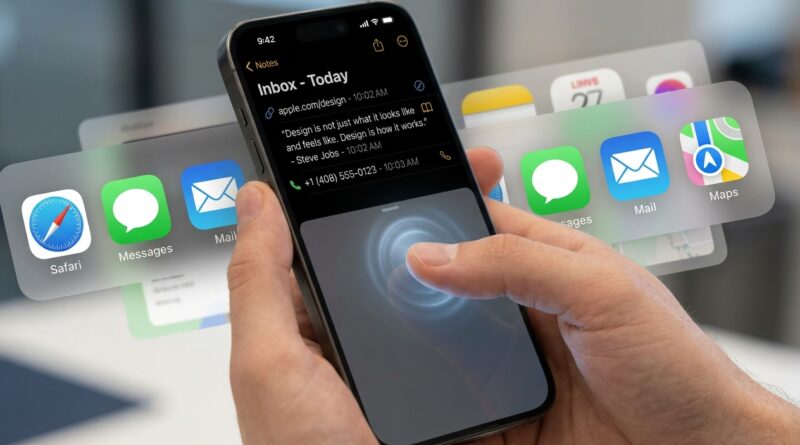
Stop Forgetting Your Best Ideas: The Hidden ‘Back Tap Clipboard’ Trick Power Users Use To Save Anything In 1 Second
You know this one. You copy a quote, an address, a recipe tip, or a smart idea from a text thread. You think, “I’ll save that in a minute.” Then you open two more apps, copy something else, and the first thing is gone. Now your Photos app is full of screenshots, your Notes app looks like a junk drawer, and the one thing you actually needed has vanished. It is a small problem that keeps wasting real time. The good news is your iPhone already has a fix hiding in plain sight. If you set up an iphone back tap shortcut save clipboard trick, two taps on the back of your phone can grab whatever you just copied and drop it into one running “Inbox” note with the time and app name. It feels almost silly how useful this is once you try it.
⚡ In a Hurry? Key Takeaways
- Back Tap can trigger a Shortcut that saves your clipboard to one note in about a second.
- Set it to append copied text, links, and a timestamp into an “Inbox” note so nothing gets lost between apps.
- This is safer and cleaner than relying on memory or endless screenshots, but avoid saving passwords or private data this way.
Why this works so well
Most capture systems fail for one reason. They ask too much from you in the moment.
If you have to open Notes, make a new note, name it, paste the text, and organize it, you will skip it half the time. That is not laziness. That is just real life on a phone.
Back Tap fixes the first part. Shortcuts fixes the second.
Back Tap lets you trigger an action by double-tapping or triple-tapping the back of your iPhone. Shortcuts can read the clipboard and send that text somewhere useful. Put them together, and your iPhone becomes a quick capture tool instead of a distraction machine.
What you are actually building
The goal is simple. You copy something, tap the back of your iPhone, and it gets added to one running note called something like “Inbox” or “Saved Clips.”
A good version of this setup usually includes:
- The copied text or link
- The date and time
- The app it came from, if available
- A divider line so entries stay readable
That means when you review your note later, you are not staring at a giant wall of random pasted text.
How to set up the Shortcut
Step 1: Create a new Shortcut
Open the Shortcuts app on your iPhone. Tap the plus button to create a new one. Give it a clear name like “Save Clipboard to Inbox.”
Step 2: Add the clipboard action
Search for the action called “Get Clipboard.” Add it to the Shortcut. This tells the iPhone to grab whatever you most recently copied.
Step 3: Add some context
Now add the current date action. Format it however you like. Short and readable is best, something like:
[7/1/2026, 2:14 PM]
If your iPhone and app version support it, you can also try pulling in app details or sharing context, though that can vary depending on where the text came from. Even without the source app, the setup is still very useful.
Step 4: Build the entry text
Use a “Text” action and combine the pieces into one block. For example:
[Date and time]
[Clipboard content]
——————–
Keep it plain. Fancy formatting is not important here. Speed is.
Step 5: Append it to a note
Search for “Append to Note.” Choose an existing note named Inbox, Saved Clips, or whatever makes sense to you.
If you do not have one yet, make it first in Apple Notes.
Step 6: Optional confirmation
You can add “Show Notification” at the end so your iPhone briefly says something like “Saved to Inbox.” That tiny bit of feedback helps, especially the first few days while you are building the habit.
How to connect it to Back Tap
This is the part most people never discover.
- Open Settings
- Tap Accessibility
- Tap Touch
- Scroll down to Back Tap
- Choose Double Tap or Triple Tap
- Select your Shortcut
That is it. From now on, copy something, tap the back of your phone, and it gets saved.
My advice is to use Triple Tap for this if you tend to trigger Back Tap by accident. Double Tap is faster, but Triple Tap is a little safer in daily use.
What it can save well, and what it cannot
Great for
- Quotes from articles
- Addresses and phone numbers
- Ideas from messages
- Links you want to read later
- Product names and shopping notes
- Quick research scraps
Not ideal for
- Passwords
- Bank details
- Private health information
- Complex formatting you need to preserve exactly
The clipboard is convenient, but it is not a vault. Treat this as a capture system, not a secure archive.
A smarter version power users like
If you want to go one step further, you can make the Shortcut a little more clever.
Some people add a menu that asks:
- Save clipboard
- Save shared text
- Save current webpage link
That sounds fancy, but it is still beginner-friendly if you build it slowly. Start with clipboard only. Live with it for a day or two. Then add options if you feel the need.
The beauty of this trick is not that it does everything. It is that it removes friction. That is why it sticks.
Common problems and easy fixes
Back Tap feels inconsistent
This can happen, especially with thicker cases or if you tap too low on the phone. Try tapping near the Apple logo area. If Double Tap fires too easily, switch to Triple Tap.
The Shortcut saves blank entries
That usually means your clipboard was empty, or the copied item was not plain text. Add an “If” action to check whether the clipboard has content before appending to the note.
It saves too much junk
That is normal at first. People often start by saving everything because the tool is new. After a few days, you will naturally get pickier. The system gets better once your brain trusts that useful things will still be there later.
Why this beats screenshots
Screenshots feel safe in the moment, but they create a mess later.
You cannot scan them quickly. Search is hit or miss. Important details get buried between memes, receipts, and accidental lock-screen captures. A plain text inbox note is boring, and that is exactly why it works.
You can search it. Copy from it. Clean it up later. Move useful bits into proper folders when you have time.
At a Glance: Comparison
| Feature/Aspect | Details | Verdict |
|---|---|---|
| Speed | Copy text, tap the back of the iPhone, and it saves to one note in about a second. | Much faster than opening Notes or taking screenshots. |
| Organization | Everything lands in a single Inbox note with timestamps and optional source context. | Simple and searchable. Great for daily capture. |
| Privacy | Clipboard content can include sensitive text if you copied it by mistake. | Useful, but do not use it for secrets or financial data. |
Conclusion
Back Tap has been sitting quietly in iPhone Accessibility settings for years, and most people only hear about it as a novelty. It is much better than that. Pair it with a simple Shortcut and you get a fast, reliable capture system for the stuff your brain keeps trying and failing to hold onto. That quote, link, address, or half-formed idea no longer has to live in your camera roll or disappear from the clipboard the second you copy something else. You just copy, tap, and move on. That is why people who use this kind of setup get oddly passionate about it. It removes one tiny frustration that shows up dozens of times a week. Start simple. Make one Inbox note. Save one thing with a back tap. After a day or two, manually filing scraps into Notes will feel broken, because now your iPhone is finally helping you remember instead of helping you forget.