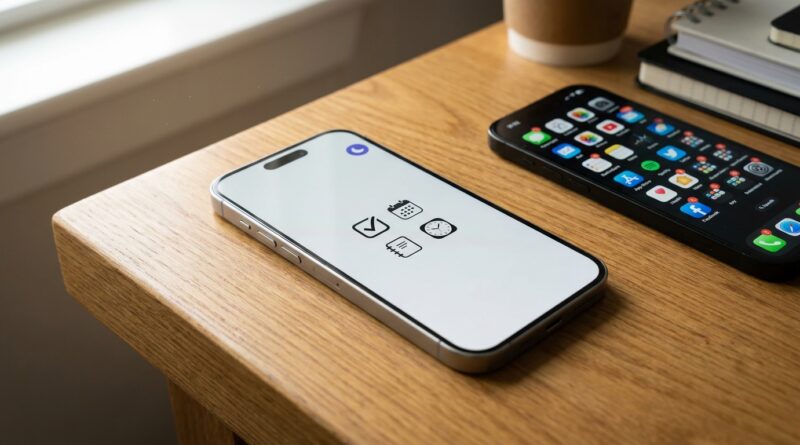
Stop Treating Your iPhone Like A Distraction Machine: The Hidden ‘Focus Filters + App Limits’ Stack Power Users Turn Into A Distraction‑Free Home Screen
You unlock your iPhone to check one thing, then 12 minutes vanish. A message badge pulls you into Messages. A news alert leads to Safari. Then muscle memory opens Instagram or YouTube before you even remember the original task. It is frustrating because the phone is doing exactly what it was designed to do. Grab your attention in tiny, constant ways. The good news is that Apple quietly built a better fix than plain Do Not Disturb. If you set up an iphone focus filters deep work mode, then stack it with App Limits and a stripped-down Home Screen, your iPhone starts acting less like a distraction machine and more like a work tool. The trick is not stronger willpower. It is removing the temptation before your thumb gets there. Once this setup is in place, deep work becomes the default, not the exception.
⚡ In a Hurry? Key Takeaways
- A real deep work iPhone setup uses three things together: Focus mode, Focus Filters, and App Limits.
- Create a custom Focus with one clean Home Screen page and only the apps you need for the task.
- This is reversible and safe to test. You are not deleting apps, just putting friction in front of your worst distractions.
Why silence mode is not enough
Most people start with Silent Mode or a basic Focus profile. That helps with noise. It does not fix visual temptation.
Your Home Screen still shows the same colorful icons. Notification badges still whisper for attention. Your usual app layout still guides your thumb to the same old places.
That is why many people feel like Focus modes only half-work. They reduce interruptions, but they do not change the environment.
A better setup changes the environment first. Then it reduces interruptions second.
The stack power users use
The real fix is a stack, not a single setting:
- Focus mode controls who and what can interrupt you.
- Focus Filters change what apps show while that Focus is on.
- Home Screen customization hides pages that are full of tempting apps.
- App Limits adds friction if you try to wander off anyway.
Each part matters. Together, they make your phone feel completely different.
If you want more detail on the notification side of this, it is worth reading Stop Letting Notifications Rule Your Day: The Hidden iOS 18 Focus Filters Power Users Use To Automate Their Life. That piece covers how Focus Filters can quietly clean up your day beyond just work sessions.
How to build an iphone focus filters deep work mode
Step 1: Make a custom Focus
Go to Settings > Focus and tap the + button. Choose Custom. Name it something obvious like Deep Work, Writing, or Study.
Pick a simple icon and color. Nothing fancy. The point is instant recognition.
Step 2: Allow only the people and apps you actually need
Inside that Focus, set your allowed notifications very narrowly.
For people, maybe it is your spouse, kids, boss, or one coworker. For apps, think calendar, reminders, Slack, email, or your note app. Keep it tight.
If an app is not needed for the next hour, it should not be allowed to interrupt you.
Step 3: Create a clean Home Screen for that Focus
This is where the magic happens.
On your normal iPhone Home Screen, create a single page with only work-related apps. Think Notes, Calendar, Files, your task manager, maybe Safari if you truly need it. Remove everything else from that page.
Then go back to your Focus settings, tap Home Screen, turn on Custom Pages, and select only that stripped-down page.
Now when Deep Work is on, your normal app playground disappears.
This matters more than most people expect. You are not staring at TikTok, Reddit, Messages, Photos, games, shopping apps, and random folders every time you unlock the phone.
Step 4: Add Focus Filters where they help
Focus Filters let apps behave differently depending on the Focus mode.
For example, you can:
- Show only your work calendar in Calendar.
- Show only your work inbox in Mail.
- Filter Safari tab groups to a work-related set.
- Limit Messages to work-relevant conversations if your setup supports it.
This is the part many people skip, and it is a mistake. Hiding apps is good. Opening Mail and seeing six personal newsletters is not.
Filters keep the apps you do need from turning into side quests.
Step 5: Add App Limits for your usual problem apps
Now add backup protection.
Go to Settings > Screen Time > App Limits. Set limits for your biggest time sinks. Social apps. News apps. Games. Maybe even Safari if doomscrolling is your thing.
You can set very low limits during weekdays, or low daily totals that you are forced to actively override.
Will you still be able to tap “Ignore Limit” if you want to? Yes. But that extra step is the point. Friction works.
People often think discipline means never needing guardrails. Real power users know the opposite. They build systems that make bad decisions slightly annoying.
What to put on your distraction-free Home Screen
Less is better.
A good deep work page usually has:
- Calendar
- Reminders or your to-do app
- Notes
- Files or Drive
- Your writing or work app
- Phone, if needed
- One browser, if your task needs it
That is enough for most people.
Do not fill the page just because you have room. Empty space is useful. It makes the phone feel calmer. It also makes it obvious when an app does not belong there.
Small tweaks that make this setup much better
Turn off badges for problem apps
Badges are little red guilt bubbles. Even when notifications are muted, badges can pull you off task. Go to each app in Settings > Notifications and disable badges where possible.
Use a plain wallpaper
It sounds silly, but busy wallpapers make the phone feel more active. A plain, boring background helps your clean Home Screen stay clean.
Hide entertainment apps from the first few pages
You do not need to delete them. Just remove them from obvious spots. Put them in the App Library only, or bury them in a folder off your main pages.
Schedule Deep Work mode
If you tend to do focused work at the same time every day, schedule it. You can automate activation by time, location, or app. If opening a writing app starts your Focus automatically, that is one less decision to make.
What this setup does better than willpower
Willpower is unreliable, especially when you are tired, stressed, or already juggling too much.
This setup changes the default path. When you unlock your phone during a work block, it no longer invites you to drift.
That is the key difference. You are not fighting your iPhone every few minutes. Your iPhone is helping enforce the kind of session you wanted in the first place.
What this setup will not do
It will not turn you into a robot. It will not block every possible distraction forever. And if you really want to break through the guardrails, you can.
But it does not need to be perfect to be useful.
Even cutting five or six pointless attention jumps per hour can change how your day feels. You finish more. You feel less mentally scattered. You spend less energy restarting your train of thought.
Common mistakes people make
Making the Focus too loose
If you allow too many apps and too many people, it stops being Deep Work and becomes regular life with a different icon.
Keeping your old Home Screen visible
If all your normal pages are still there, the Focus is not doing much. The custom page is the heart of the setup.
Skipping App Limits
People think Focus alone is enough. It often is not. App Limits are your backup when boredom or habit kicks in.
Trying to make one Focus do everything
Separate work modes can be smarter. One for writing. One for meetings. One for personal admin. Start with one, then expand if it helps.
At a Glance: Comparison
| Feature/Aspect | Details | Verdict |
|---|---|---|
| Basic Silent Mode | Stops some noise, but your usual Home Screen, badges, and tempting apps stay visible. | Helpful, but weak for serious focus. |
| Custom Focus + Focus Filters | Limits interruptions and changes what certain apps show while you work. | A big upgrade, especially for work sessions. |
| Full Stack: Focus + Clean Home Screen + App Limits | Removes visual clutter, reduces interruptions, and adds friction to distraction apps. | Best option if you want a phone that supports deep work. |
Conclusion
If your iPhone keeps hijacking your attention, the answer is not to feel guilty every time it happens. The better answer is to change the setup. Everyone is drowning in micro-distractions, and iOS now has enough built-in control to make your phone act more like a serious workstation than a slot machine. When you stack Focus Filters, App Limits, and a stripped-down Home Screen tied to one Focus mode, you create a one-tap deep work environment that is much harder to break. That is the real win. You stop trying to resist your phone all day, and start letting the operating system remove most of the stuff that derails you in the first place.