Stop Letting Siri Be Basic: The Hidden ‘Ask About This Screen’ Trick Power Users Turn Into An On‑Device Research Assistant
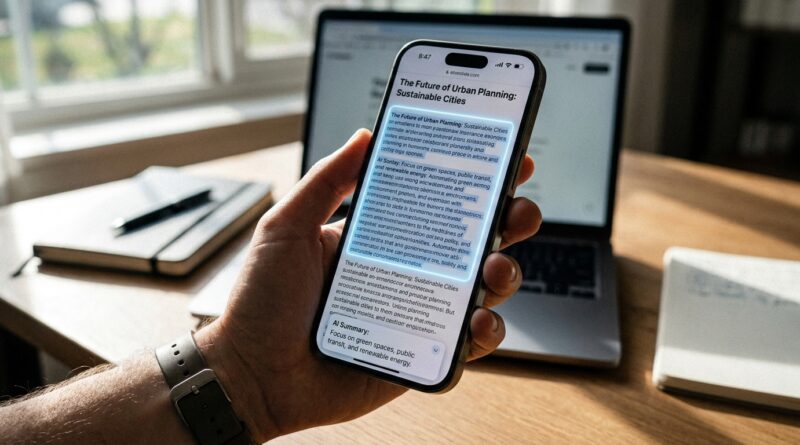
You know the drill. You are reading a long email, staring at a confusing settings page, or trying to figure out what a PDF actually means, and suddenly you are doing the iPhone shuffle. Copy a sentence. Open another app. Paste it. Go back. Take a screenshot. Lose your place. Start over. It is annoying, and for something a phone this expensive should handle better, it feels weirdly old-fashioned. That is exactly why “Ask About This Screen” matters. If your iPhone supports Apple Intelligence, this Siri trick can turn whatever is on your display into something you can question right away. No app hopping. No messy copy-and-paste routine. Just open the screen you are looking at and ask Siri to help make sense of it. Once you start using it, Siri stops feeling like a timer button and starts feeling a lot more useful.
⚡ In a Hurry? Key Takeaways
- “Ask About This Screen” lets Siri use what is currently on your iPhone display as context, so you can ask questions about articles, emails, PDFs, screenshots, and settings pages.
- To start, open the content you want help with, activate Siri, then say “Ask about this screen” or simply ask a question about what you are viewing.
- It is a big time-saver, but remember that screen content can include sensitive information, so it is smart to review your privacy settings too.
What “Ask About This Screen” actually does
Think of it as a shortcut around the usual iPhone juggling act.
Instead of moving text from one app to another so an assistant can read it, Siri can look at what is already on your screen and answer questions about it. That means the article you are reading, the message thread you are stuck on, the class notes in a PDF, or even a screenshot you just saved can become the thing Siri works from.
That is the real shift here. Siri is not just waiting for generic commands like “set a timer” or “what’s the weather.” It can respond to the context in front of you.
How to use ask about this screen Siri Apple Intelligence
If you specifically came here wondering how to use ask about this screen siri apple intelligence, the short version is simple.
Step 1: Make sure your iPhone supports Apple Intelligence
This feature is tied to Apple Intelligence, so it will only show up on supported iPhones running the right software. If Siri still acts like the old Siri and never seems aware of what is on your display, your device or software version may be the reason.
Step 2: Open the content you want help with
This can be almost anything you can see on screen. A web article. A Mail message. A Notes page. A PDF in Files. A screenshot in Photos. Even a settings menu you do not fully understand.
Step 3: Activate Siri
Say “Siri,” “Hey Siri,” or use the side button, depending on how you have Siri set up.
Step 4: Ask a screen-based question
You can say:
- “Ask about this screen.”
- “Summarize this.”
- “What are the key points here?”
- “Explain this in simpler words.”
- “What does this setting do?”
- “Draft a reply to this email.”
If Apple Intelligence is working correctly, Siri should treat the current screen as the source material for the answer.
Where it becomes genuinely useful
This is the part that makes the feature worth building into your daily routine.
Articles and long web pages
Reading a giant article while half distracted is normal now. Instead of saving it for later and never coming back, ask Siri for a summary, the main argument, or a quick explanation of a paragraph that is too dense.
PDFs and class materials
Students are going to love this. Open a study guide or handout and ask Siri to pull out the important dates, define a term, or turn a wall of text into something easier to remember.
Emails
Some emails seem written to waste your afternoon. If you are staring at a long message from school, work, or a service provider, Siri can help boil it down. You can also ask what action is being requested or what deadline matters most.
Settings pages
This one is sneakily great. If you land in a settings menu and are not fully sure what a switch or option does, ask Siri right there. It can help translate Apple-speak into normal human language.
Screenshots
Saved a screenshot of a recipe, receipt, booking confirmation, directions, or a social post? Open it and ask Siri to pull out the important details. That is much faster than squinting and retyping things yourself.
Good prompts to try first
People get more out of this feature when they stop asking vague questions.
Try prompts like:
- “Summarize this in three bullet points.”
- “What is the main point of this article?”
- “What deadline is mentioned on this screen?”
- “Explain this to me like I am new to it.”
- “What should I do next based on this email?”
- “Turn this into a short checklist.”
- “What are the important numbers on this page?”
The better your question, the better the result. That sounds obvious, but it really matters here.
Why power users are treating it like an on-device research assistant
Because it cuts out friction.
If you spend your day reading, comparing, checking, replying, or trying to make sense of information, the biggest enemy is not always the task itself. It is the tiny interruptions. Switching apps. Re-copying text. Losing your train of thought. Looking for the right place to paste something.
“Ask About This Screen” reduces that nonsense. It keeps you inside the thing you are already doing.
For busy parents, that could mean making sense of a school email without reading it three times. For professionals, it could mean pulling the key points out of a document before a meeting. For students, it could mean turning a dense reading assignment into a quick summary before class.
A quick privacy reality check
There is one obvious catch. If Siri is using what is on your screen as context, what is on your screen matters.
If you are looking at bank details, private messages, medical information, or work documents, be thoughtful about when and where you use this feature. Apple has put a lot of focus on privacy with Apple Intelligence, but it is still smart to know what settings are turned on and what data-sharing options you agreed to when tapping through setup screens.
If you have not checked those in a while, it is worth reading Stop Oversharing by Accident: The Hidden iOS 18 Privacy Toggles Every iPhone Power User Should Change Today. It is a good companion piece if you want Siri to be more helpful without getting sloppy about privacy.
What to do if it is not working
If you try this and Siri seems clueless, run through a few basics.
Check software and device support
Apple Intelligence is not available on every iPhone. If your phone is older, the feature may simply not exist for you.
Confirm Apple Intelligence is enabled
On supported devices, make sure the relevant Apple Intelligence and Siri options are turned on in Settings.
Try a simpler screen first
Start with a web page or a screenshot that has clear text. If you begin with a weirdly formatted app or a cluttered page, the result may be less impressive.
Ask direct questions
“What is this about?” is okay. “Summarize the main points of this email” is usually better.
At a Glance: Comparison
| Feature/Aspect | Details | Verdict |
|---|---|---|
| Speed | Lets you ask about the content already on screen instead of copying text into another app. | Big time-saver for everyday tasks. |
| Best use cases | Works well with articles, PDFs, emails, settings pages, and screenshots. | Most useful when you need quick understanding, not deep editing. |
| Privacy | The feature can use sensitive on-screen information as context if you ask it to. | Helpful, but use common sense and review your settings. |
Conclusion
Apple Intelligence and Siri are all anyone is talking about right now, but most people are still using Siri like it is stuck in 2016. “Ask About This Screen” is one of those rare features that can quietly change how you use your iPhone every day. It turns the phone into a context-aware helper for articles, PDFs, emails, settings pages, and screenshots, without forcing you into the usual copy, paste, switch-app routine. That is a big deal for students, professionals, and busy parents who just want to understand what is in front of them and move on. Start with one simple habit. The next time something on your screen feels confusing or too long, ask Siri about it right there.