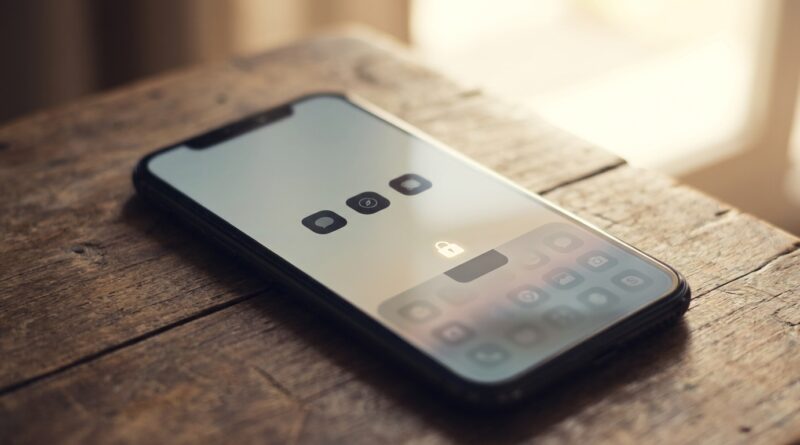
Stop Letting People Snoop Your Home Screen: The Hidden ‘Face ID App Vault’ Trick iPhone Power Users Use To Keep Sensitive Apps Invisible
You know that tiny jolt of panic when someone says, “Can I borrow your phone for a second?” It is not always about secrets. Sometimes you just do not want your banking app, therapy app, dating app, or private notes sitting in plain view for anyone holding your iPhone. And while folders, App Library, and a good lock screen help, they do not really solve the awkward part. Once your phone is unlocked, a curious person is only a swipe or tap away. That is why one of the smartest privacy upgrades in iOS 26 is getting so much attention. You can now hide apps with Face ID on iPhone iOS 26 in a way that feels built in, clean, and far less clumsy than those fake “vault” apps people used to download. Better yet, it is easy to set up, and once you do, your phone feels a lot safer to hand over without that immediate regret.
⚡ In a Hurry? Key Takeaways
- You can hide sensitive apps in iOS 26 and lock access to them with Face ID, so they are not sitting out on your Home Screen.
- Press and hold an app, choose the hide or require Face ID option, then move your most private apps into the hidden area.
- This is safer and cleaner than using third-party vault apps, but you should also turn off Suggestions and clean up widgets for better privacy.
What the Hidden App Vault actually does
Think of this as a private drawer inside your iPhone.
Instead of leaving certain apps visible on the Home Screen or easy to spot in App Library, iOS 26 lets you tuck them away in a hidden area that requires Face ID to open. So even if a friend, coworker, partner, or family member is using your unlocked phone for something innocent, they do not get a front-row seat to the apps you would rather keep to yourself.
This is the part many people miss. Hiding an app is not just about removing its icon. The real win is adding a biometric gate to it. That means your face becomes the key.
How to hide apps with Face ID on iPhone iOS 26
The exact wording can vary a bit depending on your iPhone model and software version, but the setup is usually simple.
Step 1: Find the app you want to protect
Start on your Home Screen or in the App Library. Pick the app you do not want visible to other people. Good candidates are banking, payment, health, dating, journaling, cloud storage, private photo tools, or messaging apps.
Step 2: Press and hold the app icon
Touch and hold until the quick action menu appears. In iOS 26, look for an option along the lines of Require Face ID, Hide App, or both.
Step 3: Choose the privacy option
If you only want the app to require Face ID before opening, choose that.
If you want it out of sight too, choose the hide option. That removes it from the regular Home Screen view and places it in the hidden app area.
Step 4: Confirm with Face ID
Your iPhone will ask you to confirm. Once you do, that app is now protected.
Step 5: Open the hidden area when needed
When you want to use those apps yourself, go to the hidden apps section and unlock it with Face ID. From there, you can launch what you need like normal.
If you do not see these options, make sure your iPhone is updated to iOS 26 and that Face ID is already turned on in Settings.
Which apps should go in the vault?
Do not overdo it.
If you hide half your phone, it gets annoying fast. The best setup is usually a small group of apps that would make you uncomfortable if someone noticed them or opened them.
Good picks include:
- Banking and investing apps
- Payment apps and digital wallets
- Health, medication, therapy, or fertility tracking apps
- Dating apps
- Private photo or document storage apps
- Notes or journal apps
- Work apps with sensitive client information
Apps you use constantly, like Messages or Mail, may be less practical to hide unless you are okay with unlocking them more often.
Why this is better than folders, App Library, or “vault” apps
People have tried every trick in the book.
They bury apps in folders. They push them to the last Home Screen page. They rely on App Library categories. Some even download strange third-party vault apps that promise privacy and end up feeling sketchy.
The hidden app vault is better for three reasons.
It is built into iPhone
You are not trusting some random app maker with your privacy setup.
It uses Face ID
That is faster and more secure than trying to remember a separate PIN for a fake vault app.
It removes the visual temptation
A hidden app cannot invite snooping if it is not right there on the screen.
Do this too: clean up the clues your iPhone still leaves behind
Hiding the app is a big step. It is not the only step.
If you really want your phone to feel safe to hand around, take five extra minutes and prune the stuff that still gives away what is on your device.
Turn off Siri Suggestions for sensitive apps
Go to Settings > Siri or Settings > the app name, then turn off suggestions, search appearance, and Learn from this App if needed. Otherwise your private app might still pop up as a suggestion on the Home Screen, in Search, or on the lock screen.
Check widgets
A health, finance, or calendar widget can reveal more than the app icon ever would. If privacy matters, remove widgets that show personal data on the Home Screen or Today View.
Review notifications
An app hidden behind Face ID is not very hidden if its alerts still flash on the screen. Go into Settings > Notifications and tone down previews for sensitive apps.
Use Focus modes
This is the underrated move. A custom Focus mode can hide certain Home Screen pages during work, travel, or social situations. That way even your visible setup changes depending on where you are and who is around.
When this trick is most useful
This is not just for people living double lives.
It is useful if you:
- Hand your phone to your kids to watch videos
- Let a coworker borrow your phone to make a call
- Show photos to friends and do not want them swiping into private territory
- Live with roommates or family who casually grab devices
- Work in a job where clients or coworkers sometimes handle your phone
For a lot of people, the issue is not “security” in the dramatic movie sense. It is everyday privacy. That matters too.
What this does not do
It is good. It is not magic.
Hiding apps with Face ID on iPhone iOS 26 does not make your phone invisible to advanced forensic tools, and it does not replace basic device security. You still need a strong passcode, Face ID turned on, and sane notification settings.
Also, if someone knows your passcode and can reconfigure your phone, your privacy protection gets much weaker. So start with the basics.
Best practices for a “safe to share” iPhone
If you want the full friendly-lockdown setup, here is the easy formula:
- Hide your most sensitive apps in the Face ID locked area
- Remove revealing widgets
- Turn off suggestions for those apps
- Limit notification previews
- Create a cleaner Home Screen page for everyday sharing
- Use Focus modes to swap between public and private layouts
That gives you a phone that still feels like your phone, just with less accidental oversharing built into it.
At a Glance: Comparison
| Feature/Aspect | Details | Verdict |
|---|---|---|
| Hidden App Vault | Removes sensitive apps from easy view and locks them behind Face ID in iOS 26. | Best choice for built-in privacy with the least hassle. |
| Folders and App Library | Hides apps visually a little, but anyone using your unlocked phone can still find them fast. | Better than nothing, but not real protection. |
| Third-Party Vault Apps | Can be clunky, confusing, and may ask for too many permissions. | Usually skip these if iOS 26 gives you the built-in option. |
Conclusion
If you have ever felt weird handing your phone to someone because your most personal apps were sitting right there, this is one of those small iPhone tricks that makes a big difference. Privacy and control are trending hard right now for a reason. People are realizing that a basic lock screen is not enough when others regularly handle their phones. The hidden Face ID app vault in iOS 26 solves a real daily stress without pushing you into awkward folder games or questionable third-party vault apps. Set it up once, move your sensitive apps into it, trim Suggestions and notifications, and your iPhone starts working the way it should have all along. Private when you want it. Normal when you need it. And much easier to hand over without that sinking feeling in your stomach.