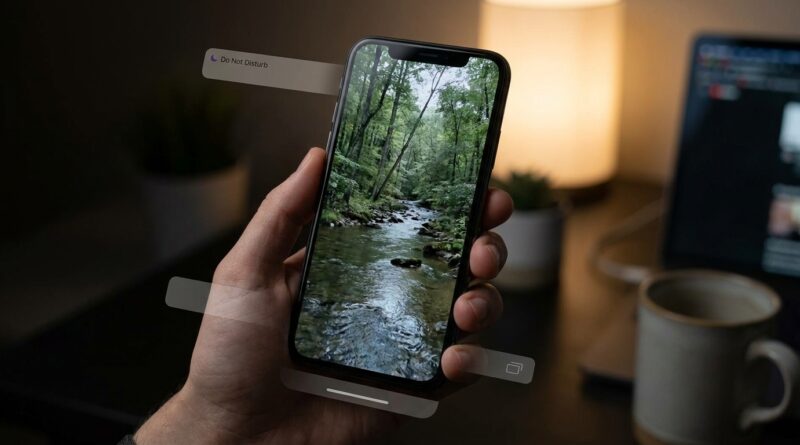
Stop Letting On‑Screen Clutter Kill Your Focus: The Hidden ‘Per‑App Full‑Screen Gestures’ Trick iPhone Power Users Use To Make Every App Feel Custom‑Built
If your iPhone keeps kicking you out of the moment, you are not being picky. It is genuinely annoying when a video shrinks, a toolbar pops back in, or one careless swipe throws you into another screen. A lot of people blame themselves and think they just need to “be more careful.” Usually, that is not the problem. The real issue is that iPhone apps all handle full-screen mode and edge gestures a little differently, so the phone can feel jumpy even when the hardware is excellent. The good news is that there is a practical fix. Once you start using a mix of Guided Access, per-app settings, and a few smart gesture controls, you can make reading, watching, and working feel far more stable. It is not one magic switch Apple labels clearly as iphone hidden full screen gesture settings. But there is a reliable setup that gets you very close, app by app.
⚡ In a Hurry? Key Takeaways
- There is no single iPhone menu called “per-app full-screen gestures,” but Guided Access and app-specific display settings can lock down swipes and reduce on-screen clutter.
- For videos, reading, and kids’ apps, set up Guided Access to disable touch in problem areas or block accidental exits with a triple-press of the Side button.
- This is safe, built into iPhone, and easy to undo, so you can test it without changing anything permanently.
The hidden trick is not one switch. It is a smarter setup.
Let’s clear up the first bit of confusion. Apple does not give you a neat menu that says “full-screen gestures, app by app.” That is why so many people miss it.
Instead, the useful setup comes from three places:
- Guided Access, which can limit gestures and lock you into one app
- Per-app settings inside certain apps, especially video and reading apps
- General iPhone controls that reduce interruptions, like Display Zoom, motion settings, and notification tuning
Put those together and your iPhone starts feeling less slippery. Not frozen. Just more deliberate.
Start with Guided Access. This is the real power-user move.
If you have never used Guided Access, it is one of the most underrated iPhone tools around. It lets you keep the iPhone inside one app and, if needed, block certain touches or hardware buttons.
That means fewer accidental swipes out of a video, fewer random taps on overlays, and less chance of losing your place when you are reading or presenting something to someone else.
How to turn it on
Go to Settings > Accessibility > Guided Access.
Then:
- Turn on Guided Access
- Tap Passcode Settings and set a passcode, or enable Face ID
- Turn on Accessibility Shortcut if it is not already active
Now open the app you want to tame, then triple-press the Side button.
You will see the Guided Access setup screen. From there, tap Options.
The settings that matter most
Inside Guided Access, these are the big ones:
- Touch. Turn this off if you want to stop accidental screen taps or swipes completely.
- Motion. Useful if screen rotation or device movement is causing odd behavior.
- Keyboards. Good for reading or playback sessions where you do not want the keyboard popping up.
- Time Limit. Optional, but handy for kids or focused work sessions.
You can also draw circles around parts of the screen you want disabled. That is the part many people never discover. If an app has a button or strip you keep hitting by mistake, you can often block just that area.
Best uses for app-by-app full-screen control
1. Watching YouTube, Netflix, or long videos
This is where accidental swipes drive people nuts. You are deep into a video, then a brush of the thumb brings back controls or knocks you into another screen.
Using Guided Access here can make your iPhone feel much more like a proper media player. Start playback, enter full screen, then trigger Guided Access. If you still want play and pause, leave touch enabled. If you want total lockdown during a workout or while handing the phone to a child, disable touch or block the most annoying parts of the display.
2. Reading in Kindle, Books, or article apps
Reading should not feel like defusing a bomb. But modern apps love gesture shortcuts, floating controls, and hidden edge actions.
For reading sessions, Guided Access can stop random menu reveals and accidental exits. Also check the app’s own settings. Many reading apps let you hide toolbars, lock orientation, or change tap zones.
3. Photos, presentations, and showing someone one thing only
This is especially useful when you hand your phone to another person. If you want them to see one photo, one webpage, or one document without swiping into everything else, Guided Access is the simple answer.
It is the same kind of “looks simple, works brilliantly” idea as Stop Letting Your Camera Give You Away: The Hidden ‘Screen-Off Video’ Trick Power Users Use To Record With iPhone Looking Completely Idle. Apple hides some of its most practical tools in plain sight.
Per-app settings you should check before doing anything else
Some apps already include their own full-screen behavior controls. They just bury them.
Look for settings like:
- Auto-hide controls
- Full screen on rotate
- Lock orientation
- Disable swipe navigation, if available
- Reading mode or minimal UI
Streaming apps, e-book apps, comic readers, and document apps are the most likely to have these options.
If one app feels worse than the others, do not assume iOS is the whole problem. Dig into that app’s own settings first.
Reduce the “chrome” that keeps pulling you out
On-screen clutter is not just about gestures. It is also about everything else that barges in.
Use Focus modes properly
Go to Settings > Focus and make a simple custom Focus for reading, watching, or work. Allow only the people and apps you actually need.
This will cut down on notification banners, which often cause the feeling that your phone never lets you settle into one thing.
Turn off motion effects if the UI feels too busy
Go to Settings > Accessibility > Motion and try Reduce Motion.
This will not change app gestures directly, but it can make transitions feel calmer and less twitchy, especially if you are sensitive to sliding panels and animated overlays.
Check Display Zoom and text size
Go to Settings > Display & Brightness.
If buttons feel too close together, try Display Zoom or slightly larger text. Sometimes accidental taps are really just a spacing problem.
When to use Guided Access and when not to
Guided Access is great, but it is not something you need for every app all day.
Use it when:
- You are watching long videos
- You are reading and keep triggering controls
- You are handing your phone to someone else
- You want to stop accidental exits during a task
Skip it when:
- You need fast switching between apps
- You rely on normal edge gestures constantly
- You are doing quick, casual browsing
Think of it like putting your iPhone into “do not fidget with me” mode for one app at a time.
A few frustrations to expect
There is one honest downside. Guided Access can feel like overkill if you only want one tiny gesture changed. Apple still does not offer truly fine-grained gesture controls for every app in one central menu.
So yes, this is a workaround. But it is a good workaround. It is built in, free, and dependable once you get used to the triple-press shortcut.
The first time you use it, practice exiting too. Triple-press the Side button again, authenticate with Face ID or your passcode, then tap End.
At a Glance: Comparison
| Feature/Aspect | Details | Verdict |
|---|---|---|
| Guided Access | Locks iPhone into one app and can limit touch, buttons, and problem screen areas. | Best fix for accidental swipes and exits. |
| App-specific full-screen settings | Some apps let you hide controls, lock orientation, or keep a cleaner reading or video view. | Always check these first for the smoothest result. |
| Focus, Motion, and Display tweaks | Cuts interruptions, tones down visual motion, and can improve touch accuracy. | Great support tools, but not a full replacement for Guided Access. |
Conclusion
If your iPhone has started feeling less like a polished tool and more like an over-sensitive slab of glass, you are not alone. More people are asking for real focus tricks now, not just flashy new features. And for good reason. Between longer YouTube and Shorts sessions, Apple Intelligence alerts, and increasingly gesture-heavy apps in iOS 18 and 26+, the small annoyances add up fast. The practical answer is to stop hunting for one mythical switch and use the hidden tools Apple already gives you. Guided Access, app-level full-screen settings, and a few cleanup tweaks can make a huge difference. The payoff is immediate. Fewer rage swipes. Fewer lost videos. Smoother reading. And an iPhone that feels custom-fit to what you are doing, instead of always waiting to interrupt it.