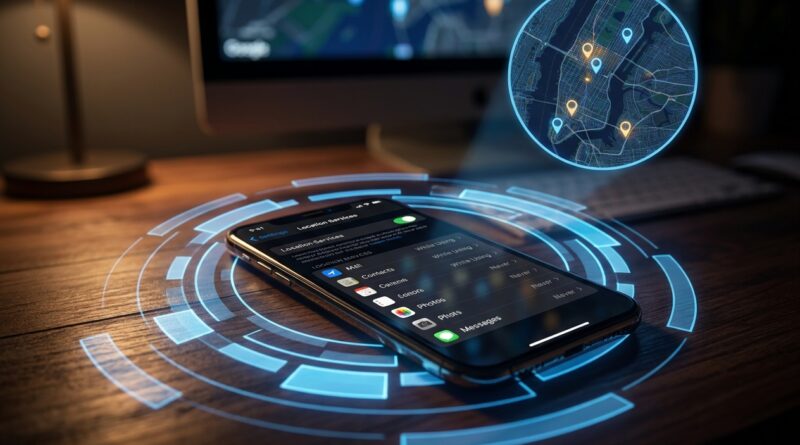
Stop Letting Apps Spy On Your Real Location: The Hidden ‘Nearby Only GPS’ Trick iPhone Power Users Use To Stay Private Without Breaking Maps
You are not imagining it. Way too many iPhone apps ask for full location access when they only need to know what is nearby for a minute or two. You tap Allow so the app works, forget about it, and suddenly that coupon app, food app, or weather app has a much clearer picture of your daily routine than it ever needed. Then comes the annoying part. If you shut location off completely, useful apps like Maps, Uber, DoorDash, and Find My style tools can get flaky fast. That is why the smarter move is not “all on” or “all off.” It is using the iPhone hidden location privacy settings nearby only setup that power users quietly rely on. In plain English, you give each app just enough location access to do its job, and no more. The trick is a mix of While Using, Precise Location off, and one quick audit inside Settings that takes less than ten minutes.
⚡ In a Hurry? Key Takeaways
- For most apps, the best privacy setting is While Using the App with Precise Location turned off, which acts like a “nearby only” mode.
- Reserve Always access for a tiny group of apps like navigation, safety, or automation tools that truly need background location.
- This setup keeps maps, rideshares, and deliveries working while cutting down on background tracking, ad profiling, and battery drain.
The hidden trick is not one switch. It is three small settings working together
Apple does not label this as “Nearby Only GPS,” which is why many people miss it. But the effect is very real.
On iPhone, the closest thing to nearby-only location privacy is this:
- Set Location Access to “While Using the App”
- Turn off “Precise Location” for apps that do not need your exact pin on the map
- Avoid “Always” unless the app truly needs background tracking
That combo lets an app know your general area, often enough to show local stores, nearby restaurants, weather, or regional offers, without handing over your exact movements all day.
Think of it like telling someone your neighborhood instead of your driveway.
What “Precise Location” really does
This is the setting most people skip right past.
When Precise Location is on, an app can often see your exact position. When it is off, the app gets a broader, approximate area instead. Usually that is still enough for things like:
- Showing nearby coffee shops
- Loading local weather
- Displaying city-based offers
- Finding stores in your area
It is often not enough for turn-by-turn navigation, exact pickup spots, or finding the right apartment entrance for a delivery driver.
That is the sweet spot. Your phone stays useful, but nosey apps stop getting your exact location for no good reason.
Your 10-minute iPhone location privacy audit
Here is the copy-and-paste framework. Start here:
Step 1: Open the master location list
Go to Settings > Privacy & Security > Location Services.
You will see every app that has asked for your location. This is the control room.
Step 2: Sort apps into four simple buckets
As you go down the list, put each app into one of these groups:
- Exact location needed. Maps, rideshare, delivery, parking, hiking, golf rangefinder, lost device tools.
- Approximate location is enough. Weather, store apps, restaurant apps, deal apps, local news, browsers that want “nearby” results.
- Only occasionally needed. Camera apps with geotagging, travel check-in apps, event apps.
- No location needed at all. Games, note apps, random utilities, most social apps unless you actively use location features.
Step 3: Apply the rule set
Use these settings for each bucket:
Bucket 1: Exact location needed
Set to While Using the App. Keep Precise Location on.
Bucket 2: Approximate location is enough
Set to While Using the App. Turn Precise Location off.
Bucket 3: Only occasionally needed
Set to Ask Next Time Or When I Share.
Bucket 4: No location needed
Set to Never.
Step 4: Hunt down the “Always” apps
This is where the real cleanup happens.
If an app is set to Always, ask one blunt question: “Does this app need my location when I am not even using it?”
For most apps, the answer is no.
Good candidates for Always might include:
- Personal safety apps
- Some smart home automations
- Find-my-family style apps that you intentionally use for live sharing
- Specialized navigation or driving apps
Bad candidates for Always include many shopping apps, food apps, coupon apps, and social apps that mainly want better ad targeting.
Step 5: Check for the purple, gray, or hollow arrow clues
Back in Settings > Privacy & Security > Location Services, scroll down and look at the system notes and arrow icons.
Those arrows can hint at which apps have used your location recently or in the background. If something surprises you, that app deserves a closer look.
The best settings for common app types
Maps and navigation
Use While Using the App and keep Precise Location on.
You want exact location here. Otherwise directions, lane guidance, and rerouting can get messy.
Rideshare apps
Use While Using the App with Precise Location on.
Your driver needs to find you, not your general zip code.
Delivery apps
Use While Using the App with Precise Location on, especially during active orders.
If you rarely order, you can tighten this further and only allow access when prompted.
Weather apps
Use While Using the App with Precise Location off.
Most weather apps do not need to know which side of the street you are standing on.
Store, coupon, and restaurant apps
Use While Using the App with Precise Location off.
This is the classic nearby-only category.
Camera and social apps
If you do not actively geotag photos or posts, choose Never or Ask Next Time.
A lot of people are surprised how many apps request location just because they can.
Fitness apps
This depends on how you use them.
If you track runs, walks, or bike rides, use While Using the App and Precise Location on. If the app mostly counts steps indoors, it may not need location at all.
Why this setup also helps battery life
Privacy is the big reason to do this, but it is not the only one.
Exact location checks and background location activity can drain battery over time. Not always dramatically, but enough to matter. If you have ever wondered why a random retail app seems way too busy in the background, location can be part of the story.
Trimming access often means less tracking and a quieter phone overall.
One setting many people forget: Significant Locations
If you want to go one step further, check Apple’s own location history feature.
Go to Settings > Privacy & Security > Location Services > System Services > Significant Locations.
This is used for helpful things like routing, memories, and personalized services. Some people like it. Some do not.
You can review it, clear history, or turn it off if it makes you uncomfortable. Just know that doing so may reduce some convenience features.
When “Approximate” causes problems
Sometimes turning off Precise Location will break a feature. That does not mean the whole privacy plan failed.
It just means that one app actually needs exact coordinates for that task.
If a rideshare app cannot find your pickup spot, or a food app sends a driver to the wrong building, flip Precise Location back on for that app. The goal is not perfection. It is using the minimum access needed.
That is the power-user mindset.
A simple rule to remember
If an app’s main job is to get you somewhere or get someone to you, exact location is probably fair.
If the app just wants to show things around you, approximate location is usually enough.
If location has nothing to do with the app’s core job, deny it.
Make this part of a five-minute privacy reset
This is one of those small maintenance habits that pays off. Every few months, or after downloading a bunch of new apps, do a quick permission sweep.
While you are in cleanup mode, it is also worth checking other easy iPhone quality-of-life tweaks. If distractions are frying your attention, this guide on Stop Letting Noise Hijack Your Brain: The Hidden iPhone ‘Background Sounds’ Switch Power Users Turn Into Instant Focus Mode is another good example of a buried setting that makes the phone work better for you instead of against you.
At a Glance: Comparison
| Feature/Aspect | Details | Verdict |
|---|---|---|
| While Using + Precise Off | Best for weather, shopping, local deals, restaurant apps, and anything that only needs a general area. | Best “nearby only” privacy setting for most apps. |
| While Using + Precise On | Needed for turn-by-turn navigation, exact pickups, live delivery tracking, and active fitness route logging. | Use when accuracy matters right now. |
| Always | Allows background location even when the app is not open. Useful only for a small number of safety or automation cases. | Avoid unless you have a clear reason. |
Conclusion
You do not have to choose between broken apps and giving every company a running diary of where you go. That is the whole point of using the iPhone hidden location privacy settings nearby only approach. In under ten minutes, you can audit every app, switch most of them to While Using, turn Precise Location off where it is not needed, and save Always for the rare cases that truly deserve it. That keeps maps, rideshares, and delivery apps working the way they should, while quietly cutting off a big chunk of background tracking, ad profiling, and pointless battery drain. It is one of the easiest privacy wins on iPhone, and once you set it up, you will wonder why Apple does not explain it more clearly.