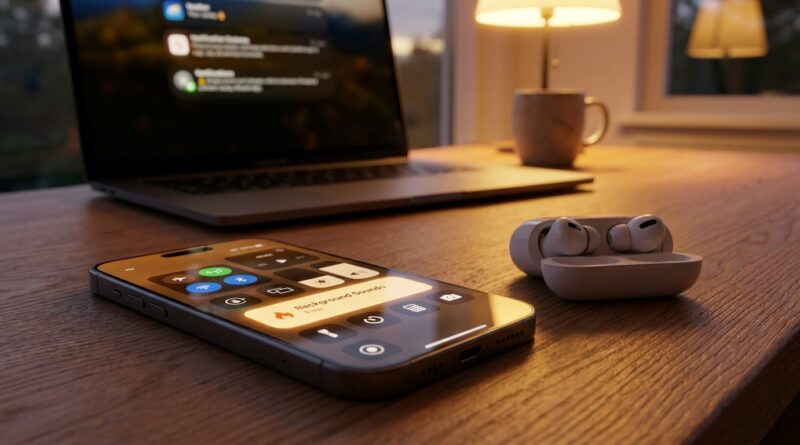
Stop Letting Noise Hijack Your Brain: The Hidden iPhone ‘Background Sounds’ Switch Power Users Turn Into Instant Focus Mode
Your iPhone may already have the focus tool you keep hunting for in Spotify, YouTube, and overpriced productivity apps. If your brain feels cooked by Slack pings, traffic outside, and the person on the couch taking a loud call for no good reason, you are not imagining it. Even with AirPods and noise cancellation, random sound still slips through and chips away at your attention. Then you try a playlist. It helps for ten minutes, until a song with lyrics shows up or an ad barges in like it owns the place. That is where Apple’s hidden Background Sounds feature comes in. It gives you a steady layer of rain, ocean, dark noise, or white noise right from your iPhone, even offline. No app hopping. No weird recommendations. No sudden volume spikes. Once you set it up with Control Center, AirPods controls, and Focus mode, you can start your own instant focus mode in about a second.
⚡ In a Hurry? Key Takeaways
- iPhone Background Sounds is a built-in feature that plays steady ambient audio like rain, ocean, or white noise to help you focus fast.
- Add the Hearing control to Control Center and you can turn it on in seconds without opening any extra app.
- It works offline and keeps your audio routine more private than relying on streaming apps all day.
Why this hidden iPhone feature matters more than people think
Most people hear “Background Sounds” and assume it is some tiny accessibility setting they will never use. That is a mistake.
Power users like it because it fixes three annoyingly common problems at once. It helps with focus. It lowers fatigue from unpredictable noise. And it gives you a more private option than streaming sound from another app that wants your listening habits, account info, and constant attention.
The big win is consistency. Your brain is bad at ignoring surprise noises. A steady wash of balanced sound can make sudden chatter, keyboard clacks, traffic, and hallway noise feel less sharp. You are not trying to create silence. You are trying to make the world less jumpy.
What iPhone Background Sounds actually does
Background Sounds is built into iPhone. It can play ambient sound behind whatever else you are doing, or on its own. Apple includes options like:
- Rain
- Ocean
- Stream
- Balanced Noise
- Bright Noise
- Dark Noise
If you have never tried dark noise, start there. A lot of people find it less hissy and less tiring than classic white noise.
You can also choose whether these sounds keep playing when other media is active, and you can set their volume separately. That matters, because the whole point is to support your attention, not wrestle with your podcast or work call.
How to turn on Background Sounds
The basic setup
On your iPhone, go to Settings, then Accessibility, then Audio & Visual, then Background Sounds.
From there, you can:
- Turn Background Sounds on
- Pick your sound
- Adjust volume
- Choose whether it plays while media is also playing
- Choose whether it stops when your iPhone is locked
Try a few sounds before deciding. Rain feels natural for some people. Dark noise is better for blocking distractions. Ocean can be calming, but some people find it too dynamic for deep work.
The faster way most people should use
The real trick is adding it to Control Center so you do not have to dig through Settings every time.
Go to Settings, then Control Center, and add Hearing.
Now swipe down from the top-right corner of your screen to open Control Center, tap the ear icon, and you will see Background Sounds. Tap it, and you are in business.
This is the version of the feature people actually stick with, because it is fast enough to become a habit.
How to make it feel like instant Focus Mode
Here is where the hidden value really shows up. Do not just switch the feature on. Build a simple system around it.
1. Pick one sound for one kind of work
Use one sound only for focus sessions. For example, dark noise for writing, email cleanup, or spreadsheet work.
This helps train your brain. When that sound starts, it becomes a cue. You are not just blocking noise. You are telling yourself it is time to settle in.
2. Set the volume lower than you think
A common mistake is cranking it up too high. That can get tiring fast.
You want enough sound to soften distractions, not enough to dominate the room in your head. Start low. Raise it slowly until nearby noises feel less pokey.
3. Pair it with a Focus mode
Create a Work Focus or Study Focus and use it to cut down notifications at the same time. Background Sounds works best when it is not fighting a barrage of banners and buzzing.
In the Focus settings, you can allow only the people and apps you truly need. That way the sound bed and the notification filter start working together.
4. Add it to your routine triggers
Think about when your attention usually falls apart. Maybe it is when you sit down at your desk, arrive at the office, or put in your AirPods at the coffee shop.
That is the moment to trigger it.
Using Background Sounds with AirPods
If you already own AirPods, this combo is where things get good.
AirPods Pro and newer noise-control features can reduce external sound physically. Background Sounds adds a steady audio layer on top. The two together often feel better than either one alone.
A simple setup that works well
- Turn on Active Noise Cancellation if your AirPods support it
- Start Background Sounds from Control Center
- Keep the ambient sound volume moderate
- Use your Work Focus at the same time
The result is not perfect silence. It is something more useful. A softer, steadier sound environment that gives your brain less random junk to process.
About AirPods controls
You cannot directly assign every AirPods press to Background Sounds the way you can for standard playback, but you can still make the experience feel nearly instant by opening Control Center and tapping the Hearing tile. If you use Back Tap on your iPhone, that can speed things up even more.
Set up a one-second shortcut with Control Center and Back Tap
If you want this to feel like a hidden pro move, do two things.
Add the Hearing tile
We already covered this, but it is the most important step. Without it, the feature stays buried.
Use Back Tap for even faster access
Go to Settings, then Accessibility, then Touch, then Back Tap.
You can assign Double Tap or Triple Tap to a useful action, like opening Control Center or launching a Shortcut. If you are the kind of person who likes shaving little bits of friction out of your day, this is worth a minute.
Can you automate Background Sounds with Focus?
Not perfectly in every version of iOS, but you can get close enough to make it practical.
You can automate Focus modes by time, location, or app use. So your Work Focus can turn on when you arrive at the office or open certain apps. Then your Background Sounds is one tap away in Control Center.
Depending on your iPhone setup and iOS version, you may also be able to build a Shortcut that opens relevant settings or helps start your routine faster. Apple does not always expose every system toggle cleanly, so think of this as “semi-automatic,” not magic.
Even so, reducing the number of steps from six to one or two is enough to make a big difference.
Why this is better than hopping between playlists
Streaming apps are fine for music. They are often terrible for sustained concentration.
Music changes. Lyrics pull your attention. Recommendations drift. Ads interrupt. Videos end. Volume jumps. Then your brain has one more thing to manage.
Background Sounds is boring on purpose. That is the point.
It creates a stable sound bed that stays out of the way. No algorithm is trying to “improve” your vibe. No autoplay sends you somewhere else. No app is nudging you into another hour of scrolling.
Privacy is part of the appeal
This does not get talked about enough.
When you use a built-in, offline feature, you are not feeding another service more data about when you work, what you listen to, how long you stay active, or what mood soundtrack keeps you online. That may not bother everyone, but plenty of people are tired of solving every tiny problem with another subscription and another app account.
Background Sounds keeps this one simple.
A couple of settings worth checking before you start
If you test this once and hate it, there is a good chance one of these settings is the reason.
Check the media mix
Inside Background Sounds settings, decide whether it should play alongside media. If you listen to spoken audio, calls, or calm instrumental tracks, this matters.
If the background sound is too loud compared to your media, it can feel muddy fast.
Watch your overall volume
Be careful not to create a new problem by stacking loud ambient sound on top of already-loud media. If you also use your iPhone for alarms, this is a good time to get smarter about sound settings in general. Our guide on Stop Blasting Your Alarms: The Hidden iOS Volume Controls Power Users Quietly Split Apart is worth a quick read if your phone has ever scared the life out of you at 6 a.m.
Try different sounds for different environments
One sound will not fit every space.
- Dark Noise: Best for office chatter and general focus
- Rain: Good for reading and quiet desk work
- Ocean: Better for relaxing than deep concentration, for many people
- Bright Noise: Useful if you need more masking power, but it can feel sharp
Who should use this feature most
This is especially useful if you:
- Work in a shared office or apartment
- Get distracted by unpredictable noise more than steady noise
- Find music too engaging for deep work
- Want a cleaner, offline alternative to focus apps
- Already wear AirPods and want more from them
It is also handy if you are mentally tired by the end of the day. Constant small interruptions wear you down even when you think you are “used to them.” A more stable audio environment can make your whole day feel less jagged.
At a Glance: Comparison
| Feature/Aspect | Details | Verdict |
|---|---|---|
| Built-in convenience | Works right from iPhone, no extra app or subscription needed, and can be added to Control Center. | Excellent for fast, low-friction focus. |
| Focus vs playlists | Steady sounds like dark noise or rain are less distracting than songs, ads, or recommendation-driven mixes. | Better for deep work and mental stamina. |
| Privacy and offline use | Does not need constant streaming and avoids handing more listening data to another service. | A quiet win for privacy-minded users. |
Conclusion
Background Sounds has quietly become a favorite in power-user circles because it solves three real problems at once. Focus, fatigue, and privacy. Instead of letting TikTok, YouTube, or Spotify decide what your brain hears all day, you get a simple, consistent, offline sound bed that smooths out chaos without begging for attention. The trick is not just knowing the feature exists. It is setting it up so it is always within reach. Add the Hearing tile to Control Center, pair it with your AirPods and a Focus mode, and you have a repeatable system you can trigger in under a second. That is the kind of hidden iPhone value people miss for years, then wonder how they lived without.