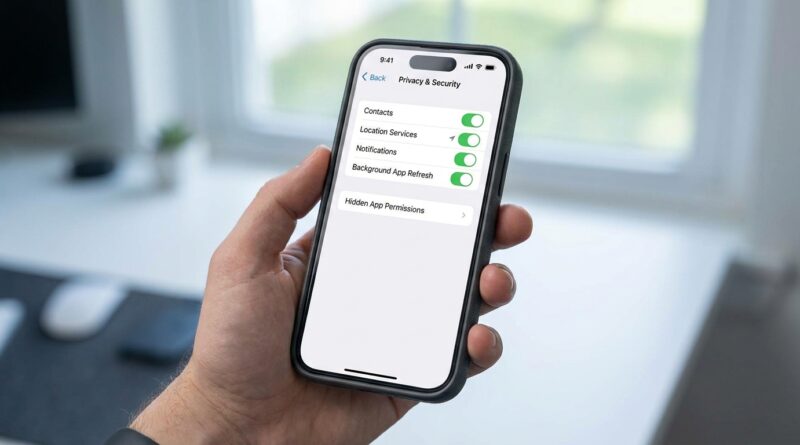
Stop Letting Random Apps Hijack Your Info: The Hidden iOS 18 Permission Prompts Power Users Tame Once and Never Worry About Again
You know the drill. You download a new app, it wants your location, contacts, photos, microphone, notifications, Bluetooth, maybe your calendar for some reason, and you tap Allow because you just want to use the thing. A week later, your phone starts buzzing nonstop, your battery seems worse, and it feels like half your apps know a little too much about you. That frustration is real. The good news is iOS 18 gives you more control than most people realize, and once you clean up a few hidden permission settings, you usually do not have to think about them again. This is not about turning your iPhone into Fort Knox or breaking your favorite apps. It is about stopping random apps from grabbing more access than they need, while keeping the useful stuff working. If you want a calmer, less creepy phone, these are the iOS 18 hidden privacy settings app permissions worth checking first.
⚡ In a Hurry? Key Takeaways
- Most apps do not need full access to your location, contacts, photos, microphone, or notifications to work properly.
- Go to Settings, then Privacy & Security and Notifications, and switch many apps to limited, while using, selected photos, or off.
- A 10-minute permission cleanup can cut down tracking, spammy alerts, and battery drain without making your iPhone harder to use.
Start with the app-by-app permission check
If your iPhone feels noisy or intrusive, do not start by deleting apps in a panic. Start with Settings.
Open Settings, scroll down, and tap any app you are suspicious of. This page is the shortcut many people miss. You can quickly see whether that app has access to things like Photos, Contacts, Location, Microphone, Camera, Bluetooth, Live Activities, Cellular Data, and Notifications.
Ask one simple question each time. Does this app really need this to do its job?
A weather app needing location makes sense. A coupon app wanting contacts does not. A social app may need camera access. A flashlight app definitely does not need your microphone.
The permissions power users change first
Location. Pick “While Using” or “Never” most of the time
Location is one of the biggest privacy and battery drains. In iOS 18, a lot of apps still ask for more than they need.
Go to Settings > Privacy & Security > Location Services. Tap through your apps one by one.
For most apps, the safest useful setting is While Using the App. That means the app can check where you are only when it is open.
Use Never for apps that have no business knowing where you are. Use Ask Next Time Or When I Share if you are unsure and want to test it.
Also check Precise Location. This is a sneaky one. Many apps do not need your exact location down to the building. Turning precise location off still lets an app know your general area, which is often enough for weather, shopping, or local recommendations.
Photos. Stop giving full library access by default
This is one of the best iPhone privacy tools, and a lot of people forget it exists.
Go to Settings > Privacy & Security > Photos, or open a specific app’s settings page. If an app only needs you to upload one or two pictures now and then, choose Selected Photos instead of Full Access.
That way the app only sees the photos you picked, not your entire camera roll.
It is a small change that feels a lot better later.
Contacts. Be ruthless here
Contacts access is often over-requested. Messaging apps may need it. Many other apps do not.
Head to Settings > Privacy & Security > Contacts. If you see apps there that do not clearly need your address book, turn them off.
This is one of the easiest ways to stop data harvesting. Your contacts are not just your information. They are other people’s information too.
Microphone and Camera. Turn off anything that feels questionable
Open Settings > Privacy & Security > Microphone and Camera.
Video apps, calling apps, and camera tools obviously need these. Plenty of other apps ask anyway, often because they want to be ready for some feature you may never use.
If you have ever seen the orange or green indicator at the top of the screen and wondered what was going on, this is where you get your answer. Remove access for anything you do not trust.
Bluetooth and Local Network. The odd couple people ignore
Some apps ask for Bluetooth or Local Network access for device discovery, smart gadgets, casting, or tracking-related features. If you do not use those features, turn them off.
Check Settings > Privacy & Security > Bluetooth and Local Network.
This is one of those hidden cleanup steps that can quietly cut down unnecessary background chatter.
Notification prompts are permission prompts too
When people think about privacy, they often forget notifications. But junk notifications are part of the same problem. You said yes too quickly, and now an app thinks it has a front-row seat in your day.
Go to Settings > Notifications. Tap through your worst offenders.
For each app, decide whether you want:
- No notifications at all
- Only badges
- Scheduled Summary instead of instant interruptions
- Time Sensitive allowed only for apps that truly matter
If an app is trying to sell you something, win you back, or nag you into opening it, that is not urgent. Turn it down or turn it off.
Watch for background access that feels harmless but is not
Background App Refresh
This setting is not exactly a permission prompt, but it affects how much an app can keep doing behind the scenes.
Go to Settings > General > Background App Refresh. If an app does not need to update constantly in the background, switch it off.
This can help with battery life, cut down on background data use, and reduce the feeling that apps are always “alive” on your phone.
Cellular Data access
Another easy cleanup. Open Settings > Cellular and scroll through the app list. If there are apps you rarely use, or apps that do not need mobile data unless you open them, turn them off.
It is a practical move, especially if an app has been too active in the background.
The hidden permission trick that saves headaches later
The smartest iPhone users do one thing differently. They do not treat permission prompts as a one-time event.
Any time you install a new app, use it once, then immediately visit its settings page. That is where you can undo the “fine, whatever, just let me in” taps from setup.
It takes about 30 seconds per app.
That habit matters more right now because apps are moving fast to tie into iOS 18 features and system hooks. More hooks usually means more prompts. More prompts usually means more stuff gets approved without much thought.
If you want to go a step further, it is worth reading Stop Oversharing by Accident: The Hidden iOS 18 Privacy Toggles Every iPhone Power User Should Change Today. It pairs nicely with permission cleanup because some of the biggest privacy leaks are not in the app itself, but in broader iPhone settings people never check.
A simple cleanup order if you feel overwhelmed
If digging through settings feels like surgery, use this order:
- Notifications. Fast win. Your phone gets quieter right away.
- Location Services. Big privacy and battery impact.
- Photos and Contacts. Good for cutting back on oversharing.
- Microphone, Camera, Bluetooth, Local Network. Trust check.
- Background App Refresh and Cellular. Performance cleanup.
You do not need to do everything in one sitting. Even 10 minutes helps.
How to tell if an app is asking for too much
Here is a simple gut check.
Be suspicious if an app:
- asks for access before explaining why
- will not let you continue unless you allow something unrelated
- wants full photo access when selected photos would do
- wants always-on location for a feature you use once in a while
- sends marketing notifications the same day you install it
None of that means the app is evil. But it does mean you should tighten the reins.
At a Glance: Comparison
| Feature/Aspect | Details | Verdict |
|---|---|---|
| Location permission | “While Using” and turning off Precise Location usually gives apps enough access without constant tracking. | Best first setting to tighten. |
| Photos and Contacts access | Use Selected Photos and remove Contacts access from apps that do not clearly need it. | Big privacy win with little downside. |
| Notifications and background activity | Turning off noisy notifications and limiting Background App Refresh reduces interruptions and can improve battery life. | Best quality-of-life cleanup. |
Conclusion
You do not have to live with a phone that feels pushy, nosy, and busy. iOS 18 hidden privacy settings app permissions give you more control than many people realize, but they only help if you actually use them. Right now there is a wave of new and updated apps racing to plug into iOS 18’s deeper system hooks, which means more prompts and more quiet data grabs in the background. Spending a few minutes to review permissions today can mean fewer surprise alerts, less tracking, better battery life, and an iPhone that finally feels like it is working for you instead of the other way around.