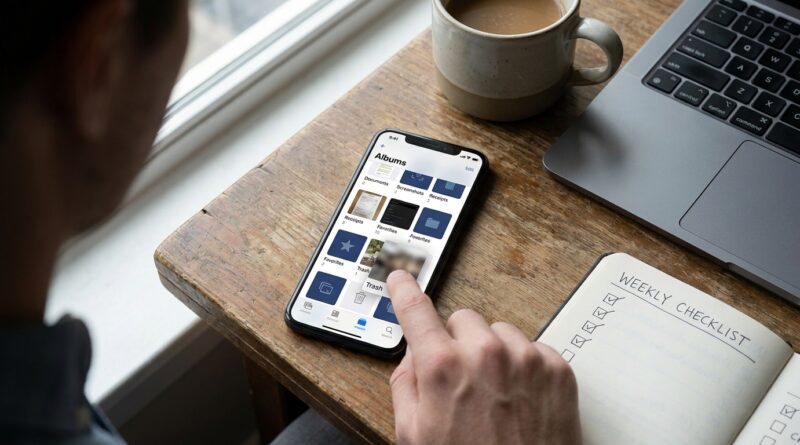
Stop Letting Photos Pile Up: The Hidden ‘One‑Swipe Smart Cleanup’ Trick iPhone Power Users Use To Keep Their Camera Roll Under Control
Your iPhone camera roll gets messy fast. One minute you are saving a boarding pass, the next you have 14 blurry photos of your dog, six screenshots you meant to send, two downloaded memes, and a surprise warning that storage is almost full. It is annoying, and it gets worse because the Photos app does not exactly put its best cleanup tools front and center. The good news is you do not need to spend a whole Sunday deleting pictures one by one. The real trick iPhone power users use is a simple one-swipe cleanup routine built around hidden filters, built-in albums, favorites, and a short weekly review. Do it once, then repeat it in small bursts. That keeps clutter from taking over, helps backups finish faster, and makes it much easier to find the photos you actually care about when you need them. Think of it less like a deep clean and more like finally putting a laundry basket where the clothes already land.
⚡ In a Hurry? Key Takeaways
- Use the Photos app’s built-in media filters, screenshots album, duplicates tool, and favorites to clean up fast without scrolling your whole library.
- The best system is a weekly 5-minute review: delete junk, favorite keepers, hide private images, and empty Recently Deleted.
- Be careful with iCloud Photos. Deleting a photo on your iPhone usually deletes it from all synced Apple devices too.
The hidden cleanup trick is not one button. It is one routine.
If you were hoping for a magic “fix my camera roll” switch, sorry. Apple is close, but not quite there. What power users actually do is smarter. They stop treating Photos like one giant pile and start using the app’s built-in sorting tools as separate cleanup lanes.
That means you do not clean everything at once. You swipe through the obvious junk first. Screenshots. Duplicates. Screen recordings. Downloads. Burst shots. Then you mark the good stuff so it never gets buried again.
Once you set this up, cleanup stops feeling endless.
Start here: the 5-minute first pass
1. Open Photos and go straight to Utilities
In the Photos app, scroll down below your main library. On current versions of iOS, you will usually see sections like Media Types and Utilities. This is where a lot of the useful cleanup features are hiding.
Focus on these first:
- Screenshots
- Duplicates
- Receipts or handwriting if shown in search
- Screen Recordings
- Bursts
- Recently Saved or Recently Viewed if available in your version of iOS
2. Attack screenshots first
Screenshots are usually the easiest wins. Tap Screenshots, hit Select, then swipe your finger across rows of images to select a bunch at once. That is the one-swipe smart cleanup trick people miss. You do not have to tap every single image.
Saved a recipe, a text thread, a map, a tracking number? Great. If you no longer need it, delete it now.
If you do need some of them, favorite the truly important ones or move key information into Notes or Files so your camera roll is not acting like a filing cabinet.
3. Use Duplicates, but do not trust it blindly
If your iPhone shows a Duplicates album under Utilities, use it. Apple groups matching or near-matching photos and videos so you can merge them. In many cases it keeps the best quality version and rolls useful data together.
Still, look before you tap. Sometimes “duplicates” are slightly different shots, and one may have better focus or expression.
4. Clean out videos next
4K video eats storage at an absurd rate. Open Videos under Media Types and sort through the obvious junk. Accidental pocket videos, 20-second clips of the floor, duplicate concert clips. Gone.
This one step can free more space than deleting 500 screenshots.
Why your iPhone feels full even when you are “not saving that much”
Because you are, just not in the way you think. Modern iPhones make it too easy to collect digital clutter. A short 4K clip, Live Photos, downloads from Messages, edited copies, and app-saved images all add up quietly.
On top of that, Apple hides some of the most useful storage info behind a few taps. Check Settings > General > iPhone Storage, then look for Photos. That gives you the blunt truth about how much space your library is using.
If iCloud Photos is on, you may also see Optimize iPhone Storage. This helps save space on the device, but it can also create the feeling that your originals are “somewhere else” and your phone is making the problem less visible, not less real.
Build a camera roll that surfaces the good stuff
Use Favorites like a highlight reel
Most people barely use the heart icon. They should. Favorites are not just sentimental. They are practical.
When you take 15 photos to get one good shot, mark the keeper as a favorite right away. Later, when you want to find the best pictures from a trip, birthday, or work event, you can jump to your Favorites album instead of digging through all 15 attempts.
A simple rule helps: if you would actually want to see it again in six months, favorite it.
Use Hidden for private, not permanent
The Hidden album is useful for things you do not want in your main library, like personal documents, medical info, gift ideas, or reference photos. It is not a trash can. It is more like a drawer.
You can lock it down by going to Settings > Apps > Photos and making sure the Hidden album uses Face ID if your iPhone supports it.
Important note: hiding a photo does not reduce storage. It only gets it out of your main view.
Search is better than most people realize
The Photos app can find a lot more than dates. Search terms like:
- screenshots
- receipts
- documents
- whiteboard
- dog
- car
- beach
This is a sneaky-good way to round up junk categories without endless scrolling. If you often save paperwork as images, searching “document” or “receipt” can reveal a whole pile you forgot existed.
The weekly review that keeps storage under control
This is the part that makes the whole system work. Do not wait for your phone to scream about storage. Set a five-minute cleanup once a week.
Your repeatable weekly checklist
- Open Photos and check Screenshots.
- Check Duplicates and merge obvious matches.
- Open Videos and delete accidental or throwaway clips.
- Favorite your best new photos.
- Hide any private images you want out of the main feed.
- Empty Recently Deleted if you are sure.
That last step matters. Deleted photos do not vanish right away. They sit in Recently Deleted for around 30 days, still taking up space until they are removed permanently.
A few mistakes to avoid
Do not mass-delete before checking iCloud Photos
If you use iCloud Photos, your library syncs across devices. Delete something on the iPhone, and it can disappear from your iPad and Mac too. Great when you mean it. Bad when you do not.
Do not keep 20 versions “just in case”
This is how photo clutter wins. Keep the best one or two. Favorite the best. Delete the rest.
Do not use Photos as your long-term document vault
If you are storing insurance cards, appliance serial numbers, tax documents, or warranty photos, move the truly important ones into the Files app, Notes, or a cloud folder with clear names. Photos is fine as a capture tool. It is bad at being a filing system for life admin.
If you want the fastest possible cleanup order, use this
- Screenshots
- Duplicates
- Screen Recordings
- Videos
- Bursts and similar photos
- Favorite the keepers
- Hide sensitive items
- Empty Recently Deleted
That order gives you the biggest payoff with the least effort.
At a Glance: Comparison
| Feature/Aspect | Details | Verdict |
|---|---|---|
| Screenshots album | Fastest place to remove throwaway images using Select and swipe across rows. | Best first step for quick wins. |
| Duplicates tool | Finds matching or near-matching images and lets you merge them. | Very useful, but always double-check before merging. |
| Favorites and Hidden albums | Favorites surface the best photos. Hidden removes sensitive or distracting items from the main feed. | Best long-term system for staying organized. |
Conclusion
Your Photos app does not have to stay a black hole. The trick is not finding one secret setting. It is building a simple cleanup system you can actually repeat. Use the hidden albums Apple tucks away, sort by the stuff that clogs storage fastest, favorite the shots you care about, hide the ones you do not want in your main view, and do a quick weekly review before the mess piles up again. That matters more than ever because people are taking more photos, saving more random images, and relying on iCloud and storage settings that often hide the problem until the phone feels full and backups slow down. Once you have a real routine, your camera roll becomes useful again. Less clutter. Less stress. Faster backups. And when you need that one important photo, you can actually find it without the endless scrolling and swearing.