Stop Typing The Same Replies: The Hidden iOS 18 Text Replacements Power Users Turn Into Instant Shortcuts
You should not be retyping your home address, “On my way,” the same support reply, or a five-step set of instructions every single day. But a lot of iPhone owners still do exactly that. They keep a messy note full of canned replies, or scroll through old messages to copy and paste the same text again and again. It is slow, annoying, and honestly feels ridiculous in 2024. The good news is iOS 18 text replacement shortcuts can fix this in a few minutes. This feature is not flashy, and Apple does not exactly put it front and center, but it is one of the most useful productivity tools on the iPhone. Once you set it up, a tiny code like “@@addr” or “;meet” can instantly expand into full sentences, email replies, directions, links, or anything else you type all the time.
⚡ In a Hurry? Key Takeaways
- iOS 18 text replacement shortcuts let you turn short codes into full phrases across apps like Messages, Mail, WhatsApp, and Slack.
- Use unique trigger codes such as “@@home” or “;thanks” so they do not accidentally replace normal words.
- Your text replacements sync through iCloud, so once you build them well, they work quietly across your Apple devices with very little upkeep.
What iOS Text Replacement Actually Does
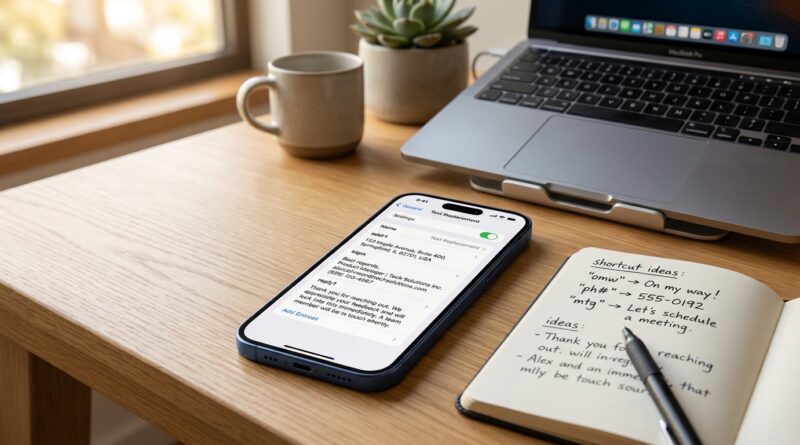
Text Replacement is built into the iPhone keyboard. You create a phrase, then assign a shortcut to it. Type the shortcut, tap space, and your iPhone swaps it for the full phrase.
That is it. No separate app. No automation maze. No weird setup.
This is why iOS 18 text replacement shortcuts are so handy. They work in the places where you already type. That includes Mail, Messages, Notes, reminders, some web forms, and many third-party apps.
Why This Matters More Than Another Fancy iPhone Trick
A lot of iPhone advice right now is focused on AI summaries, writing tools, and other attention-grabbing features. Some of that is useful. But plenty of people are still wasting real time on tiny chores.
Typing “I’m running 10 minutes late” six times a week is a chore. So is re-entering your email address, apartment gate code instructions, return policy reply, Zoom link, or Wi-Fi password note.
These little repeats eat time because they happen all day. Fixing them once gives you a payoff every day after that.
How to Set Up iOS 18 Text Replacement Shortcuts
Step 1: Open the right menu
Go to Settings > General > Keyboard > Text Replacement.
Step 2: Add a new shortcut
Tap the + button in the top-right corner.
You will see two fields:
Phrase: The full text you want inserted
Shortcut: The short trigger you type to call it up
Step 3: Save it
Tap Save. Now test it in Notes or Messages.
Type your shortcut, then tap the space bar. If all goes well, the full phrase should appear instantly.
The Best Kinds of Shortcuts to Create First
Start with the things you type every week. Not someday. Not maybe. Weekly use is where this feature starts paying you back fast.
Addresses and contact details
Examples:
- @@home = your full home address
- @@work = your office address
- @@mail = your email address
- @@phone = your phone number
Common replies
Examples:
- ;ty = Thanks, I got it and will take a look shortly.
- ;late = Running about 10 minutes behind. Sorry. Be there soon.
- ;busy = I’m tied up right now, but I’ll reply as soon as I can.
Work and support messages
Examples:
- ;faq1 = Hi, here are the steps to reset your password…
- ;ship = Your order has shipped. Tracking details are below.
- ;meet = Here’s the meeting link: [paste link]
Directions and instructions
Examples:
- ;park = Park in the back lot, use the side door, and buzz unit 3.
- ;wifi = Wi-Fi: NetworkName | Password: ********
- ;reset = Try these steps first: restart the app, sign out, then sign back in.
How to Build a “Personal Command Line” That Actually Works
The trick is not just making shortcuts. It is making a system you will remember.
Think of it like your own tiny command line for everyday typing.
Use a pattern
Pick a style and stick with it. Good examples:
- @@ for personal info
- ; for quick replies
- ## for work templates
So your shortcuts might look like this:
- @@addr
- ;thanks
- ;followup
- ##ticket
Make them memorable, not clever
If you have to stop and think, the shortcut is not helping enough. “;meet” is better than “;m92.” “@@home” is better than “hx1.”
Avoid real words
This matters. If your shortcut is something common like “omw” or “addr,” you may trigger replacements when you do not mean to. Special characters help a lot.
Places Where Text Replacement Saves the Most Time
Most people think of this as a texting tool. It is bigger than that.
- Mail: replies, signatures, follow-ups
- Messages: status updates, directions, family logistics
- WhatsApp and Slack: work updates, links, repeated answers
- Notes: templates, outlines, saved formats
- Forms: contact details, shipping info, company names
If your keyboard has been fighting you lately, this pairs nicely with Stop Fighting Your iPhone Keyboard: The Hidden iOS 18 Setting That Makes Typing Feel Instantly Faster. Better keyboard behavior plus smart replacements is a very good combo.
Smart Rules for Safer Shortcuts
Do not store sensitive secrets casually
You can store things like an email address or standard office directions without much worry. But be careful with credit card numbers, private account details, medical info, or anything you would not want popping up in the wrong place.
Review old shortcuts every few months
People change jobs, move, switch links, and update phone numbers. A shortcut is only helpful if the text behind it is still right.
Test before you rely on it
Some apps handle keyboard suggestions a little differently. Make sure your most important replacements work where you need them.
Common Problems and Easy Fixes
The shortcut is not expanding
First, type the shortcut and then press space. That usually triggers the replacement.
If that does not work, try this:
- Check for typos in the shortcut
- Make sure Predictive Text and keyboard features are enabled
- Restart the app you are typing in
- Restart the iPhone if the issue is system-wide
The shortcut keeps replacing when I do not want it to
Your code is too common. Change it to something more unique, like adding “@@” or “;” at the beginning.
My replacements are missing on another Apple device
Make sure you are signed into the same Apple Account and that iCloud sync is working normally. Sometimes it takes a little time to catch up.
Three Shortcut Sets Most People Should Build Today
1. Personal basics
- Home address
- Email address
- Phone number
- Directions to your place
2. Everyday communication
- Running late message
- Thanks, got it reply
- Can’t talk now reply
- Meeting or call confirmation
3. Work templates
- Follow-up email text
- Support troubleshooting steps
- Link sharing template
- Status update format
At a Glance: Comparison
| Feature/Aspect | Details | Verdict |
|---|---|---|
| Setup time | Takes about 5 to 10 minutes to create your first useful batch of shortcuts. | Low effort, fast payoff |
| Best use cases | Addresses, canned replies, links, directions, email templates, and repeated instructions. | Excellent for daily typing |
| Long-term value | Syncs across Apple devices and keeps working quietly in the background without much maintenance. | One of the most practical iPhone productivity tools |
Conclusion
iOS 18 text replacement shortcuts are not flashy, but they solve a very real problem. They cut out the daily nonsense of retyping the same addresses, replies, links, and instructions across Mail, Messages, WhatsApp, and Slack. Better yet, they are simple, built in, and much less likely to break than more complicated automation tricks. If you spend ten minutes building a small personal command line on your iPhone, you will probably save yourself time every single day after that. While everyone else is busy chasing the newest iOS party trick, this is one upgrade that quietly makes your phone feel smarter right now.