Stop Babysitting Your Lock Screen: The Hidden Live Activities Settings Power Users Tweak Once and Forget
You know the routine. You tap your iPhone awake to see if the Uber is two minutes away, whether your takeout driver is still circling the block, or if your gate moved again. Then you accidentally fall into Messages, email, Instagram, or whatever else is waiting for you. It is annoying, and it defeats the whole point of having quick info on the lock screen in the first place. Live Activities are supposed to save you time. Instead, if you never tweak them, they can turn your lock screen into a cluttered little waiting room full of updates you do not actually need. The good news is Apple gives you more control than most people realize. If you have been wondering how to control Live Activities on iPhone lock screen without breaking anything important, the fix is simple. Spend ten minutes setting some rules once, and your phone gets a lot quieter while still showing the updates that matter.
⚡ In a Hurry? Key Takeaways
- Go to Settings, Face ID & Passcode, then turn Live Activities on or off globally, and use each app’s own notification settings for finer control.
- Allow Live Activities for time-sensitive apps like rides, food delivery, flights, and sports, but disable them for apps that only add noise.
- If lock screen privacy matters, keep Live Activities enabled but limit what can be shown before Face ID unlocks your phone.
What Live Activities actually do, and why they get messy fast
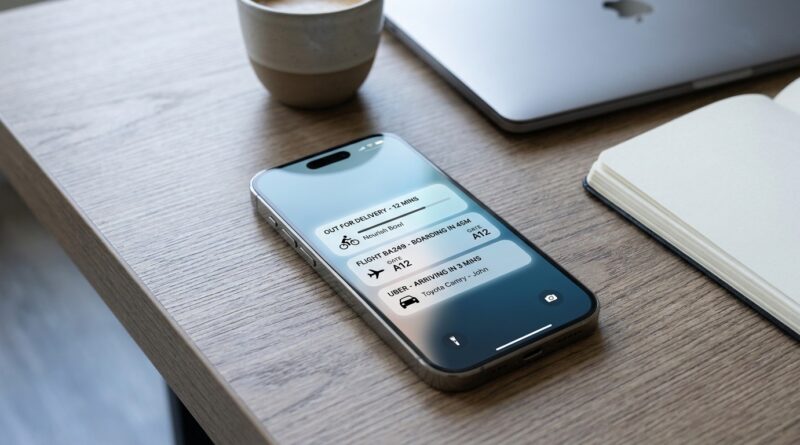
Live Activities are those real-time cards that sit on your lock screen and, on some iPhones, in the Dynamic Island. They can show a food delivery countdown, a rideshare ETA, a timer, a score, or a boarding update without making you open the app.
That is the useful part.
The messy part is that more apps keep adding support, and not all of them deserve front-row space on your lock screen. Some are genuinely helpful. Some are just another excuse to keep you glancing at your phone every few minutes.
If your lock screen feels busy but still not helpful, the problem usually is not the feature. It is the lack of a simple filter.
The three-bucket system that makes this easy
Here is the setup power users tend to land on. Every app that wants to use Live Activities goes into one of three buckets.
1. Always allow
These are apps where live, glanceable updates save you time or help you avoid missing something important.
Good examples:
- Uber, Lyft, or other ride apps
- DoorDash, Uber Eats, Grubhub
- Airline apps and boarding passes
- Apple Timer, sports score apps you actively follow
2. Allow, but keep private
These are updates you want available, but not fully visible to anyone who can see your phone screen. Think travel details, personal bookings, or anything with names, locations, or account info.
This is where Face ID and lock screen privacy settings matter.
3. Turn off completely
If an app’s Live Activity does not help you make a decision or save a step, it probably does not belong there.
Good candidates for the off pile:
- Shopping apps pushing order hype instead of useful delivery timing
- Apps you rarely use
- Anything that feels more distracting than helpful
How to control Live Activities on iPhone lock screen
There are two levels of control. One is system-wide. The other is per app.
Step 1: Check the master Live Activities switch
On your iPhone, go to Settings > Face ID & Passcode.
Scroll down until you see Live Activities.
If this is turned off, Live Activities will not appear on the lock screen at all. Most people should leave this on, because the feature is useful when managed well.
Step 2: Review app notification settings
Now go to Settings > Notifications.
Tap the apps most likely to use Live Activities, like Uber, your airline app, food delivery apps, and sports apps. Depending on the app and your iOS version, you may see a specific Live Activities toggle or related notification controls.
If you see it, turn it off for apps that do not deserve lock screen space.
If you do not see a dedicated toggle, the app may manage Live Activities from inside its own settings.
Step 3: Check inside the app itself
Some apps bury Live Activity controls in their own menus. Open the app and look for settings related to notifications, lock screen updates, tracking, or activities.
This is especially common with delivery, travel, and sports apps.
Step 4: Disable one in the moment if it is annoying
When a Live Activity is active on your lock screen, you can often press and hold it to see more options. Some apps let you stop or dismiss the activity right there.
That is handy when you only want the update this once, not every time.
How to keep Live Activities useful without oversharing
This is the part many people miss. You do not have to choose between total clutter and turning the feature off.
You can keep the updates and still protect what shows on screen before your phone unlocks.
Use lock screen privacy settings
Go to Settings > Notifications > Show Previews.
If you choose When Unlocked, more sensitive details stay hidden until Face ID recognizes you. That is a smart middle ground if you want delivery or travel updates available without broadcasting every detail on the lock screen.
This matters even more if you often leave your phone on a desk, in a meeting, or on an airplane tray table.
If privacy is a bigger concern for you overall, it is also worth reading Stop Thinking Your iPhone Is ‘Unhackable’: The Hidden Lockdown Mode Tweaks Power Users Turn On Before It’s Too Late. Different feature, same idea. Apple gives you more control than most people ever use.
A practical 10-minute setup that works
If you want a fast reset, do this.
Minute 1 to 2: Turn on the main feature
Make sure Settings > Face ID & Passcode > Live Activities is enabled.
Minute 3 to 6: Audit your top apps
Check notifications for:
- Ride apps
- Food delivery apps
- Airline and travel apps
- Sports apps
- Shopping apps
Leave the first three on if you use them often. Sports is optional. Shopping is usually a no.
Minute 7 to 8: Fix your preview privacy
Set notification previews to When Unlocked if you want updates without exposing details on the lock screen.
Minute 9 to 10: Clean up your rules
Ask one simple question for every app: Will this save me from unlocking my phone?
If yes, keep it. If not, turn it off.
Best use cases for Live Activities
When set up well, this feature is genuinely great for a few things.
Rideshare tracking
You can see arrival time and driver progress at a glance. No repeated app checking. No getting sidetracked.
Food delivery
This is one of the best examples. You want the status, but you do not need to reopen the app every four minutes.
Flights and boarding
Gate changes, boarding times, and countdown-style updates are perfect lock screen material. This is the kind of info that should interrupt you a little.
Timers and live scores
These work well because they are glanceable and temporary. They help, then they disappear.
When to turn Live Activities off
Not every app earns this privilege.
Turn it off when:
- The updates are promotional instead of useful
- The app sends too many status changes
- You never act on the information
- The activity makes your lock screen harder to read
A good rule is this. If the update does not help you decide, leave, meet, pick up, board, or wait, it probably does not need to live on your lock screen.
Common frustration: “I turned notifications off, but I still see stuff”
That usually means the app handles Live Activities a little differently than normal notifications, or you still have the main feature enabled and the app itself has permission.
Check all three places:
- Settings > Face ID & Passcode > Live Activities
- Settings > Notifications > App Name
- The app’s own settings menu
It is not always elegant, but once you sort your most-used apps, you usually do not have to think about it again.
At a Glance: Comparison
| Feature/Aspect | Details | Verdict |
|---|---|---|
| Global Live Activities switch | Found under Settings, Face ID & Passcode. Controls whether the feature works at all on the lock screen. | Leave it on for most people, then fine-tune app by app. |
| Per-app controls | Available in Settings, Notifications, or inside the app itself. Best for cutting clutter. | Most important setting to customize. |
| Lock screen privacy | Use Show Previews set to When Unlocked to hide sensitive details until Face ID confirms it is you. | Best balance of convenience and privacy. |
Conclusion
Live Activities are one of those iPhone features that feel a little magical when they are set up right, and a little chaotic when they are not. Apple keeps quietly expanding what they can show on the lock screen and Dynamic Island, from deliveries to boarding passes, but most people never touch the controls behind it. That is why a simple system matters. Keep the updates that save you from opening your phone. Hide the details that should stay private. Shut off the apps that just add noise. Do that once, and your lock screen starts working for you instead of nagging you for attention. The result is exactly what most people wanted all along. Fewer pointless unlocks, less clutter, and a much better chance you will still catch that ride, delivery, or gate change right on time.