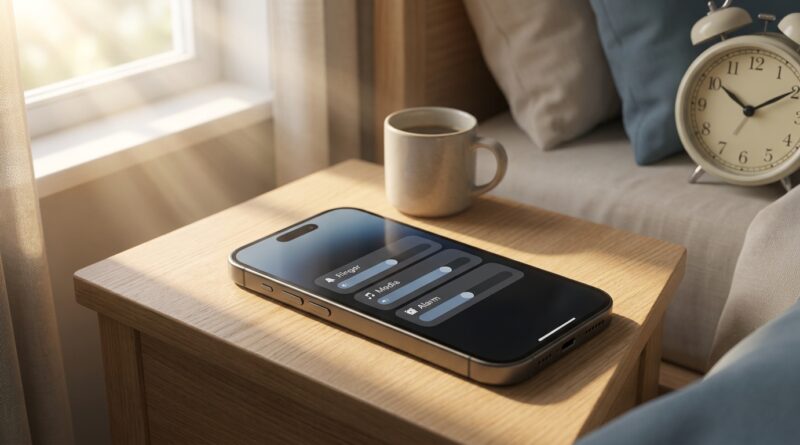
Stop Blasting Your Alarms: The Hidden iOS Volume Controls Power Users Quietly Split Apart
If you have ever blasted music in the car, then gotten home and nearly launched yourself out of bed when your morning alarm went off, you already know the problem. iPhone volume has long felt like a bad guessing game. Turn something down for a video, and later you miss a call. Crank Spotify, and your alarm suddenly sounds like a fire drill. It is annoying, and worse, it makes your phone feel unreliable. The good news is that Apple has made it easier to separate ringer and media volume iOS settings, but the options are tucked away where most people never look. That means a lot of iPhone owners still live with volume roulette for no reason. Once you split these controls properly, your phone starts behaving the way most people assumed it already should. Loud music stays loud. Alarms stay dependable. Calls stay easy to hear. And your volume buttons stop causing accidental chaos.
⚡ In a Hurry? Key Takeaways
- Yes, you can separate ringer and media volume iOS behavior by turning off “Change with Buttons” in Sounds & Haptics and adjusting each volume the right way.
- Set your ringtone and alert volume first, then use the side buttons only for media so music, games, and videos do not mess with alarms and calls.
- This is worth doing now because these quieter iOS tweaks can make alarms more reliable and prevent missed calls, even if Apple is not shouting about them.
Why iPhone volume feels so confusing
Apple has never done a great job explaining that your iPhone really handles more than one kind of volume.
There is media volume. That covers music, podcasts, YouTube, games, Instagram reels, and most app audio.
Then there is ringer and alerts volume. That affects incoming calls, text tones, and alarm loudness in many everyday setups.
The trouble starts when the side volume buttons are allowed to control both, depending on what your iPhone thinks you are doing at the time. That is how people end up with loud TikToks and whisper-quiet ringtones, or the other way around.
The hidden setting that changes everything
If your goal is to separate ringer and media volume iOS controls, this is the setting to check first.
Step 1: Open the right menu
Go to Settings > Sounds & Haptics.
Step 2: Find “Change with Buttons”
Under the Ringtone and Alerts slider, look for Change with Buttons.
If this is turned on, your side volume buttons can change your ringer and alert volume. That sounds handy, but for most people it creates the exact mess they are trying to avoid.
If this is turned off, your ringtone and alerts stay where you set them in Settings, while the side buttons mostly control media volume during everyday use.
Best choice for most people
Turn Change with Buttons off.
This is the cleanest way to stop accidental ringtone and alarm changes when you are just trying to make a song louder or a video quieter.
How to set it up properly
Here is the simple setup I recommend to friends and family.
Set your ringtone and alerts first
In Settings > Sounds & Haptics, move the Ringtone and Alerts slider to a level you know you will hear in real life.
Do not test this in a silent room only. Stand across the room. Put the phone in a pocket or on a countertop. That gives you a much more honest result.
Then lock it in
Turn Change with Buttons off.
Now your call and alert volume should stay put unless you come back into Settings and change it on purpose.
Use side buttons for media only
After that, use the physical volume buttons whenever you want to adjust music, video, podcast, or app sound.
This is the part that makes daily life easier. You can turn a movie up at night or lower a loud game in a waiting room without worrying that tomorrow morning’s alarm will surprise you.
What about alarms?
This is where people get nervous, and for good reason.
On iPhone, alarm loudness is closely tied to your ringer and alerts setting in many normal setups. So if that setting gets turned down too far, your alarm may also be too quiet.
That is why separating these controls matters so much. By fixing your ringer and alerts level and preventing the buttons from changing it, you make alarms much more dependable.
A smart alarm routine
Before bed, do these three things:
- Check that your alarm is actually enabled in the Clock app.
- Make sure Ringtone and Alerts is set high enough in Settings.
- Do a quick sound test if you have changed cases, sleep habits, or where you place the phone.
If you use Sleep Focus or the Health sleep schedule, it is worth checking those alarm sounds too. Some people assume the issue is the alarm app when the real problem is simply low alerts volume.
Control Center can help, but only if you understand what it is changing
Swipe down from the top-right corner to open Control Center. The volume slider there usually controls media playback volume, especially when audio is active.
That makes it useful for quick fixes during the day. Just remember, it is not the place to set your permanent ringtone level.
If you want a reliable phone setup, think of it like this:
- Settings > Sounds & Haptics is for your long-term alert volume.
- Side buttons and Control Center are for day-to-day media volume.
Once that clicks, iPhone audio starts making a lot more sense.
Daily habits that stop volume roulette
You do not need to babysit your iPhone. A few small habits are enough.
Habit 1: Stop using the buttons to “set everything”
The side buttons are great for media. They are not a reliable master control for your whole audio life.
Habit 2: Check alerts volume after major updates
Big iOS updates sometimes move settings around or add new audio options quietly. After updating, take 30 seconds to confirm your Sounds & Haptics setup still looks right.
Habit 3: Test before important mornings
Early flight. Job interview. School drop-off. Big meeting. If the next morning matters, run a quick alarm test the night before.
Habit 4: Be careful with Bluetooth
If you use AirPods, a Bluetooth speaker, or your car stereo a lot, remember that playback behavior can feel different depending on what is connected. That does not usually change your ringer setting, but it can make people think the phone is acting strangely when it is really switching audio routes.
What to do if calls are still too quiet
If you have already tried to separate ringer and media volume iOS settings and calls are still hard to hear, check a few other things.
Raise the Ringtone and Alerts slider
This sounds obvious, but many people only use the side buttons and never touch the actual slider in Settings.
Turn off Attention Aware if needed
Some iPhones lower certain alert behaviors when they think you are paying attention. Go to Settings > Face ID & Passcode and look for Attention Aware Features if your phone seems too clever for its own good.
Check speaker openings
Dust, lint, and a thick case can muffle sound more than people realize.
Review Focus modes
If calls are silent, the issue may be Focus settings, not volume. Sleep, Do Not Disturb, and custom Focus modes can hide a lot of normal behavior.
What to do if your alarm still seems unreliable
If your alarms still act odd after fixing volume settings, work through this short list.
- Make sure the alarm tone is not set to “None.”
- Try a louder built-in alarm sound.
- Restart the iPhone.
- Update iOS if you are behind.
- Delete and recreate the alarm.
- Double-check Sleep schedule alarms in the Health app if you use them.
Most of the time, though, the biggest win comes from keeping your alert volume separate from your media volume in the first place.
Who benefits most from this setup
Honestly, almost everyone. But it matters even more if you are one of these people:
- Anyone who relies on iPhone alarms to wake up
- People who listen to music or podcasts loudly
- Parents who need to hear school or family calls
- Shift workers and travelers with can’t-miss alarms
- Anyone who uses their phone in both quiet and noisy places every day
It is a small settings change with a very real quality-of-life payoff.
At a Glance: Comparison
| Feature/Aspect | Details | Verdict |
|---|---|---|
| Change with Buttons ON | Side buttons can affect ringer and alerts, which makes accidental changes more likely. | Convenient, but risky for alarms and missed calls. |
| Change with Buttons OFF | Ringtone and alert level stays fixed in Settings while buttons mainly handle media volume. | Best setup for most people. |
| Control Center volume slider | Useful for quick media changes during playback, but not your main alert-volume setting. | Great shortcut, not a full solution. |
Conclusion
iPhone volume does not have to feel random. If you take two minutes to separate ringer and media volume iOS settings the right way, you can make your phone much more predictable. That means wake-up alarms that do their job, ringtones you can actually hear in a noisy place, and music or videos you can enjoy at whatever volume you want without side effects later. This matters right now because iOS’s new granular volume controls are quietly rolling out behind all the flashy AI headlines, and almost nobody is setting them up properly. Do this once, build a couple of simple habits around it, and you will have a cleaner, calmer setup before Apple buries these options under the next big software show.