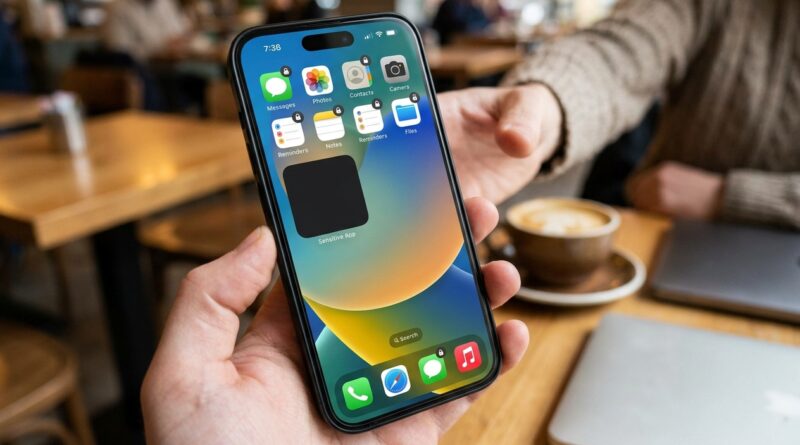
Stop Letting People Snooping Through Your Apps: The Hidden iOS 18 ‘Lock & Hide’ Combo Power Users Turn On Before Handing Over Their iPhone
Handing someone your unlocked iPhone should not feel like handing over your diary, wallet, and office keys at the same time. But that is exactly what it can feel like. You want them to see one photo, make one call, or pick one song. Meanwhile, your brain is racing through everything else on the phone you do not want opened by accident. Messages. Photos. Notes. Banking. Health. Work chat. iOS 18 finally fixes a big part of that problem with the ability to lock apps with Face ID and even hide certain apps completely. The catch is Apple did not put a giant flashing sign on it, so a lot of people still have no idea it is there. Once you know how to lock and hide apps on iPhone iOS 18, you can build a simple “guest-safe” setup in minutes and stop doing that awkward over-the-shoulder panic hover every time someone says, “Can I borrow your phone?”
⚡ In a Hurry? Key Takeaways
- You can lock many iPhone apps in iOS 18 by long-pressing the app icon and choosing Face ID protection, and some apps can also be fully hidden.
- The smartest setup is not locking everything. Lock high-risk apps like banking, email, and Messages, then hide your most private apps and clean up notifications.
- App locking helps a lot, but previews, widgets, Siri suggestions, and CarPlay can still reveal info unless you turn those off too.
What “Lock” and “Hide” Actually Mean in iOS 18
These are two different tools, and knowing the difference matters.
Locking an app
When you lock an app, it stays visible on your Home Screen, but opening it requires Face ID, Touch ID, or your passcode. This is the better choice for apps you use often but do not want other people casually opening.
Think of apps like:
- Messages
- WhatsApp or Signal
- Banking apps
- Payment apps
- Password managers
- Work apps like Slack or Teams
Hiding an app
When you hide an app, it is removed from normal view and placed into a hidden area that also requires authentication. This is the better choice for apps you do not want visible at all when someone is browsing your phone.
Good candidates include:
- Dating apps
- Private journal or diary apps
- Health-related apps
- Extra photo vault apps
- Sensitive work tools
Not every built-in Apple app or third-party app behaves exactly the same way, so do not be surprised if some apps offer Lock but not Hide.
How to Lock and Hide Apps on iPhone iOS 18
Here is the quick version.
- Find the app on your Home Screen or in the App Library.
- Long-press the app icon.
- Tap the option to require Face ID, Touch ID, or passcode.
- If the app supports it, you may also see an option to hide the app.
- Confirm your choice.
That is it. Apple made the action easy once you know where to look.
If you enjoy little iOS shortcuts like this, it is also worth checking out Stop Digging Through Menus: The Hidden iOS 18 ‘App Actions’ Menu Power Users Turn Into a Super Shortcut Hub. It is another one of those features that saves time once it clicks.
Build a Guest-Safe Home Screen in Under 10 Minutes
This is the part most people skip. Turning on a few app locks is good. Building a system is better.
Step 1: Decide what should be visible
Start by looking at your first Home Screen page. This is what another person is most likely to see when you hand over your phone.
Keep this page boring and harmless. Good options include:
- Phone
- Maps
- Music
- Calendar
- Weather
- Camera
- Streaming apps
Move private apps off the first page, or better yet, lock or hide them entirely.
Step 2: Lock your high-risk apps
These are the apps where one tap could reveal too much.
For most people, that list includes:
- Messages and other chat apps
- Photos
- Banking and finance
- Shopping apps with saved payment methods
- Health and medical apps
- Notes, Files, and cloud storage apps
If your phone is also your work phone, add anything tied to clients, internal documents, or company logins.
Step 3: Hide the apps that invite questions
Some apps are not just private. They are awkward. If you would rather not explain why they are there, hide them instead of merely locking them.
This works especially well for:
- Dating apps
- Mental health apps
- Pregnancy or fertility trackers
- Private finance apps
- Second email apps
Step 4: Clean up widgets
Widgets can ruin your privacy plan fast. A locked app means very little if a widget on your Home Screen is still showing upcoming reminders, recent photos, message previews, or stock balances.
Check for widgets related to:
- Photos
- Calendar
- Reminders
- News
- Fitness
If the information is personal, remove the widget or replace it with something neutral.
Step 5: Turn off revealing notifications
This is the hidden part of the hidden setup. A locked app can still leak details through notifications.
Go to Settings > Notifications and check sensitive apps one by one.
For private apps, consider turning off:
- Lock Screen alerts
- Banner alerts
- Notification previews
- Badges, if you do not want attention drawn to the app
Set previews to When Unlocked or Never if you want stronger privacy.
Lock vs Hide: Which Should You Use?
A simple rule helps here.
Use Lock if you still want easy access
Locking is perfect for apps you use every day and do not mind people seeing on your phone. They just should not be able to open them.
Examples:
- Messages
- Banking
- Amazon
- Photos
Use Hide if visibility itself is the problem
Hiding is for apps you do not want visible, searchable on the Home Screen, or obvious to someone scrolling around.
Examples:
- Dating apps
- Journal apps
- Health trackers
- Certain work apps
If you are unsure, start with Lock. It is less disruptive. Then hide only the handful of apps that really need it.
Do Not Forget Search, Siri, CarPlay, and App Suggestions
This is where private information can still peek through even after you lock things down.
Spotlight Search
Some apps can still show up in search results or suggestions. Go into the app’s settings or Siri settings and limit whether it appears in Search and Suggestions.
Siri suggestions
If Siri keeps suggesting a private app on the lock screen or in search, that defeats the point. Turn off suggestion access for sensitive apps.
CarPlay
If your car screen displays messages, call suggestions, or app activity, think about who else sees that screen. Shared family cars can expose more than you expect.
Widgets and Smart Stacks
Smart Stacks are handy, but they can surface apps and info at the worst possible moment. Check what is in them.
A Practical Setup for Different Kinds of People
If you hand your phone to kids
Kids do not snoop on purpose every time. They tap everything. Lock:
- Photos
- Messages
- Purchasing apps
- Banking apps
Also remove tempting widgets and disable previews.
If you use your phone for work
Lock:
- Slack or Teams
- Files
- Cloud storage apps
- Notes
Hide anything tied to confidential client work if you often show your phone during meetings.
If you are dating or living with roommates
Hide the apps you would rather not discuss. Lock Messages, Photos, Mail, and payment apps. Turn off notification previews. That one step alone saves a lot of accidental drama.
If you travel often
This is a big one. Build a cleaner Home Screen before trips. Lock or hide financial, work, and private communication apps. Reduce lock screen previews. You may never need that extra privacy, but if someone asks to inspect your device, you will be glad you thought ahead.
What This Feature Does Not Do
App locking in iOS 18 is useful, but it is not magic.
- It does not turn your iPhone into a full guest mode.
- It does not stop all notifications unless you change those settings too.
- It does not remove sensitive data from widgets automatically.
- It may not work identically across every app.
So yes, use it. Just pair it with a little cleanup work.
At a Glance: Comparison
| Feature/Aspect | Details | Verdict |
|---|---|---|
| Lock App | App stays visible, but opening it requires Face ID, Touch ID, or passcode. | Best for everyday private apps like Messages, Mail, and banking. |
| Hide App | App is removed from normal view and placed behind authentication. | Best for highly personal apps you do not want visible at all. |
| Notification Cleanup | Disables previews, banners, search visibility, widget leaks, and Siri suggestions. | Most important extra step if you want real privacy. |
Conclusion
There is a reason so many people are suddenly searching for how to lock and hide apps on iPhone iOS 18. It solves a real everyday stress problem. But the best setup is not just flipping one switch and calling it done. The smart move is to build a guest-safe Home Screen, lock the apps that could expose money, work, or personal conversations, hide the ones you do not want visible at all, and then spend two extra minutes shutting down notification previews, widgets, Siri suggestions, and CarPlay leaks. That is the power-user part most guides skip. Once you do it, your iPhone feels a lot safer the next time a kid wants to play a game, a friend asks to look up a restaurant, or a coworker needs to make a quick call. Ten minutes of setup now can save a lot of panic later.