Stop Missing iOS’s Smart Undo: The 3 Hidden iPhone Gestures Power Users Rely on Every Day
You know the feeling. You delete one wrong sentence, then realize you wanted half of it back. So you tap backspace a dozen times, or you try the old “shake to undo” move and hope your iPhone understands what you meant. It is annoying, slow, and weirdly stressful for something as basic as fixing a typo. The good news is Apple has quietly built a much better system into iOS, and most people never find it.
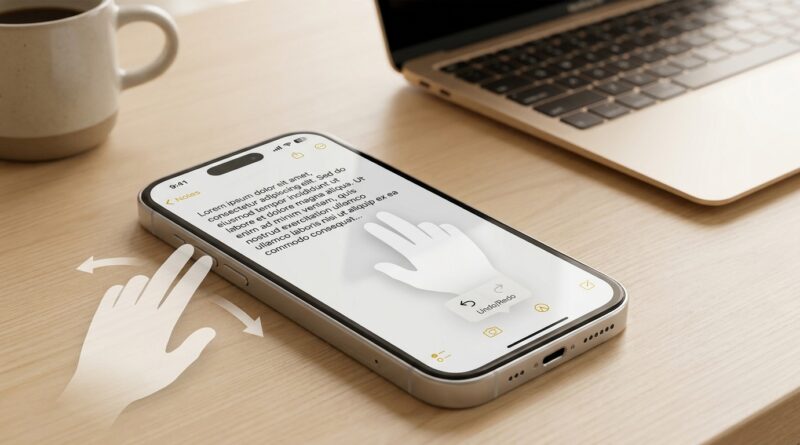
The hidden iPhone undo gesture most worth learning is not one trick, but three. A three-finger tap opens an editing menu. A three-finger swipe to the left undoes your last action. A three-finger swipe to the right redoes it. On top of that, iOS can show a small toolbar above your text with undo and redo buttons. Once these click, editing long texts, notes, emails, and messages feels much faster. It works across much of iOS, takes about five minutes to practice, and can save you from the usual backspace misery almost immediately.
⚡ In a Hurry? Key Takeaways
- The hidden iPhone undo gesture is a three-finger swipe left to undo, plus a three-finger swipe right to redo and a three-finger tap for the full edit menu.
- Practice the gestures first in Notes, where it is easy to test without worrying about sending or changing something important.
- These tools are built into modern iOS, work in many apps, and are often faster and more reliable than shake to undo.
Why most iPhone users still miss this
Apple has a habit of hiding very useful features in plain sight. The undo system on iPhone is a perfect example. People know copy and paste exist. They know autocorrect can be messy. But many still think fixing text on an iPhone means dragging the cursor around and hammering delete.
That is why this matters. If you write long texts, emails, shopping lists, work notes, captions, or even just angry drafts you later clean up, these gestures can save time every day.
And unlike a lot of “hidden iOS 18 tricks” videos, this is not a niche feature for one model. You do not need a Pro iPhone, a special case, or some deep settings menu. It is already there.
The 3 hidden iPhone gestures that make undo much easier
1. Three-finger swipe left to undo
This is the fastest one to remember. Put three fingers on the screen and swipe left. If the app supports it, iOS will undo your last typing or editing action.
That could mean bringing back deleted text, reversing a paste, or undoing a formatting move in some apps. It feels odd the first couple of tries, but once your hands learn it, it becomes second nature.
2. Three-finger swipe right to redo
Undid too much? Swipe right with three fingers to redo. This is the partner move that makes the whole system useful instead of risky.
It is especially handy when you are editing a longer paragraph and want to compare versions without manually retyping anything.
3. Three-finger tap for the editing toolbar
If swiping feels awkward at first, start here. Tap with three fingers on the text area. A small editing toolbar should appear near the top of the screen or above the keyboard, depending on the app and iOS version.
You will usually see options like Undo, Redo, Cut, Copy, and Paste. Think of it as the on-screen control panel for people who want the benefit of gestures without memorizing them all immediately.
How to try the hidden iPhone undo gesture without frustration
Open the Notes app and type a short sentence. Something simple like: “I am testing the iPhone undo gesture today.” Then delete a word or paste in a second sentence.
Now try these steps:
- Swipe left with three fingers to undo.
- Swipe right with three fingers to redo.
- Tap with three fingers to bring up the editing toolbar.
If it does not work the first time, do not assume your phone is broken. The most common problem is gesture timing. Your three fingers need to touch the screen at about the same time. Too spread out, too slow, or too close to the keyboard edge can confuse things.
Also, some apps support these features better than others. Notes, Mail, and many text fields in iOS are good places to start.
Why this is better than shake to undo
Yes, shake to undo still exists. Yes, it still feels a little silly.
The problem with shake to undo is that it is easy to trigger by accident, awkward in public, and not very precise. It also interrupts what you are doing with a pop-up prompt.
The hidden iPhone undo gesture is cleaner. Your fingers stay on the screen. You can undo, redo, and keep moving. It feels more like editing on a laptop and less like bargaining with your phone.
Where these gestures help the most
Long text messages
If you rewrite texts before sending them, this is a game changer. Delete too much, undo it instantly. Change your mind, redo it just as fast.
Emails
Mail is one of the best places to use these tricks. When you are cleaning up a long reply, undo and redo can save you from retyping whole chunks.
Notes and lists
Notes is perfect for practice, but it is also where these gestures become part of daily life. Brainstorming, packing lists, recipes, work notes, all of it gets easier when mistakes are easy to reverse.
Document editing
In apps that support iOS text editing tools well, the three-finger toolbar can feel like a mini desktop command bar. It is one of those small upgrades that makes the phone feel more capable.
What if the gestures are not showing up?
First, make sure you are editing text in a supported field. If you are just sitting on the Home Screen or in an app area with no text box active, nothing will happen.
Second, test in Apple’s own apps before blaming your phone. Notes is ideal. Third, remember that app support can vary. Some third-party apps do a great job with Apple’s text tools. Others do not.
If you still prefer visible controls, the three-finger tap is often the easiest route because it brings up the toolbar instead of requiring a perfectly timed swipe.
A simple five-minute practice routine
If you want this to stick, do this once and you are probably set:
- Open Notes.
- Type two or three lines.
- Delete one line.
- Use three-finger swipe left to undo.
- Use three-finger swipe right to redo.
- Use three-finger tap to open the toolbar.
After a few rounds, your brain stops thinking of it as a trick and starts treating it like a normal typing tool. That is when it becomes genuinely useful.
At a Glance: Comparison
| Feature/Aspect | Details | Verdict |
|---|---|---|
| Three-finger swipe left/right | Swipe left to undo, swipe right to redo in supported text fields and apps. | Best for speed once you get used to it. |
| Three-finger tap toolbar | Shows an edit menu with undo, redo, cut, copy, and paste controls. | Best for beginners and anyone who wants visible buttons. |
| Shake to Undo | Older motion-based method that asks if you want to undo the last action. | Still works, but feels slower and clumsier. |
Conclusion
If you have been chasing the latest hidden iOS 18 tricks, this is one of the few that can actually change how you use your phone every single day. While most lists keep repeating Back Tap, the Action button, and Control Center tweaks, hardly anyone talks about the built-in undo system that is already sitting under your fingertips. Learn the three-finger tap, the three-finger swipe left, and the three-finger swipe right, and editing on an iPhone gets faster, calmer, and much less error-prone. For The iPhone Manual community, this is exactly the kind of low-effort, high-impact upgrade worth knowing. It works on nearly every modern iPhone, takes just minutes to practice, and can make your phone feel like it suddenly got a much smarter keyboard.