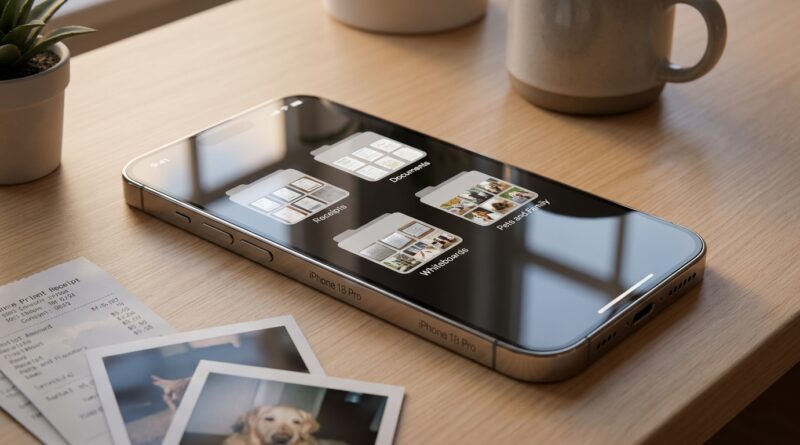
Stop Babysitting Your Photos: The Hidden iOS 18 Albums Power Users Turn Into an Auto‑Sorting Machine
Your iPhone camera roll probably feels less like a photo album and more like a junk drawer. One minute it is cute photos of the kids. The next it is a parking receipt, a screenshot of a Wi-Fi password, three blurry grocery labels, and a boarding pass you swear you saved somewhere. That endless scroll gets old fast. The good news is iOS 18 gives you more ways to tame the mess than most people realize. You do not need a paid app, and you do not need to spend your Sunday dragging photos into folders one by one. If you set up the right albums, pinned collections, and search habits, the Photos app can start acting like an auto-sorting machine for receipts, documents, screenshots, and actual memories. It is one of the most useful hidden iOS 18 Photos app tricks smart albums receipts fans should know, because it saves time every single week.
⚡ In a Hurry? Key Takeaways
- The best iOS 18 photo cleanup trick is not deleting everything. It is using built-in collections, albums, pinned sections, and search to separate screenshots, receipts, documents, and memories fast.
- Start by creating a few purpose-based albums like Receipts, Travel, Family, and Reference, then pin the utilities and collections you use most.
- Your originals stay in the main library unless you delete them, so you can organize without worrying that moving items into albums will remove or hide them.
Why the Photos app feels messy in the first place
Most people do not have a “too many photos” problem. They have a “too many different kinds of photos in one place” problem.
Your iPhone is doing several jobs at once. It is your family camera. Your scanner. Your filing cabinet. Your note pad. Your travel wallet. Your proof-for-later machine. So naturally, the Photos app fills up with a strange mix of birthday pictures, medical forms, tax receipts, whiteboard shots, serial numbers, memes, and screenshots.
That is why cleanup usually fails. People think they need one giant deletion session. What they really need is a better sorting system.
What iOS 18 does better
In iOS 18, Apple changed the Photos app so it is more collection-based. That annoyed some people at first, but there is a real upside. Once you stop treating the app like one long camera roll, it becomes much easier to use.
You now get clearer sections for things like screenshots, videos, people and pets, trips, and other useful groups. You can also customize and pin what matters most, so the app surfaces the stuff you need instead of making you dig for it.
Think of it this way. You are not trying to create a perfect museum archive. You are building a practical home system.
The simple setup that turns Photos into a filing cabinet
1. Create a few albums based on real life, not photo types
This is where most people go wrong. They make albums called “Summer 2023” or “Random Stuff.” Then they never use them again.
Instead, make albums based on tasks you actually do:
- Receipts
- Travel
- School
- Home Info
- Reference Pics
- Family Favorites
These names match how your brain searches later. If you are trying to find a furnace model number, “Home Info” makes sense. If you need an airport parking stub, “Travel” makes sense. You are not organizing for beauty. You are organizing for retrieval.
2. Use screenshots as a staging area
Screenshots are often the biggest source of clutter. They pile up because they are useful for a day or two, then become digital dust.
Open the Screenshots section in Photos and treat it like an inbox. Once a week, do a quick pass:
- Delete junk screenshots right away
- Move important ones into albums like Travel or Receipts
- Keep only the screenshots that still solve a problem
This one habit alone can make your library feel half as chaotic.
3. Pin the collections you actually use
In iOS 18, customization matters. Scroll through Photos, find the sections you rely on, and pin or prioritize them if your layout allows it. Put Screenshots, Documents-type collections, Trips, and Favorites near the top.
That way, your “workhorse” sections are always easy to reach. No more scrolling past vacation memories just to find a photo of a prescription label.
The hidden trick people miss: search is smarter than they think
This is one of the best hidden iOS 18 Photos app tricks smart albums receipts users should start using today. The search bar in Photos is much better than many people realize.
You can often search for words and objects inside pictures, including things like:
- receipt
- invoice
- car
- dog
- passport
- beach
- boarding pass
- text from signs or documents
If you photographed a receipt from a hardware store six months ago, there is a good chance Photos can help you find it by object, place, or visible text. That means even if you forget to sort something perfectly, you still have a backup plan.
This is why I tell people not to chase perfection. Build a decent album system, then let search cover the rest.
How to handle receipts, documents, and paperwork without extra apps
Receipts
Whenever you photograph a receipt you may need later, add it to the Receipts album right away. This takes a few seconds and pays off during returns, reimbursements, and tax season.
If you are really trying to stay on top of things, favorite the truly important ones too. Think appliance purchases, medical expenses, and business costs.
Documents
Photos is fine for quick storage, especially for forms, school papers, insurance cards, and handwritten notes. Create albums like School or Admin if you regularly save this kind of stuff.
For highly sensitive paperwork, you may still prefer the Files app or a secure document app. But for everyday “I need this later” photos, the stock Photos app is often enough.
Travel items
Boarding passes, hotel reservations, luggage location screenshots, and parking space photos should all go into one Travel album. Before a trip, create the album. During the trip, keep feeding it.
This is one of those tiny habits that feels almost silly until the moment you need gate info while standing in a crowded airport.
Use Favorites for emotion, albums for function
Here is a clean rule that keeps things simple.
Use Favorites for the photos you love. Use albums for the photos you need.
That means your favorite kid photo can go into Favorites and Family Favorites. Your car insurance card should go into Home Info or Admin, but probably not Favorites. This split keeps your happy memories from getting buried under paperwork.
Do not ignore Utilities and specialized collections
Apple hides some of the most useful cleanup tools in plain sight. Depending on your exact Photos layout, look for sections that group:
- Screenshots
- Videos
- Duplicates
- Receipts or document-like images found through search
- Recently Saved
- Trips
The Duplicates tool is especially worth checking. It can help merge duplicate shots and reclaim space without making you compare nearly identical images one by one.
And if your library is stuffed with throwaway images, this is where you can do low-stress cleanup in small bites instead of a huge purge.
A five-minute weekly routine that keeps the system working
You do not need to become your phone’s full-time librarian. Five minutes is enough.
Try this once a week
- Open Screenshots and delete the junk.
- Add useful screenshots or photos to Receipts, Travel, School, or Reference albums.
- Check Duplicates and merge if needed.
- Favorite a few real memory photos you do not want lost in the shuffle.
- Search for something random, like “receipt” or “passport,” just to make sure you know how fast retrieval can be.
That is it. Tiny maintenance beats marathon cleanup every time.
What not to expect
It helps to be realistic. The Photos app is not a full professional asset manager. It is not going to build magic rule-based smart folders the way some desktop apps can. And not every receipt or document will be recognized perfectly.
But for most people, that is not the point. The point is making the phone you already own less annoying to use.
If Photos can help you find 80 to 90 percent of what matters faster, that is a huge win.
The biggest mistake: waiting for the “perfect time” to organize
People often put this off because their library already feels too far gone. Thousands of images. Years of clutter. No chance.
Start now anyway.
You do not need to fix the last five years in one night. Just create the albums, pin the useful sections, and begin sorting new stuff as it comes in. Then, when you have a few spare minutes, clean up the backlog from the Screenshots and Receipts side first. Those give the fastest payoff.
At a Glance: Comparison
| Feature/Aspect | Details | Verdict |
|---|---|---|
| Albums for real-life categories | Create albums like Receipts, Travel, School, Home Info, and Reference Pics instead of vague date-based folders. | Best starting point for instant order. |
| Search and text recognition | Photos can often find images by object, place, or visible words such as receipt, passport, or boarding pass. | Surprisingly powerful backup when you forget to sort. |
| Weekly screenshot cleanup | Use the Screenshots collection as an inbox, then delete junk and move useful items into albums. | Low effort, high impact habit. |
Conclusion
Right now everyone is talking about flashy AI tricks and cosmetic iPhone tweaks, but the real everyday win is much less glamorous. It is being able to find the receipt you need, the school form you photographed, the boarding pass from last month, or the one great family photo buried under junk. If you spend a few minutes setting up the stock Photos app as a self-maintaining filing cabinet and memory library, your phone starts working for you instead of making you hunt. You get less searching, faster admin tasks, and a calmer camera roll in the background. That is a practical quality-of-life upgrade, and honestly, it can feel a lot like getting a new phone without spending a dime.