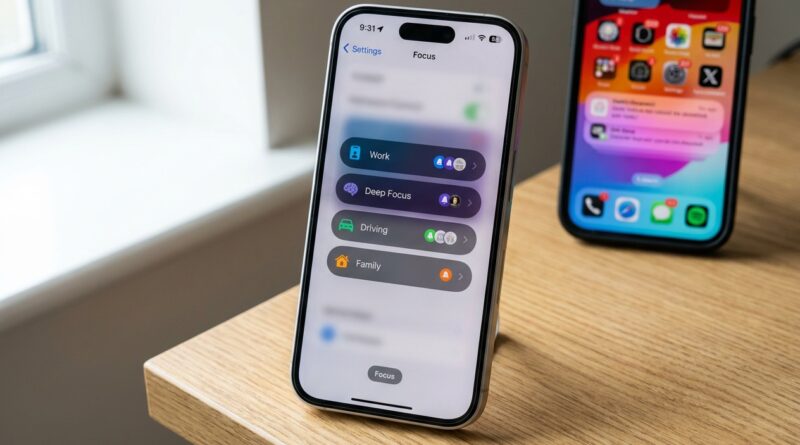
Stop Letting Notifications Rule Your Day: The Hidden iOS 18 Focus Filters Power Users Use To Automate Their Life
Your iPhone is probably interrupting you at the worst possible times. A group chat lights up during work. A shopping app pings while you are driving. Then somehow the one text you actually needed from your partner, boss, or kid gets buried. That is the part that makes people give up on Focus. It can feel too all-or-nothing. But the best iOS 18 Focus Filters hidden features are not about muting your whole phone. They are about teaching your iPhone what matters right now. With a little setup, you can make work apps show up only at work, keep family and navigation front and center while driving, and turn your evening phone into a quieter reading device. The trick is stacking Focus modes with filters, custom Home Screens, and automatic triggers. Set it once, and your phone starts behaving more like a helpful assistant and less like a needy toddler.
⚡ In a Hurry? Key Takeaways
- Focus Filters in iOS 18 work best when you combine allowed people, allowed apps, custom Home Screens, and automatic triggers.
- Start with three simple modes: Work, Driving, and Wind Down, then add filters for Mail, Calendar, Safari, and Messages.
- You are not deleting notifications forever. You are putting them in the right lane so urgent alerts still get through.
Why Focus Feels Bad Until You Set It Up the Right Way
Most people try Focus once, silence half their phone, miss something important, and never touch it again.
Fair enough. Out of the box, it can feel like a blunt tool. But the hidden power in iOS 18 Focus Filters is context. Instead of asking, “Do I want notifications on or off?” you ask, “What do I need from my phone in this moment?”
That shift changes everything.
During work, you may want Slack, Mail, Calendar, and calls from family. While driving, you probably want Maps, music, and favorite contacts. At night, you may want no work apps at all, plus a simple screen with Kindle, Notes, and Safari.
That is where Focus Filters, custom Home Screens, and automation start to feel less like a chore and more like relief.
What Focus Filters Actually Do in iOS 18
Focus mode is the big switch. Focus Filters are the fine-tuning.
A Focus mode decides things like:
- Which people can reach you
- Which apps can notify you
- Which Home Screen page appears
- Whether the mode turns on at a certain time, place, or when using an app
Focus Filters go deeper inside supported apps. They can change what you see in Mail, Calendar, Safari, and more depending on the Focus mode you are in.
Think of it like this. Focus mode locks the front door. Filters decide which rooms inside the house you can access.
The Three Focus Modes Most People Should Build First
1. Work Focus
This is your weekday sanity saver.
- Allow notifications from your boss, key coworkers, and family
- Allow apps like Mail, Slack, Teams, Calendar, and your task app
- Hide social apps from your Home Screen
- Add Mail and Calendar filters so only work inboxes and calendars show
2. Driving Focus
This should be as simple as possible.
- Allow calls or messages from favorites and family
- Allow Maps, Phone, Music, Podcasts, and maybe Messages
- Hide everything else from your Home Screen
- Turn it on automatically when driving is detected or when CarPlay connects
3. Wind Down or Reading Focus
This one helps you stop carrying the whole day into bed.
- Block work apps and noisy group chats
- Show only reading, journaling, meditation, music, and alarm apps
- Use a Safari filter for a clean tab group just for reading
- Schedule it to start every evening
Step by Step: How to Build a Better Focus Setup
Step 1. Go to Settings, then Focus
Open Settings > Focus. You will see Apple’s preset options like Do Not Disturb, Personal, Sleep, and Work. You can use those, or tap the plus sign to create your own.
If you are new to this, start with Work. It is the easiest one to feel right away.
Step 2. Pick Allowed People Carefully
This is where many setups go wrong.
Do not just allow “everyone in contacts,” because that defeats the point. Also do not block everyone, because then your phone becomes risky to ignore.
A better middle ground:
- Work Focus: allow partner, kids, boss, direct team
- Driving Focus: allow favorites, family, emergency contacts
- Wind Down: allow only favorites or repeated calls if needed
You can also choose whether silenced notifications still appear on the Lock Screen. If that visual clutter stresses you out, keep them hidden.
Step 3. Choose Allowed Apps, Not Just Blocked Ones
Apple lets you build this from either side. In practice, allowing only what matters is usually cleaner than trying to block every annoying app one by one.
For Work, allow apps such as:
- Calendar
- Slack or Teams
- Phone
- Messages
- Authenticator apps if you need them
For Wind Down, allow apps such as:
- Books or Kindle
- Notes
- Music or Podcasts
- Meditation apps
- Alarm or Home apps
Step 4. Add a Custom Home Screen
This is one of the most useful and most ignored iOS 18 Focus Filters hidden features.
Inside each Focus mode, you can choose a specific Home Screen page. That means when Work Focus turns on, your normal distracting layout disappears and is replaced by a cleaner one.
Make one page for each mode:
- Work page: Mail, Calendar, Slack, Notes, Files
- Driving page: Maps, Music, Phone, Messages
- Reading page: Books, Safari, Notes, Podcasts
This matters more than it sounds. If Instagram and YouTube are not staring at you, you are much less likely to tap them out of habit.
Step 5. Set App Filters
Now we get to the good part.
Inside a Focus mode, look for Add Filter. Supported apps vary, but Apple’s own apps are where the best results usually happen.
Useful examples:
- Mail: show only your work inbox during Work Focus
- Calendar: show only work calendars at work, personal calendars at home
- Safari: switch to a specific Tab Group, such as Work or Reading
- Messages: filter by conversation lists in supported ways and reduce clutter
This is the part that makes Focus stop feeling like simple muting. Your apps themselves change depending on what you are doing.
Step 6. Turn On Smart Automation
Automation is what makes this worth the setup time.
You can trigger a Focus mode by:
- Time of day
- Location
- App usage
Examples:
- Work Focus from 8:30 AM to 5:30 PM on weekdays
- Driving Focus when your iPhone connects to CarPlay
- Reading Focus when you open Books or arrive home after 9 PM
If your days are irregular, app-based triggers are especially handy. Open a work app, and your work setup appears. Open Books at night, and the calmer screen takes over.
Best Real-World Setups You Can Copy
The “Office Without the Noise” Setup
Use Work Focus with:
- Allowed people: family, boss, direct reports
- Allowed apps: Mail, Calendar, Slack, Phone
- Mail filter: work inbox only
- Calendar filter: work calendars only
- Home Screen: one page with work tools only
- Automation: weekdays, office location, or when opening Slack
The result is simple. Your phone still works, but it stops trying to drag you into every sale alert and meme thread before lunch.
The “Safe and Simple Driving” Setup
Use Driving Focus with:
- Allowed people: favorites and family
- Allowed apps: Maps, Phone, Music, Podcasts
- Home Screen: navigation and audio apps only
- Automation: driving detected or CarPlay connected
This is also a good time to review whether message previews are useful or distracting for you. Less is often better in the car.
The “My Phone Is a Book Now” Setup
Use a Reading or Wind Down Focus with:
- Allowed people: favorites only
- Allowed apps: Books, Safari, Notes, Music
- Safari filter: a Reading Tab Group with saved articles
- Home Screen: one quiet page with no social apps
- Automation: every night at 9 PM
It sounds small. It is not. Turning your iPhone into a less tempting object at night can make a real difference.
Hidden Features Power Users Actually Use
Focus Status
You can let others see that notifications are silenced without sharing which Focus mode you are using. This helps at work and cuts down on the “Did you see my message?” follow-up texts.
Multiple Home Screen Pages
You do not need one giant screen for everything. Build separate pages for work, travel, home, and downtime, then tie each page to a Focus mode.
Lock Screen Pairing
You can pair a Focus mode with a specific Lock Screen. That gives you a visual cue that your phone has changed modes. Helpful if you tend to forget what is active.
Filters by App Context
The underrated part is not blocking apps. It is changing what those apps show you. A filtered work Mail inbox is far less distracting than opening a mixed inbox full of newsletters, receipts, and personal messages.
Common Mistakes to Avoid
Allowing Too Much
If every person and every app is “important,” the Focus mode does nothing.
Going Too Strict Too Fast
If you block too much on day one, you will get annoyed and turn the whole feature off. Start with one mode and test it for a few days.
Skipping the Home Screen Step
This is where much of the magic lives. Notifications matter, but visual temptation matters too.
Not Using Automations
If you have to remember to turn Focus on manually every time, you probably will not. Let your phone do the remembering.
How to Tune It After the First Week
Expect a little trial and error. That is normal.
After a few days, ask yourself:
- Did I miss anyone important?
- Which app still interrupted me too often?
- Which app do I keep opening out of habit?
- Does this mode need a different trigger?
Then make one or two small changes. You are not chasing perfection. You are making your phone less chaotic than it was yesterday.
At a Glance: Comparison
| Feature/Aspect | Details | Verdict |
|---|---|---|
| Basic Do Not Disturb | Silences most interruptions, but does not adapt much to context or app content. | Fine for emergencies, too limited for daily life. |
| Focus Mode with allowed people and apps | Lets you control who and what gets through based on situations like work, driving, or sleep. | Much better. This is where most people should start. |
| Focus Mode plus filters, Home Screens, and automation | Changes not just notifications, but what apps show and which screens appear, all automatically. | Best setup by far. More work once, then calmer every day. |
Conclusion
If your iPhone feels like it is constantly tugging on your sleeve, you are not imagining it. The mix of work pings, family messages, social alerts, delivery updates, and random promotions can wear you down fast. The good news is that iOS 18 Focus Filters hidden features can do a lot more than just mute everything. When you stack Focus modes with custom Home Screens, app filters, and automatic triggers, your phone finally starts matching the moment you are in. Work apps during work. Family and Maps while driving. A quiet reading setup at night. It takes a bit of setup, but only once. After that, you get something genuinely useful every single day. Less noise. Fewer missed priorities. A little more calm from a device that usually brings the opposite.