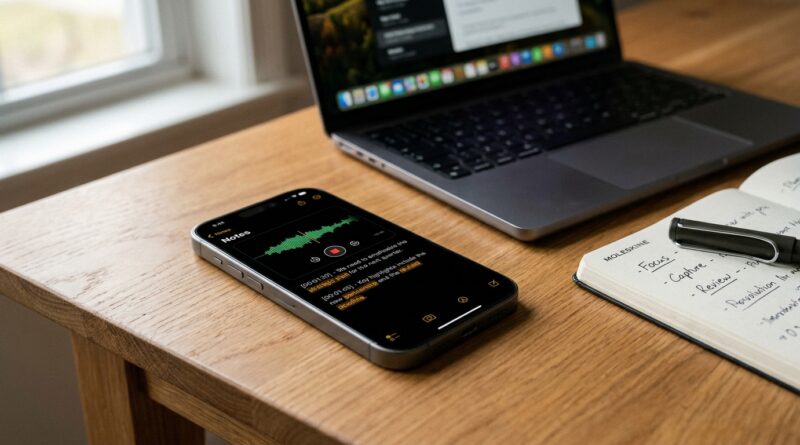
Stop Letting Your iPhone Miss Details: The Hidden ‘Live Audio Transcripts In Notes’ Trick Power Users Use To Capture Every Word Without Typing
You know the feeling. A meeting ends, a lecture wraps up, or a phone call runs long, and you’re left staring at a Notes page with three rushed bullet points that barely make sense an hour later. Then the real time-waster begins. You replay recordings, scrub back and forth for one quote, and still miss the little details that mattered. That is why more iPhone power users have quietly started using live audio transcription inside Apple Notes. It is built into a tool many people already trust, and it does three very useful things at once. It captures more than you can type in real time, it makes your conversations searchable later, and it keeps everything in the same place as your other project notes instead of spread across random apps. If your brain feels overloaded by calls, classes, client chats, or brainstorming sessions, this is one of the simplest iPhone habits you can start today.
⚡ In a Hurry? Key Takeaways
- Apple Notes can record audio and create a live transcript, so you can capture full conversations without typing every line.
- The best setup is a one-tap transcript note with a clear title, project tag, and folder so you can find it fast later.
- Always ask for permission before recording people, and watch file sizes if you save lots of long meetings.
Why this trick suddenly matters so much
The search term here is simple: iOS Notes audio transcription power user tips. The reason people are looking for it is even simpler. We all have too much to remember.
Hybrid work means one hour you are in a conference room, the next you are on earbuds in a parking lot, and later you are trying to turn a voice memo into an action list before dinner. Typing notes while also listening well is hard. Sometimes it is impossible.
Live transcription in Notes helps because it captures the full stream of what was said while your hands and attention stay free. You can still jot down key ideas, but now you have the backup. Better yet, Notes lets you search text later, so you can find “budget revision,” “Wednesday deadline,” or “send draft to Mia” without replaying a 47-minute recording.
What live audio transcription in Notes actually does
On supported iPhones and recent iOS versions, Apple Notes can record audio inside a note and generate a transcript alongside it. Think of it as a built-in recorder plus searchable text, tucked right into the app you already use for checklists, ideas, and reference notes.
That means one note can hold:
- The audio recording
- The transcript text
- Your own typed summary
- Links, checklists, and follow-up tasks
That is the big win. You are not jumping from one app for recording, another for transcription, and another for your final notes. It all stays together.
How to start using it in Apple Notes
1. Open a fresh note before the meeting starts
Open Notes and create a new note. Give it a useful title right away. Skip vague names like “Meeting” or “Call.” Use something like:
- Client Check-In 07-31
- History Lecture Chapter 4
- Kitchen Remodel Call with Sam
This sounds basic, but it matters. Good titles make search much easier later.
2. Start the audio recording and transcript
Inside the note, use the audio recording option if it is available on your device. Once recording begins, Notes can create a live transcript as the conversation happens.
If you do not see the feature, check three things first:
- Your iPhone is updated to the latest iOS version it supports
- Notes is enabled in iCloud if you want sync across devices
- Your iPhone model supports the feature set Apple requires
3. Add a few manual notes while it runs
This is where power users separate themselves from everyone else. They do not trust the transcript to do everything.
While recording, add tiny markers such as:
- Decision made here
- Ask for revised quote
- Important deadline mentioned
Those short notes act like signposts when you review the transcript later.
4. End with a two-minute cleanup
When the conversation ends, do not just close the note and walk away. Add:
- A three-line summary
- Any action items
- A tag like #client, #school, #podcast, or #house
That tiny bit of cleanup turns a raw transcript into something useful.
The one-tap “New Transcript Note” setup
If you really want this to become a habit, remove friction. The easiest way is to create a Shortcut that starts your preferred workflow with one tap.
What your Shortcut should do
A smart “New Transcript Note” shortcut can:
- Create a new note in a chosen folder
- Add today’s date and time to the title
- Insert a project tag automatically
- Open the note instantly so you can start recording
For example, your template might create this:
Title: Project Falcon Call 07/31 2:00 PM
Body:
#falcon
Attendees:
Main goal:
Action items:
Summary:
Then you tap record and go.
Where to place the shortcut
Put it where your thumb can actually reach it:
- Home Screen
- Lock Screen widget area
- Control Center, if your setup allows it
- Action Button, on supported iPhones
This is the kind of tiny change that makes a tool go from “nice idea” to “I use this every day.”
Power user tips that make transcripts much more useful
Use tags, not just folders
Folders are great for broad buckets like Work, School, or Personal. Tags are better for overlap. A note can be both #marketing and #budget. Or #doctor and #insurance.
That means one transcript can show up in multiple useful views without being copied around.
Search for exact phrases later
This is where the feature shines. If you remember one unusual phrase from a conversation, search it in Notes. You may land right on the transcript instead of scrubbing audio.
Search terms that work well include names, product numbers, promised dates, and uncommon wording.
Use a simple review habit
The transcript is your capture layer, not the finished product. A good routine is:
- Review the note within 24 hours
- Pull out 3 to 5 action items
- Highlight anything that needs follow-up
- Archive the rest
If you skip the review, you will still have a searchable record, but you will miss the real productivity boost.
Record in a quiet spot when you can
Transcription quality depends on sound quality. You do not need a studio. But if you can avoid a noisy cafe, a clattering train, or a room where five people talk over each other, your results will be much better.
Common bugs and gotchas to watch for
1. The transcript is less accurate than you expected
Usually this comes down to audio quality, accents, specialized terms, or people interrupting each other. If the meeting includes jargon, add a quick typed note with names, terms, or acronyms at the top. That gives you a cleaner reference point later.
2. Your files start eating storage
Long recordings add up fast. If you record classes, all-hands meetings, interviews, and family planning chats every week, your note library can grow much larger than you expect.
Do a quick audit every month:
- Delete recordings you no longer need
- Keep only the summary for low-value conversations
- Move older material to a dedicated archive folder
3. Sync is slower than expected
If Notes syncs through iCloud, larger audio-heavy notes can take longer to appear on your iPad or Mac. That is normal. Make sure you are on a stable connection before assuming something vanished.
4. You forgot the legal and social side
This one matters. Recording laws differ by region, and even when it is legal, surprising people with a recording can damage trust. The safe rule is easy. Ask first. A simple “I’m going to record and transcribe this in Notes so I don’t miss anything, is that okay?” solves a lot.
How to chain this with Shortcuts for an even better system
If you want to go beyond basic use, Shortcuts can turn Notes into a lightweight capture machine.
Useful automations to try
- Create a note in a specific folder based on time of day or focus mode
- Add a standard checklist after each recording
- Append transcript sessions to a project note
- Prompt you to enter a client name or class title before the note opens
A great setup for side projects looks like this:
- Tap “New Transcript Note”
- Choose project from a list
- Shortcut creates a tagged note in the right folder
- You record and transcribe the conversation
- At the end, you add a quick summary
Now every important conversation lands in the right place without extra sorting later.
Who benefits most from this feature
Honestly, almost anyone with too many inputs and not enough memory space in their head.
But it is especially useful for:
- Students trying to capture lectures without nonstop typing
- Managers juggling one-on-ones and team updates
- Freelancers handling client calls and revision requests
- Parents organizing school, doctor, and home logistics
- Anyone building a second-brain system inside Apple Notes
If your life runs on “I know someone said that, but I cannot remember exactly when,” this feature makes a real difference.
At a Glance: Comparison
| Feature/Aspect | Details | Verdict |
|---|---|---|
| Capture speed | Records audio and creates transcript while you listen, so you are not forced to type every detail live. | Excellent for busy meetings, calls, and lectures. |
| Searchability | Keyword search inside Notes helps you find names, dates, and promises fast without replaying full audio. | One of the biggest reasons to use it. |
| Storage and accuracy | Long recordings take space, and noisy rooms can reduce transcript quality. | Very useful, but best with cleanup and good recording habits. |
Conclusion
If you are tired of ending the day with fuzzy memory and messy notes, this is one of the most practical iPhone habits to pick up. Live audio transcription inside Notes has taken off for a reason. It captures the full context you never have time to type, it makes every meeting or call searchable by keyword, and it keeps everything inside the note system you already use instead of scattering your life across extra apps. Start simple. Create a one-tap “New Transcript Note” shortcut, use clear titles and tags, and review each transcript while it is still fresh. Keep an eye on storage, ask permission before recording, and let Shortcuts handle the repetitive setup. Done right, this becomes less of a gimmick and more of a trusted memory system that is ready whenever an important conversation starts.