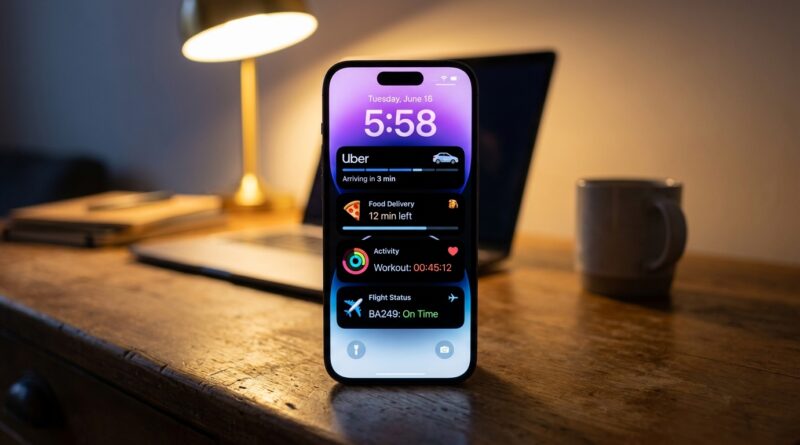
Stop Letting Your Lock Screen Be Static: The Hidden ‘Live Activity Control Center’ Trick Power Users Use To Run iOS Without Unlocking
You know the drill. You unlock your iPhone to check when the food is arriving, whether your ride is close, how much time is left on a timer, or if your team finally scored. Then, 30 seconds later, you are somehow staring at social media, email, and three unread group chats you never meant to open. It is frustrating because the phone is supposed to help you glance at useful stuff, not pull you into a whole session.
The fix is simpler than most people realize. Treat your lock screen like a mini control center for real-time information. Apple calls these Live Activities. Most people see them as occasional pop-ups. Power users treat them as a curated dashboard they can check without unlocking. Once you set this up with the right apps and tie it to Focus modes, your iPhone starts feeling calmer and more useful. You stop hopping between apps, waste less battery, and get the information you wanted in the first place.
⚡ In a Hurry? Key Takeaways
- Use Live Activities as a lock screen dashboard so you can track rides, deliveries, sports, flights, workouts, and timers without unlocking your iPhone.
- Turn on Live Activities, then pair the apps you care about with custom Focus modes and lock screens for a cleaner, less distracting setup.
- This is a safe, built-in iPhone feature. It can also reduce battery drain from constant app switching and cut down on doom-scrolling.
What this “hidden control center” trick really is
Apple does not actually call it a Live Activity Control Center. That is just the easiest way to think about it.
What power users are doing is building a system where the lock screen becomes the first place they check for live, changing information. Instead of opening Uber, DoorDash, Flighty, the Clock app, or a sports app over and over, they let Live Activities keep the important bits front and center.
It is not one secret button. It is a setup trick.
The basic idea is this. Your lock screen shows active updates. Your Focus mode decides when those updates matter most. Your home screen stays out of the way unless you really need it.
First, make sure Live Activities are turned on
Before anything else, check the setting Apple hides in plain sight.
How to turn on Live Activities
Go to Settings > Face ID & Passcode.
Enter your passcode.
Scroll down to Allow Access When Locked.
Make sure Live Activities is turned on.
Then go to Settings > [individual app] for apps like sports, delivery, travel, or fitness apps and make sure they are allowed to use Live Activities if that option appears.
Which apps are best for this
Not every app supports Live Activities, but more of them do now than even a year ago. The best ones are the apps where you keep checking the same changing detail again and again.
Great uses for Live Activities
Food delivery: See where your order is and when it will arrive.
Rideshare: Watch your driver approach without reopening the app.
Flights: Track gate changes, departure times, and delays.
Sports: Follow scores on the lock screen instead of opening a sports app every few minutes.
Timers: Keep work sprints, cooking, and laundry visible.
Workouts: Monitor pace, time, or heart rate at a glance.
Navigation: Keep turn-by-turn info easy to check when you are moving around.
If you have an iPhone with Dynamic Island, these updates can also sit at the top of the screen while you use the phone. But the lock screen is where the distraction-cutting benefit really shows up.
How to turn your lock screen into a curated dashboard
This is the part most people skip.
Do not just let any app throw updates onto your lock screen. Pick the few categories you actually want to see there. Think of it like making a dashboard in a car. You want speed and fuel, not every warning light all at once.
Step 1: Choose your “glance-worthy” apps
Start with three to five apps. That is enough.
A solid starter mix might be:
- One delivery or rideshare app
- One sports or travel app
- The Clock app for timers
- One fitness or workout app
- One work timer or task app if you use one
Step 2: Clean up your notifications
Live Activities work best when your lock screen is not crowded with everything else.
Go to Settings > Notifications and be a little ruthless. Turn off badges and noisy alerts for apps that do not deserve instant attention. You are making room for the updates that do.
Step 3: Build lock screens for different parts of your day
This is where the trick starts feeling smart instead of gimmicky.
Create different lock screens and tie them to Focus modes. For example:
- Work Focus: timers, calendar-related alerts, delivery updates for lunch, ride pickup
- Fitness Focus: workout app, heart rate, timer, route tracking
- Travel Focus: flight updates, ride status, hotel or map info
- Personal Focus: food delivery, sports scores, family-related timers
To do this, press and hold on the lock screen, create a new one, then connect it to a Focus mode. Once that is done, your phone becomes much better at showing the right kind of live information at the right time.
Why this cuts down on doom-scrolling
The real problem is not checking your phone. It is what happens after you check your phone.
Unlocking is the gateway. Once you are in, your attention gets pulled all over the place.
Live Activities interrupt that pattern. They let you satisfy the tiny “I just need to see one thing” urge without falling into the app maze. You look, you get the answer, you put the phone down.
That sounds small. It is not. Those little unlocks add up all day.
Best examples from daily life
Deliveries
If you are waiting for groceries, dinner, or a package handoff, Live Activities can save you from reopening the same app five or six times in 20 minutes. You can see progress, ETA changes, and arrival status right from the lock screen.
Rides
When your driver is two minutes away, you do not need the whole app. You just need the countdown and maybe the car details. That is exactly the kind of thing Live Activities handle well.
Work timers
If you use Pomodoro timers or just need a visible countdown for focused work, this is one of the most underrated uses. You can check the remaining time instantly, without wandering into messages or social apps.
Sports
This is a huge one. If all you want is the score, the lock screen should be enough. You should not need to open an app, watch ads, and get sidetracked by highlights from six other games.
Flights and travel
Travel days are stressful enough. A lock screen that quietly shows gate changes, boarding status, or driver arrival info is genuinely useful.
Battery benefits are real too
People usually think of Live Activities as a battery drain. Sometimes they can use a bit more power, especially if lots of apps are constantly updating. But in normal use, many people end up saving battery overall because they stop opening heavy apps every few minutes.
That means less screen-on time, less app refreshing, and less bouncing between maps, delivery apps, and sports apps.
How to keep battery use reasonable
- Only keep Live Activities enabled for apps you actually care about
- Avoid stacking too many real-time apps at once
- Use Focus modes so your phone is not trying to show everything all day
- Close the loop when the activity is done, like ending a workout or dismissing a stale score card
What to do if Live Activities feel messy
If your lock screen starts looking cluttered, that is not a sign the feature is bad. It just means you need to curate it better.
Simple cleanup plan
- Keep only the apps you check repeatedly
- Turn off pointless notifications from other apps
- Make separate Focus modes for work, travel, and personal time
- Test your setup for a week, then trim anything that is not helping
The goal is not to add more stuff to your phone. The goal is to remove friction.
What if an app does not support Live Activities?
Then it is not part of your lock screen dashboard yet, and that is fine.
You can still use widgets, regular notifications, or Shortcuts for some tasks. But the sweet spot for iPhone Live Activities lock screen tips is using supported apps for true real-time updates and resisting the urge to make the lock screen do everything.
The smartest setups are often the simplest ones.
A good starter setup for most people
If you want an easy version to try today, do this:
- Turn on Live Activities in Face ID & Passcode settings
- Choose three apps you constantly reopen, such as Uber, a food delivery app, and the Clock app
- Create a Work Focus and a Personal Focus
- Link a separate lock screen to each Focus mode
- Turn off noisy notifications from apps that distract you
- Use the setup for one week and notice how often you unlock less
That alone is enough to change how your iPhone feels.
At a Glance: Comparison
| Feature/Aspect | Details | Verdict |
|---|---|---|
| Lock screen checking | Shows live updates for deliveries, rides, timers, sports, travel, and workouts without needing a full app open | Best for quick glances and less distraction |
| Traditional app hopping | Requires unlocking, opening apps, waiting for refreshes, and often getting sidetracked by other content | Works, but wastes attention and time |
| Focus mode pairing | Lets you create purpose-based lock screens so the right Live Activities appear during work, fitness, travel, or personal time | The real power-user move |
Conclusion
More apps support Live Activities now, but most people still use them by accident instead of on purpose. That is the missed opportunity. When you turn them into a curated layer on your lock screen and pair them with Focus modes, your iPhone starts working for you instead of baiting you into one more unlock. You cut down on app hopping, often save battery, and get calmer, faster control over rides, workouts, flights, food deliveries, scores, and work timers. It is one of the quickest upgrades you can make, and it makes the iPhone feel a lot more like a pro tool and a lot less like a distraction machine.