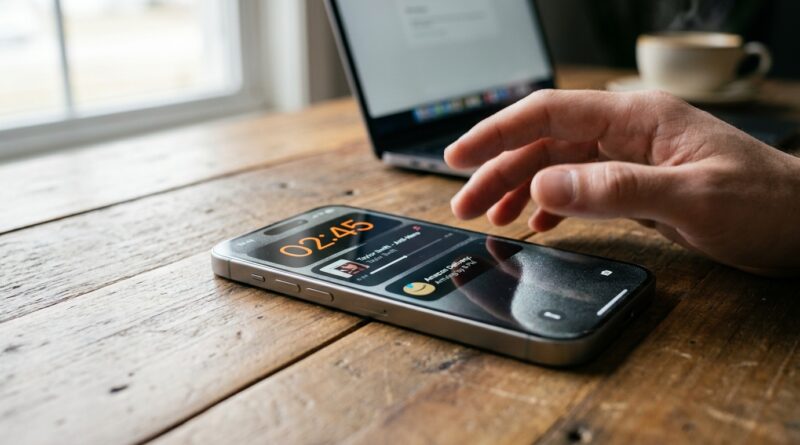
Stop Letting Dynamic Island Go to Waste: The Hidden iPhone ‘Micro Widgets’ Power Users Live In All Day
If you have an iPhone with Dynamic Island, there is a good chance you are barely using it. You see it stretch for a timer, maybe show a call, then go back to being a clever-looking cutout at the top of the screen. That gets old fast. The annoying part is that Dynamic Island can actually save you time all day if you know where to look. It can show turn-by-turn directions, workout progress, music controls, delivery updates, charging status, ride arrivals, and more without making you bounce between apps. That means fewer taps, less distraction, and less of that “why am I opening this app again?” feeling. If you have been wondering how to use Dynamic Island like a pro, the trick is simple. Stop treating it like decoration and start using it like a tiny control center that lives at the top of your screen.
⚡ In a Hurry? Key Takeaways
- Dynamic Island works best as a mini heads-up display for live tasks like music, timers, maps, workouts, rides, and deliveries.
- Press and hold the Island for quick controls, or tap it to jump back into the app without hunting around your Home Screen.
- For the best results, make sure Live Activities are turned on, because many of Dynamic Island’s most useful features depend on them.
First, what Dynamic Island is actually good at
Think of Dynamic Island as a row of micro widgets. Not full apps. Not big Home Screen panels. Just tiny live status cards that stay out of the way until you need them.
That is why it feels underused for so many people. Apple does not really sit you down and explain the best part. Dynamic Island shines when something is happening right now.
That includes:
- Playing music or podcasts
- Running timers and stopwatch sessions
- Getting Maps directions
- Tracking rideshare pickups
- Following food deliveries
- Watching workout progress
- Monitoring voice calls or recordings
- Seeing personal hotspot or charging alerts
If you want a better setup for these live updates in general, it is worth reading Stop Babysitting Your Lock Screen: The Hidden Live Activities Settings Power Users Tweak Once and Forget. Dynamic Island and Live Activities are closely connected, so one often improves the other.
How to use Dynamic Island like a pro
1. Learn the two gestures that matter
You do not need a manual. You just need two moves.
Tap the Dynamic Island to jump back into the app behind it.
Press and hold the Dynamic Island to open quick controls or expanded info.
That second one is the part most people miss. If music is playing, a long press often gives you playback controls. If a timer is running, you may see the countdown more clearly. If directions are active, you can get a bigger glance without opening Maps fully.
Use those two actions for a day and Dynamic Island starts making a lot more sense.
2. Start with the apps you already use every day
Do not go hunting for weird niche apps yet. Start with your normal routine.
Good places to begin:
- Apple Music, Spotify, Podcasts. Keep now playing controls one tap away.
- Clock. Run timers while cooking, studying, or doing laundry.
- Maps. Leave directions running while you quickly check messages or playlists.
- Fitness and workout apps. Watch active progress without opening the app again and again.
- Uber, Lyft, food delivery apps. See arrival estimates at a glance.
This is where the “micro widget” idea clicks. You are not opening the app less because you forgot about it. You are opening it less because the useful part is already visible.
3. Keep one live task running on purpose
Power users often have something active in Dynamic Island because that is what makes it useful. Not busy. Useful.
Examples:
- Set a short timer for focused work
- Play ambient music while you answer email
- Keep turn-by-turn navigation visible on a walk
- Start a workout so progress stays pinned up top
That turns Dynamic Island from a once-in-a-while animation into a steady visual helper.
4. Use it to avoid distracting app switching
This is the real win.
You open your phone to pause music, then end up checking texts, then email, then social media, then five minutes disappear. Dynamic Island cuts down some of that drift because small controls and status updates stay visible without dragging you back into full apps.
It sounds minor. It is not. Saving a few taps dozens of times a day adds up fast.
Best real-world uses that make Dynamic Island feel worth it
For travel
Dynamic Island is great when you are moving around and do not want to stare at your phone.
- Maps can keep directions visible while you use another app
- Uber and Lyft can show ride status
- Airline and transit apps increasingly support live updates
You get that “quick glance, keep moving” experience that phones should be better at.
For workouts
If you use Apple Fitness or third-party workout apps that support Live Activities, Dynamic Island becomes a tiny progress monitor. You can keep an eye on time, pace, or session status while doing other things on your phone between sets.
It is especially handy if you bounce between a workout app and your music app.
For food and package tracking
Delivery updates are almost perfect for Dynamic Island. You do not need a big app open to know if your order is close. You just need the current status.
That is exactly the kind of thing Dynamic Island handles well.
For focus sessions
A simple timer in Dynamic Island can act like a little accountability partner. Set 25 minutes. Start working. Leave the countdown visible while you use Safari, Notes, or Mail.
It is not flashy. It is practical.
For charging and battery awareness
Dynamic Island can show charging-related status and accessory connections in a way that is easier to notice than a tiny icon. It will not replace a full battery widget, but it is useful for quick confirmation that something connected properly.
Make sure Live Activities are turned on
If Dynamic Island feels boring on your phone, the problem may not be Dynamic Island. It may be your settings.
Check this:
- Open Settings
- Tap Face ID & Passcode
- Enter your passcode
- Scroll down and make sure Live Activities is turned on
Then check individual app permissions if needed:
- Open Settings
- Tap the app you want
- Look for Live Activities and turn it on if available
Without that, many of the best Dynamic Island tricks never show up.
What to do when Dynamic Island is not showing useful info
Not every app supports it
This is the biggest limitation. Dynamic Island is only as smart as the app using it. Some apps do a great job. Others still ignore it.
Some apps use it better than others
Music, timers, maps, ride apps, and fitness apps tend to be the easiest wins. If you are testing things out, start there.
Sometimes it is too subtle
Yes, Apple designed Dynamic Island to stay neat and tidy. Sometimes that means it is easy to forget it is even active. A quick habit helps. Every time you start music, a timer, or navigation, glance up top and see what appears.
Advanced habit: use Shortcuts and Focus with it
If you want to get a little more serious, pair Dynamic Island with the apps and modes you already use for routine tasks.
For example:
- Start a Focus mode, then launch a timer
- Begin a workout and keep music active in the background
- Start a navigation route before leaving the house
Dynamic Island then becomes the little dashboard for that routine. It is not running the whole system by itself. It is surfacing the part you care about right now.
What not to expect
Dynamic Island is not a replacement for the Home Screen, Control Center, or full widgets. It is not supposed to be.
It works best when:
- Something is active right now
- You want quick status without opening an app
- You want one-tap or press-and-hold access to a task
If you expect it to become a full dashboard for everything, you will be disappointed. If you treat it like a tiny live control strip, you will probably love it.
At a Glance: Comparison
| Feature/Aspect | Details | Verdict |
|---|---|---|
| Quick controls | Tap to reopen an app, press and hold for expanded controls on supported apps like music, timers, and calls. | One of the easiest ways to save taps every day. |
| Live status updates | Works best for directions, workouts, ride tracking, deliveries, and other tasks that are actively happening. | Very useful, but only if the app supports Live Activities properly. |
| Everyday value | Cuts down app switching and lets you keep a small amount of important info visible all the time. | Worth using once you build the habit, especially for travel, focus, and media control. |
Conclusion
Dynamic Island is built into newer iPhones, but a lot of people still treat it like a fancy animation and move on. That is a waste of useful screen space on a phone you look at all day. Once you start using it for travel, workouts, deliveries, charging, focus sessions, music, and shortcuts back into active apps, it stops feeling like a gimmick. It starts feeling like a small but smart heads-up display. That is the real trick in how to use Dynamic Island like a pro. Do not wait for it to impress you on its own. Give it one or two live jobs each day, and it will quietly save taps, cut distraction, and make your iPhone feel more helpful without costing you a dime.